Inviting Users to Register to IAM
Once your Live Platform portal tenant user has been added to IAM with the appropriate role by your Service Provider,you need to complete the registration process by clicking the Registration Invitation link sent to your email account. The mail includes one link to create a new Live Platform user account if you don't have one, and another link to the Live Platform portal log in page to sign in directly if you already have a user account.
|
●
|
You cannot log in to the Live Platform portal with your new user until you successfully complete the registration process. |
|
●
|
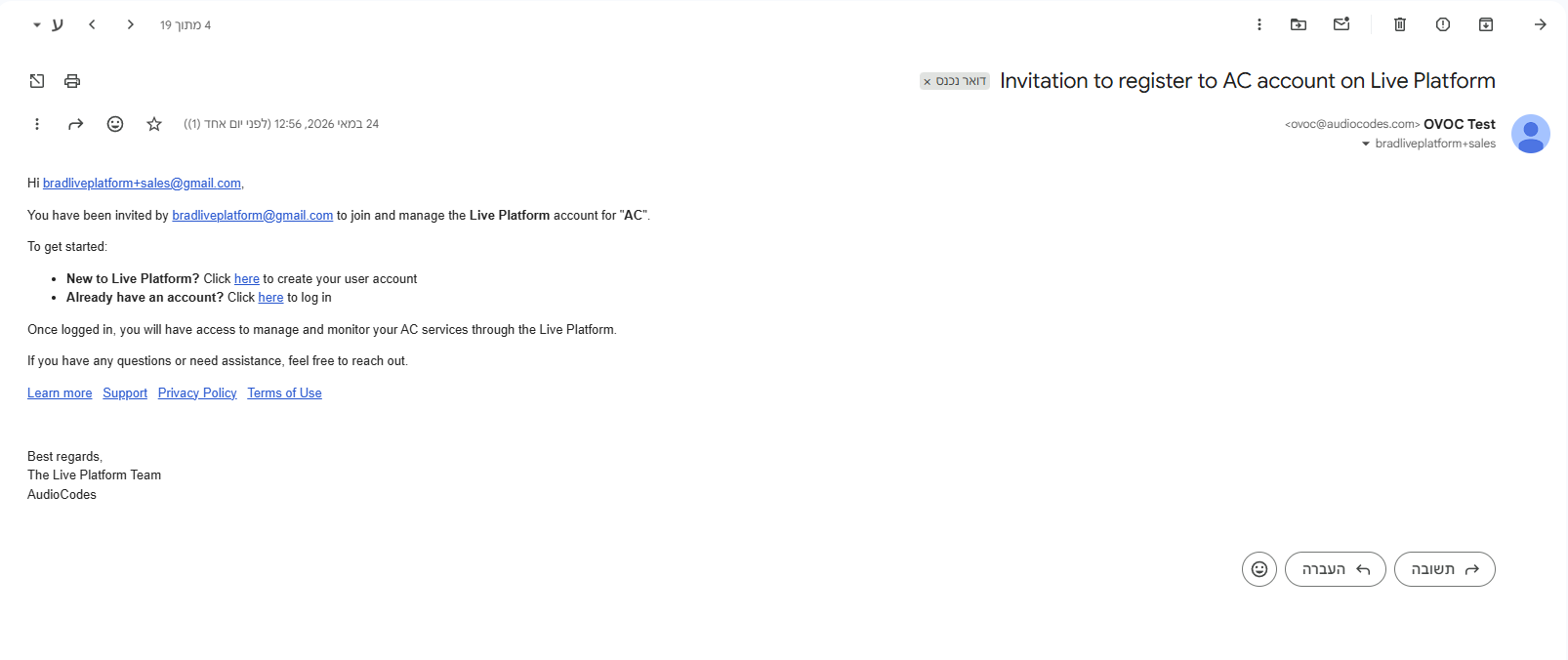
The Invitation link shown below is only send once for each Primary email account. If you create additional email accounts attached to the Primary account using aliases, for example, "bradliveplatform+support@gmail.com", then you must manually open the request link to sent a verification to your email account. If MFA is enabled for the user, then the verification code is also sent to the Primary email account. |
An example of an invitation email is shown below.
|
➢
|
To complete the registration process: |
|
1.
|
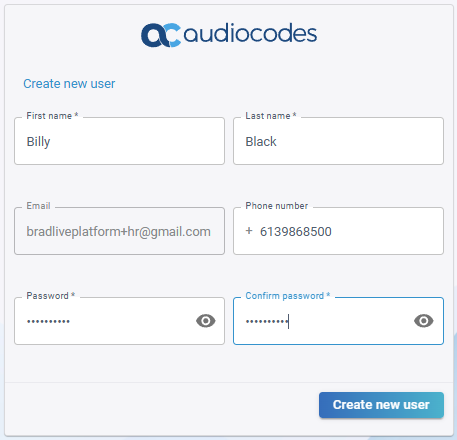
In the invitation email, click the "here" link for the New to Live Platform?; the Create new user page opens in your web browser: |
|
2.
|
Fill in the following fields: |
|
a.
|
In the 'First name' and 'Last name' fields, enter your first and last (surname) name, respectively. |
|
b.
|
In the 'Phone number' field, enter your phone number with country code. |
|
c.
|
In the 'Password' field, enter a password, and then re-enter the password in the 'Confirm password' field. |
The password must adhere to this password complexity policy:
|
●
|
Contains at least 8 characters, with a maximum of 16 characters. |
|
●
|
Meets at least three of the following conditions: |
|
✔
|
Contain at least one upper-case letter (A-Z). |
|
✔
|
Contain at least one lower-case letter (a-z). |
|
✔
|
Contain at least one digit (0-9). |
|
✔
|
Contain at least one symbol ((@ # $ % ^ & * - _ + = [ ] { } | \ : ' , ? / ` " ~ ( ) ; . )). |
|
3.
|
Click Create new user; Live Platform sends you another email asking you to verify your email address. The web page also indicates that a verification email has been sent. |
|
●
|
DON'T close this web page until you've received the verification email. Delivery may take several minutes, depending on network conditions. If you don't receive the message, click the Resend verification Email button in the web page to have Live Platform send it again. |
|
●
|
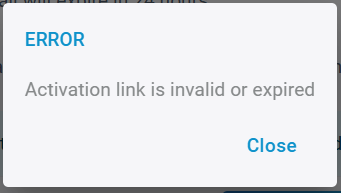
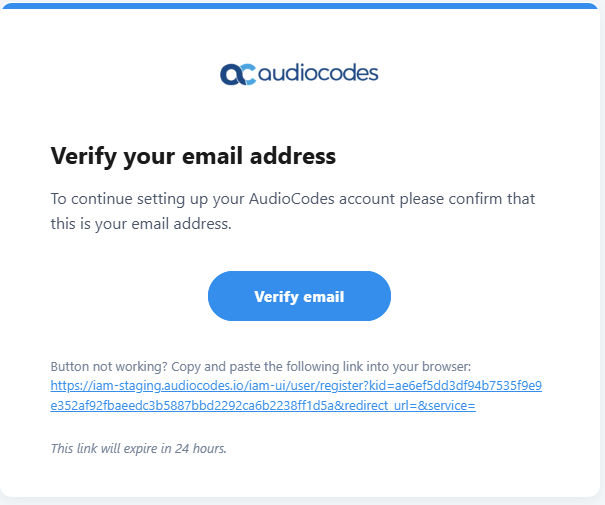
The verify email link in the email that you need to click to verify your email address expires after 24 hours. |
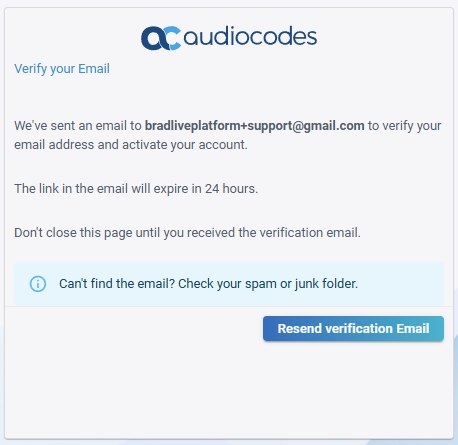
The following message is displayed if the link has expired is invalid:
An example of the verification email is shown below:
|
4.
|
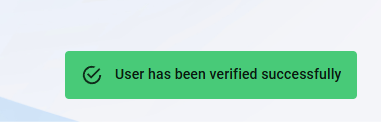
Click Verify email or copy the link. The following confirmation is displayed in IAM. |
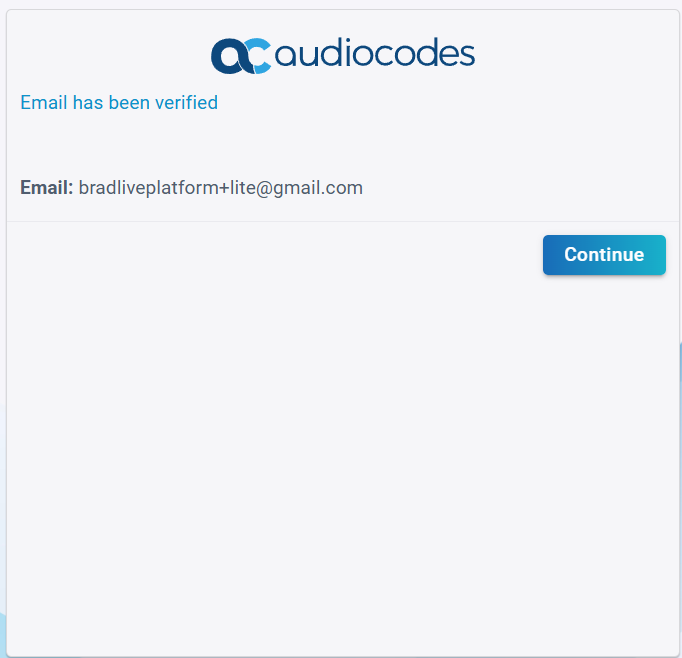
The following confirmation message is displayed in your browser:
|
5.
|
Click Continue. To sign in, proceed as follows: |