Logging in to IAM without MFA
Once your user account has been successfully registered in IAM, you can log in to Live Platform's Operation Center portal using your IAM configured credentials. If Multi-Factor Authentication (MFA) is configured for your user , see Logging into IAM with MFA.
|
●
|
The Live platform uses pop-up windows during sign-in. If your web browser blocks pop-ups, please allow them for this site before continuing. |
|
●
|
Make sure that the organization's firewall allows the below URLs. Service Providers and Channels should inform their end customers. |
|
✔
|
https://iam.audiocodesaas.com |
|
✔
|
https://acservicesiam.b2clogin.com/tfp/acservicesiam.onmicrosoft.com |
|
✔
|
https://acservicesiamfiles.blob.core.windows.net |
|
●
|
For customers with their own White-label App registration, additional configuration is required, contact AudioCodes Services Portal. |
|
➢
|
To log in with local IAM users: |
|
1.
|
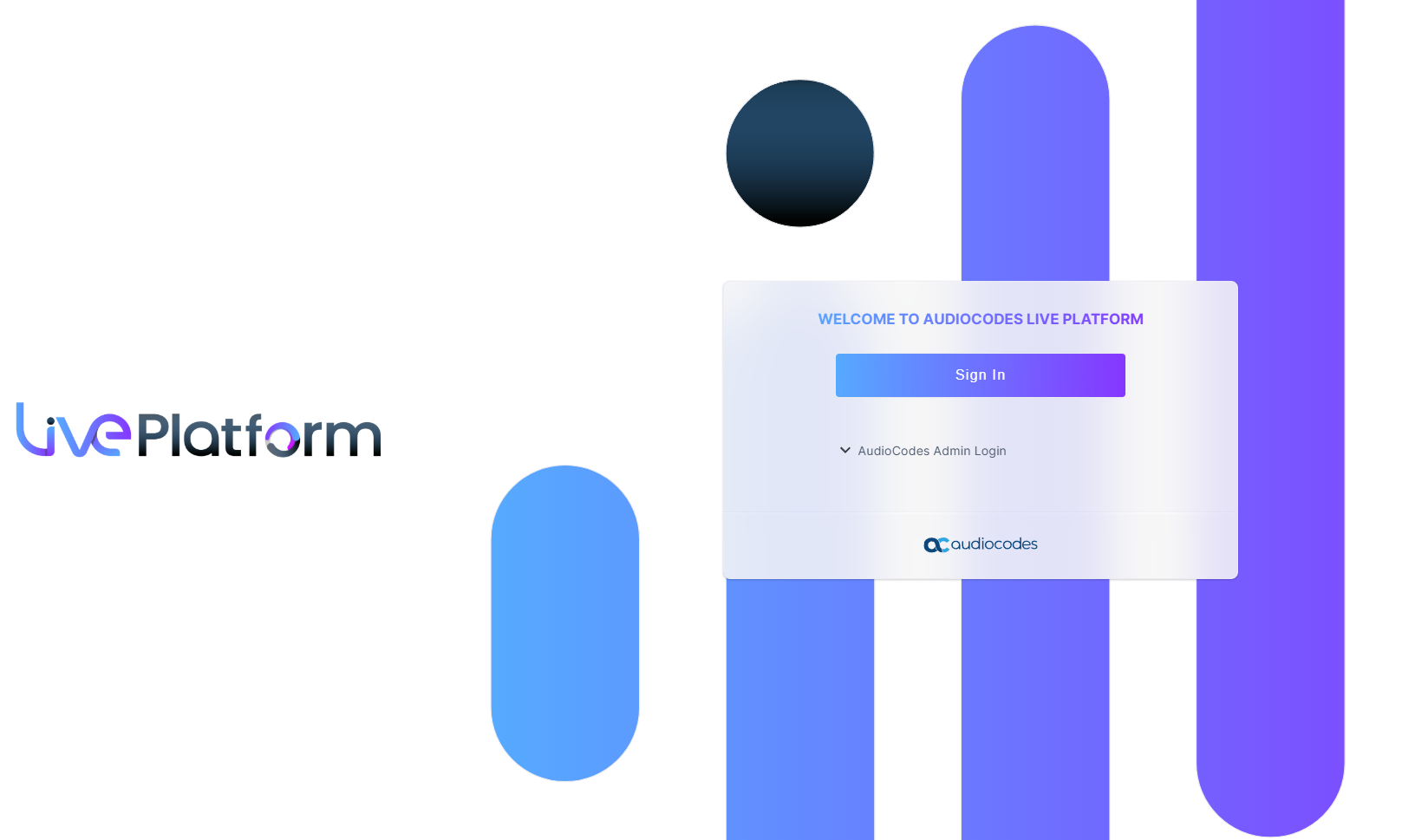
In your web browser, go to the Live Platform URL. |
|
3.
|
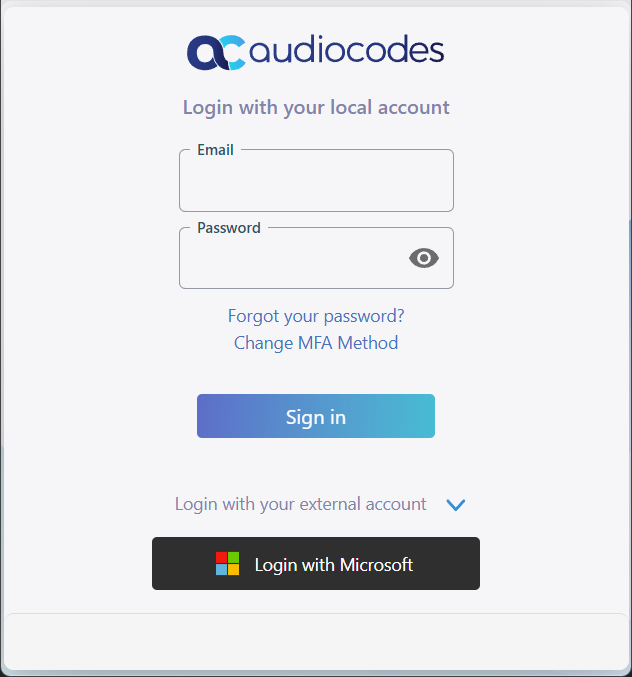
Under Login with your local account, in the 'Email' field, enter your email address, in the 'Password' field, enter your password, and then click Sign in. |
Notice in your Web browser, the Redirect URL points to the IAM application.

Once you enter your Live Platform user credentials, you are redirected back to Live Platform portal URL.

|
4.
|
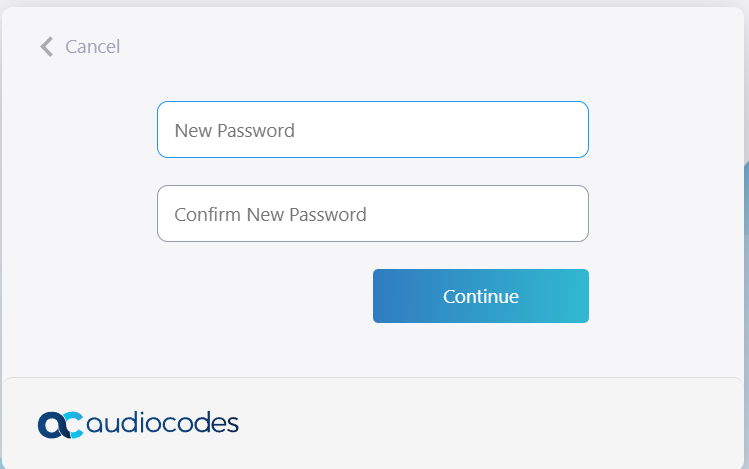
You may be prompted to update your password. Enter the new password, confirm and then click Continue. |
|
5.
|
In the Choose Permission Level dialog box, which lists all the Live Platform entities (accounts) to which you've been assigned as a user, select the account you want to access. |
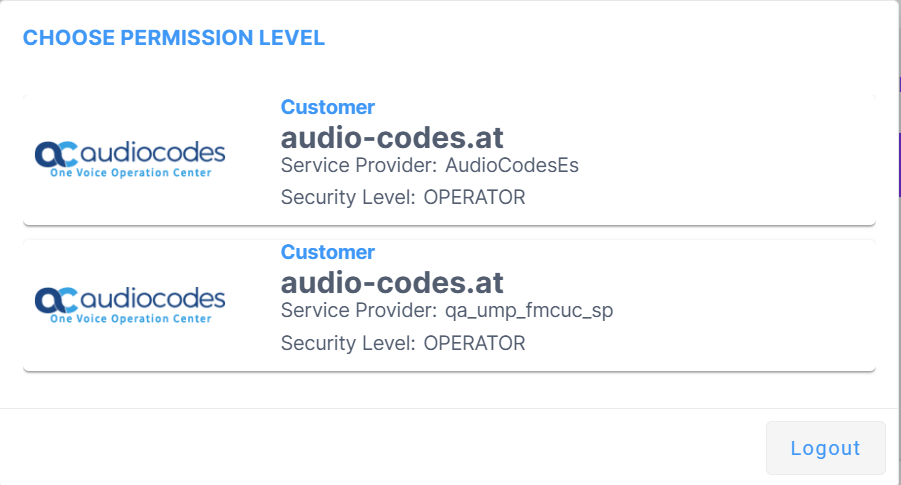
The Live Platform portal dashboard is displayed.
