Authenticate App Registration from Onboarding Wizard
This option lets you configure the credentials of the manually created App registration directly in the Onboarding wizard on behalf of the customer. Ensure you obtain these credentials (Tenant ID, Application (client) ID value and client secret value) from the customer tenant M365 admin user.
|
1.
|
Login to the Operation Center with your Live Platform admin user. |
|
2.
|
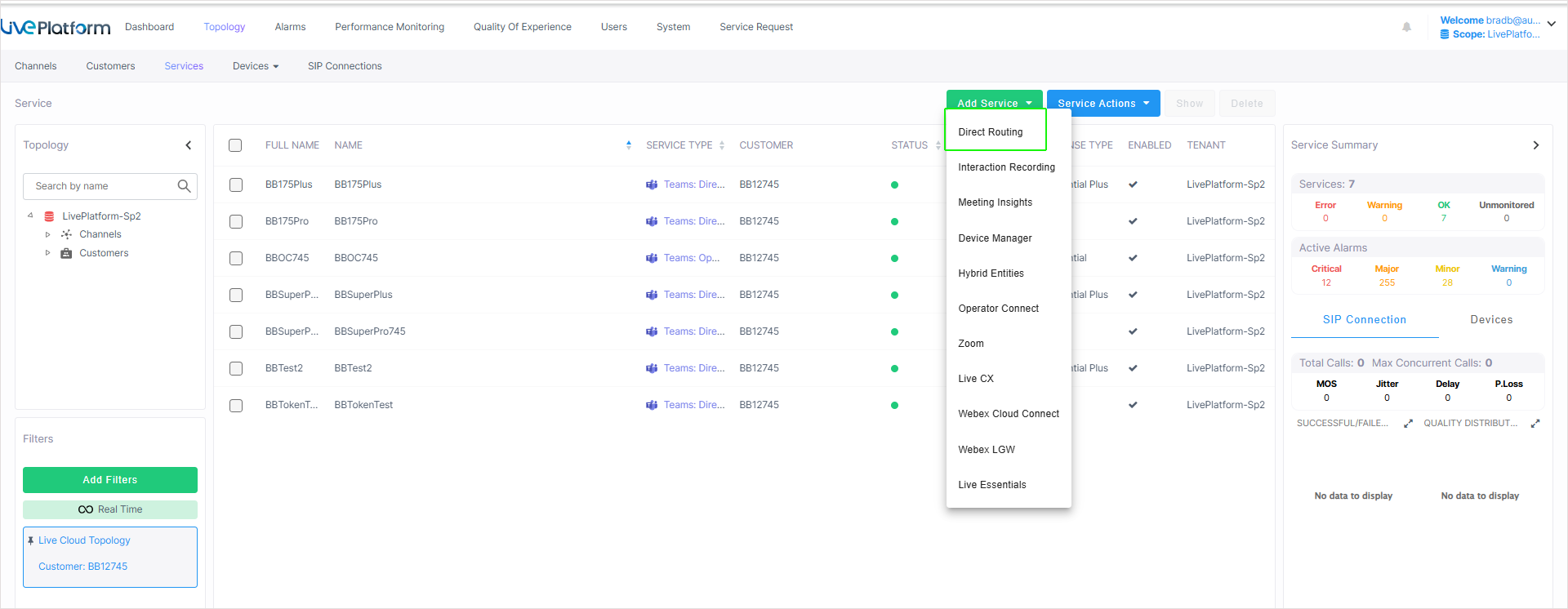
In the Services page, from the Add Service drop-down, select Direct Routing. |
|
3.
|
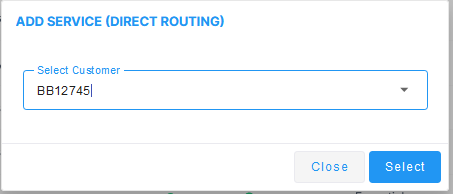
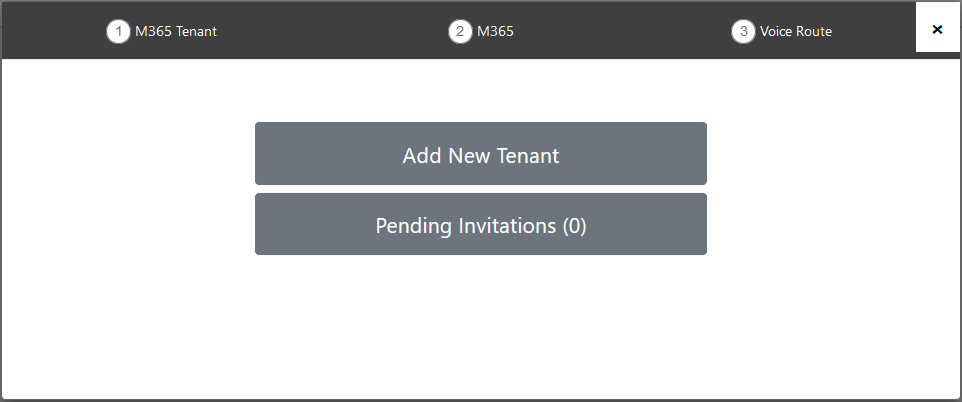
Choose the relevant customer and then click Select. |
|
6.
|
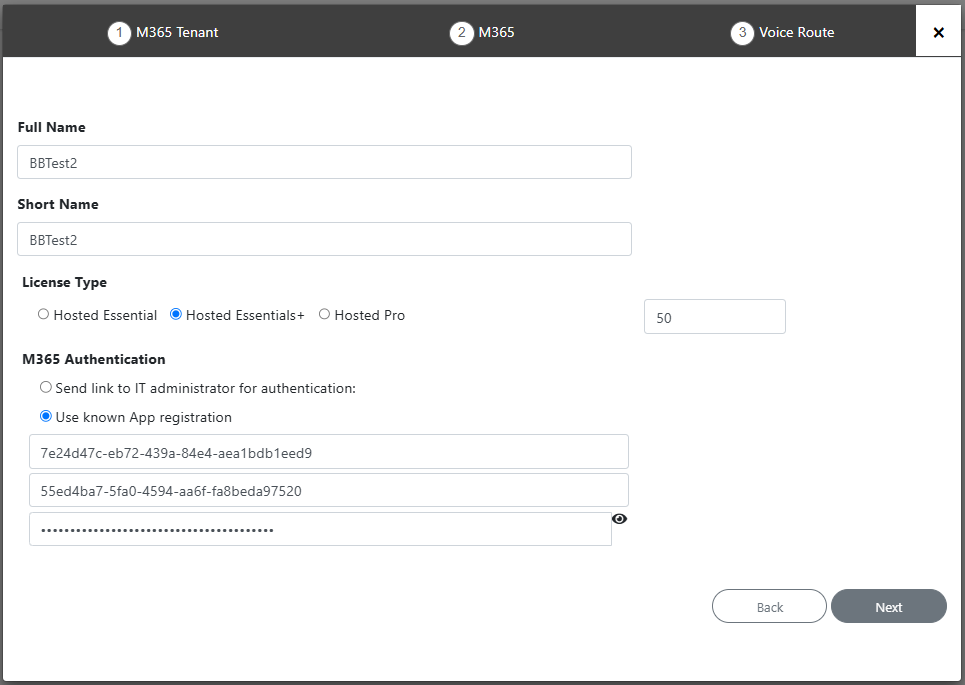
Enter a unique Short Name for the service complying with the following rules: |
|
●
|
The string should be 3-15 characters long |
|
●
|
The following characters cannot be used: \ / : * ? " < > |audit |
|
●
|
The string can contain letters (lower/UPPER case), numbers and special characters are allowed, however cannot contain the dot (.) or blank spaces. |
|
●
|
Define a unique name per service |
|
7.
|
Select the relevant license type Hosted Essentials+ or Hosted Pro. |
|
8.
|
Select the number of licensed users. A maximum of 500 users can be configured per service. |
|
9.
|
Select the option Use known App registration. |
|
10.
|
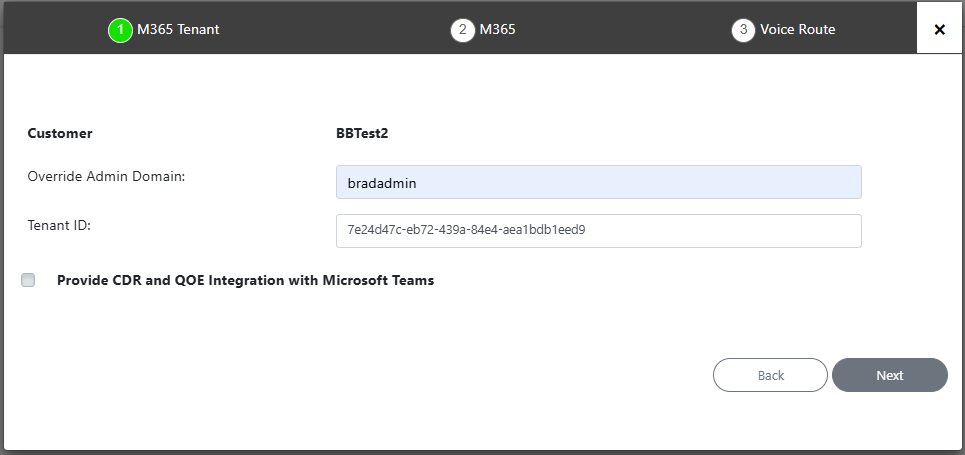
Enter the following details of the App registration that you received from the customer tenant M365 admin user, and then click Next: |
|
●
|
Customer Microsoft Tenant ID |
|
●
|
Application (Client) ID |
|
11.
|
The tenant App registration credentials are authenticated and the Onboarding wizard opens. |