Managing log levels for portal processes
The Log Levels page manages the logs generated for Live Platform Operation Center portal processes. You can configure the "Primary" log level for each process and also configure a "Secondary" log level as a default to prevent scenarios where message overload congests the server. For example, if the log level for the "Alarms:ReSync" component is configured with the "Info" type, you can configure the default log level as "Error". In the event where "Info" log messages for this event flood the server, after a configured time interval, the "Info" messages are no longer generated; log messages for this component are only generated for "Error" type.
|
1.
|
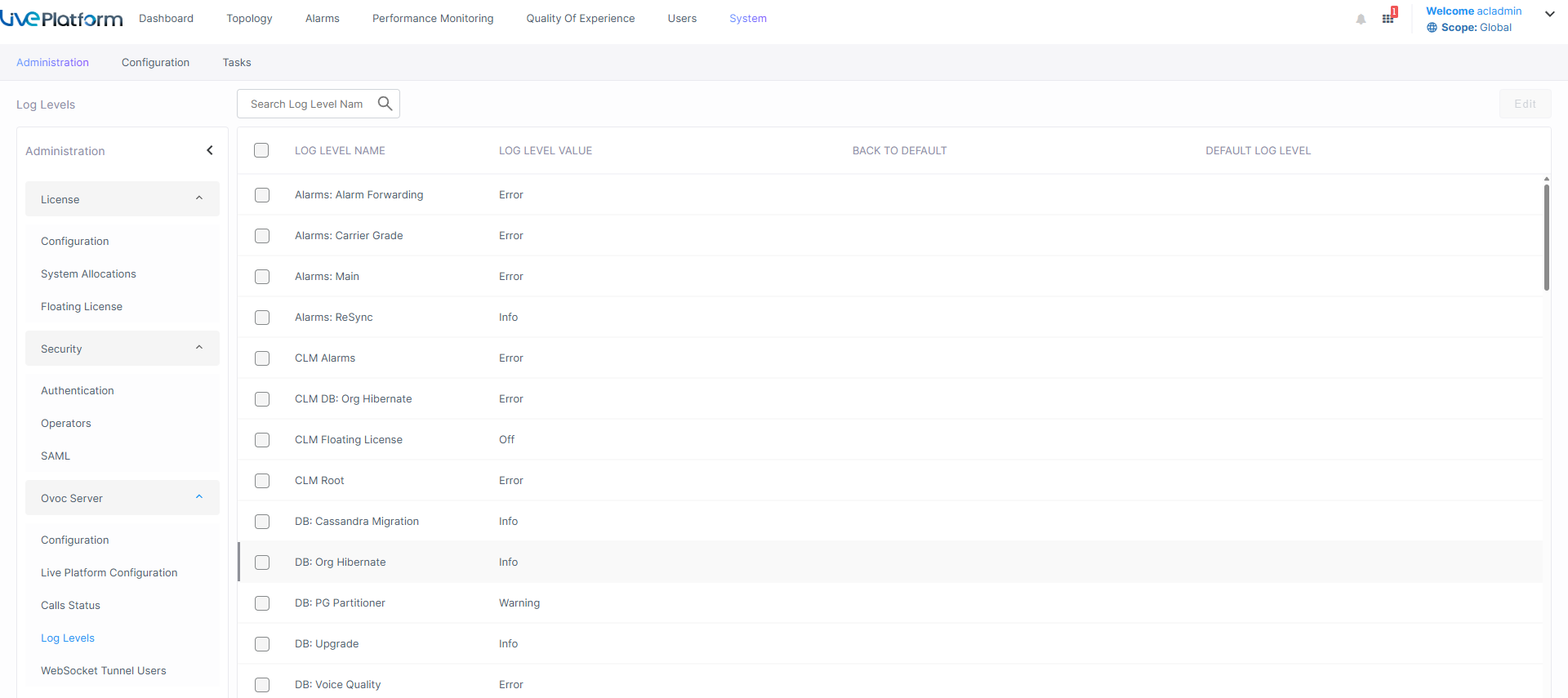
Open the Log Levels page (System > Diagnostics > Log Levels). |
|
2.
|
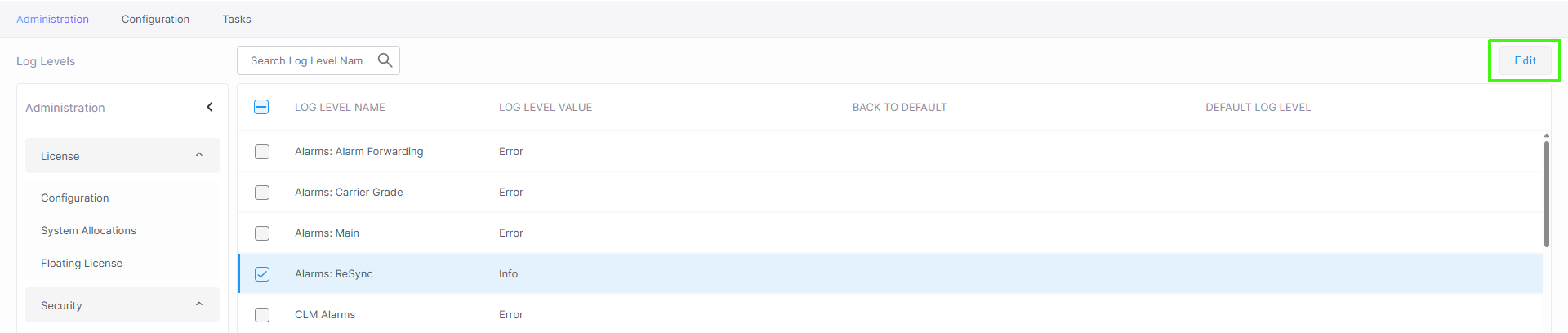
Select the Log Level that you wish to edit, and the click Edit. |

|
3.
|
From the Select Log Level drop-down (log levels are listed by severity: ALL, TRACE, DEBUG, INFO, WARN, ERROR, FATAL and OFF), select the relevant log level. |
|
4.
|
In the Default Log Level drop-down, select the default log level. |
|
5.
|
In the Back to Default Period (Hours) box, enter the time (1-48 hours, default 1) after which the log level reverts to the Default Log Level (default ERROR), and then click OK. |