Log in to Meeting Insights Standalone Mobile App
After you've installed the app (see Install Meeting Insights Standalone Mobile App), you can log into the Meeting Insights standalone mobile app and start experiencing its many exciting features.
| ● | Logging into the Meeting Insights mobile app is required only upon initial access. Subsequent access is done without logging in (unless you specifically logged out of the app). |
| ● | When you initially log in, Meeting Insights automatically detects your device's regional language settings. If your region uses one of the supported languages (currently, English and Japanese) and it differs from your current Meeting Insights display language, a prompt is displayed asking if you want to switch languages. |
You can always change languages through Meeting Insights web interface (see Change Display Language). This feature is available in both the Meeting Insights web app and the mobile app.
Change the language affects all Meeting Insights platforms.
| ➢ | To log into Meeting Insights standalone mobile app: |
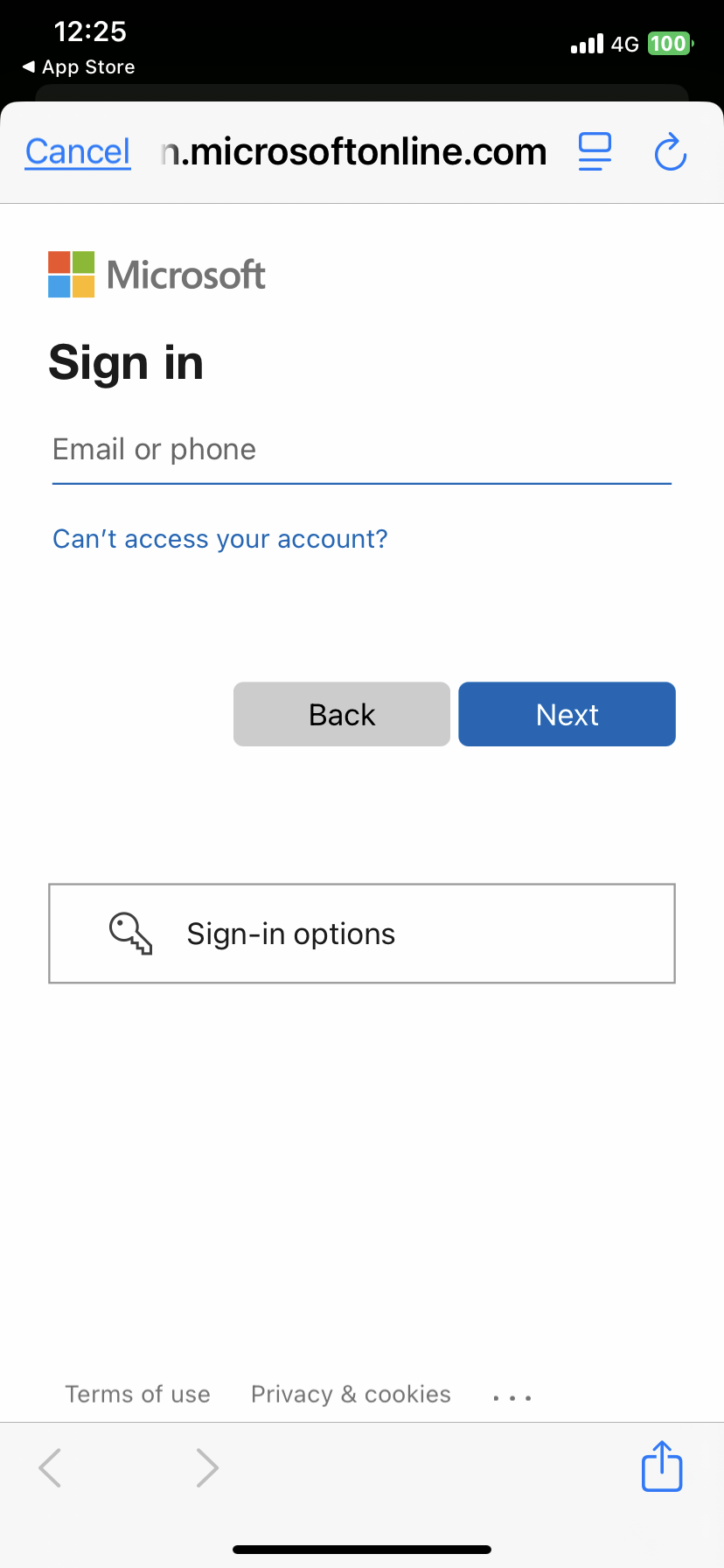
| 1. | On your mobile phone, tap the Meeting Insights app  icon; the Microsoft Sign in screen appears: icon; the Microsoft Sign in screen appears: |
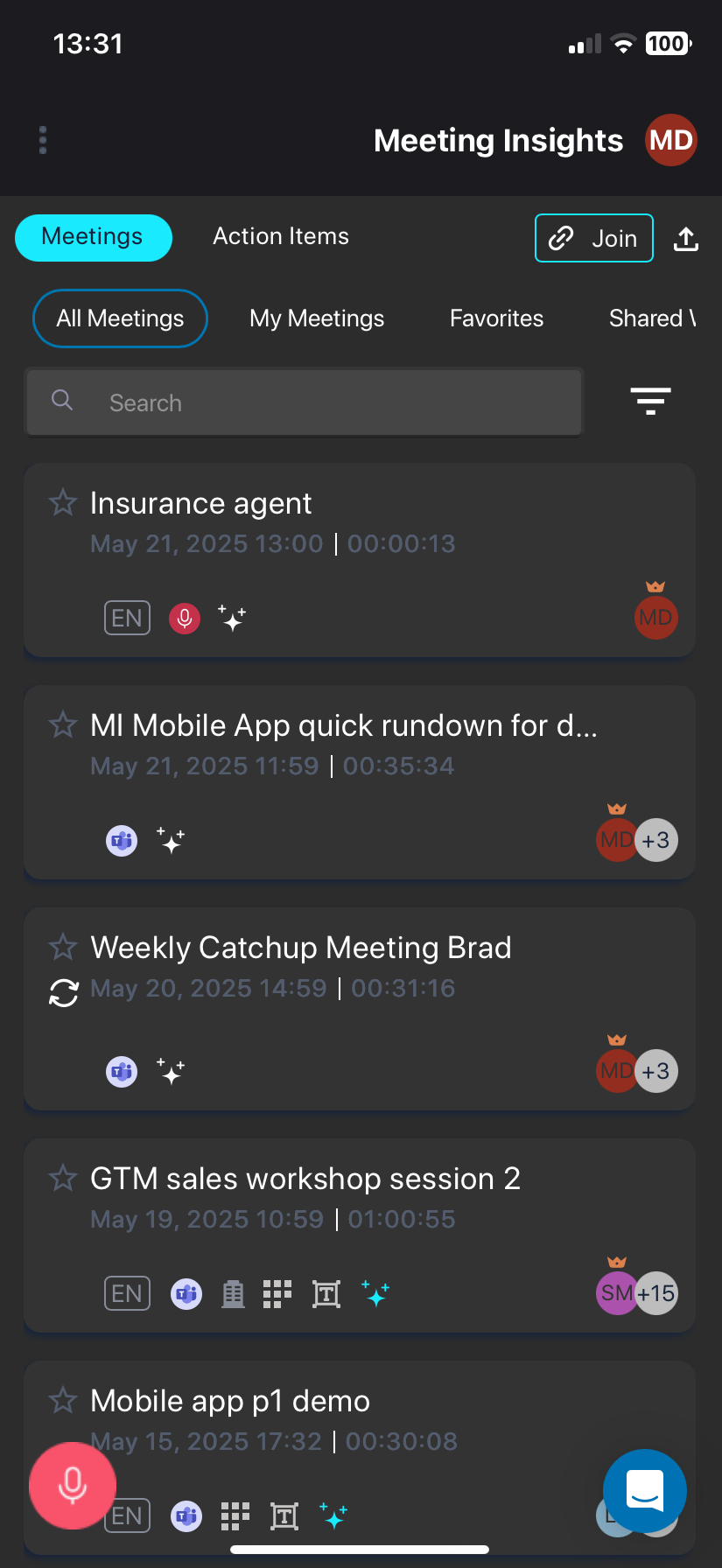
| 2. | Sign in to your Microsoft Office 365 account that you use in your organization; the Meeting Insights standalone mobile app opens, as displayed in the following example: |