Upload a Recorded File using Mobile Phone's File Share Feature
You can upload a recorded file directly to the Meeting Insights standalone mobile app by using your mobile phone’s built-in file sharing functionality. This allows you to share files via compatible apps such as Meeting Insights without needing to navigate through the app's interface manually.
The steps below describe how to perform this task on an iOS device. Note that the procedure may vary slightly on Android devices.
|
➢
|
To upload a recorded file using phone's file share feature: |
|
1.
|
Open the Files app on your mobile phone. |
|
2.
|
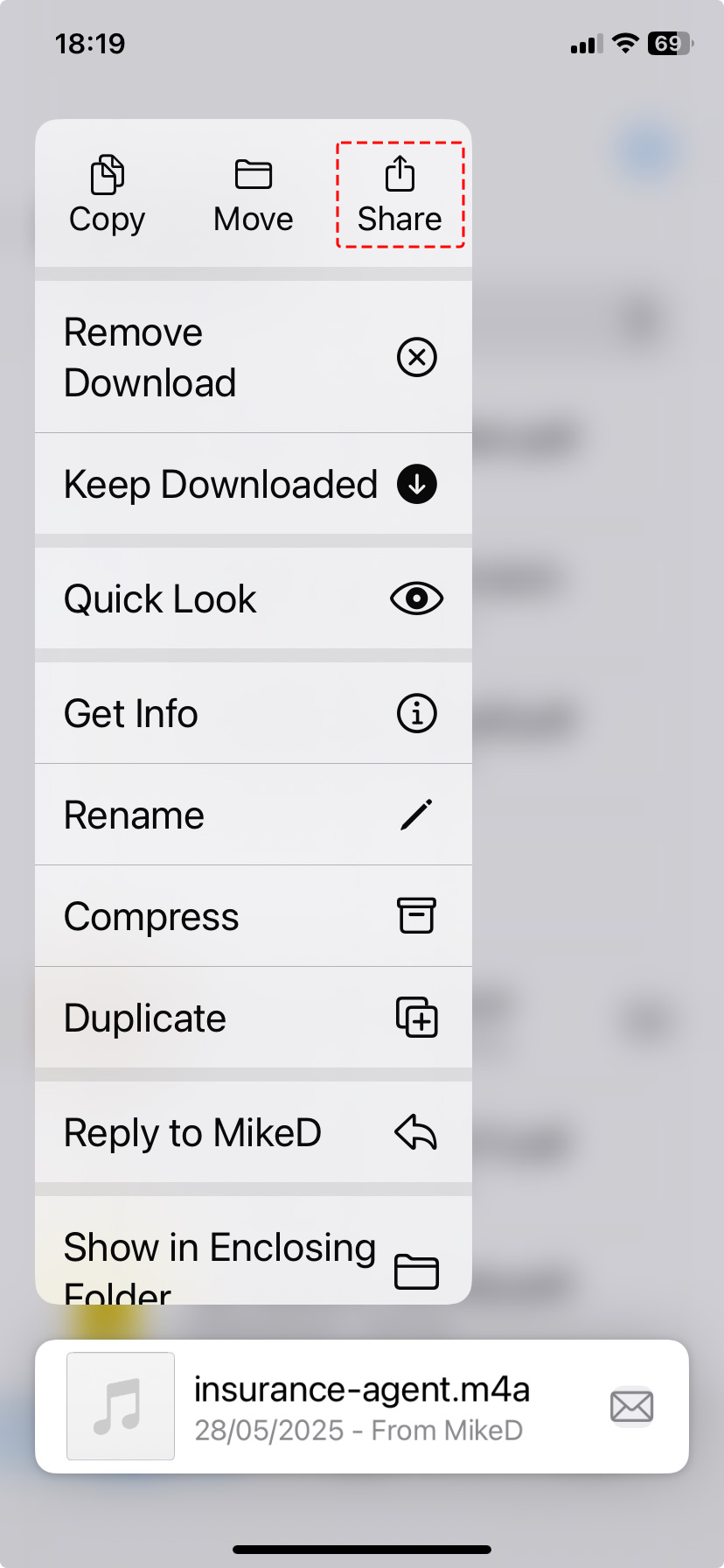
Locate the file you want to upload, and then long tap the file until a pop-up menu appears. |
|
3.
|
Tap the Share icon as shown in the following example to display a list of apps through which you can send the file. |
|
4.
|
From the sharing options, choose the Meeting Insights app: |
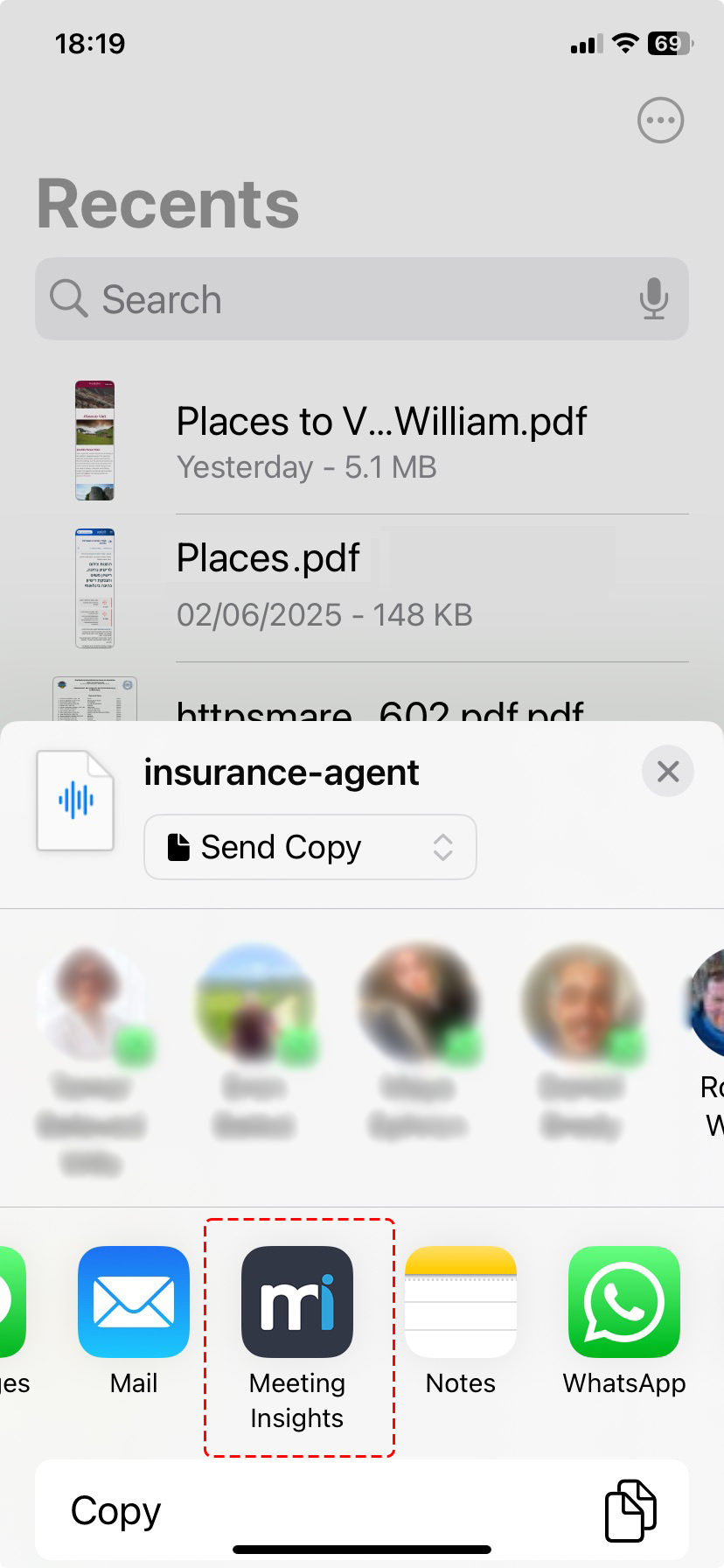
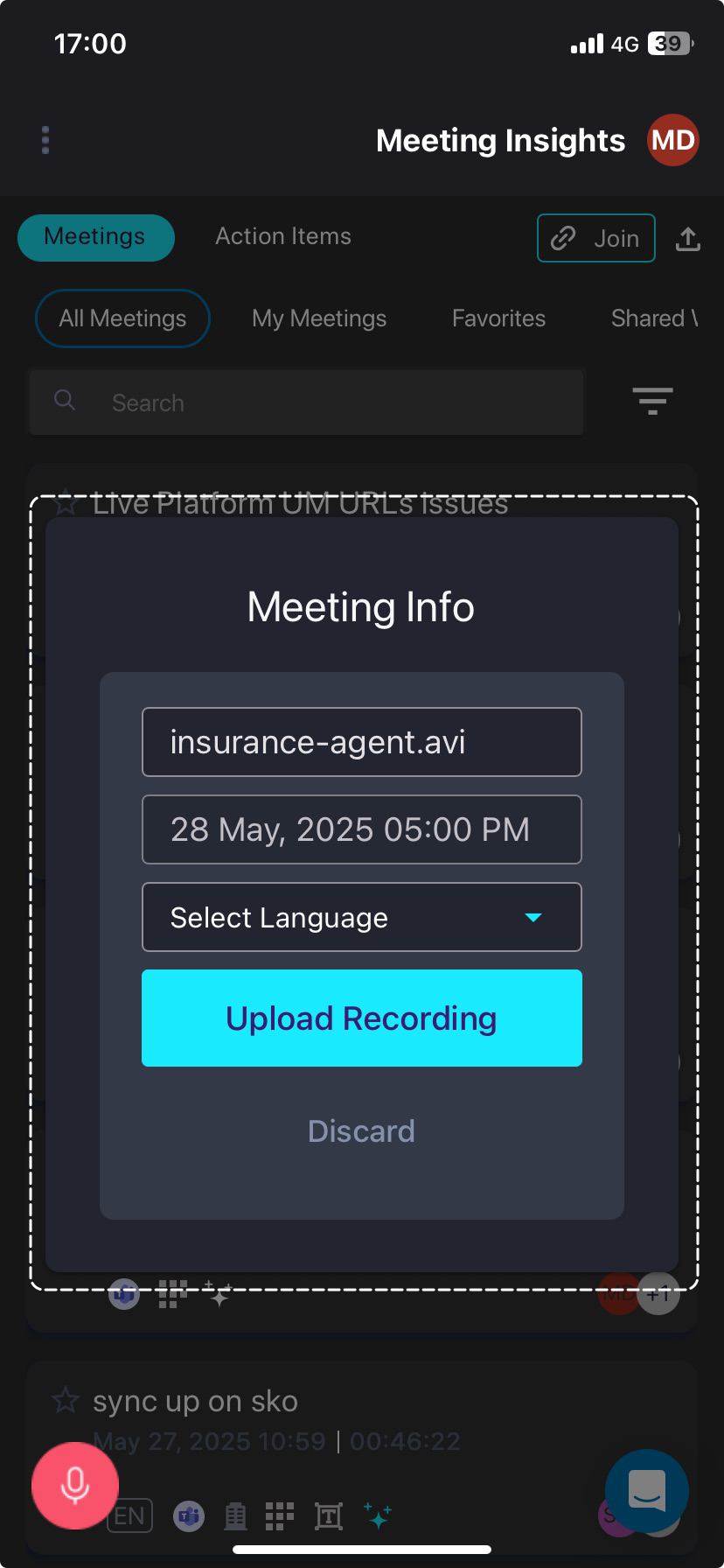
The Meeting Insights app opens, displaying the Meeting Info dialog box:
|
5.
|
(Optional) In the top field, type a name for the recorded meeting. By default, Meeting Insights assigns it the name of the uploaded file. |
|
6.
|
From the 'Select Language' drop-down list, select the language of the recorded meeting. |
|
7.
|
Tap Upload Recording; Meeting Insights uploads the file and processes the recording. The uploaded recording appears in the meeting recordings list with the upload  icon. icon. |