Upload a Recorded File using Meeting Insights Add File From Device Option
You can upload a recorded file stored on your mobile phone's using Meeting Insights Add File From Device option.
|
➢
|
To uploaded recorded file using Meeting Insights Add File From Device option: |
|
2.
|
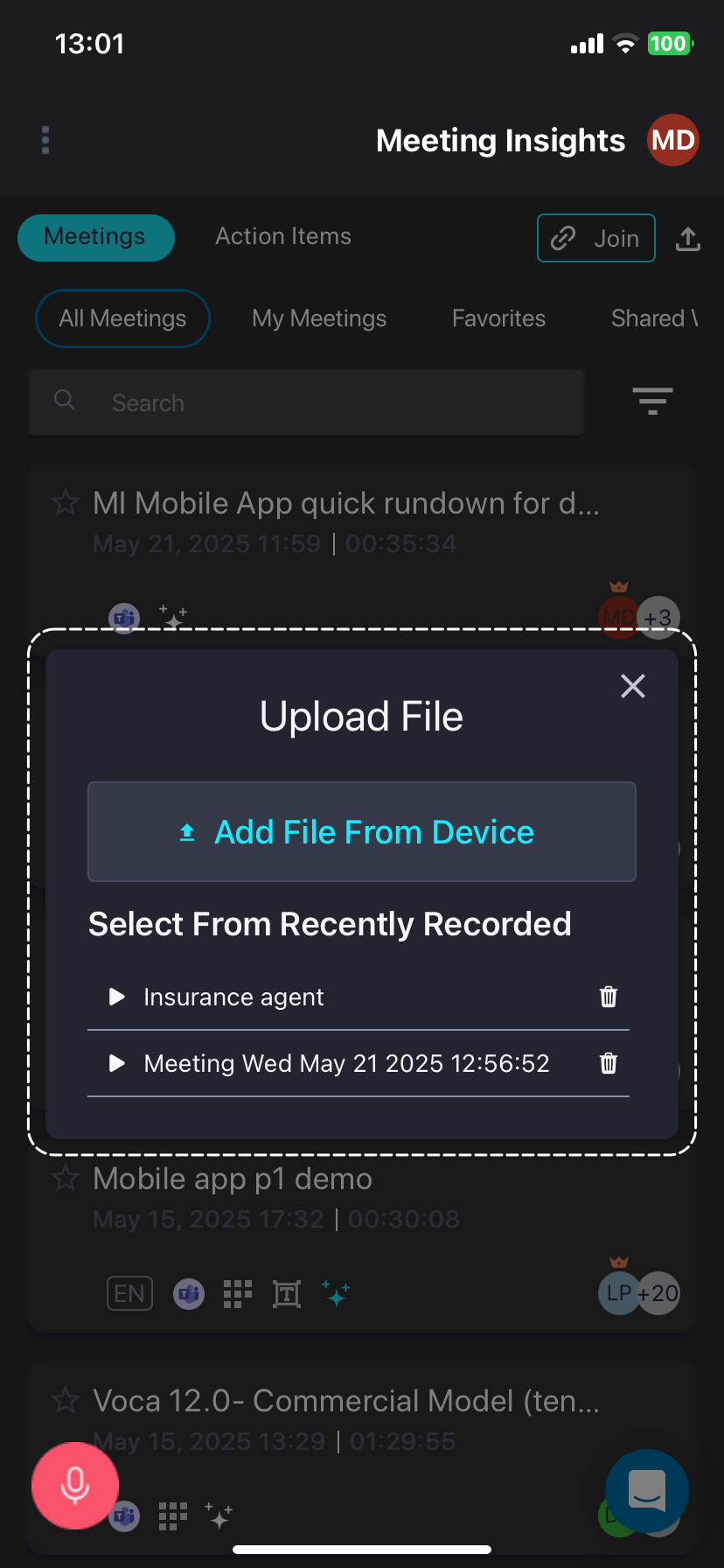
Tap the upload  icon, located in the top-right corner; the Upload File dialog box appears: icon, located in the top-right corner; the Upload File dialog box appears: |
|
3.
|
Tap Add File From Device; your phone's file storage app opens. |
|
4.
|
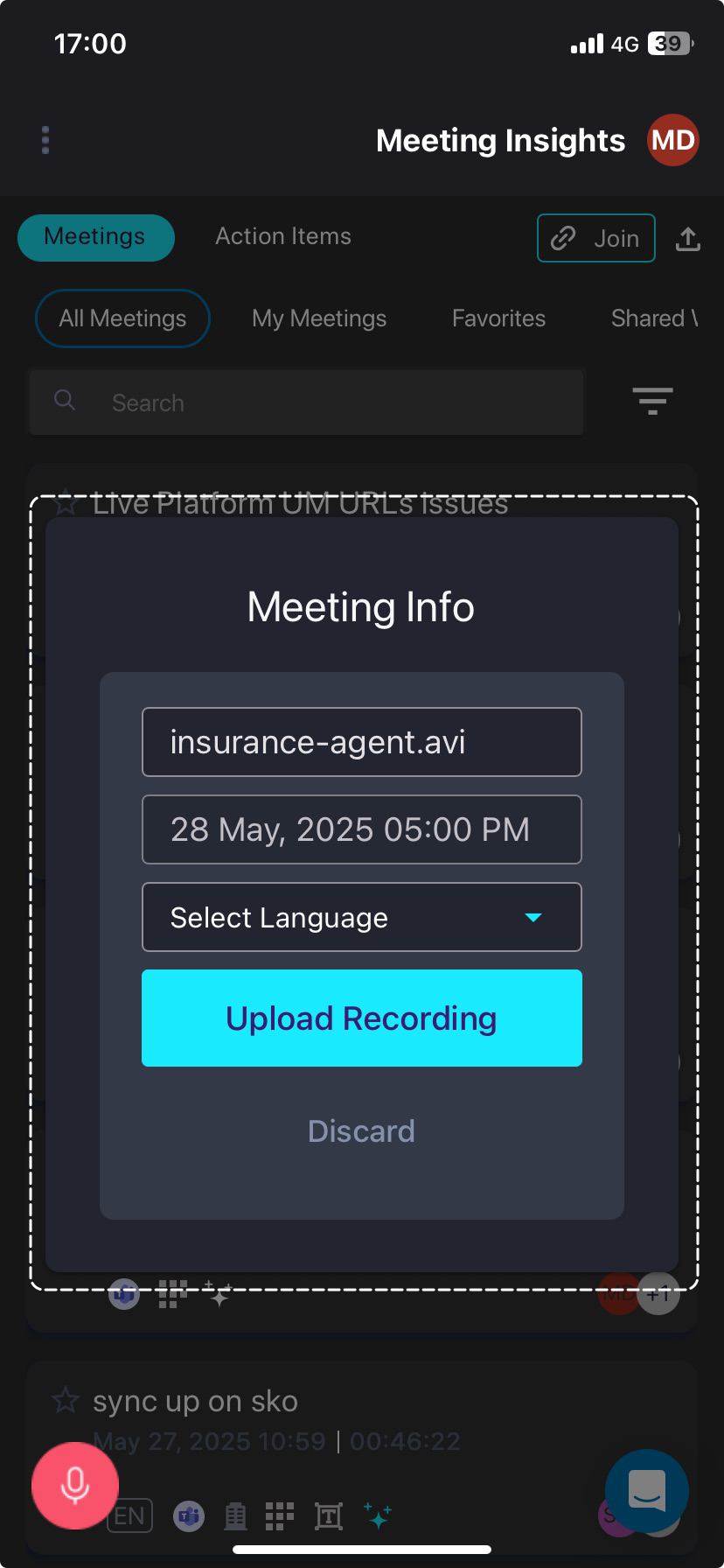
Navigate to the file and select it; the Meeting Info dialog box appears: |
|
5.
|
(Optional) In the top field, type a name for the meeting. By default, Meeting Insights assigns it the name of the uploaded file. |
|
6.
|
From the 'Select Language' drop-down list, select the language of the recorded meeting. |
|
7.
|
Tap Upload Recording; Meeting Insights uploads the file and processes the recording. The uploaded recording appears in the meeting recordings list with the upload  icon. icon. |