Set up composite layout with multiple camera room views
Setting up Room Composite Layout can only be done by the Admin on an RX-PAD-managed RXV200.
If your RXV200 is connected to more than one camera, you can set it up to display two room-view tiles for enhanced meeting room coverage, alongside with an optional presenter-view tile. Supported configurations include either two RXVCam50 cameras, two RXVCam70 cameras, or one RXVCam50 camera and one RXVCam70 camera.
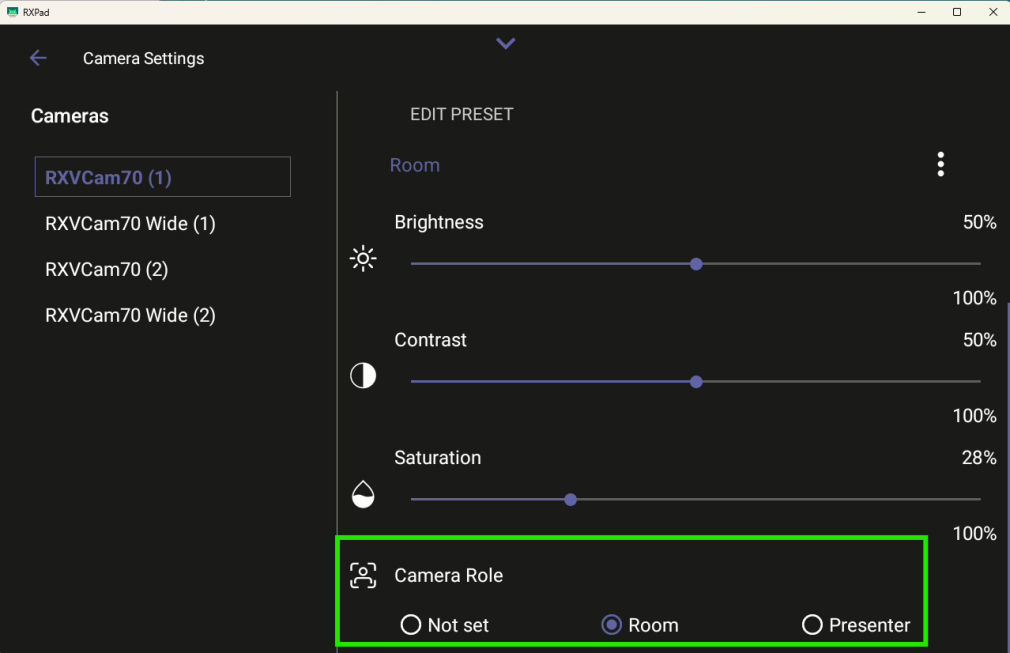
To set up multi-room layouts, each camera connected to your RXV200 must be assigned either of the following roles (see the following procedure):
|
●
|
Room – shows the meeting room as seen from the angle of the camera. |
|
●
|
Presenter – focuses on the presenter. This may be the current speaker or another person selected from the people in the room. |
|
➢
|
To configure a multi-room composite layout, set up each camera as follows from your RX-PAD: |
|
1.
|
Do either of the following: |
|
●
|
On the RX-PAD, touch the camera hard key below the screen. |
|
●
|
Swipe down to display the main menu tray, then tap the Camera Settings option. |
|
2.
|
On the Camera screen, tap Camera Settings. |
|
3.
|
Assign a role for each camera listed under Cameras: |
|
b.
|
Scroll down to Camera Role and tap the relevant option – either Room or Presenter. |
|
4.
|
Tap the back arrow to return to the Camera screen, then turn on the Composite AI Camera toggle. |
On the screen to which the RXV200 is connected, a pop-up message appears, indicating that the Composite AI camera is connected.
|
5.
|
Tap Room Composite AI Layout settings. |
|
6.
|
Turn off Smart Gallery. |
Depending on the camera roles selected, room and presenter tiles are displayed on the screen.
Enabling Smart Gallery causes the layout revert to a single room view, even if more than one camera has been assigned the Room role. Consequently, if Smart Gallery is turned on during a multi-room session:
|
●
|
The layout updates immediately and collapses multiple room views to a single room View tile. |
|
●
|
If Presenter Mode is enabled, the presenter view remains visible alongside a single room view. If Presenter Mode is off, only the single room view is displayed. |
When Smart Gallery is disabled, the layout can expand to up to two room view tiles (subject to camera availability), with presenter view still present if Presenter Mode is enabled.
Supported composite scenarios with multi-camera room views are: