Pair RX-PAD with Different MTRA
You can control your paired MTRA devices with the current RX-PAD and decide which MTRA you wish to pair or unpair with on a current connection.
Teams unpairing must occur prior to pairing with a new MTRA device.
|
2.
|
View details of the currently paired MTRA and other devices available for pairing: |
|
a.
|
Under ‘Device admin settings’, scroll down and tap AudioCodes Pairing. |
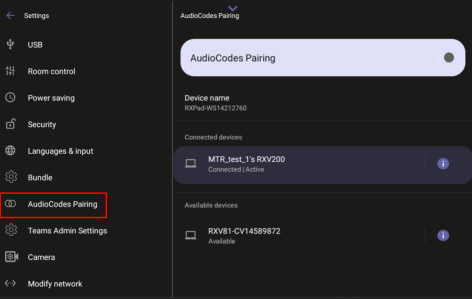
|
b.
|
Tap  to view the information of the paired device from the currently paired RX-PAD, for example, the IP address, device model, and MAC address: to view the information of the paired device from the currently paired RX-PAD, for example, the IP address, device model, and MAC address: |
|
3.
|
Unpair the current device at the Teams level: Navigate to Teams Admin Settings > Devices menu to break the currently paired set. |
|
4.
|
After unpairing, return to AudioCodes Pairing and tap the MTRA you wish to pair with the RX-PAD. |