Downloading and Uploading a CLI Script File
You can download the device's configuration as a CLI Script file to a folder on your computer or upload a CLI Script file to the device. Downloading the file to your computer can serve as a backup of your configuration and if needed, you can later upload the file to the device to restore previous configuration settings.
The file is download as a .cli file with the file name "BOARD_SN<Serial Number>" (e.g., BOARD_SN5967925.cli). The uploaded file must have the .cli extension (and any file name).
|
●
|
When uploading the file, you need to restart the device if it contains the reload now command (on the last line). |
|
●
|
The downloaded file includes only parameters whose values you have modified. |
|
●
|
To save the file to a remote server (TFTP or HTTP/S), use the following CLI command: # write-and-backup to <URL with file name> |
|
➢
|
To download or upload a CLI Script file: |
|
1.
|
Open the Configuration File page: |
|
●
|
Toolbar: From the Actions drop-down menu, choose Configuration File |
|
●
|
Navigation tree:Setup menu > Administration tab > Maintenance folder > Configuration File |
|
a.
|
Under the CLI Script group, click the Download CLI Script File button, and then save the file to a folder on your computer. |

|
a.
|
Under the CLI Script group, click the Choose File button, and then browse to and select the .cli file on your computer. |

|
b.
|
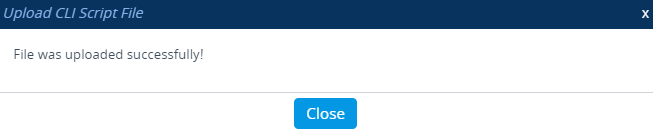
Click the Upload CLI Script File button; the device uploads the file and displays a message box confirming when the file has been successfully uploaded: |
|
d.
|
If the CLI Script file contains changes to configuration, click the Save button on the toolbar to save your settings to flash memory. If a device restart is required for the new settings to take effect, instead of clicking the Save button, click the Restart button (which appears with a red border). |