Highlighting Syslog Messages by Keywords
To easily identify specific strings in the syslog, you can configure keyword strings and assign them colors. You can have the entire row in which the keyword occurs to be highlighted, or you can have only the keyword to be highlighted. For example, if you want to easily identify SIP BYE messages, you can configure the keyword string "BYE" and assign it the color red.
You can also use regular expressions (regex) to define keywords. For example, the following regex-based keyword highlights rows containing "Incoming SIP Message" and rows containing "Outgoing SIP Message": (Incoming|Outgoing) SIP Message
|
➢
|
To configure highlighted keywords: |
|
1.
|
From the Tools menu, choose Highlight Keywords; the Highlight Keywords dialog box opens. |
|
2.
|
Under the Actions group, type the string (keyword) in the text box that you want highlighted, and then click Add; the string is listed in the Keywords pane. |
The keyword is case-sensitive.
|
3.
|
In the Keywords pane, select the string that you added. |
|
4.
|
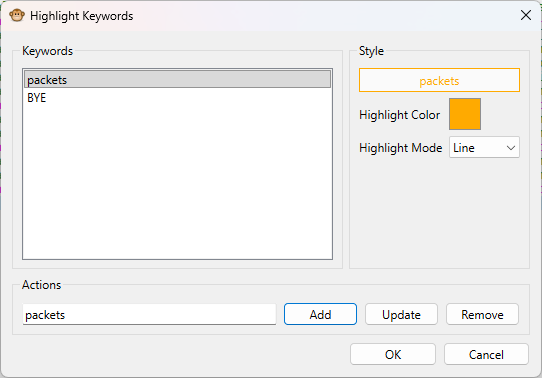
Under the Style group, click the 'Highlight Color' pallet, choose the desired color, and then click OK; the color is assigned to the keyword and a preview is displayed, as shown in the following example ("packets"): |
|
5.
|
From the 'Highlight Mode' drop-down list, select what you want highlighted: |
|
●
|
Line: Highlights the entire row in which the keyword appears. |
|
●
|
Keyword: Highlights only the keyword. |
|
6.
|
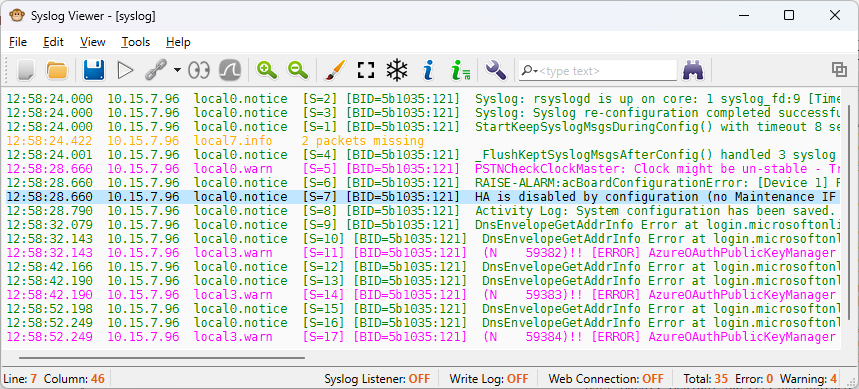
Click OK; all lines containing the keyword are highlighted in the assigned color, as shown in the following example ("packets" in orange): |