Viewing Queue Statistics
Flex Members can view statistics of assigned queues per channel.
| ➢ | To view queue statistics: |
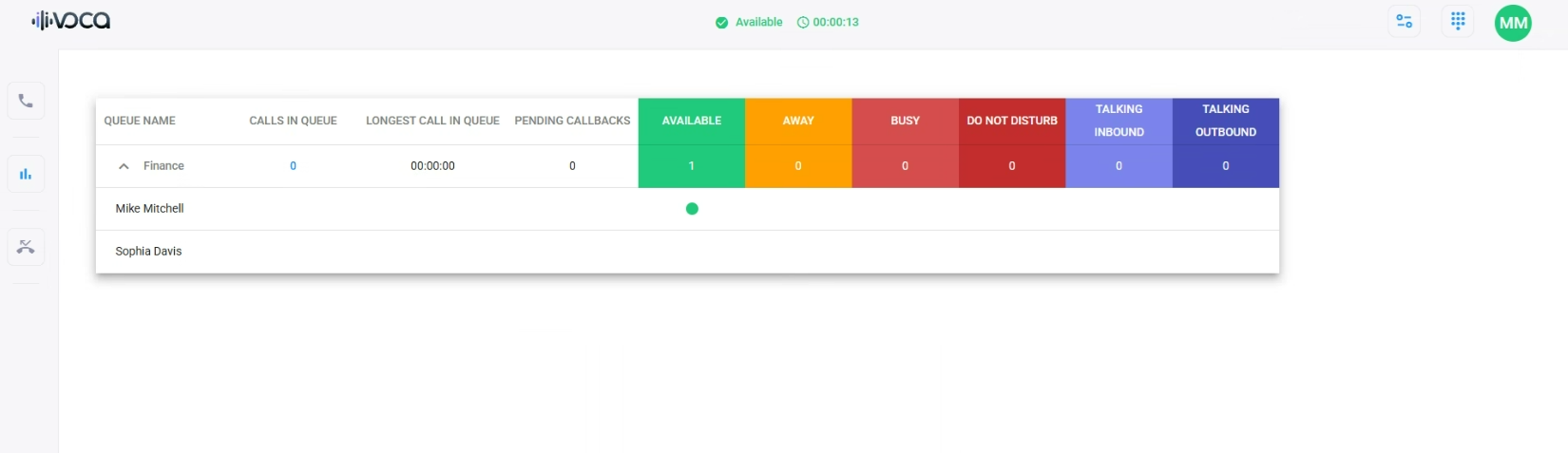
| 1. | On the sidebar, click the Queue Statistics  icon; the Queue Statistics page opens: icon; the Queue Statistics page opens: |

| 2. |
|
|
Field |
Description |
|---|---|
|
Voice Tab |
|
|
'Queue Name' |
Displays the name of the queue. |
|
'Calls in Queue' |
Displays the number of calls that are currently waiting in the queue. |
|
'Longest Call in Queue' |
Displays the longest time a call has waited in the queue. |
|
'Available' / ‘Away’ / ‘Busy’ / ‘Do not disturb’ |
Displays the number of Flex Members that their Team status is currently Available. |
|
'Away' |
Displays the number of Flex Members that their Teams status is currently Away. |
|
'Busy’' |
Displays the number of Flex Members that their Teams status is currently Busy. |
|
‘Do not disturb’ |
Displays the number of Flex Members that their Teams status is currently Do not disturb. |
|
'Talking (Inbound)' |
Displays the number of Flex Members that are currently handling inbound calls. |
|
'Talking (Outbound)' |
Displays the number of Flex Members that are currently handling outbound call. |
| 3. | Expand the arrow next to the queue name to view the Flex Member’s  arrow next to QUEUE NAME to view all workers availability statuses. arrow next to QUEUE NAME to view all workers availability statuses. |