View Device Info
To view detailed information of a device, do either of the following on the Devices Status page:
| ■ | If the list of devices displays a graphical representation in the Model column, click the graphic. |
| ■ | Click Actions to open the Actions menu for the device, then click Device Info. |
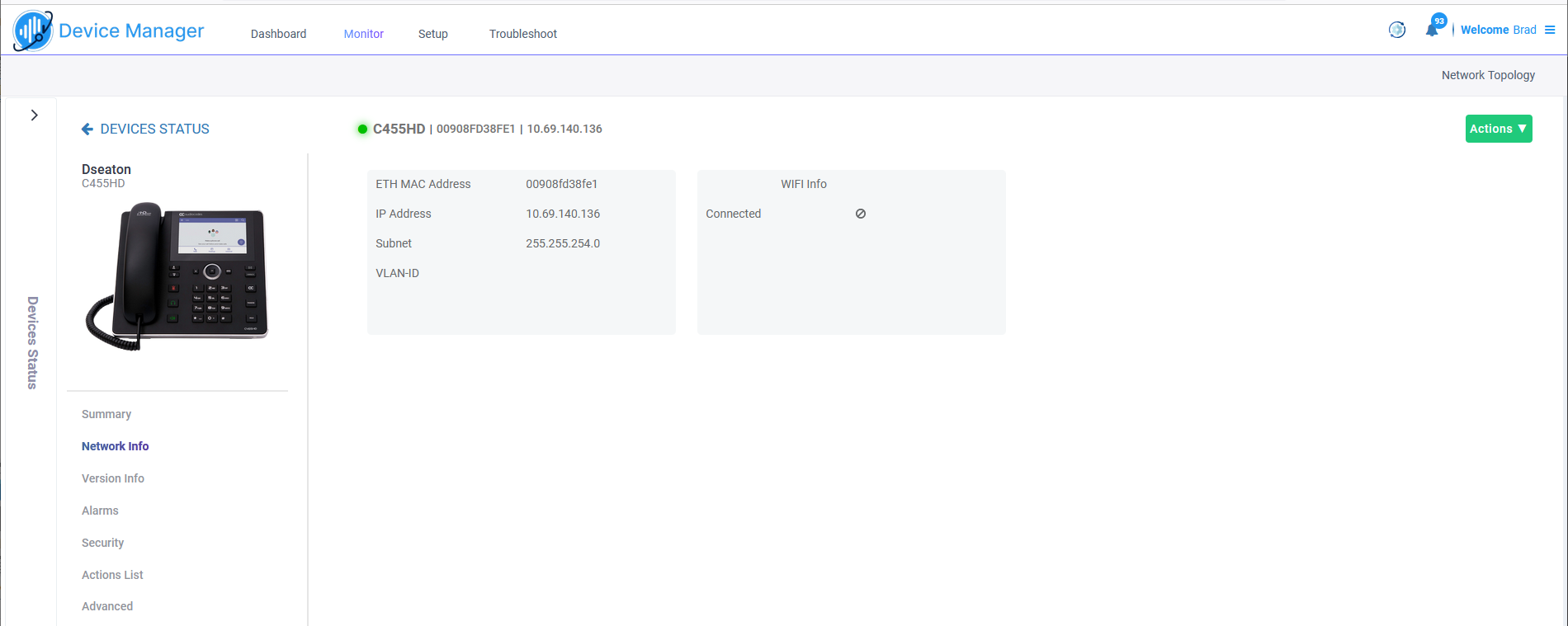
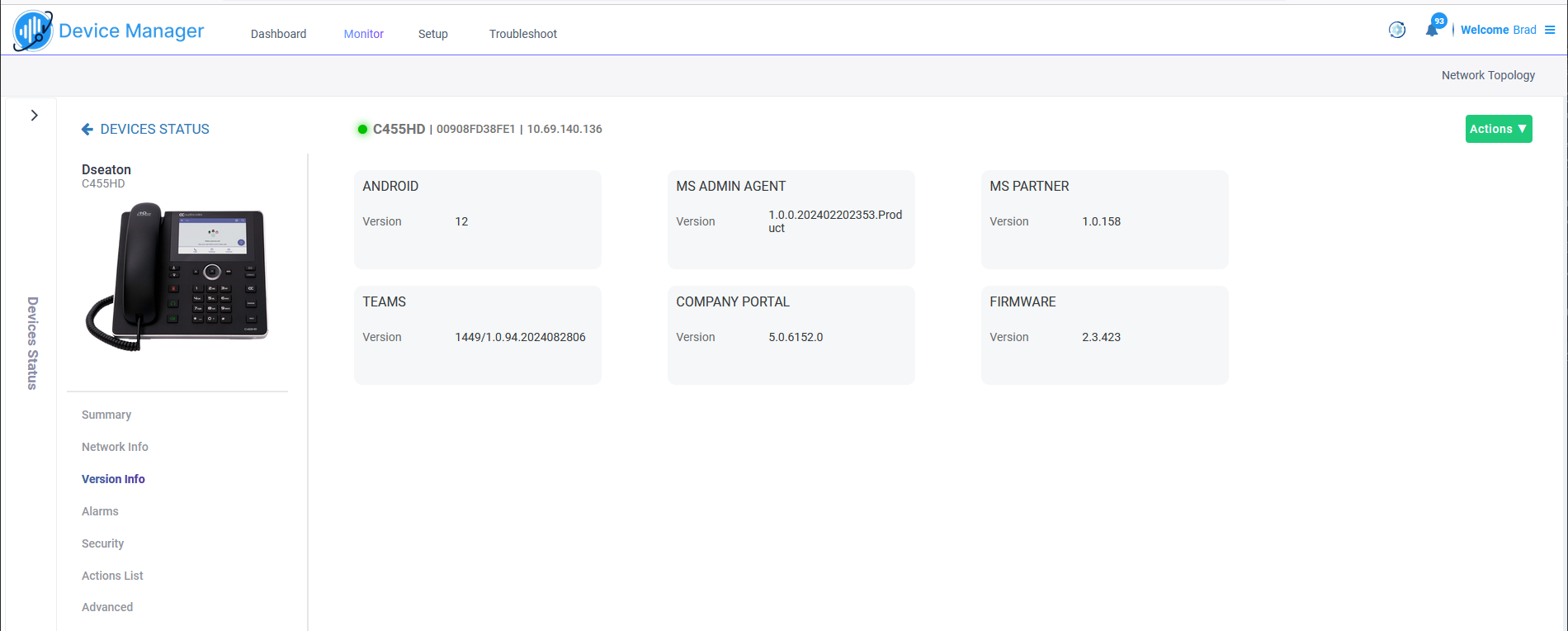
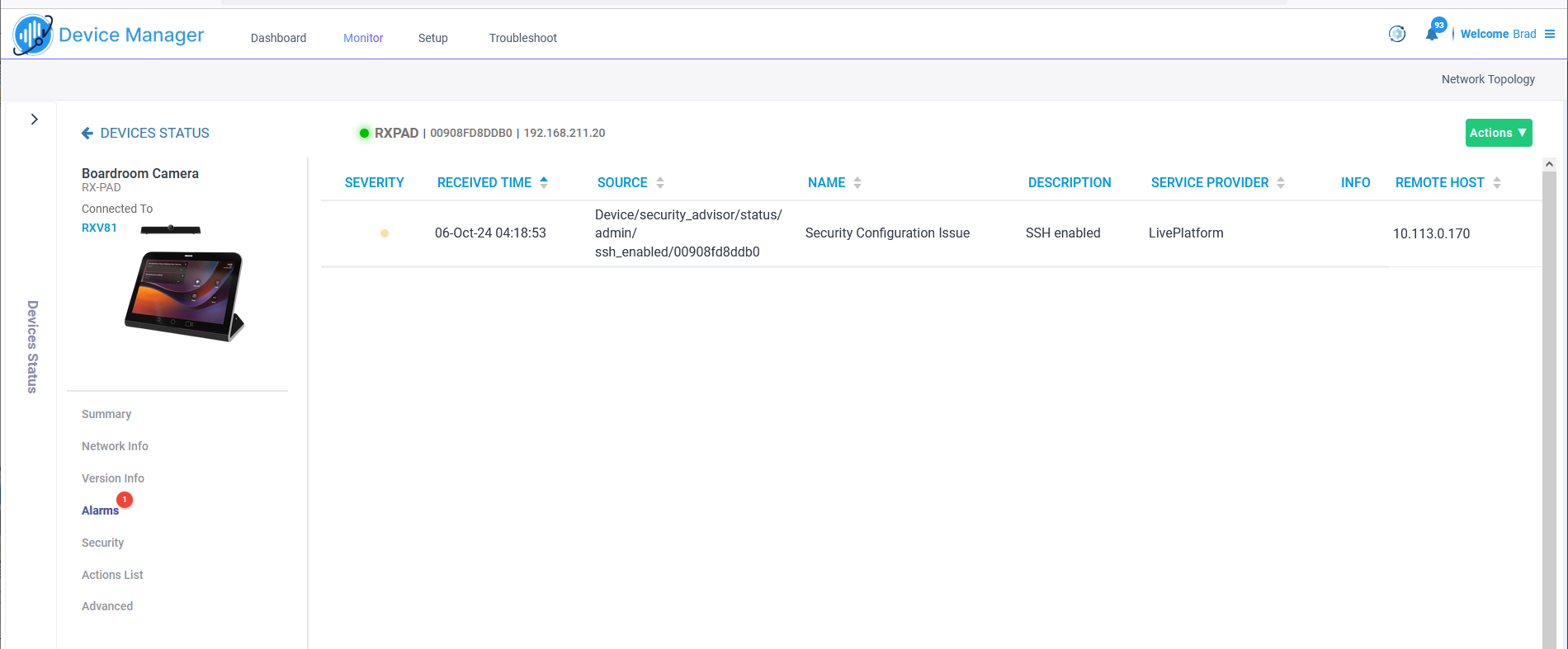
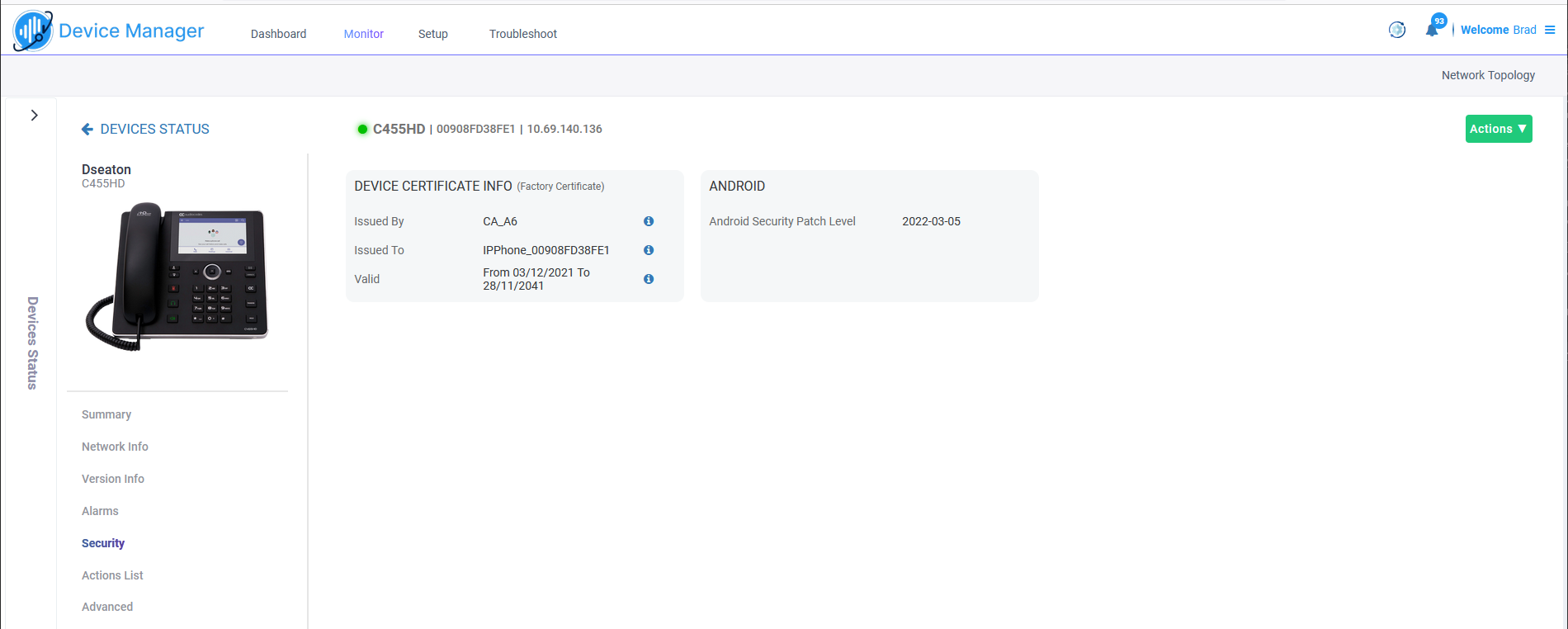
The Detailed Info page is displayed for the device and is described in the following table.
|
Menu option |
Description |
||||||||||||
|---|---|---|---|---|---|---|---|---|---|---|---|---|---|
|
Information-Show Info |
|||||||||||||
|
Peripherals |
Displays detailed information on the device and its peripherals. |
||||||||||||
|
Summary |
|
||||||||||||
|
Network Information |
|
||||||||||||
|
Version Info |
|
||||||||||||
|
Alarms |
|
||||||||||||
|
Security |
|
||||||||||||
|
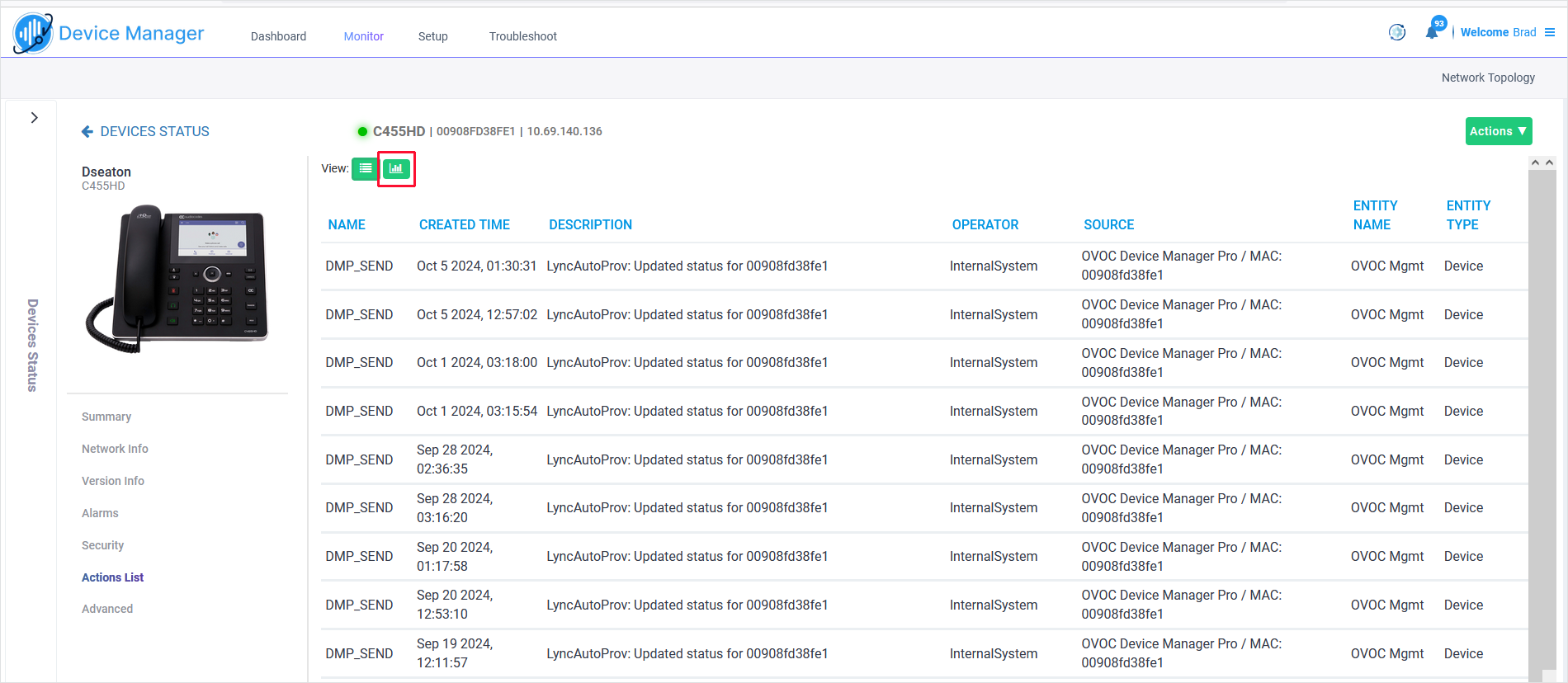
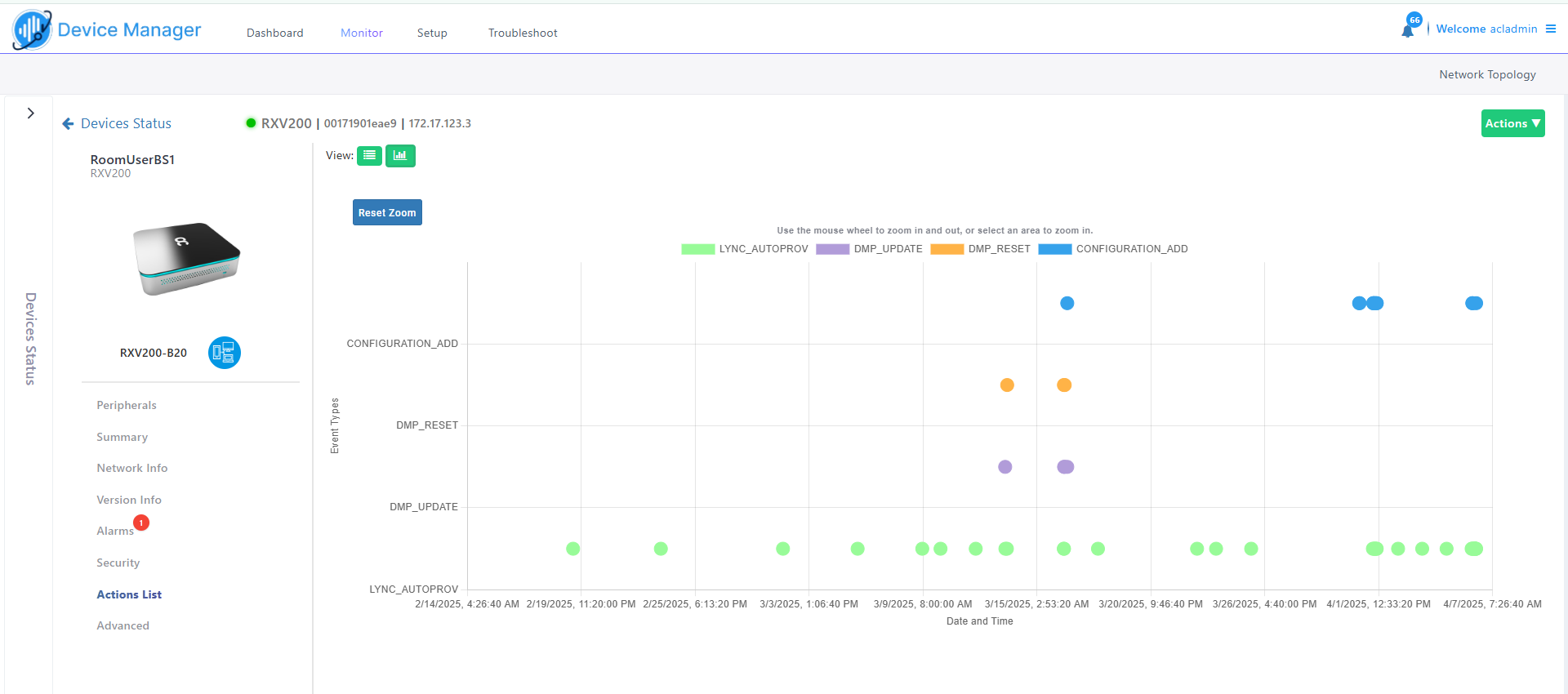
Actions List |
|
||||||||||||
|
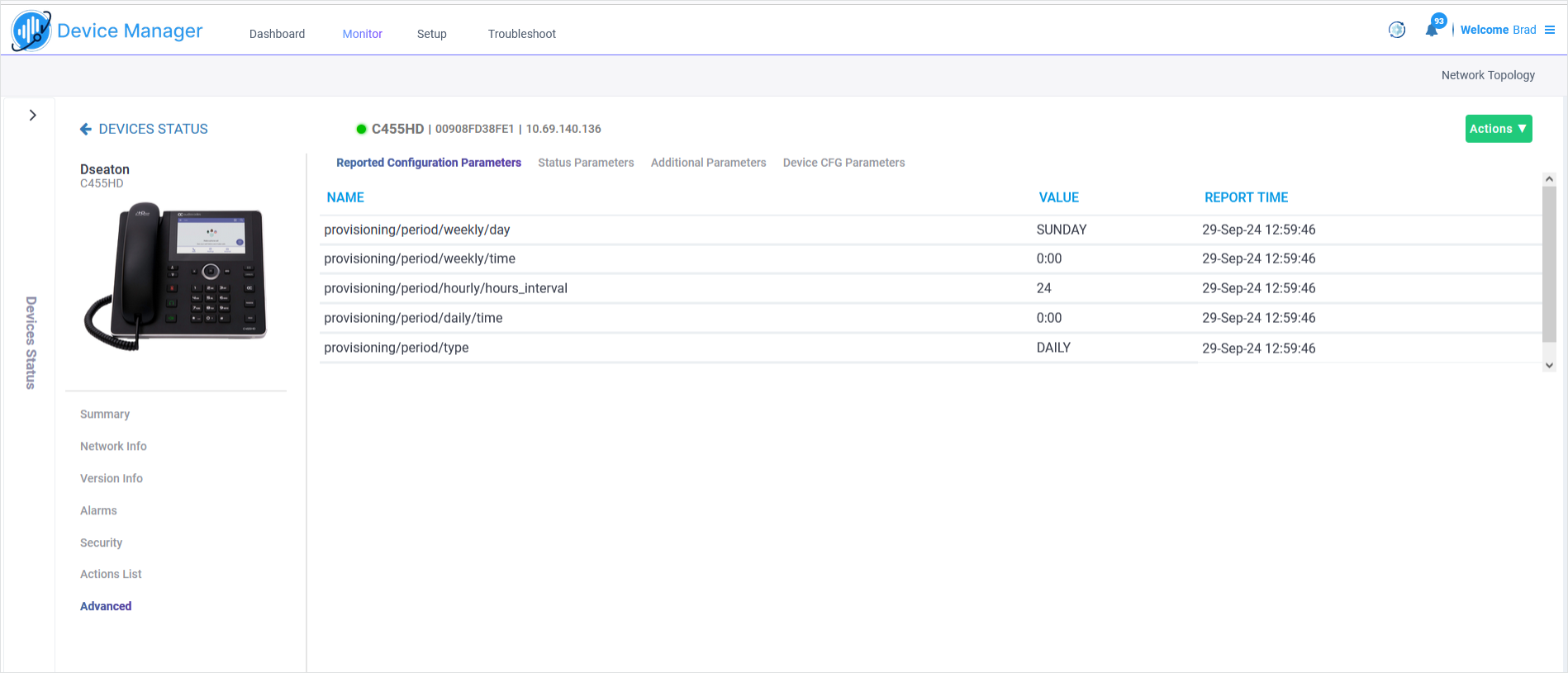
Advanced |
|
||||||||||||
|
Actions Drop-down menu |
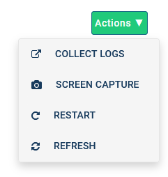
The following actions can be performed from the Actions drop-down menu:
|
||||||||||||
|
Download Device Files |
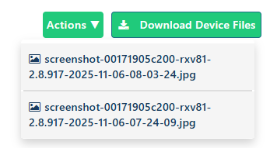
After you generate screen captures (see above), a .jpg file is generated that you can then download to your PC.
|
||||||||||||
|
Periodic Updates |
|||||||||||||
|
Update Configuration |
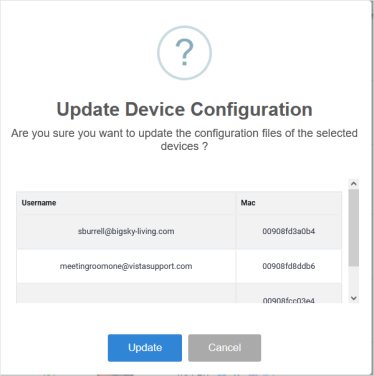
Sends a command to the phone to check whether there is a new configuration file to upload and updates the phone after a configurable 'Delay Time' (Default = 2 seconds). See Upload CFG Configuration Files.
|
||||||||||||
|
Update Peripherals |
Verifies if peripherals that are attached to Meeting Room devices require updates. If updates are available, you can install them. Ensure that the update file is available and the peripheral is connected.
|
||||||||||||
|
Update Firmware |
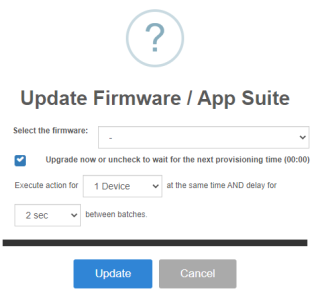
You can update firmware per device, or for multiple selected devices. See Update Device Firmware.
The figure above shows the screen that opens after selecting multiple devices. The screen for a single device is identical but without the option to execute the action in batches. From the drop-down, select the firmware file, and then click Update; the firmware file is updated. You can simultaneously update the device's configuration file. If you select multiple devices and then click the Selected Rows Actions link in the title bar to choose 'Update Software' from the drop-down, the screen (as shown in the figure above) will include the option to do the following:
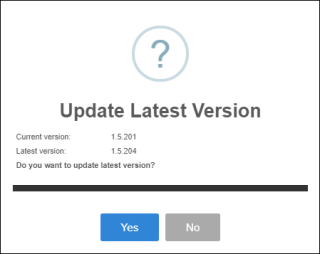
If the ↑ icon is displayed in the 'Firmware' column adjacent to a listed device in the Devices Status page, it indicates that that device's firmware is not the latest firmware available; you can click the icon to upload the device's latest firmware.
|
||||||||||||
|
Upgrade Microsoft Meeting Rooms TEAMS APK |
Microsoft Teams APK (to update the Android Package Kit on Android-based Teams devices - phones as well as Microsoft Teams Rooms). Microsoft Teams APK is supported from version 1.17 and later. See Update Device Firmware. |
||||||||||||