Perform Actions on Devices
On the Device Status page, click the Actions menu of a listed device to perform an action on this device.
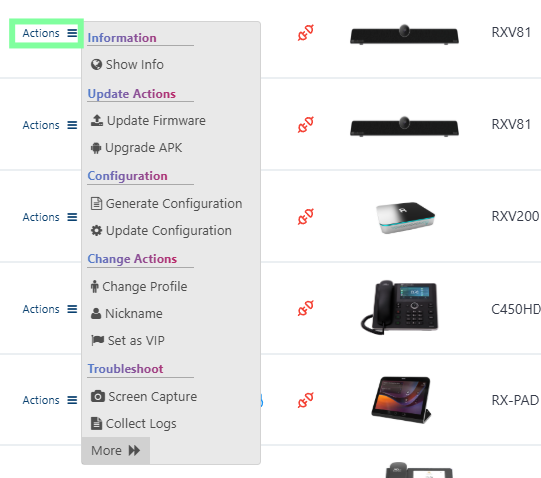
The Actions menu options may change depending on the device type and status. The table below describes the menu options.
Actions Menu
|
Menu option |
Description |
|---|---|
|
Information-Show Info |
|
|
Information-Show Info |
Displays detailed information on the device and its peripherals. See View Device Info and Monitor and Maintain Meeting Rooms . |
|
Update Actions |
|
|
Update Firmware |
|
|
Upgrade APK |
Update Microsoft Teams Meeting Room APK (see Upgrade Meeting Room Firmware). |
|
Configuration Actions |
|
|
Generate Configuration |
Generates the device's configuration file according to its Service Provider. The user configuration is also generated in case it will be needed. See Generating Configuration Files. |
|
Update Configuration |
Update existing configuration file. |
|
Change Actions |
|
|
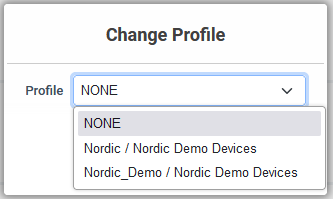
Change Profile |
You can change a device's Profile or the Profile of multiple devices. See Attaching Profiles to Devices.
From the drop-down list, select the profile to change to. |
|
Nickname |
Allows you to provide a nickname for the enterprise employee to facilitate more effective user and phone management. |
|
Set as VIP |
Allows network administrators to configure the phone as a VIP phone; VIP phones feature a different disconnect time interval and support disconnect / unregistered alarms. A phone configured as a VIP phone is typically a Common Area Phone (CAP) located in the lobby of an enterprise, or a conference phone located in an enterprise's meeting rooms. It's important that it be continuously connected hence the different disconnect time interval and the disconnect / unregistered alarms. |
|
Configure AI Summary |
Enables the AI Summary feature on Meeting Room devices for the AudioCodes Intelligent Meeting Room feature. Generative AI to automatically create and share meeting summaries among meeting participants and beyond. The AI Summary is enabled through an AudioCodes Bot that allows all users within an organization to benefit from automatic meeting recaps without the need to activate a personal meeting assistant and without requiring a Meeting Insights license. For more information, see Configure AI Summary |
|
Switch to SIP App Switch Back to Teams |
Only applicable for Teams desktop phones. Click Switch to SIP App to move the device to SIP Calling mode, or Switch Back to Teams to return to regular Teams Calling mode. When the SIP App for Emergency Calling is enabled on the device and the SIP App is active, Switch Back to Teams disables the app (disabled Emergency Calling mode) and switches back to regular Teams Calling mode. See Enable SIP App Emergency Calling Mode. |
|
Troubleshoot |
|
|
Screen Capture |
The Device Manager enables administrators to capture and download the current state of the Device's Web UI for FAE troubleshooting. The feature enables capturing the device's main screen as well as the device’s Expansion Module (sidecar) in the case of phone models with a sidecar. The captures can be taken from the Device Status page or from the Monitor page and then once uploaded to Device Manager can be downloaded in .jpg format to your PC. The implementation of this AudioCodes Android Device Utility feature removes the need to install unofficial third- party applications on employee PCs, and thereby possibly compromising network security. See Capture Screens from a Device. |
|
Collect Logs |
Allows network administrators to retrieve logs without accessing the phone. See Collect Logs from a Device. |
|
More |
|
|
Clear Devices Status |
Deletes device status information from the Device Status page. Use this option when the device is no longer connected to the Device Manager. In the event where the device still successfully sends Keep alive messages to the Device Manager, then device information will reappear in the Monitor page. |
|
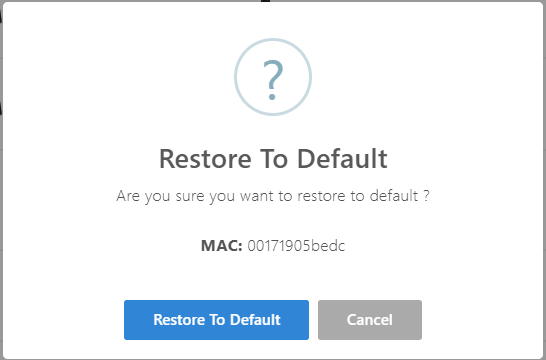
Restore to Default |
Restores a device to its default settings. See Restore a Device to Default Settings.
|
|
Reset Device |
Sends a reset command to the selected device/s. Specific phone models wait for the user to finish an active call, while others may perform an immediate restart. |
|
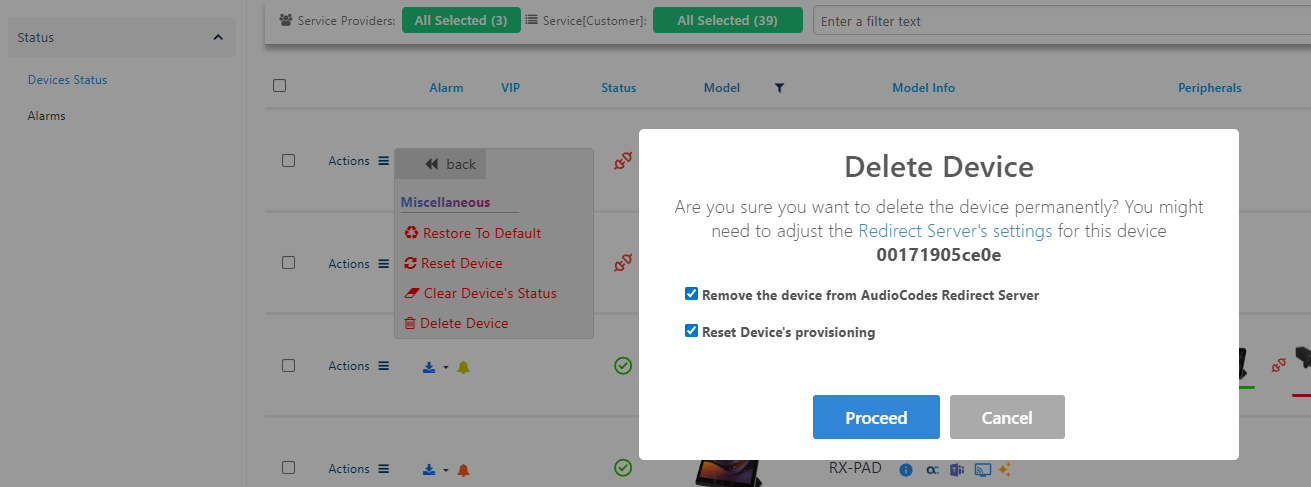
Delete Device |
Deletes a device from Device Manager. Optionally, also
|