Accessibility Menu
The Accessibility menu lets you adjust the interface settings for enhancing usability. he menu can be opened from all Service portal pages. You can perform actions such as adjust color brightness and contrast, change the size of the font of displayed text, magnify screen view and allow navigation using the keyboard arrow keys.
| ➢ | To open the accessibility menu: |
| 1. | In the bottom right-hand corner of the screen, click the Accessibility icon. |

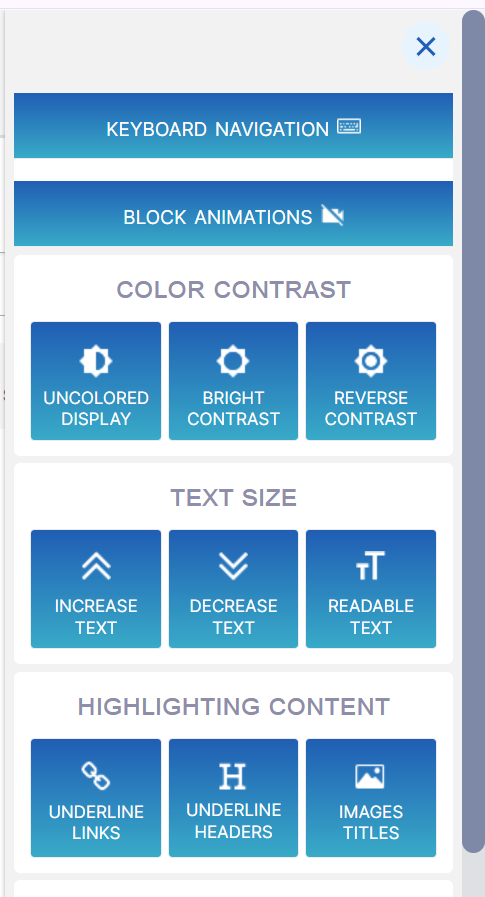
| 2. | Click the setting that you wish to enable. A green tick is displayed on the enabled settings icon. Click the setting again to disable it. |

| 3. | Use the table below as a guide to the settings. |
|
Setting |
Description |
|---|---|
|
Keyboard Navigation |
Enables you to navigate interface pages using the Keyboard arrow keys. |
|
Block Animations |
Blocks animation that may pop up when Live Platform processes long operations. |
|
Uncolored Display |
Toggles the screen to black and white. |
|
Bright Contrast |
Dissolves the screen color. |
|
Reverse Contrast |
Darkens the screen. |
|
Increase Text |
Increases the size of the text labels in the interface. |
|
Decrease Text |
Reduces the size of the text labels in the interface. |
|
Readable Text |
Widens the text font. |
|
Underline Links |
Underlines links in the interface. |
|
Underline Headers |
Underlines headings in the interface. |
|
Image Titles |
Places a caption above images. |
|
Big White Cursor |
Adds a big White click able cursor. |
|
Big Black Cursor |
Adds a big Black click able cursor. |
|
Zoom Screen |
Magnifies the size of the screen. |
|
Reset Settings |
Resets all settings. |