Import IP Group from SBC
You can import an IP Group that has been added manually to the SBC device and create a new SIP Connection based on this entity. The Call Data Records from the imported IP Group are then retrieved by Live Platform and aggregated to your customer's Voice Quality statistics.
| ● | The SIP Connection created from the imported IP Group is read-only and cannot be applied when uploading numbers. |
| ● | You can import an IP Group for a PSTN Connection leg only (IP Groups containing suffix -c). |
| ➢ | To import a SIP connection: |
| 1. | In the Navigation pane, select SIP Connection, and then select the SIP Connection tab. |
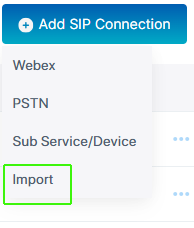
| 2. | From the Add SIP Connection drop-down, choose Import. |
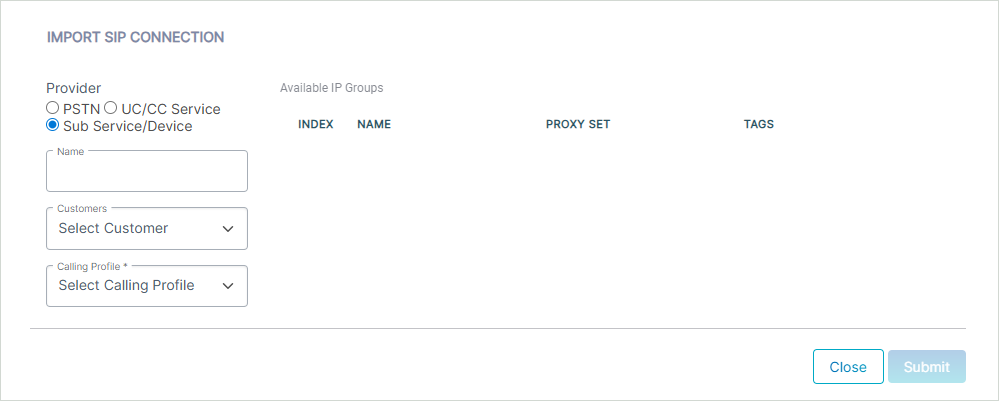
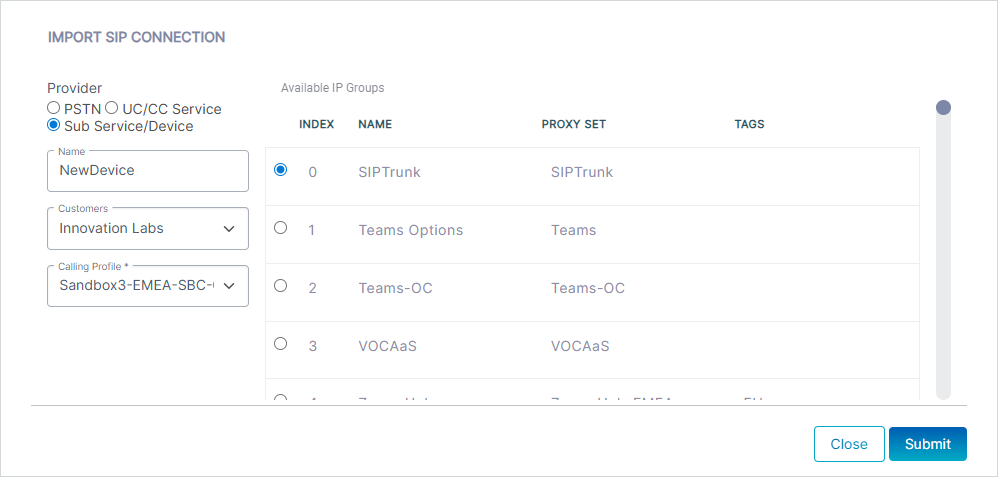
| 3. | Configure parameters according to the table below. |
|
Parameter |
Description |
|||||||||
|---|---|---|---|---|---|---|---|---|---|---|
|
Provider |
Configure one of the following:
|
|||||||||
|
Name |
Name of the SIP connection. |
|||||||||
|
Customer |
Customer |
|||||||||
|
Calling Profile |
Calling Profile attached to the connection. |
|||||||||
|
Available IP Groups |
||||||||||
|
Index |
Index of the IP Group configured on the SBC device. |
|||||||||
|
Name |
Name of the IP Group configured on the SBC device. |
|||||||||
|
Proxy Set |
Name of the Proxy Set configured on the SBC device. |
|||||||||
|
Tags |
PSTN tag DNS entry configured for the SBC device. |
|||||||||
| 4. | Once you configure the above parameters, the list of available IP Groups are retrieved from the SBC device. |
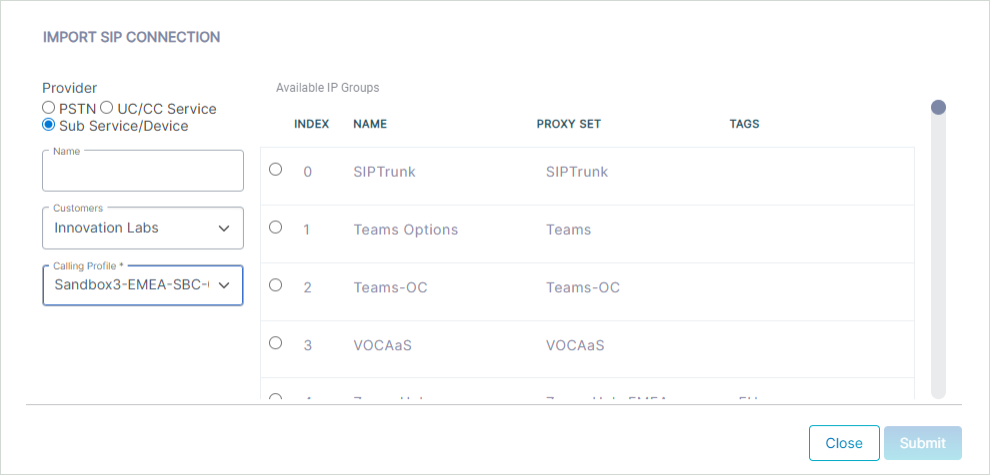
| 5. | Select the check box adjacent to the IP Group (select a single entry) that you wish to import and then click Submit. |