Removing User Role Mapping in IAM
You can remove a user role mapping from a specific Live Platform account (entity). Once removed, the user can no longer access Live Platform portal.
|
●
|
Removing a user from one account does not impact the user’s access or management to any other Live Platform account to which the user may be assigned. |
|
●
|
When you remove a user role mapping, the user is not deleted from IAM. Consequently if you remove the user role mapping and then add it back, you do not need to repeat the Invitation registration process. Instead you can simply log in directly to the Live Platform portal (see below). |
|
1.
|
Access the IAM interface (see Accessing IAM). |
|
2.
|
From the 'Account' drop-down list, select the Live Platform entity (tenant) to which the user belongs. |

|
3.
|
Click the  Remove button of the user you want to delete from the account; a confirmation message box appears. Remove button of the user you want to delete from the account; a confirmation message box appears. |
|
4.
|
Click Remove to confirm. |
|
5.
|
Try to log in directly to iAM with the same credentials. The following message is displayed: |
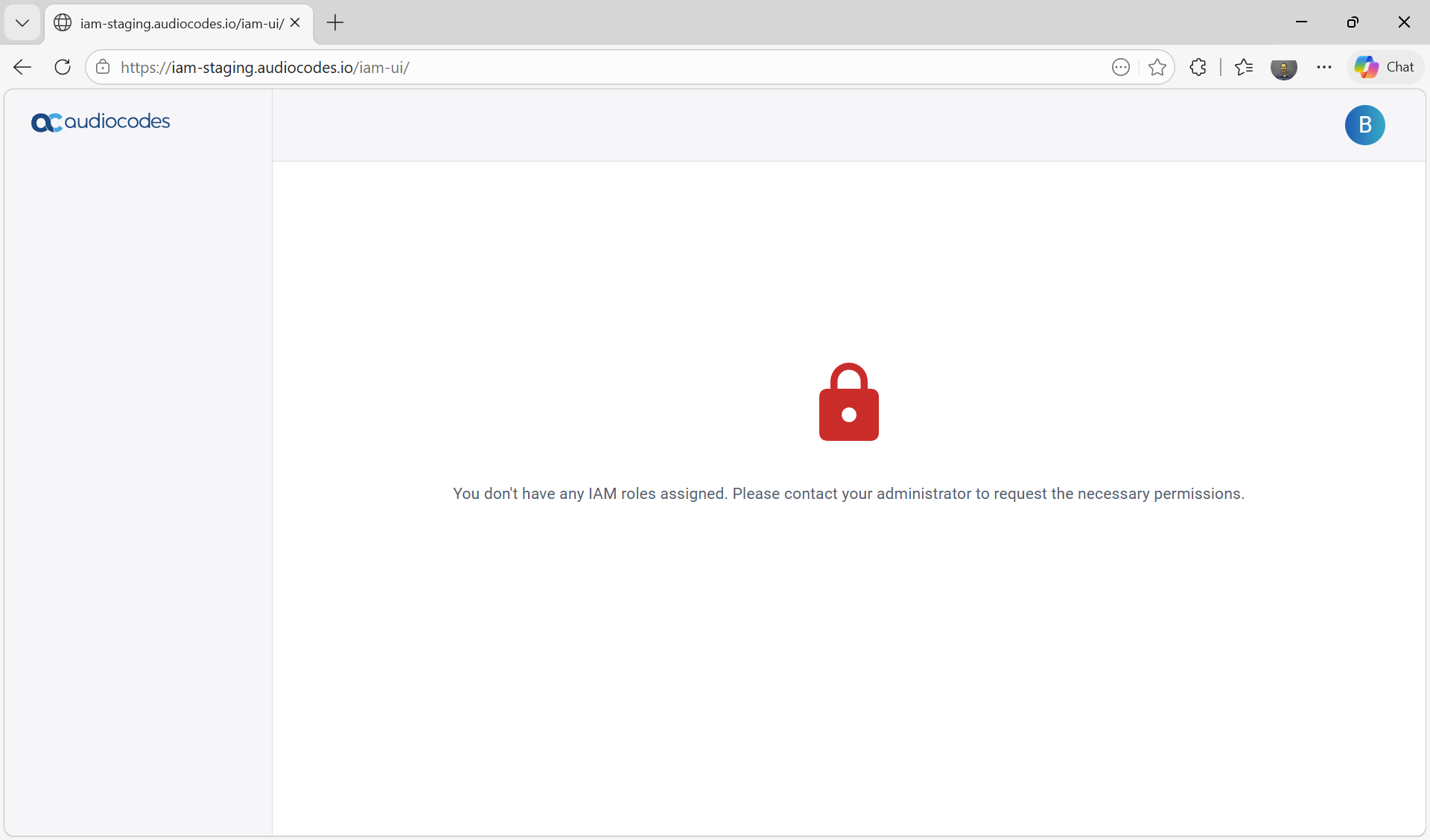
|
6.
|
Try to log in to Live Platform with the same credentials. The following message is displayed: |
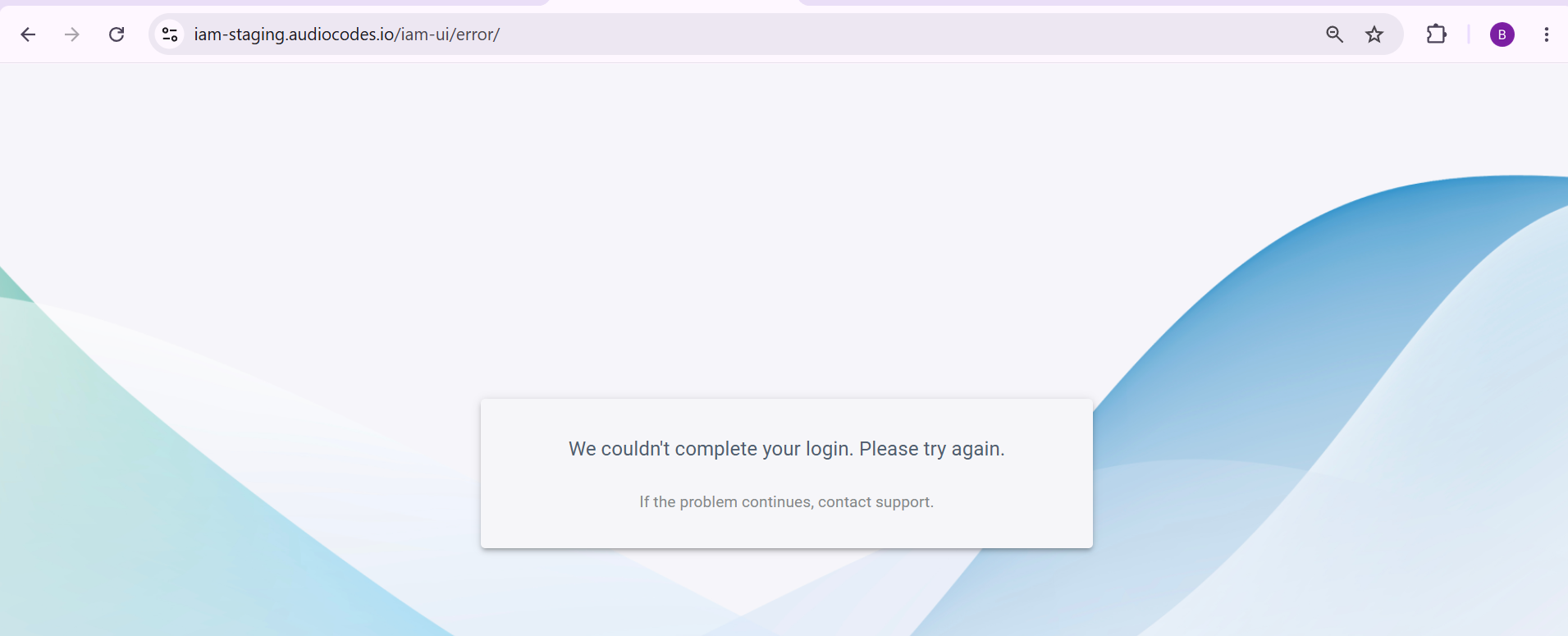
|
➢
|
To remove the user and add again: |
|
1.
|
Add the same user that you just removed and assign the same role or a different role. |
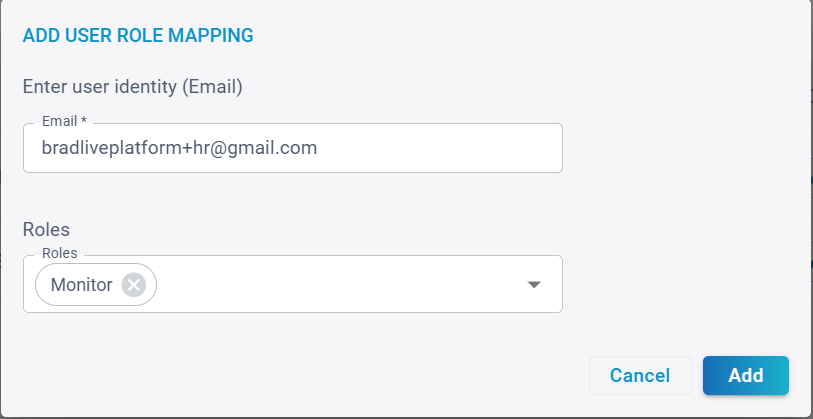
|
2.
|
If you copy and paste the registration link into your browser, the following message is displayed. |
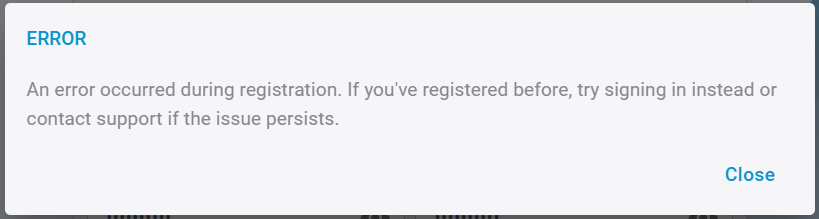
|
3.
|
Login to the Live Platform portal again with the same credentials. |
