Create Application Registration using the Invitation wizard
This option lets you automatically create a new Application registration for securing the connection between Live Platform and the customer M365 Azure tenant platform using the Invitation wizard script.
|
1.
|
Do one of the following: |
|
●
|
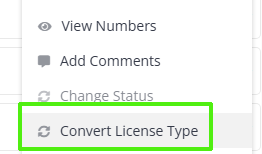
In the Tenants page, select the desired lead, click…. and choose Convert License Type. |
|
●
|
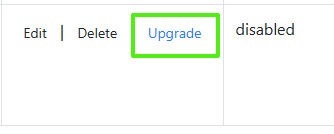
In the Multitenant portal All Services page, search for the service and select Upgrade. |
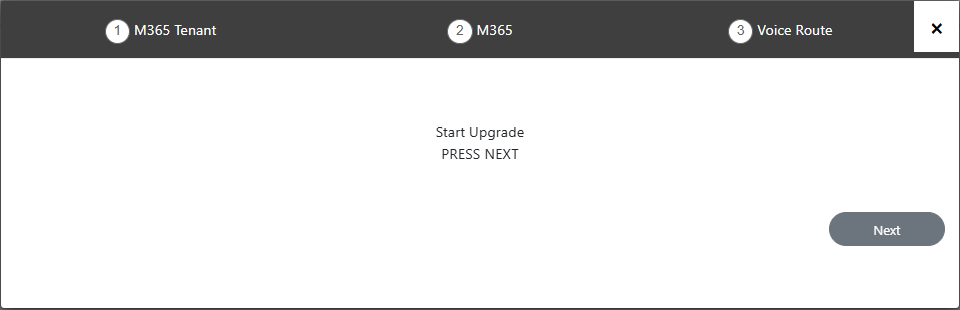
The Onboarding wizard opens.
|
2.
|
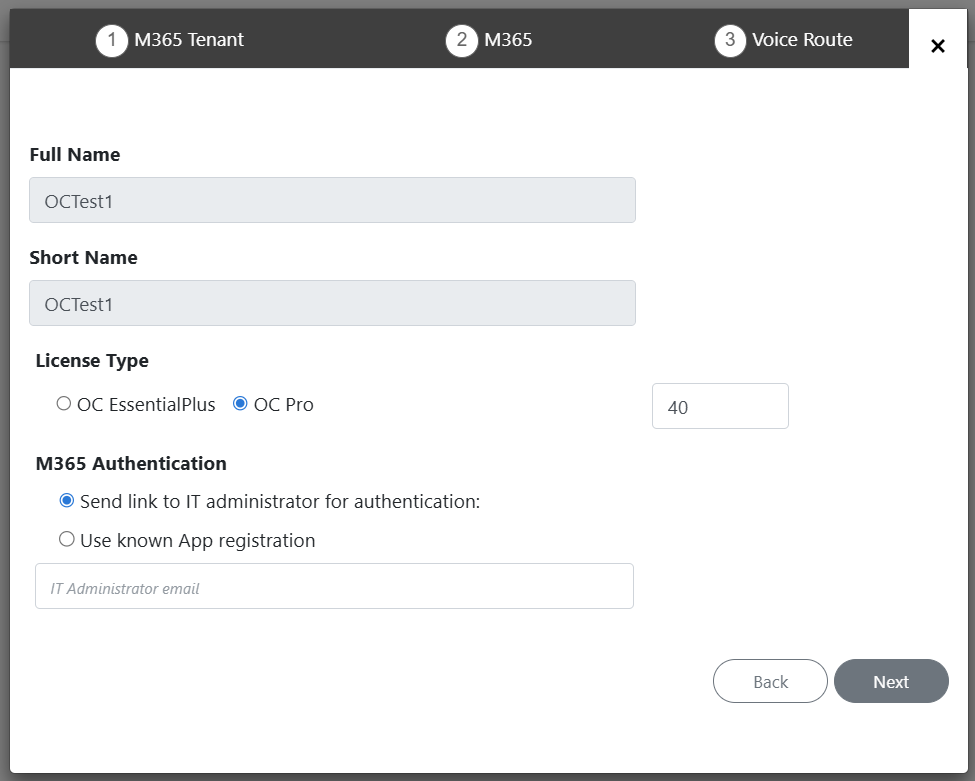
Click Next; the Onboarding wizard opens. |
|
3.
|
Select the relevant license type OC Essential Plus or OC Pro. |
|
4.
|
Select the number of licensed users. A maximum of 500 users can be configured per customer. |
|
5.
|
Select option Send link to IT administrator for authentication,enter the email address of either your Live Platform M365 account or the customer M365 Global admin user Principal Name (UPN) account, and then click Next. A email confirmation dialog is displayed, close it. An email link similar to the following is sent to the designated account. When Click here to activate your tenant is clicked, the Invitation wizard is displayed. |

|
a.
|
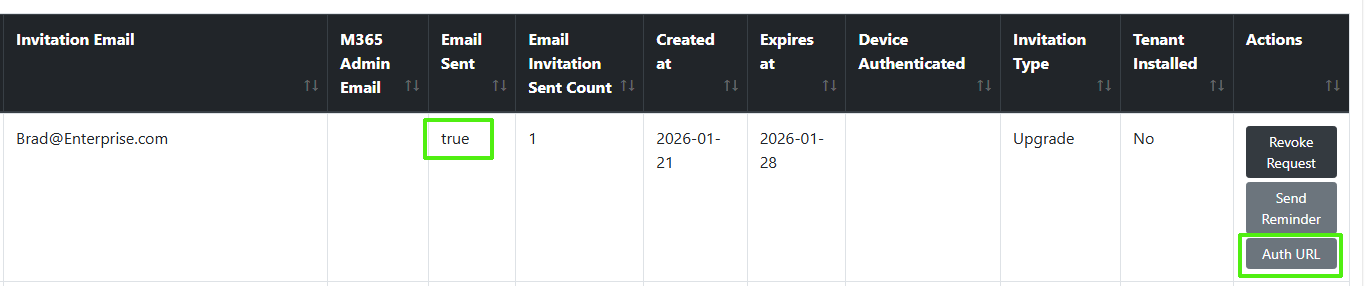
You can alternatively access the Authentication URL invitation from the Pending Invitations page (Monitoring > Service > Pending Invitations). |
|
b.
|
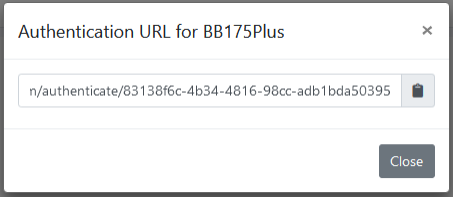
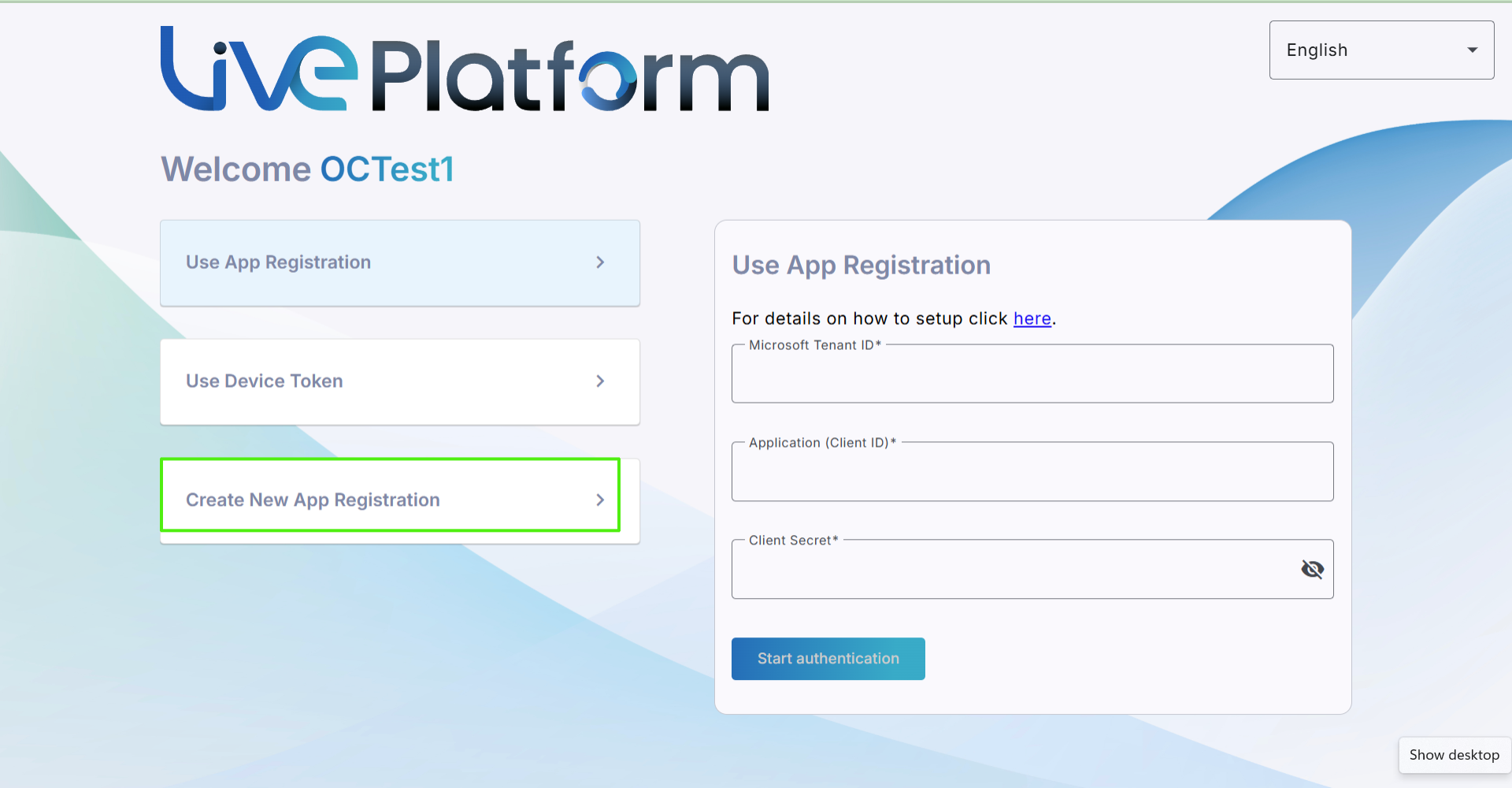
Click Auth URL link, copy the URL and paste it in your browser; the Invitation wizard is displayed. |
|
6.
|
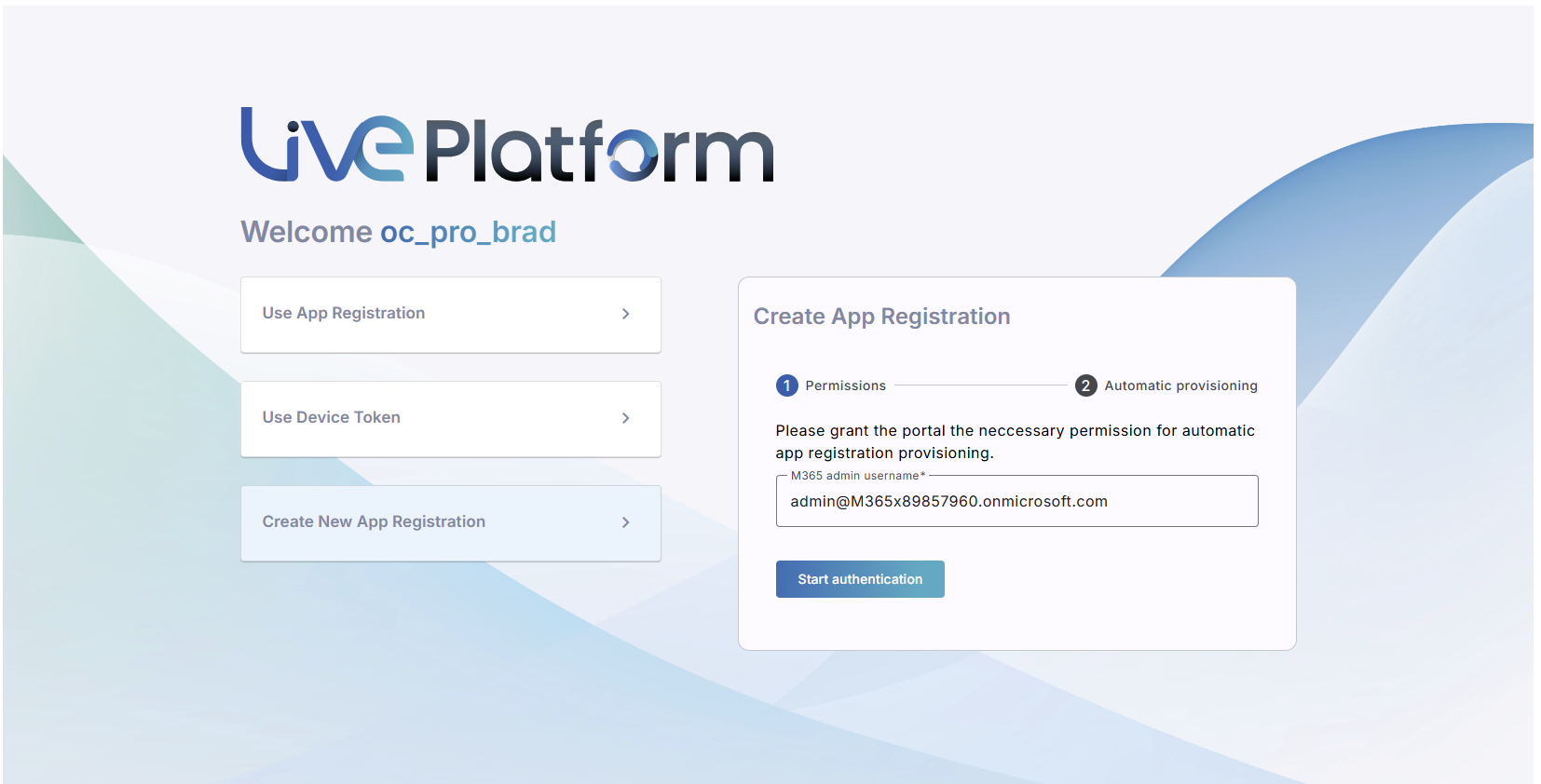
Click Create New App Registration. |
|
7.
|
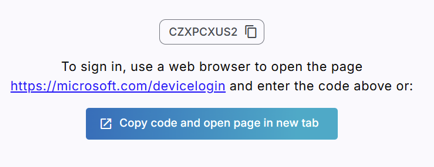
Enter the customer M365 Global admin user (User Principal Name-UPN) with Application Administrator permissions, and then click Start authentication. |
|
8.
|
Do one of the following: |
|
●
|
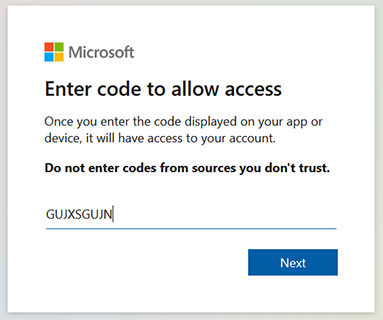
Copy the code and then click the URL link below it. |
|
●
|
Click Copy code and open page in new tab. |
|
9.
|
Click Next or enter code if you clicked the ....device/login link above. |

|
10.
|
Enter credentials of the customer M365 admin (User Principal Name-UPN) and then click Continue. Follow the instructions to authenticate your account using Microsoft Authenticator if prompted. |
|
11.
|
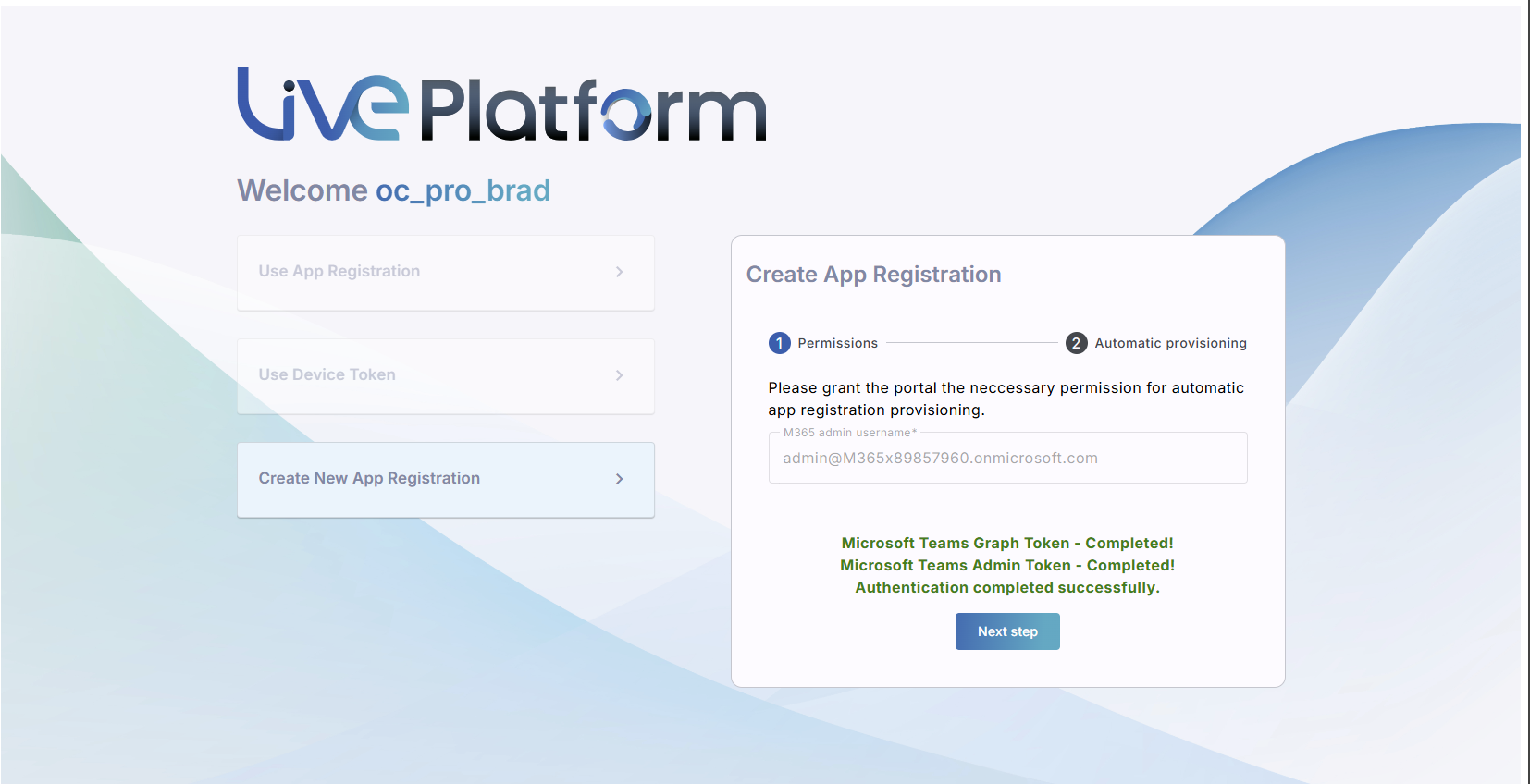
A confirmation message is displayed; close the dialog. Another confirmation message is displayed that the Token connection has been successfully established; click Next step. |
|
12.
|
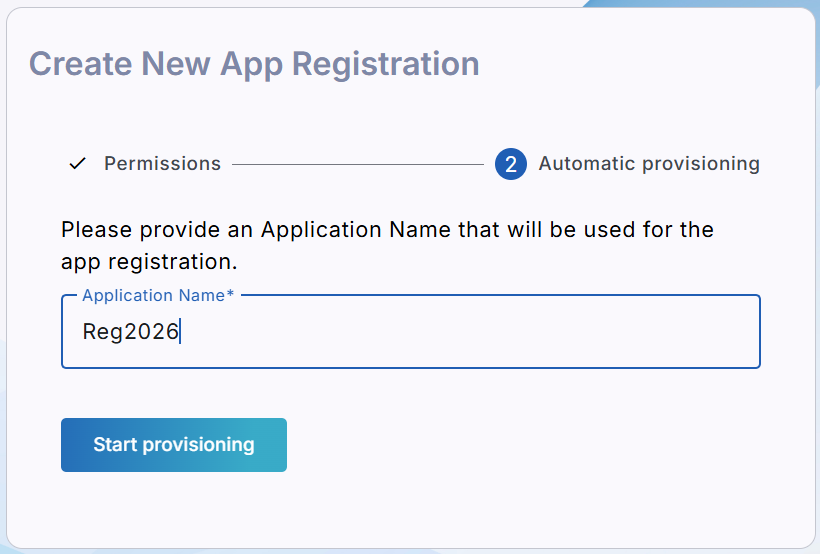
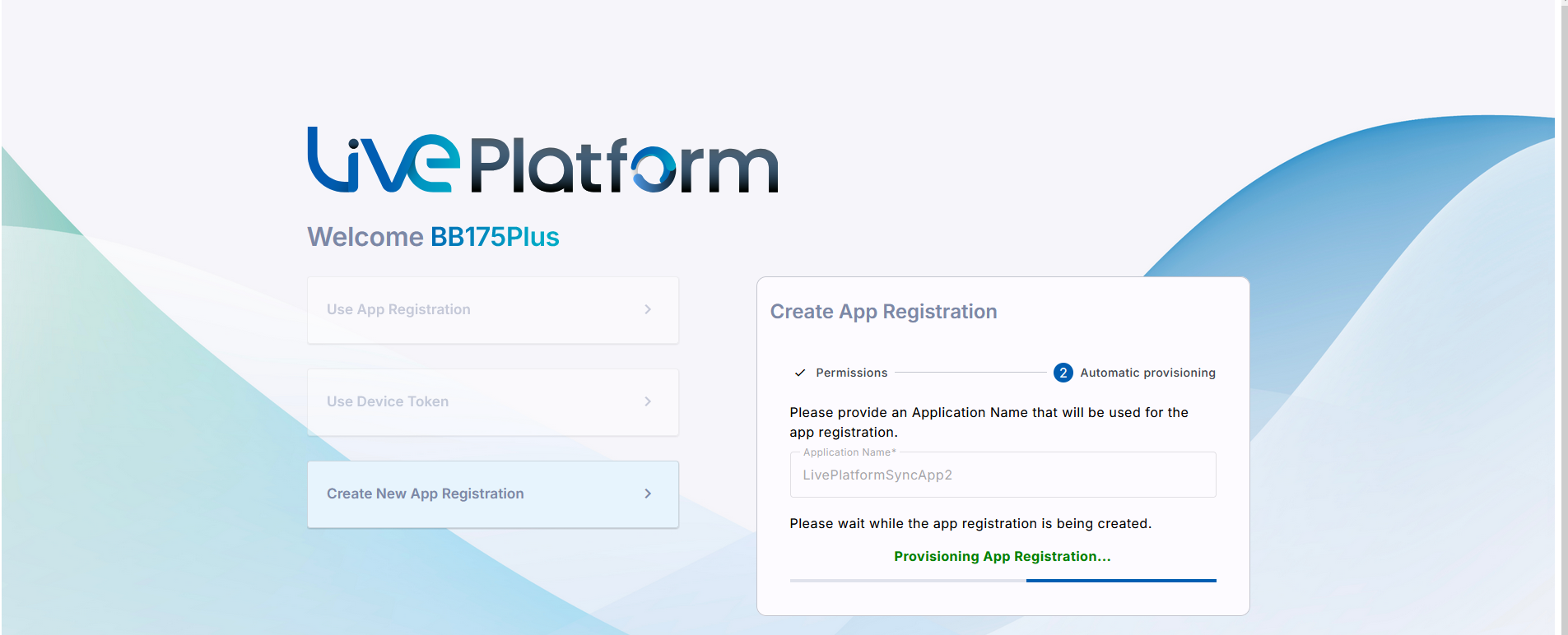
Enter the name of the App registration complying with the following rules, and then click Start Provisioning: |
|
●
|
The string should be 3-15 characters long |
|
●
|
The following characters cannot be used: \ / : * ? " < > |audit |
|
●
|
The string can contain letters (lower/UPPER case), numbers and special characters are allowed, however cannot contain the dot (.) or blank spaces. |
|
●
|
Define a unique name per service |
|
13.
|
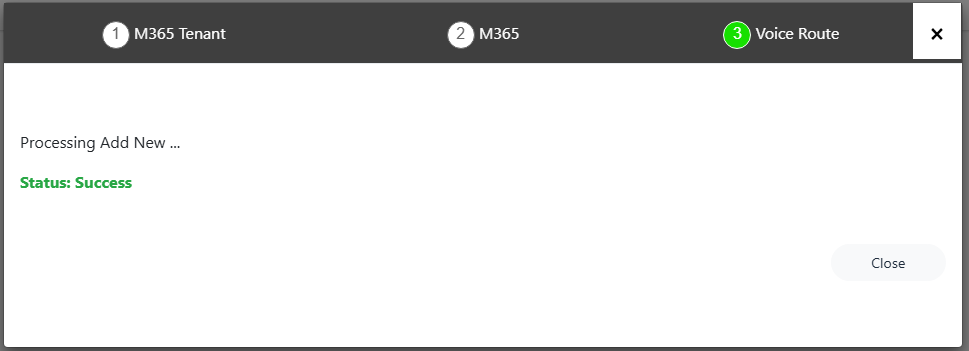
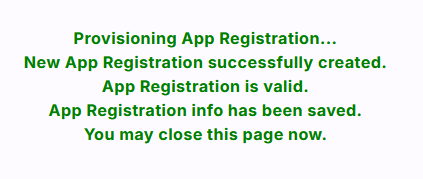
At the end of the process, the following confirmation message is displayed; close the page. |
|
14.
|
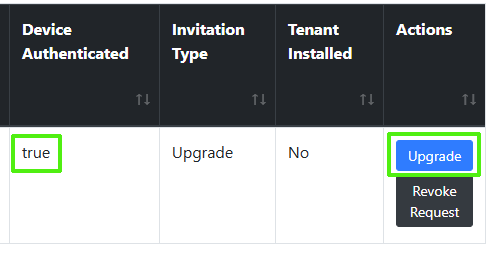
Verify in the Multitenant portal Pending Invitations page (Monitoring > Service > Pending Invitations) that the connection is authenticated; verify that the 'Device Authenticated' value is true, and then click Upgrade. |
|
15.
|
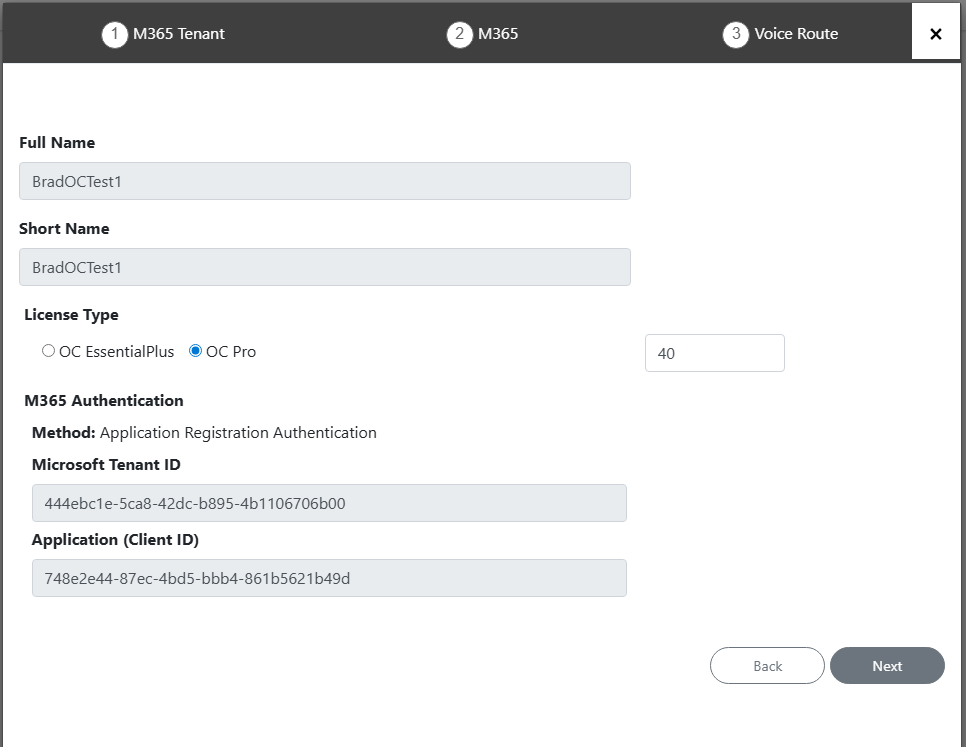
Click Next; the credentials of the new App registration are automatically filled. |
|
16.
|
Click Next; the service is added. |