Accessing Device's CLI over SSH
You can access the Command-Line Interface (CLI) of devices (SBCs, Gateways, and MSBRs) directly from Live Platform using SSH. Live Platform establishes a secure connection through an HTTPS proxy and displays the CLI session in your web browser (i.e., no external SSH client required).
This feature is supported by the new command Open SSH Session in the Actions drop-down menu under the Maintenance command group on the Devices page (Topology > Devices > Manage).
Make sure that SSH functionality is enabled on the device.
| ➢ | To access device's CLI: |
| 1. | Open the Devices page (Topology > Devices > Manage). |
| 2. | Select the device that you want. |
| 3. | From the Actions drop-down menu, point to Maintenance, and then choose Open SSH Session; a new browser window opens. |
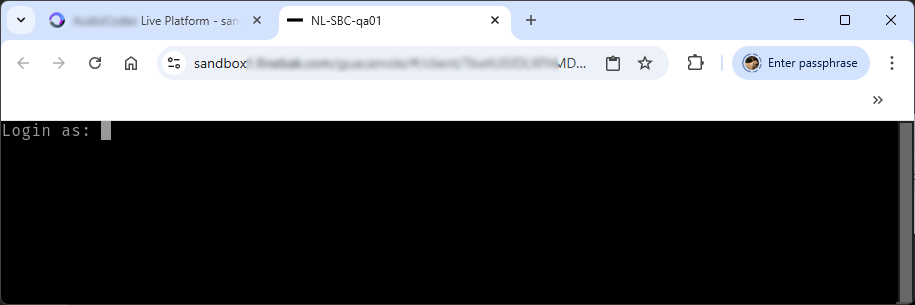
| 4. | When prompted, enter the username and password of the HTTPS proxy, and then click OK; an SSH session is established with the device and you're prompted to log in to the CLI, as shown in the following example: |
Live Platform saves these credentials and you won't be prompted again for future SSH connections (unless the credentials change).