Create UCaaS Service Provider Tenant
Before you can onboard Live CX services, you must add a UCaaS Service provider entity to Live Platform under the Service Provider Live Platform tenant. Once this entity is added, you can add additional Live CX services and other service types (Live UC, Zoom Provider Exchange and Webex Cloud Connect) under the same UCaaS Service provider. In the process, you are directed to the Provider Settings in the Service portal where you configure the following:
| ■ | Supported Live Platform services |
| ■ | Default CAC value |
| ➢ | Do the following: |
| 1. | In the Services page, from the Add Service drop-down, choose Add Service > Live CX. |
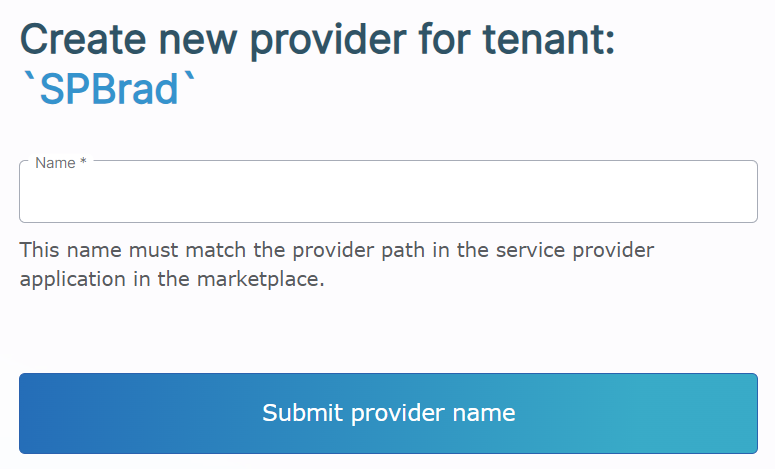
The above page is only displayed when a UCaaS service provider has not yet been added under a specific Live Platform Operation Center portal service provider tenant.
| 2. | Verify that the name you define matches the provider name that is defined in the provider URL path used to connect to the UCaaS server instance: <ucaasurl>/<serviceprovidername>: |
| ● | <ucaasurl> is the URL of the UCaaS server instance |
| ● | <serviceprovidername> is the service provider name as defined in Live UC |
| 3. | Enter the appropriate name of the provider and then click Submit provider name. |
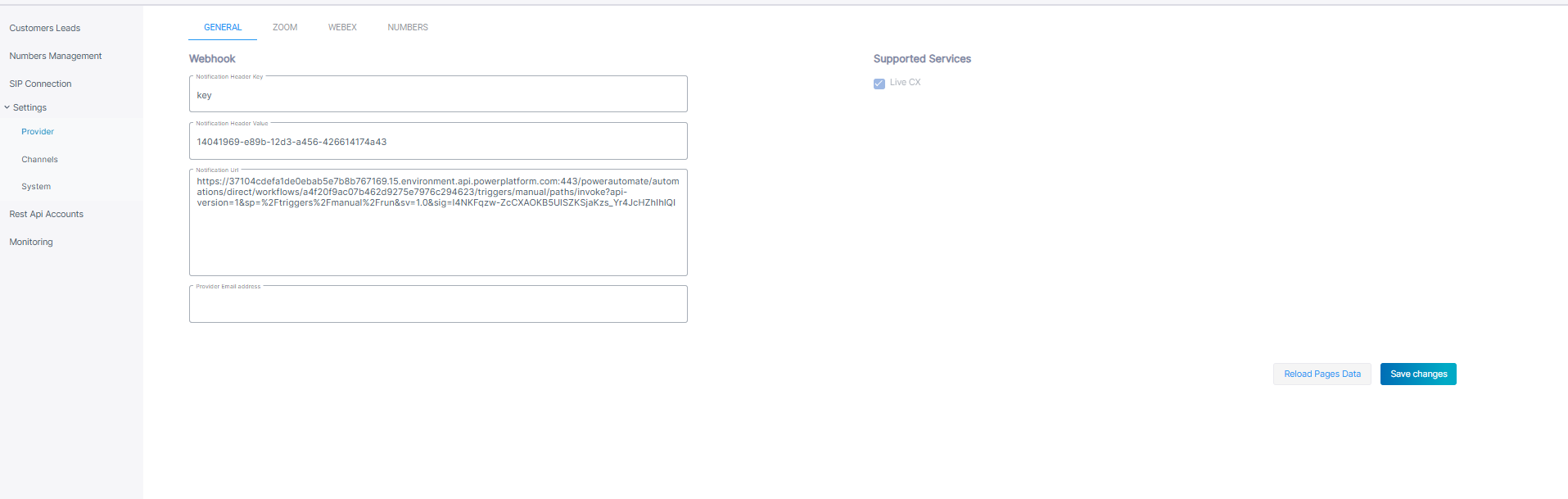
| 4. | Configure parameters according to the table below and then click Save changes. |
| 5. | You can also click Reload Pages Data to refresh the page for the specific UCaaS service provider configuration. |
|
Parameter |
Description |
|---|---|
|
Supported Services |
Select Live UC. |
|
Webhook Parameters |
|
|
Notification Header Key |
Header authentication key (header key: runkey) to connect to the destination address. |
|
Notification Header Value |
The passkey in the Header Value. |
|
Notification URL |
The destination URL for the HTTP POST. |
|
Provider Email address |
Email address of the service provider for sending notifications for new leads over Webhook Rest API. |
| 6. | Click the Numbers tab, configure parameters according to the table below and then click Save Changes. |
|
Parameter |
Description |
|---|---|
|
Numbers |
|
|
Default CAC Value |
Enter the Default CAC value for the Number type 'User'. Each number uploaded to Live Platform with Number type 'User' inherits this value (read-only). |
|
Show Dialplan Check box |
Shows or hides the 'Use SBC Dialplan' check box in the Upload Number dialog box. |