Configure access to external applications (Tools)
The Tools page allows you to configure access to URLs for AudioCodes-managed or third-party external applications
| ➢ | To access the Tools menu: |
| 1. | From the Main menu, choose Tools. |
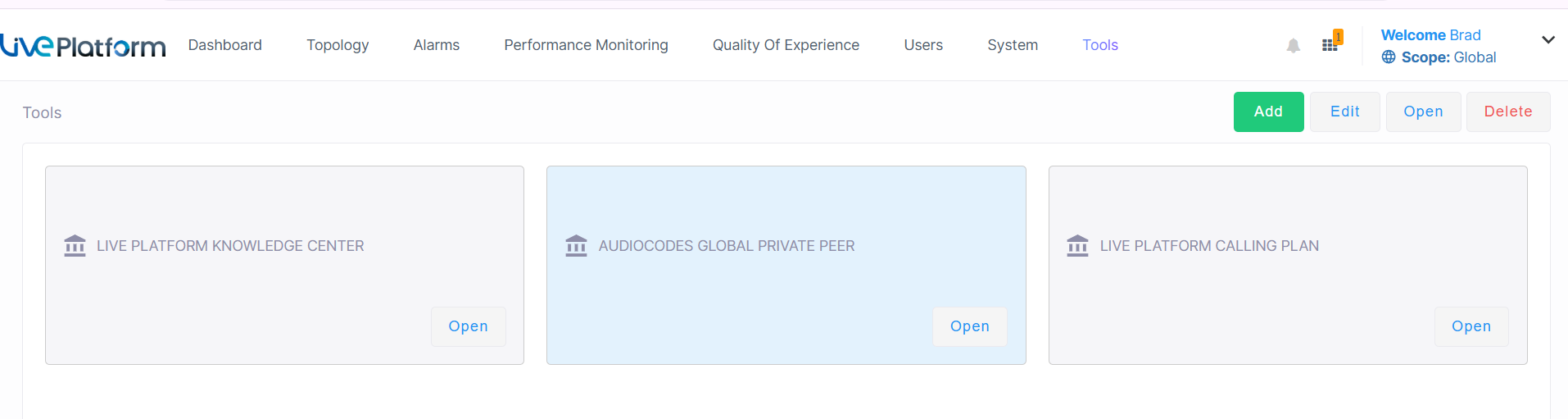
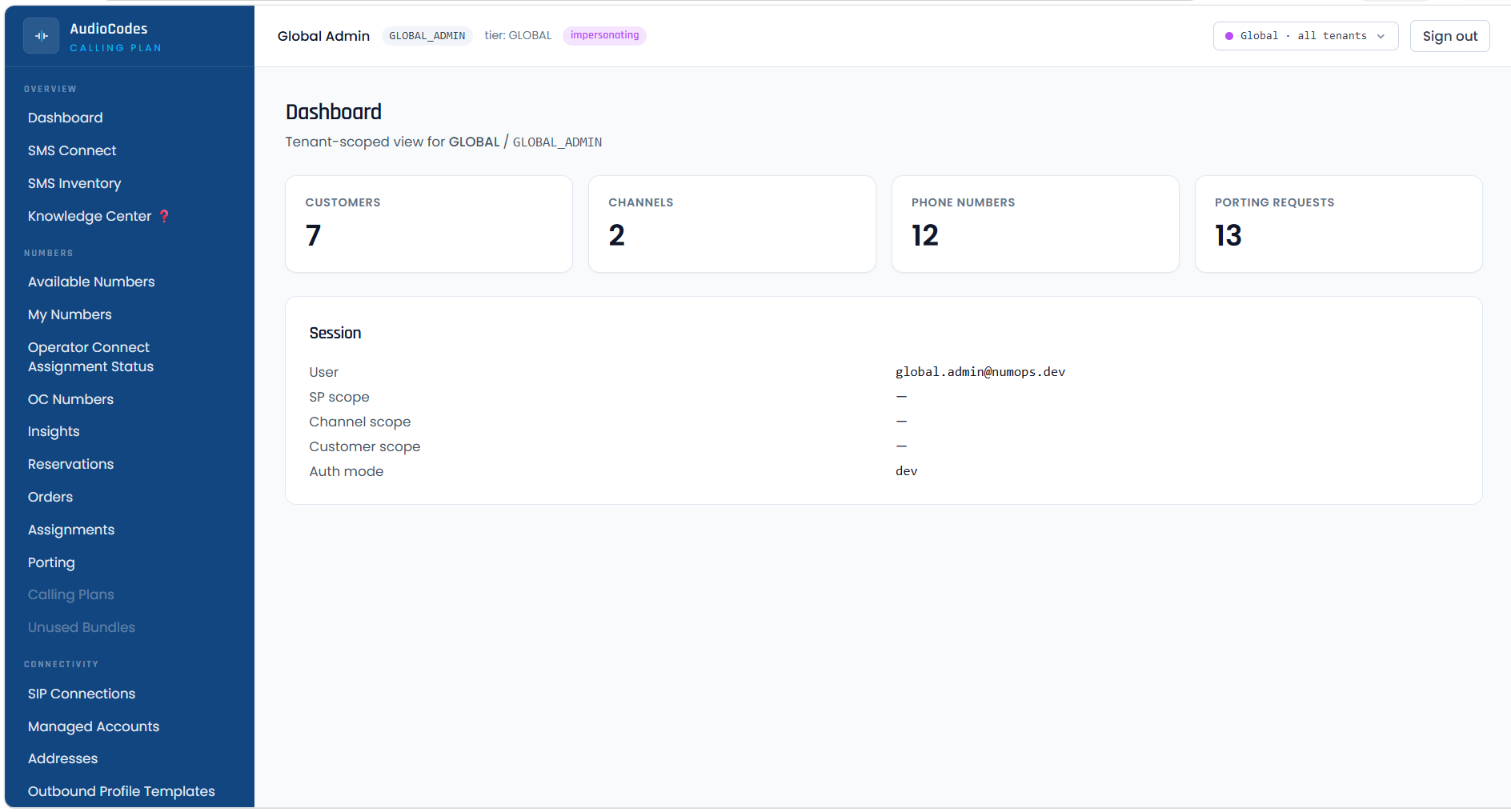
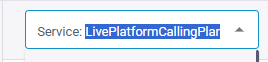
| 2. | Click the open button for the relevant external application. The example below shows the AudioCodes Calling Plan application. |
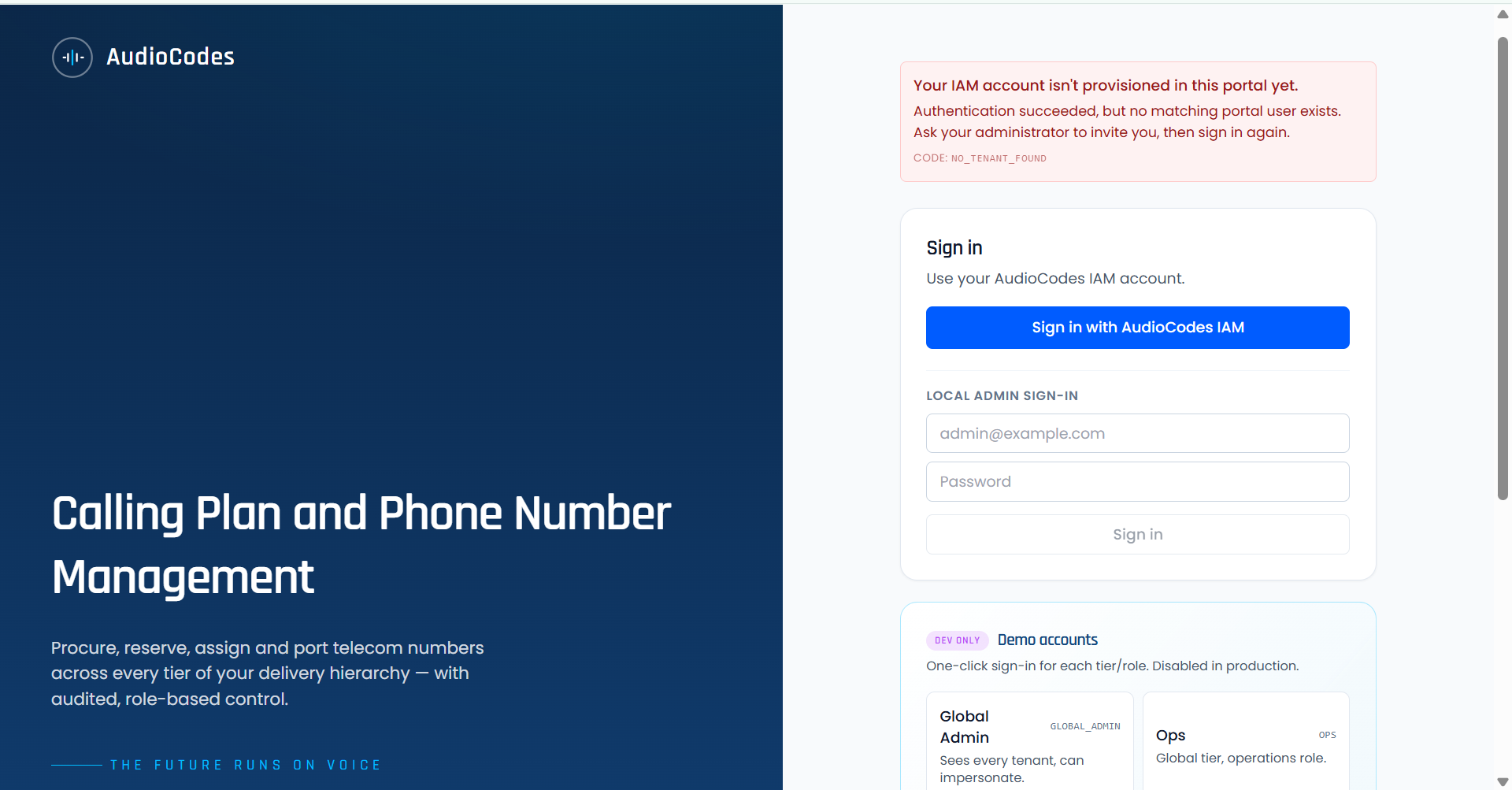
If you have not setup a Single Sign-on IAM account, the log in page prompts you for local user credentials.
If has not setup a Single Sign-on IAM account, the log in page prompts you for local user credentials.
| ➢ | to add a new external app: |
| 1. | Click Add. |
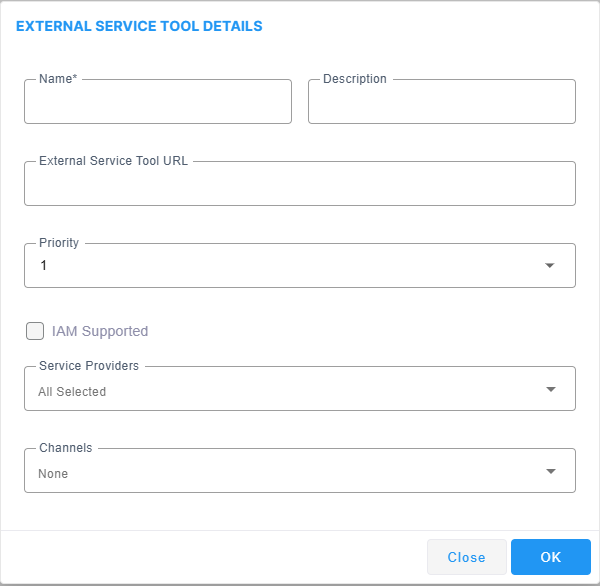
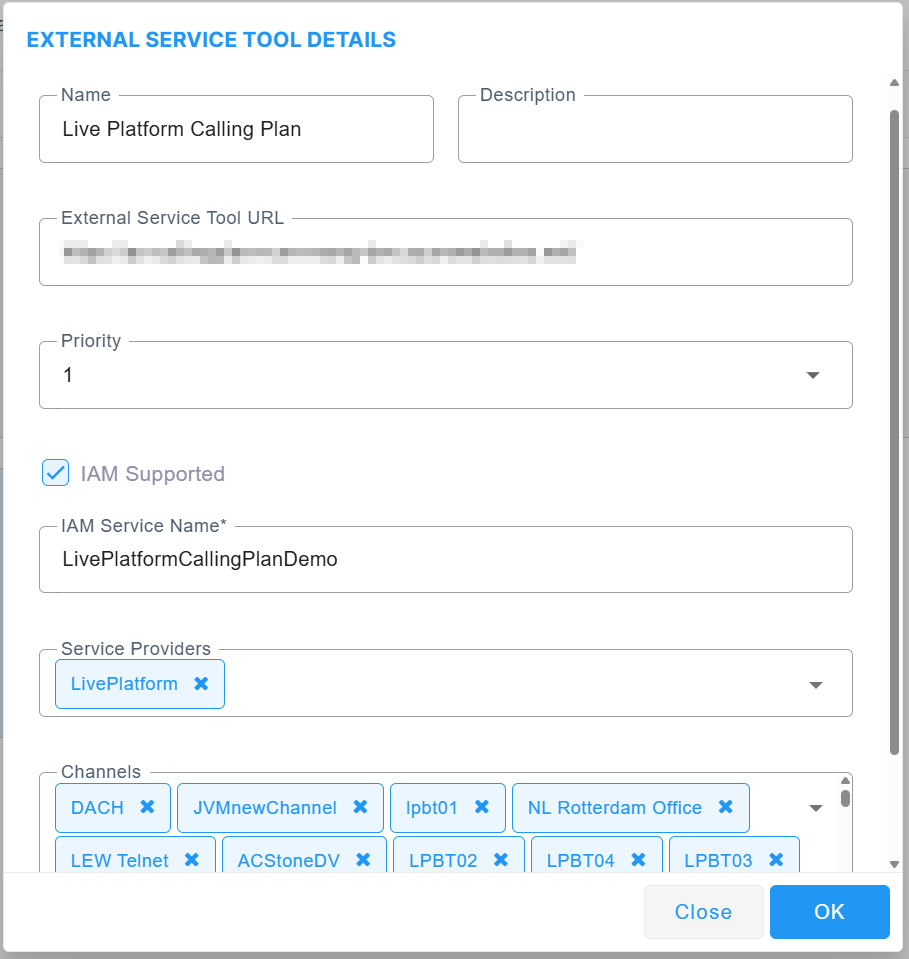
| 2. | Configure parameters according to the table below and then click OK. |
|
Parameter |
Description |
|---|---|
|
Name |
Enter the name of the external service tool. |
|
Description |
Enter a brief description of the tool. |
|
External Service Tool URL |
Enter the URL of the external application. |
|
Priority |
From the drop-down, choose the display order in the Tools pane. |
|
IAM Supported |
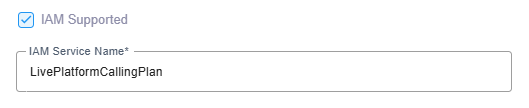
Select IAM Supported to enable SIngle Sign-on access to the external application using the credentials of a Live Platform IAM account. The IAM Service Name field is display. See Configuring Identity and Access Management (IAM) to extract the IAM Service Name for the External application for which you wish to connect. You can configure multiple entries to the same URL that are mapped to difference IAM service instances.
|
|
Service Providers |
From the drop-down list, select the service providers to allow access to the external application tool. When the service provider accesses the Tools page, the application is displayed and can be opened. If you configure Single Sign-on using IAM (see above), ensure that you have added the IAM account for the service provider users who you wish to enable access to the application. See Logging in with Identity and Access Management (IAM)) for adding users. |
|
Channels |
From the drop-down list, select the channels to allow access to the external tool. When the channel reseller accesses the Tools page, the application is displayed and can be opened. If you configure Single Sign-on using IAM (see above), ensure that you have added the IAM account for the channel reseller users who you wish to enable access to the application. See Logging in with Identity and Access Management (IAM)) for adding users. |
| 3. | Click Edit to view the details of the configured application. |
'\
| 4. | Click Delete to delete the application. |