Adding Local Live Platform portal users in IAM
Adding a local management user for Live Platform through IAM includes
You can enable multi-factor authentication (MFA) to add an extra layer of security to your Live Platform user sign-in process. After entering your Live Platform credentials, you're prompted to provide a verification code.
Live Platform supports the following MFA methods for providing a verification code:
| ■ | Email - a verification code is sent to your registered email address. |
| ■ | Authenticator app (e.g., Microsoft Authenticator) - a verification code is generated by your authenticator app after you scan a QR code. |
MFA can either be enabled globally for the Service Provider IAM account by AudioCodes Professional Services, or can be enabled individually for each user. After enabling MFA, the next time you sign in to Live Platform, you're prompted to setup the MFA method. You can always change the MFA method during sign-in.
Once your Live Platform portal tenant user has been registered to IAM with the appropriate role by , you can access the IAM interface through single sign-on (SSO) from Live Platform's Welcome drop-down menu and add additional users to your tenant. The table below describes the roles that can be assigned to Live Platform tenant admin users.
| Live Platform User |
Roles/ Access to IAM1 |
Adding Users |
||||||||||||||||||
|---|---|---|---|---|---|---|---|---|---|---|---|---|---|---|---|---|---|---|---|---|
|
System Administrators |
|
Admin user can add users for all roles for all instances and accounts. |
||||||||||||||||||
|
Service Providers |
|
Admin user can add users for all roles only on their Service Provider tenant. |
||||||||||||||||||
|
Channels |
|
Admin user can add users with Admin role only on their channel account. |
||||||||||||||||||
|
Customers |
|
Operator user can add users with "Operator", "Monitor" and "Operator Lite" roles only on their customer account. |
You can only define a single role per user.
| ➢ | To add a local management user in IAM: |
| 1. | In your web browser, go to the Live Platform URL. |
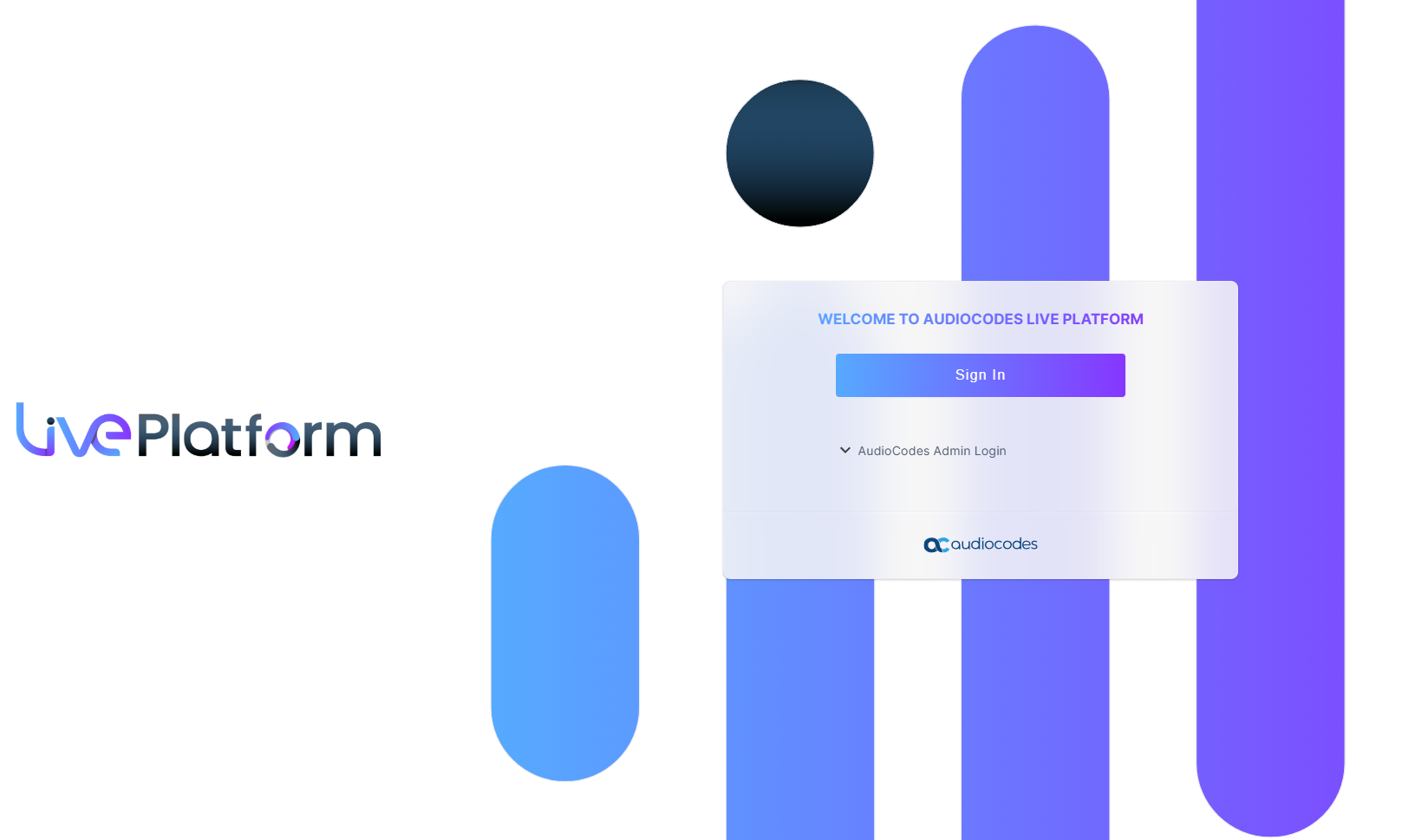
| 2. | Click Sign In. |
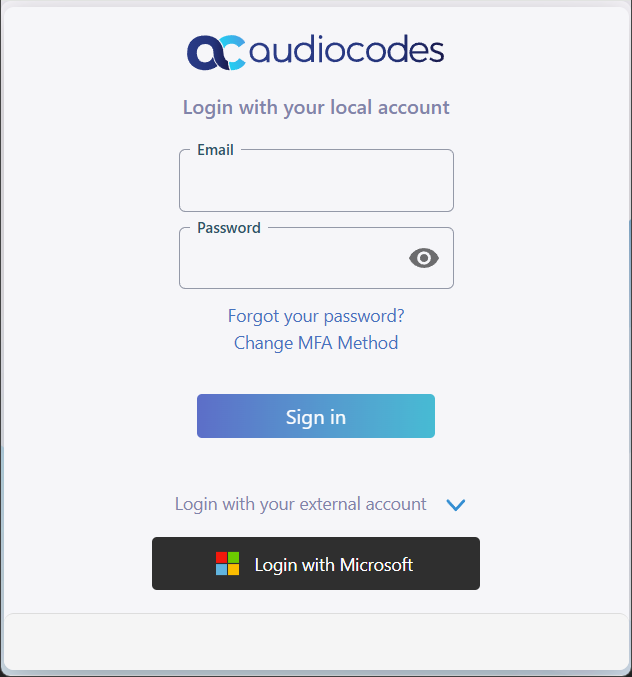
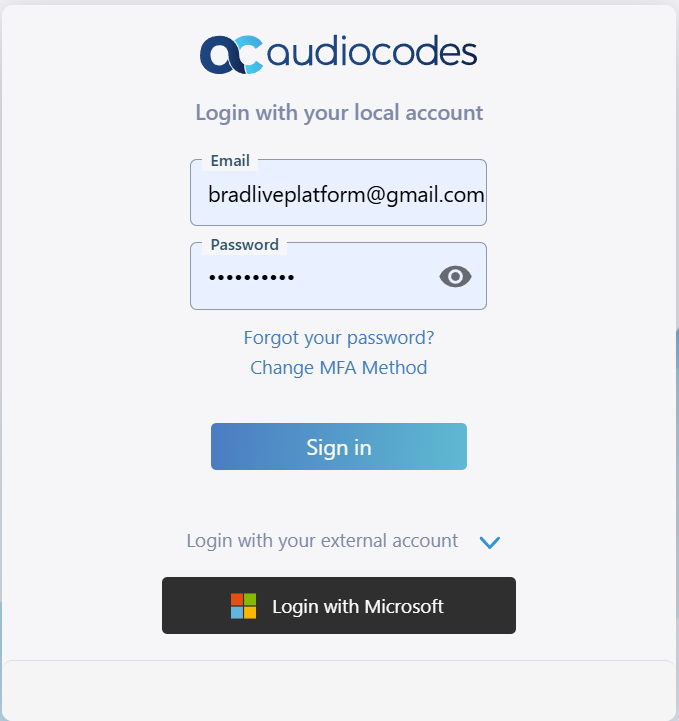
| 3. | Enter the credentials of your IAM user. The Live Platform portal opens. |
| 4. | Click the Welcome drop-down menu located in the top-right corner of the Live Platform portal page, and then choose Access control (IAM). |
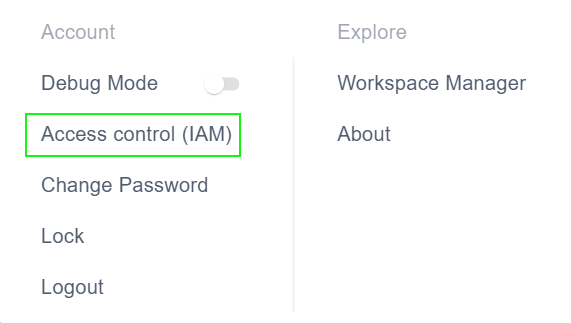
The IAM interface opens displaying the Accounts page. This page displays the details of the Live Platform portal Service instance and SysAdmin account. In the example below, "ovoc-sandbox1" and "AudioCodes" respectively.

| 5. | From the Service drop-down, select the Live Platform service instance that you wish to assign the account. |
| 6. | From the Account drop-down list, select the Live Platform entity (tenant) to which you want to add the user. |

| 7. | Click Add User and Role. |

| 8. | Enter the email address of the user, assign the relevant role (see table above) and then click Add. The new user is displayed. IAM automatically sends a message to the user's email address to invite the user to join (register) and manage the specific Live Platform account (see Inviting Users to Register to IAM). |
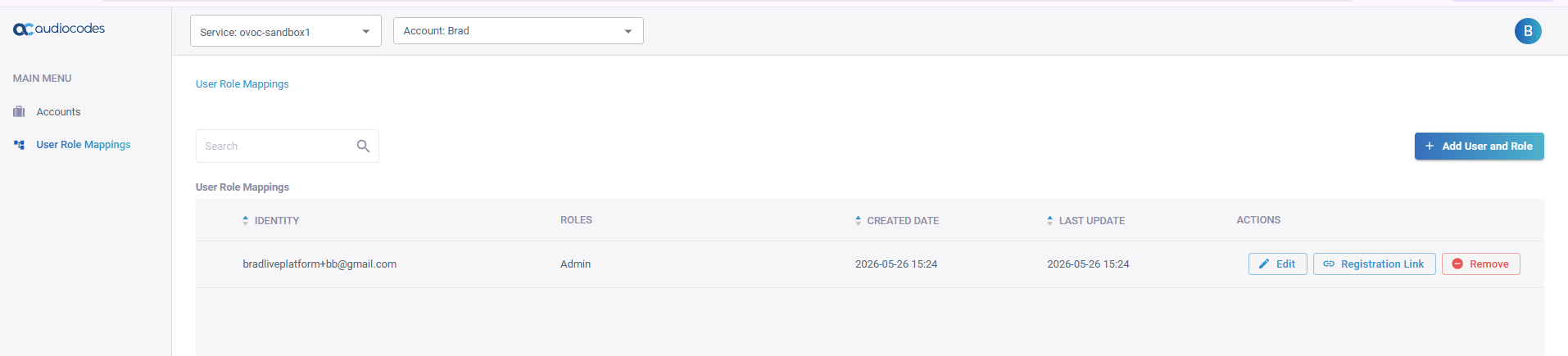
| 9. | Enable MFA: you can either enable MFA globally for an account or individually per user. |
| a. | Globally: Select the relevant Service and Accounts and then select the option Require MFA for all Users at Login. |
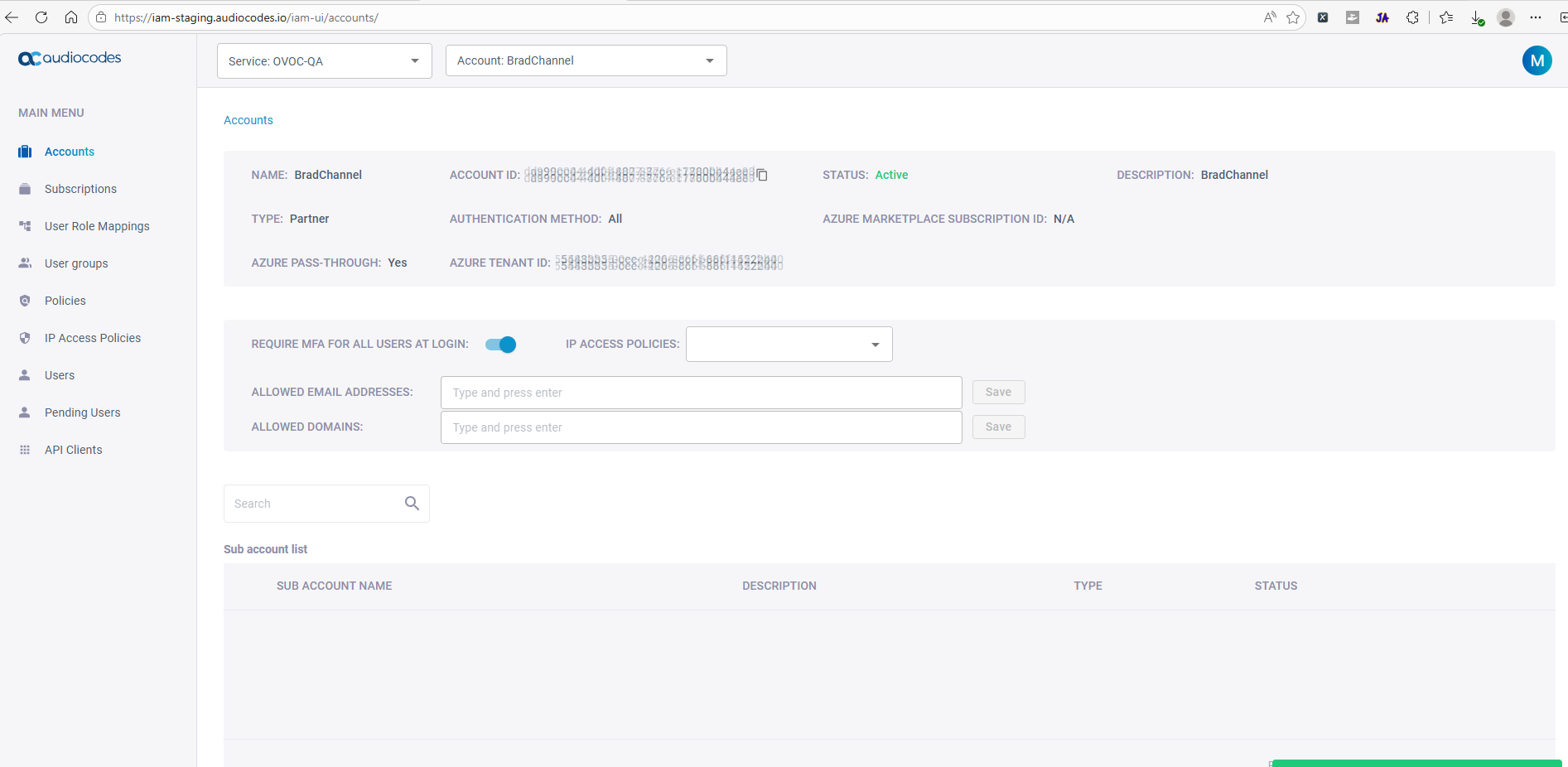
| b. | For each user: Click your profile icon located in the top-right corner, and then from the drop-down menu, choose Edit User; the User Profile page appears: |
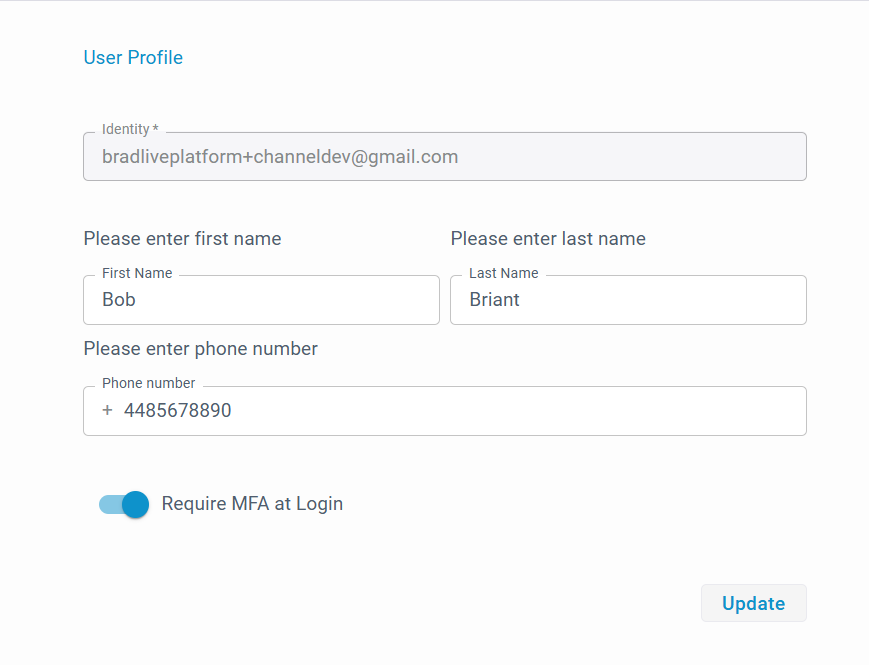
| i. | Click the Require MFA at Login toggle switch to turn it on. |
| ii. | Click Update; a success confirmation message is displayed. |
| iii. | Close the browser page. |