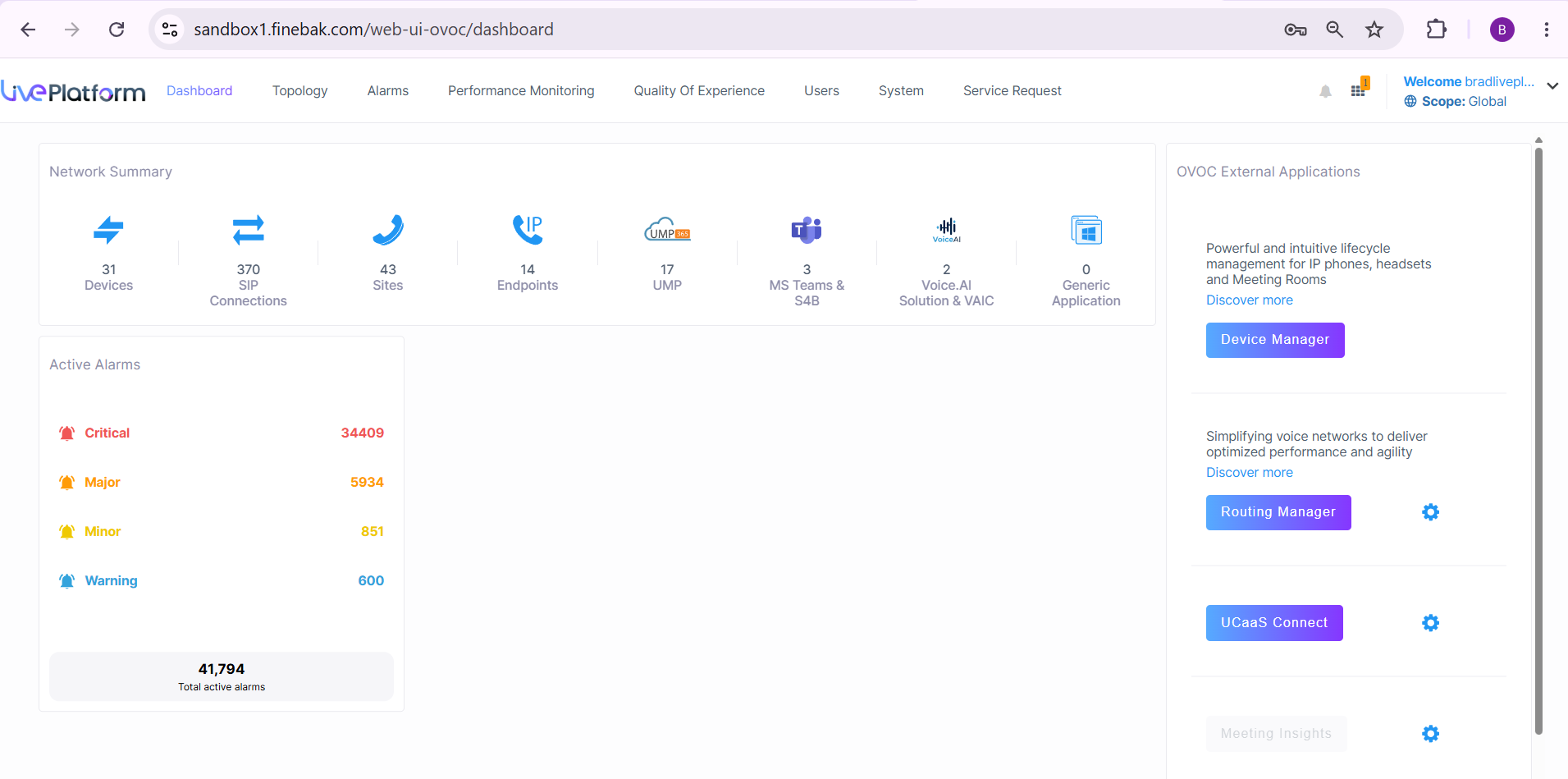
Logging into IAM with MFA
Once your user account has been successfully registered in IAM, you can log in to Live Platform's Operation Center portal using your IAM configured credentials. If Multi-Factor Authentication (MFA) is configured for your user , you need to enter a verification code that is sent to either your Authenticator app or email address.
|
●
|
The Live platform uses pop-up windows during sign-in. If your web browser blocks pop-ups, please allow them for this site before continuing. |
|
●
|
A Redirect URL must be configured in the App registration for the Multitenant. |
|
●
|
Make sure that the organization's firewall allows the below URLs. Service Providers and Channels should inform their end customers. |
|
✔
|
https://iam.audiocodesaas.com |
|
✔
|
https://acservicesiam.b2clogin.com/tfp/acservicesiam.onmicrosoft.com |
|
✔
|
https://acservicesiamfiles.blob.core.windows.net |
|
●
|
For customers with their own White-label App registration, additional configuration is required, contact AudioCodes Services Portal. |
|
➢
|
To log in with local IAM users: |
|
1.
|
In your web browser, go to the Live Platform URL. |
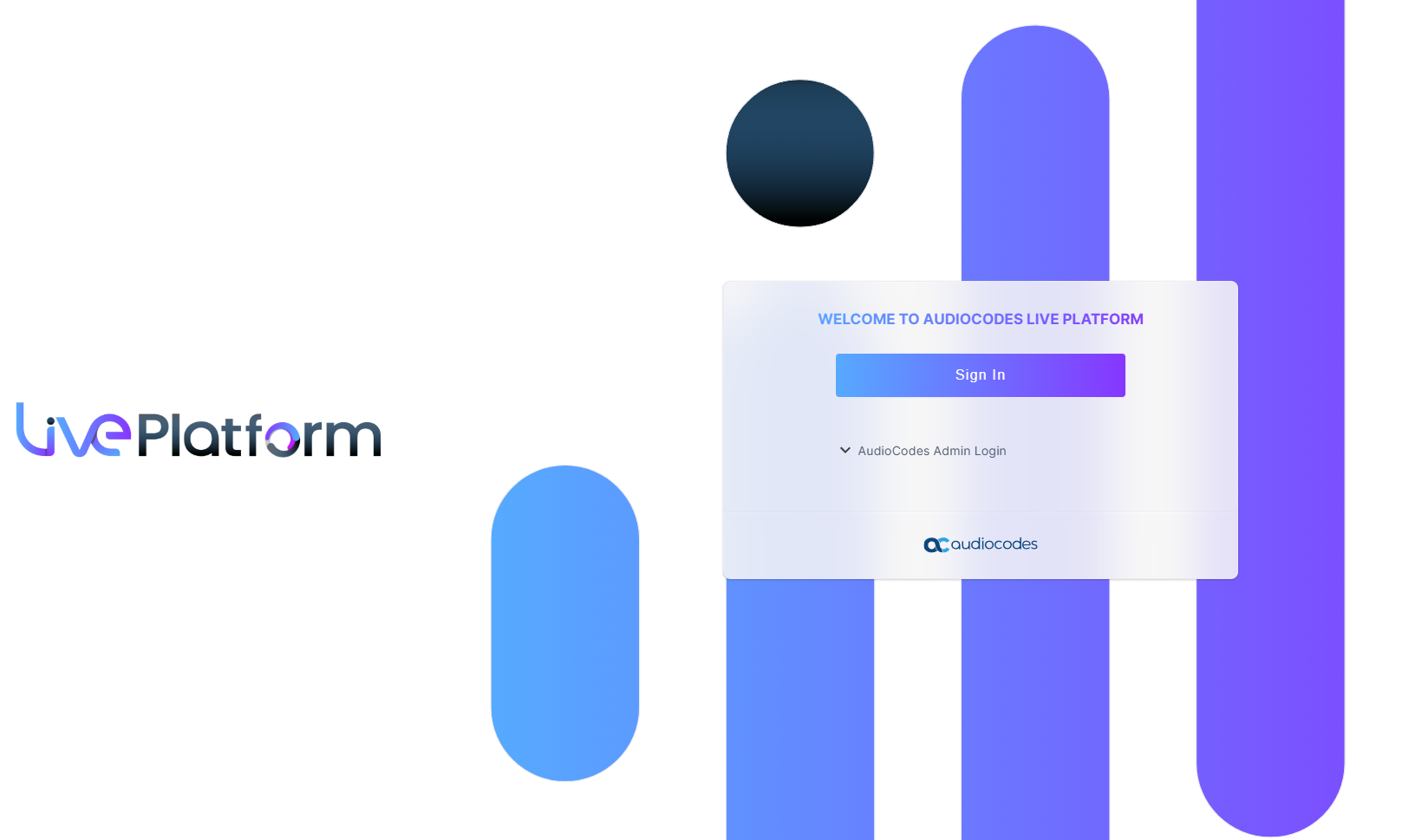
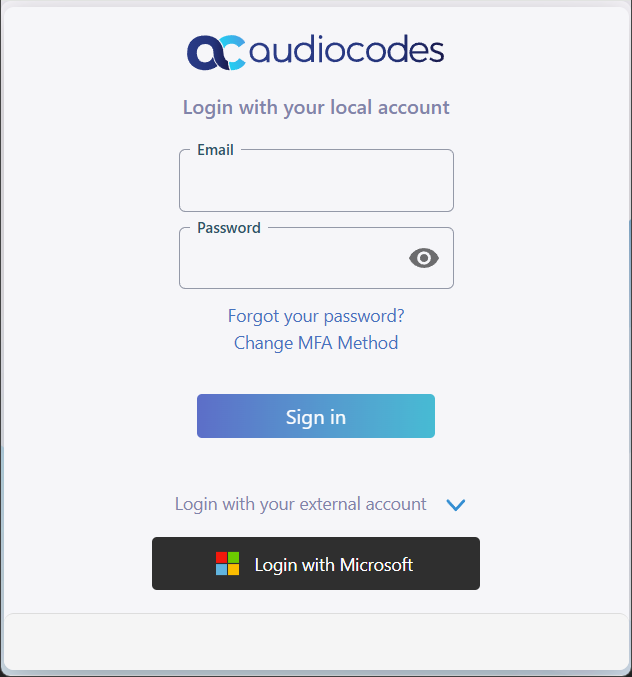
When IAM authentication completes (may take several seconds), the following dialog box appears:
|
3.
|
Under Login with your local account, in the 'Email' field, enter your email address and in the 'Password' field, enter your password. |
|
4.
|
Click Sign in.Notice in your Web browser, the Redirect URL points to the IAM application. |

Once you successfully login, you are redirected back to Live Platform portal URL

|
5.
|
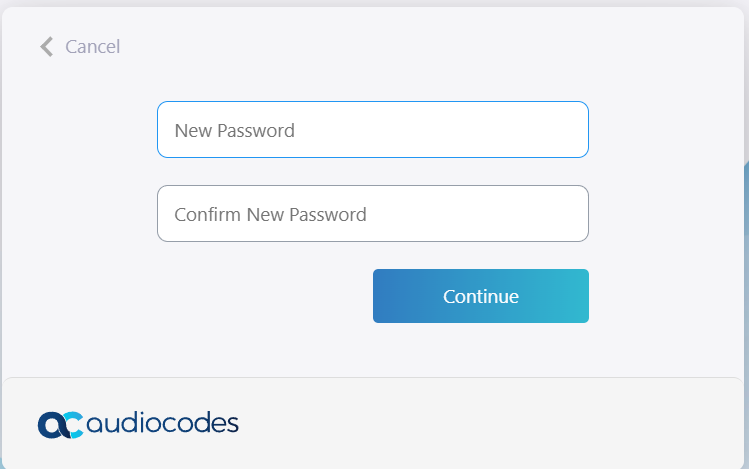
You may be prompted to update your password. Enter the new password, confirm and then click Continue. |
|
6.
|
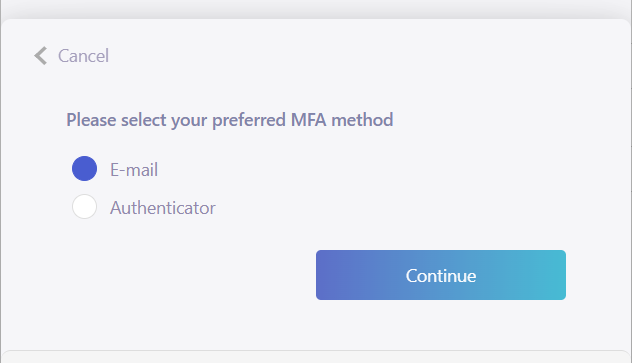
If this is your first sign-in after being enabled for MFA, you're prompted to choose the MFA method (by email or authenticator app): |
|
a.
|
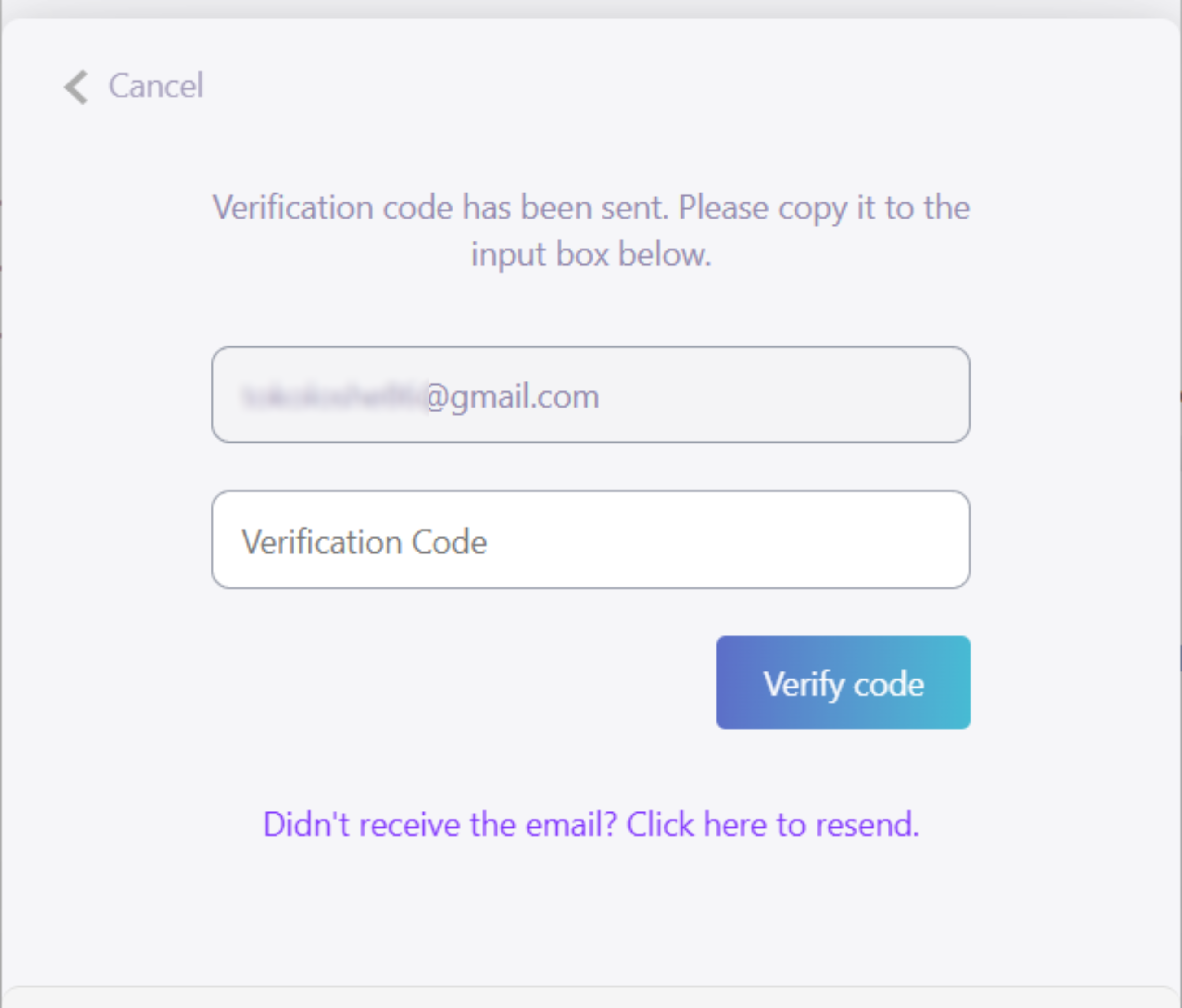
If you select the E-mail option, a verification email is sent to you with a verification code and the following is displayed. |
The email address must be the primary address of the email account; you cannot send the code to an email address containing an alias. For example, "bradliveplatform+support@gmail.com".
|
i.
|
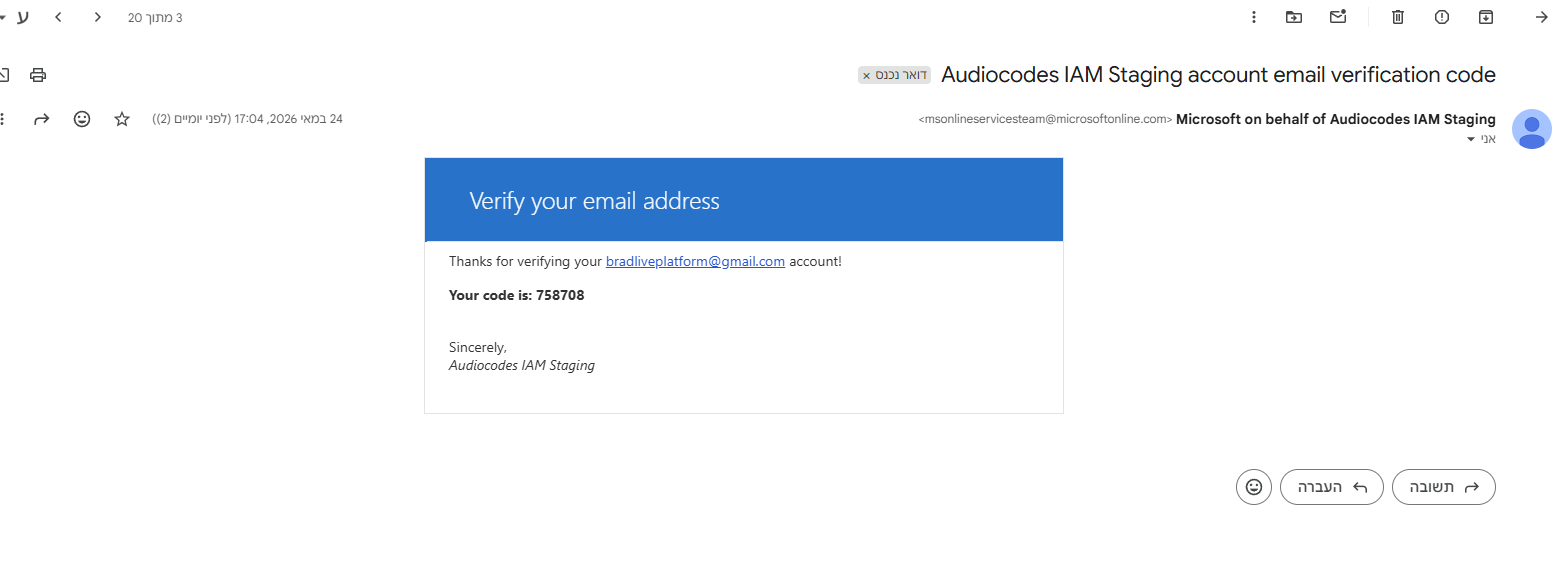
Copy the verification code from the email and paste it into the 'Verification Code' field. |
|
ii.
|
Click Verify code; if verification succeeds, the Choose Permission Level dialog box appears (continue with Step 7). |
|
b.
|
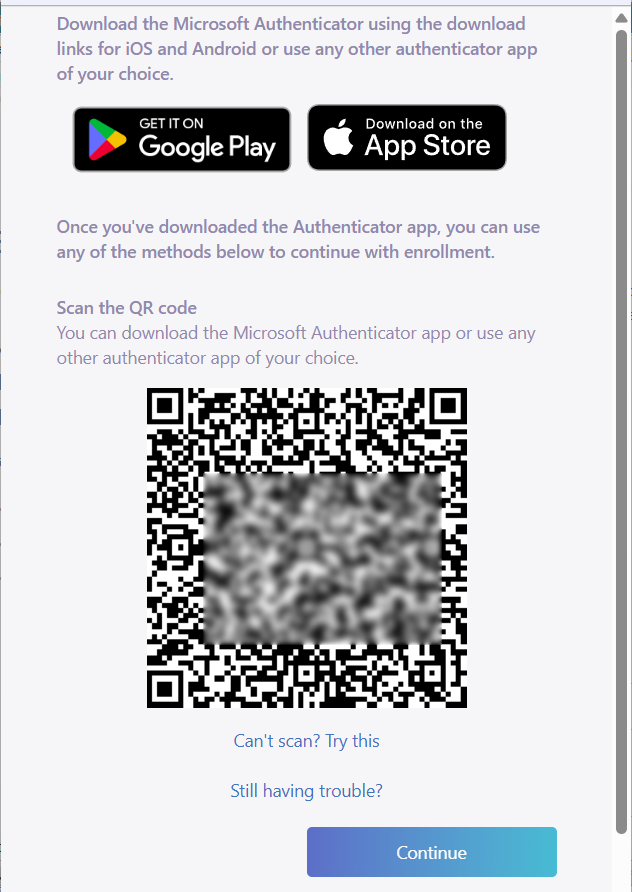
If you select the Authenticator option, a pop-up with a QR code is displayed: |
|
i.
|
Scan the QR code; the authenticator app displays a verification code. |
|
ii.
|
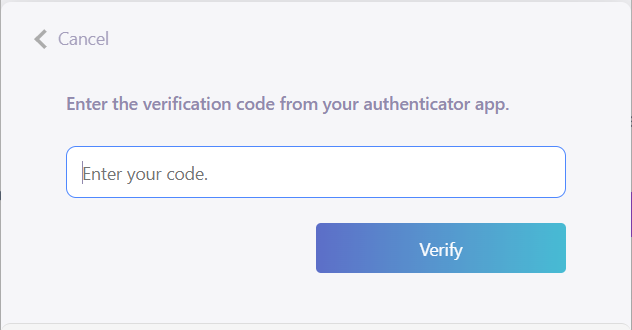
Click Continue; the following pop-up is displayed: |
|
iii.
|
In the field, enter the verification code from your authenticator app, and then click Verify. |
The Live Platform portal dashboard is displayed.