Manage the Template Library for AI-powered Summaries
The Templates Library includes a set of pre-built templates that are designed by AudioCodes for use by most organizations. When enabled, Interaction Insights web portal users can select these templates to generate AI-powered summaries.
You can access the templates library at the global level or for a specific service tenant:
At the global level, template settings apply to all tenants of the customer instance. Templates can be enabled or disabled for a service tenant.
When you upload a template, you can assign it to a sector, which is a logical group that helps users find related templates. Sector names are user-defined. For example, you might group templates for the sales team under "Sales", and templates for human resources under "HR".
You need to enable a template for it to become available to your tenant.
|
➢
|
To manage the global template library: |
|
1.
|
Open the Interaction Insights service's Tenant Management portal. |
|
2.
|
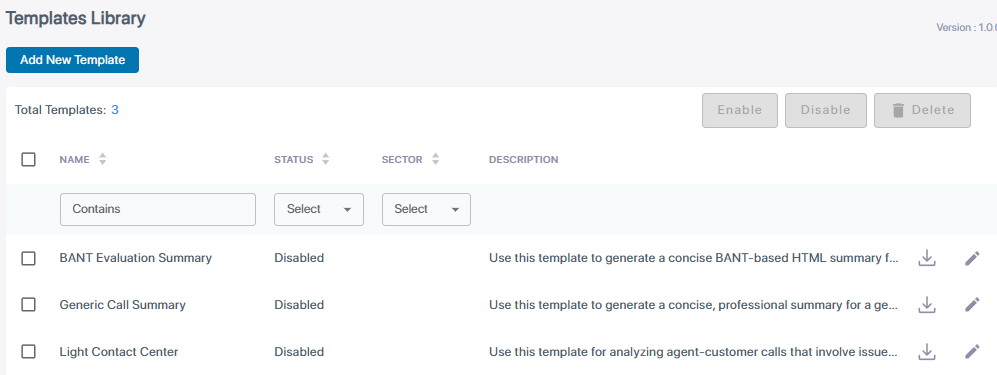
In the navigation pane, under AI Settings, select Templates Library; a list of the library templates is shown. |
|
3.
|
To add a new global template: |
|
a.
|
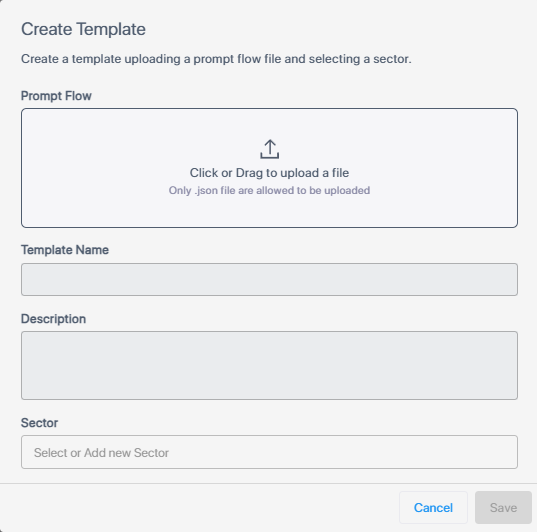
Click Add New Template; the Create Template dialog box appears: |
|
b.
|
Under Prompt Flow, drag the template file (JSON format) into the box, or click the box and browse to and select the file; the file is uploaded and the following fields are automatically populated (and cannot be modified): |
|
❖
|
Template Name: Name of the template (e.g., Municipal Committee), which is obtained from the "name" field in the uploaded JSON file. |
|
❖
|
Description: Description of the template, which is obtained from the "description" field in the uploaded JSON file. |
|
a.
|
(Optional) From the 'Sector' drop-down list, type the sector for which the template is applicable (e.g., Sales). This can be used later for template classification and filtering. |
|
4.
|
Manage existing library templates as required: |
|
●
|
To enable or disable templates, select them and click the Enable or Disable buttons. |
|
●
|
To delete templates, select them and click Delete, then click Delete again to confirm. |
|
●
|
To edit a template, click the Edit icon in its row, make the required changes, and then click Update. |
|
●
|
To download a template to your local Downloads folder, click its Download icon. |
|
➢
|
To enable or disable library templates for a service tenant: |
|
1.
|
Open the Interaction Insights service's Tenant Management portal and click the relevant tenant name. |
|
2.
|
In the navigation pane, under AI Settings, select Templates Library; the list of the library templates is shown for the tenant. |
|
3.
|
Select the relevant templates and enable or disable them as required. |