Microsoft Recording Notifications
You can configure Meeting Insights to trigger Microsoft recording notifications for Teams meetings. When enabled, Microsoft provides audio and visual notifications to participants when recording starts. This setting is enforced at the system level and cannot be overridden by Meeting Insights users.
|
■
|
If Microsoft recording notifications are disabled:
|
|
●
|
Meeting Insights joins and records the meeting as long as the meeting organizer (Owner) is a licensed Meeting Insights user. |
|
●
|
The recording starts even if the organizer doesn't join the meeting. |
|
●
|
Recording continues regardless of whether the organizer or participants join or leave the meeting. |
|
■
|
If recording notifications are enabled for a user or user group:
|
|
●
|
Meeting Insights joins and records the meeting when either: |
|
❖
|
The meeting organizer with recording notifications enabled joins, or |
|
❖
|
Another internal participant with recording notifications enabled joins. |
|
●
|
If the organizer leaves the meeting: |
|
❖
|
Recording continues as long as at least one internal participant with recording notifications enabled remains in the meeting. |
|
❖
|
Recording pauses if no participants with recording notifications enabled remain. |
|
●
|
If the organizer or any other participant that has recording notification enabled rejoins, recording resumes automatically. |
Enabling recording notifications involves running a Microsoft script that can only be done by someone with Teams Administrator permissions.
|
➢
|
To trigger recording notifications during meetings when recorded by Meeting Insights: |
|
1.
|
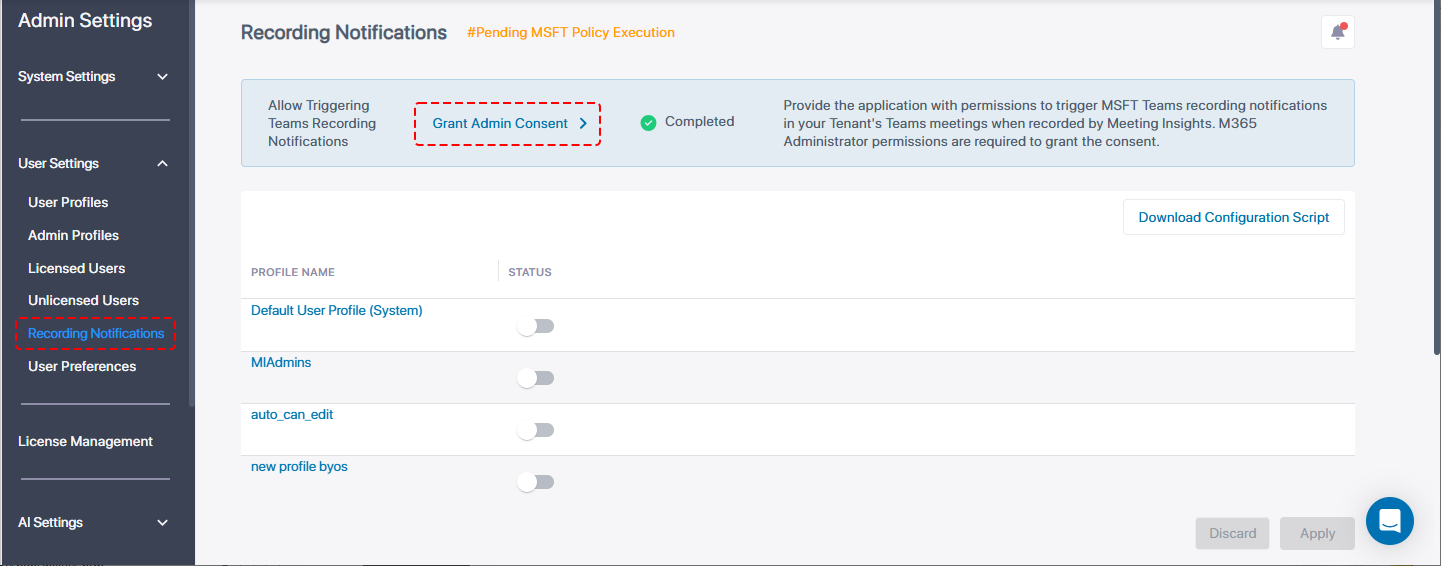
In the Admin Settings menu pane, expand User Settings, and then click Recording Notifications. |
|
2.
|
Make sure admin has been granted consent to allow Teams recording notifications to be triggered during meetings recorded by Meeting Insights. |
 indicates consent has been granted
 indicates consent has not been granted yet and must be granted
|
●
|
If consent has not been granted, the page is uneditable. |
|
●
|
Recording notifications require the 'Allow Meeting Insights to Be Added to Ongoing Meetings' script to be successfully executed from the 'Connect to M365' page. The script enables the notification bot to access meeting information. |
|
3.
|
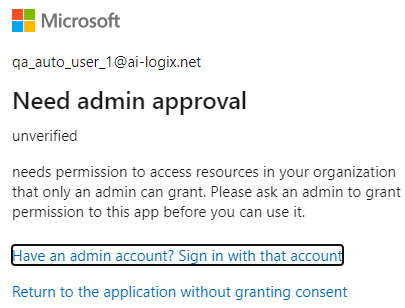
Click Grant Admin Consent if consent has not been granted yet. |
|
4.
|
Sign in with your M365 admin account. |
|
5.
|
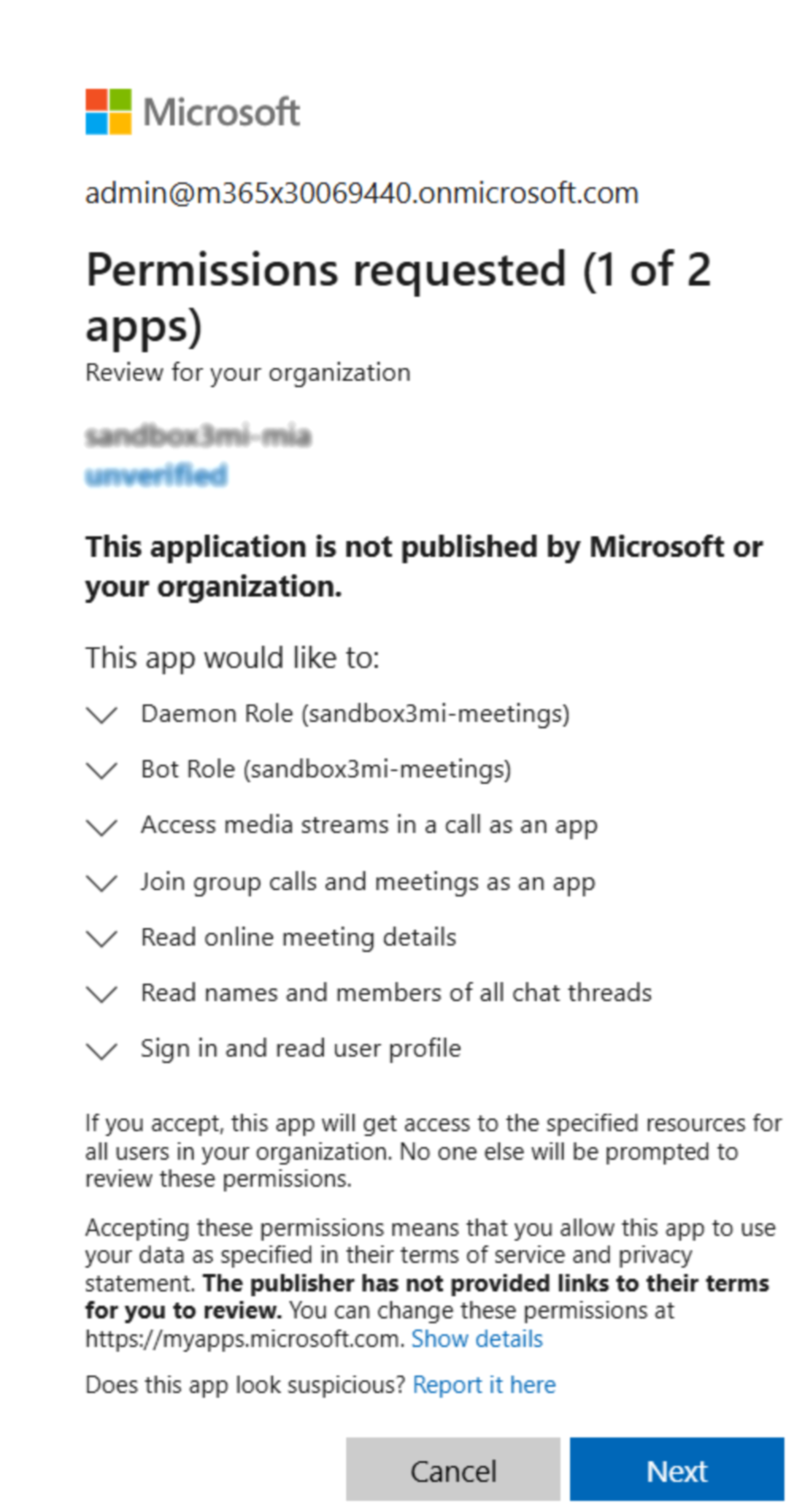
Accept the app permissions for Microsoft: |
|
6.
|
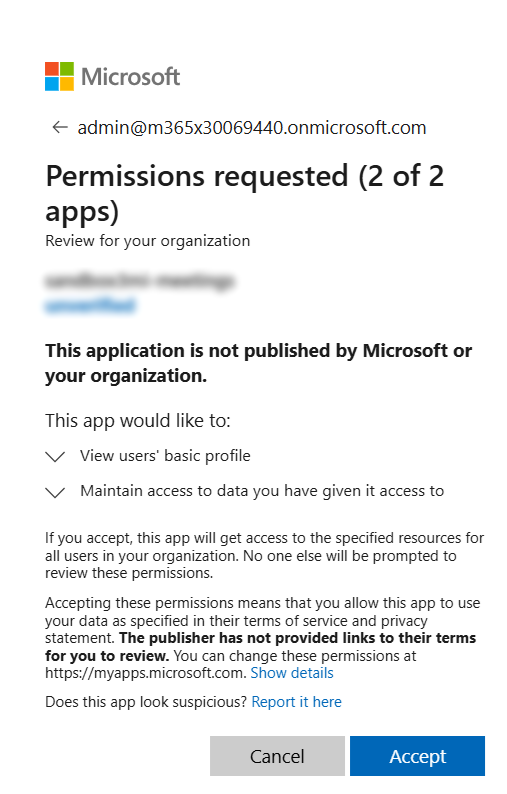
Click Next; the next app permissions dialog appears: |
|
8.
|
Enable the User Profile. |
|
●
|
For example, enable the default user profile Default User Profile (System). |
|
●
|
All users with this profile will receive recording notifications during meetings they organize. |
|
●
|
See User Profiles for information about how to configure a User Profile. |
|
9.
|
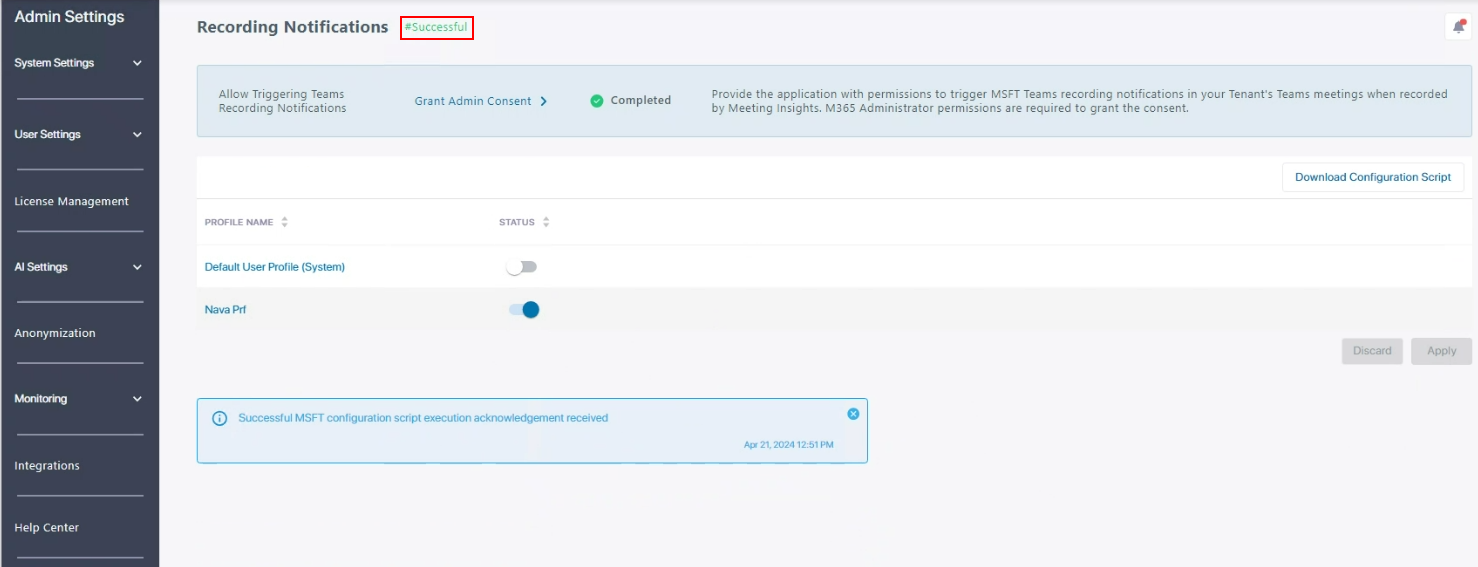
After changing a User Profile, the Recording Notifications page displays this message: |

|
10.
|
Click the Download Configuration Script button. The script must be executed by the M365 admin. |
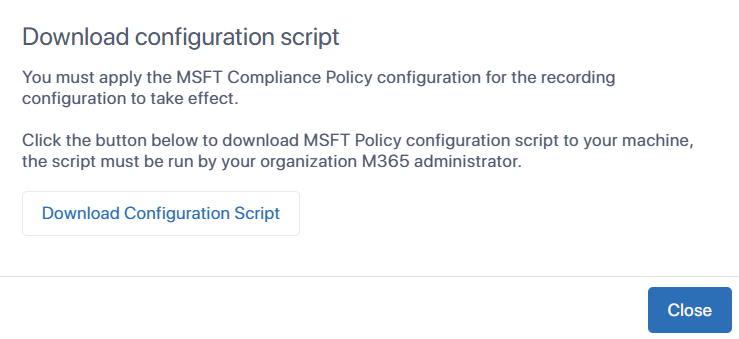
The script must be run to enable recording notifications in Microsoft. It may take time for the Microsoft configuration to take effect. Meetings of the users enabled for recording notifications will not be recorded until the configuration takes effect on the Microsoft side.
|
11.
|
Click Download Configuration Script. |
If you are using the Microsoft Edge browser and prompted to keep or delete the file, click Keep.
|
12.
|
Right-click the downloaded configuration policy script.ps1 file, and then from the shortcut menu, choose Run with PowerShell; the Open File - Security Warning message appears. |
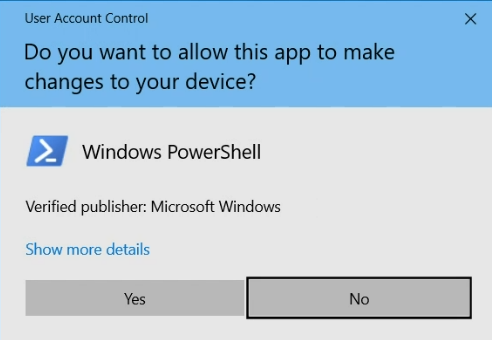
|
15.
|
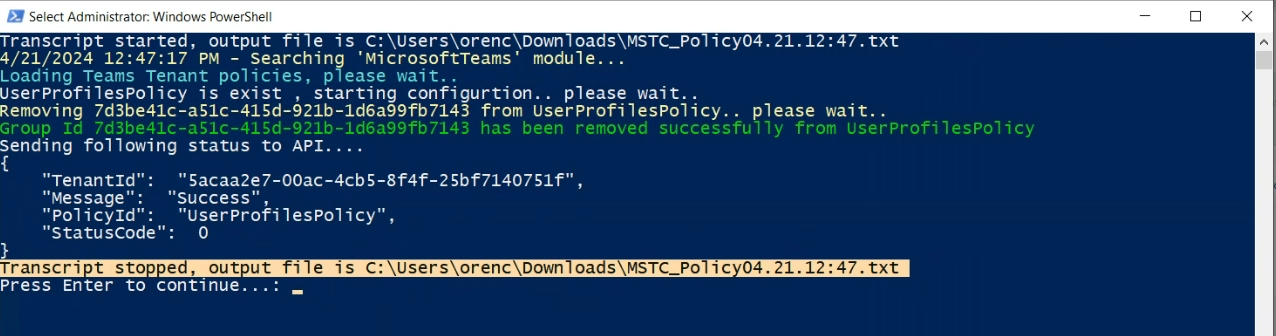
In PowerShell, type 'A', and then press Enter to run the script. |
|
16.
|
When the script completes, PowerShell displays "Transcript stopped" (see previous figure), and the "Successful" message appears in the Recording Notifications page as shown below: |
|
●
|
Enabling users for recording notifications may slow down users' call establishment.
|
|
●
|
Removing a Microsoft Entra ID group or adding a Microsoft Entra ID group to User Profiles that are enabled for recording notification requires downloading and executing the script for the change to take effect. |