Signing in
This section describes how to sign into Meeting Insights as an . Admin can perform management tasks which regular users cannot. Up to five admins are allowed.
|
●
|
The initial admin is added when the customer application is created. |
|
●
|
Default admin receives an email when the app is ready for sign-in. |
|
●
|
Admin has full Meeting Insights access permissions. |
|
✔
|
Admin has full access to system configuration and meetings. |
|
✔
|
Admin can act on behalf of the meeting owner and within the scope of the meeting owner's permissions, for example, admin can share a meeting externally if the meeting owner has permission to share externally. |
|
1.
|
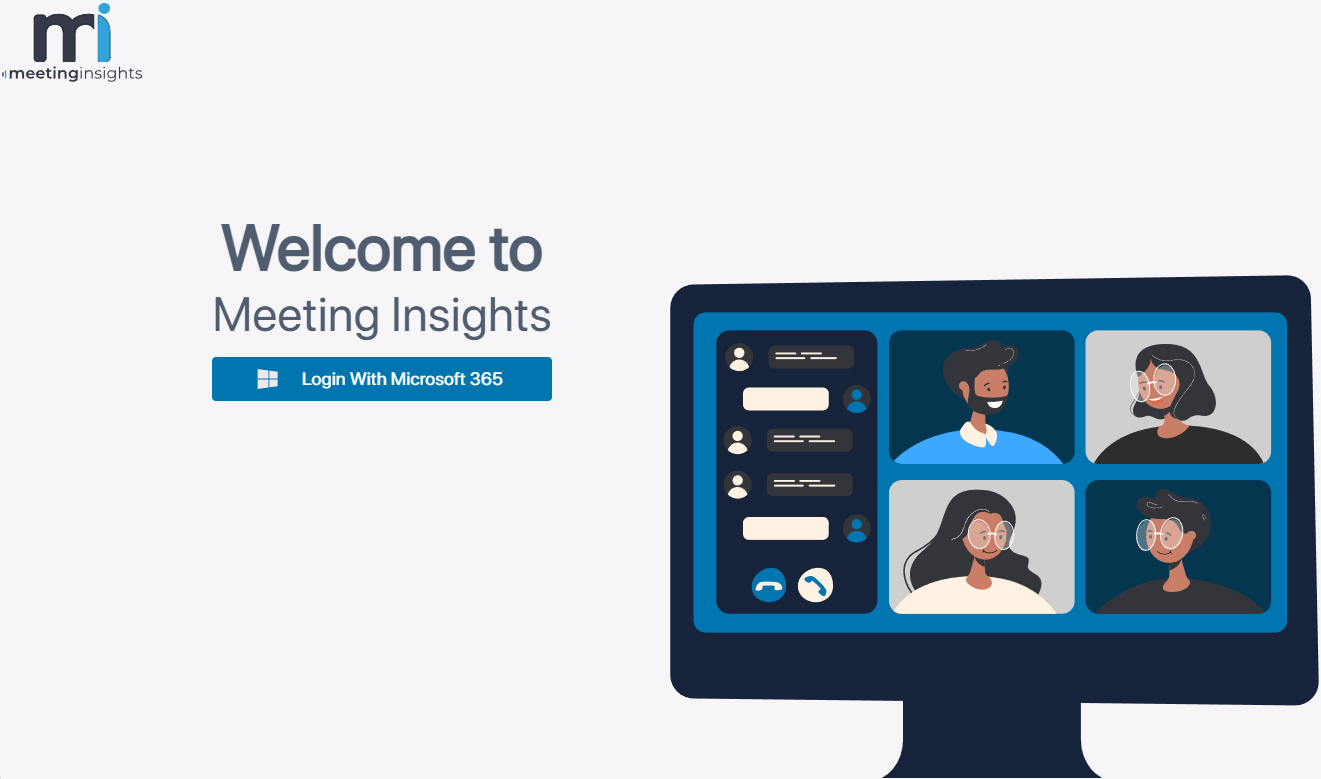
Go to the Meeting Insights app by using the link (URL) in the email from AudioCodes. |
Depending on your region, the URL to Meeting Insights is one of the following:
|
2.
|
Click Login With Microsoft 365; you're prompted to sign in with a Microsoft 365 account. |
|
3.
|
Sign in with your Meeting Insights administrator UPN. |
|
●
|
You can use any user account for initial login. However, depending on your organization's Microsoft delegated permissions for applications policy (listed below), you may be prompted to request approval from your organization's administrator for consent to access the Meeting Insights application: |
|
✔
|
Do not allow user consent: Consent is required from your organization's administrator. |
|
✔
|
Allow user consent for apps from verified publishers, for selected permissions: User can consent (because Meeting Insights is a Microsoft-verified publisher). |
|
✔
|
Allow user consent for apps: User can consent. |
|
●
|
During the onboarding process (see Connecting to Microsoft 365), multiple permissions (consents) for Microsoft 365 must be granted, which can only be done by users with Global Administrator or Cloud Application Administrator role, depending on consent type. These administrator users are used exclusively to grant the permissions; after each permission is granted, the Meeting Insights session automatically reverts to the user account who logged into Meeting Insights. |
|
4.
|
Connect Meeting Insights to your organization's Microsoft 365, as described here. |