Connecting to Microsoft 365
This section describes how to connect to Microsoft 365 (M365), which includes granting various permissions (consents) to the Meeting Insights app in your organization's Microsoft 365 environment.
These permissions can only be granted by users with Global Administrator or Cloud Application Administrator role, depending on consent type. The following table describes each consent type and the required user role that can grant the consent.
When you click each consent type, a prompt appears for signing into the Microsoft 365 user account with the required user role. Therefore, if you’re logged in to Meeting Insights with a user account that doesn’t have the required administrator user role, you need to make sure that the user with the required role is available to sign in temporarily to grant each consent. This administrator account is used exclusively to grant the permissions. After each permission is granted, the Meeting Insights session automatically reverts to the initial user account (i.e., you) who logged into Meeting Insights.
|
Consent |
Required User Role |
Description |
||||||
|---|---|---|---|---|---|---|---|---|
|
M365 Login |
Global Administrator or Cloud Application Administrator |
Provides the application with permissions to authenticate users with their Microsoft 365 credentials. The application reroutes users to Microsoft 365 for authentication (Microsoft Entra ID authentication - Microsoft OpenID Connect). |
||||||
|
Read Microsoft Entra ID Groups and Users |
Global Administrator or Cloud Application Administrator |
Provides the application with permissions to read Microsoft Entra ID groups and users to enable the groups' users for recording and access to the application. |
||||||
|
Allow Meeting Insights to Join Meetings |
Global Administrator or Cloud Application Administrator |
Provides the application with permissions to join your Tenant's Teams meetings to record the calls' information and media. |
||||||
|
Mobile App M365 Login |
Global Administrator or Cloud Application Administrator |
Provides the Mobile application with permissions to authenticate users with their Microsoft 365 credentials. The mobile application reroutes users to Microsoft 365 for authentication (Microsoft Entra ID authentication - Microsoft OpenID Connect). |
||||||
|
Publish Meeting Insights Teams Client App in your Teams Store |
Global Administrator |
Adds the application to users' Teams Client for access and adding it to ongoing meetings. It publishes the app in your Teams store. In the store, you can set policies for installing and automatically pinning the application for specific groups or users. |
||||||
|
Allow Meeting Insights to be Added to Ongoing Meetings |
|
Provides the Meeting Insights Teams Client Application with permissions to be pulled into ongoing meetings through Online Meeting Global Application access. |
| ● | Granting permissions described in this section applies to the Meeting Insights application only; it does not affect other applications. |
| ● | Optionally, admin can manually add the app to the Teams store without needing to grant permissions, as described in Adding Meeting Insights to Teams Client. |
| ➢ | To connect to Microsoft 365: |
| 1. | After signing in to Meeting Insights, the 'Connect to your M365' page is displayed (Admin Settings > System Settings > Connect to your M365). The 'Completed' column displays the  icon for all consents, indicating that none of the consent types have been granted. icon for all consents, indicating that none of the consent types have been granted. |
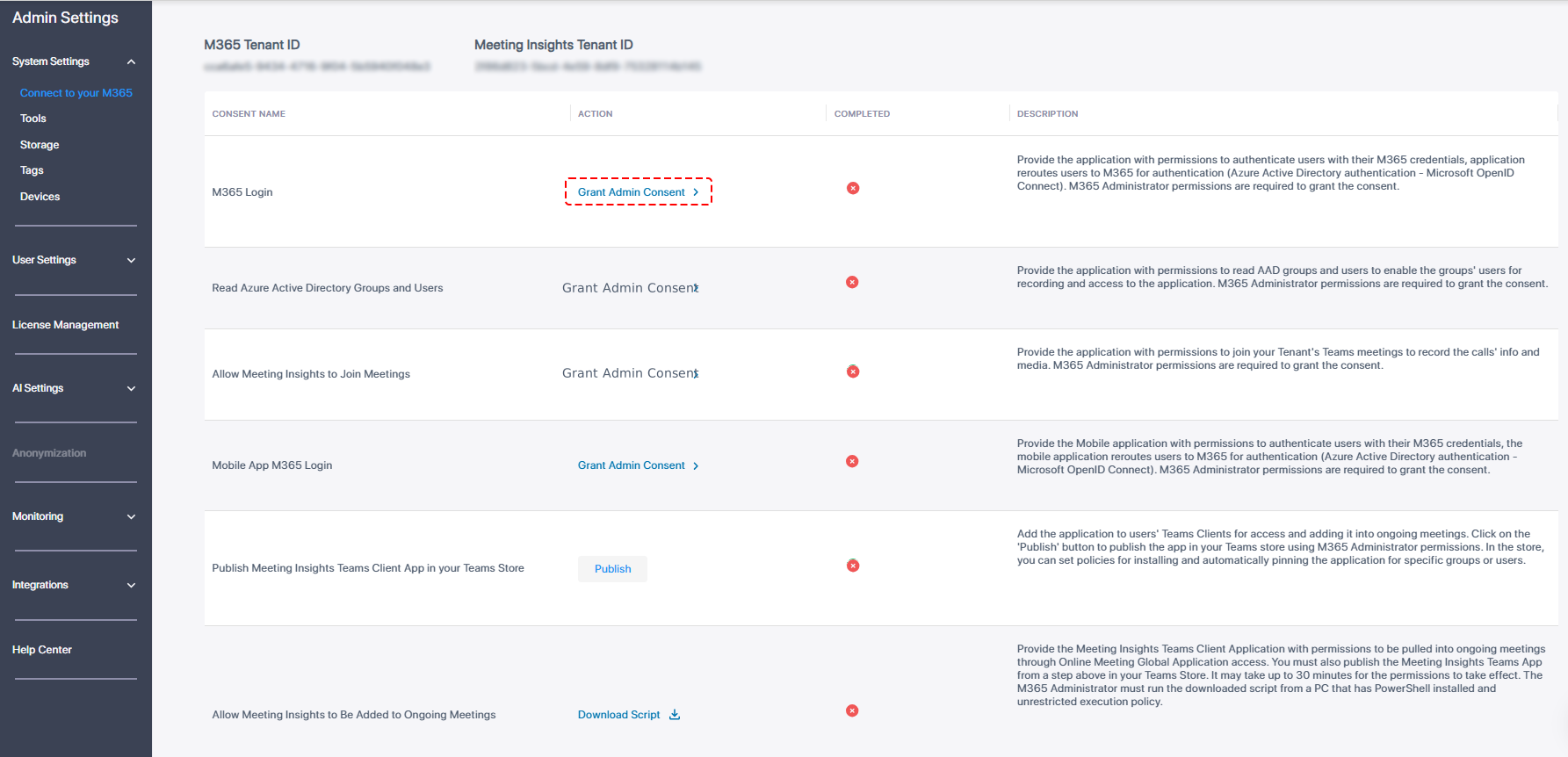
| 2. | (Mandatory) 'M365 Login' Consent: (see permission details in Microsoft Entra ID Meeting Insights Web Application) |
This consent grants the Meeting Insights app permission to authenticate users with your Microsoft 365 credentials. When the consent is approved, the app reroutes users to Microsoft 365 for authentication (Microsoft Entra ID authentication - Microsoft OpenID Connect).
| ● | You must first grant this consent before continuing with the other consents. |
| ● | Microsoft 365 Global Administrator permissions are required to grant consent. |
| a. | Next to ‘M365 Login’, click Grant Admin Consent; you're prompted to log in to your Microsoft 365 account. |
| b. | Log in to your Microsoft 365 Global administrator account; the following permissions dialog box appears: |
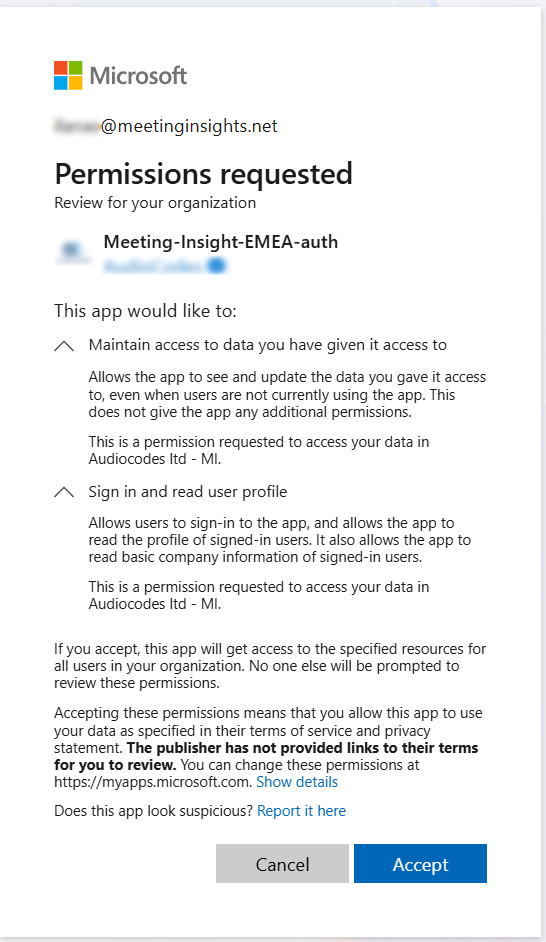
| c. | Click Accept; the 'Completed' column displays the  icon, indicating that you've successfully granted 'M365 Login' consent. icon, indicating that you've successfully granted 'M365 Login' consent. |
Even if you later revoke consent, the icon remains green.
| 3. | (Mandatory) ‘Read Microsoft Entra ID Groups and Users’ Consent: (see permission details in Microsoft Entra ID Meeting Insights Application) |
This consent grants the Meeting Insights app permission to read Microsoft Entra ID groups and users, and permission for groups' users to access the app and record.
| ● | You can only grant this consent after you've successfully granted ‘M365 Login’ consent, as described in see Step 2 (above). |
| ● | Microsoft 365 Global Administrator permissions are required to grant consent. |
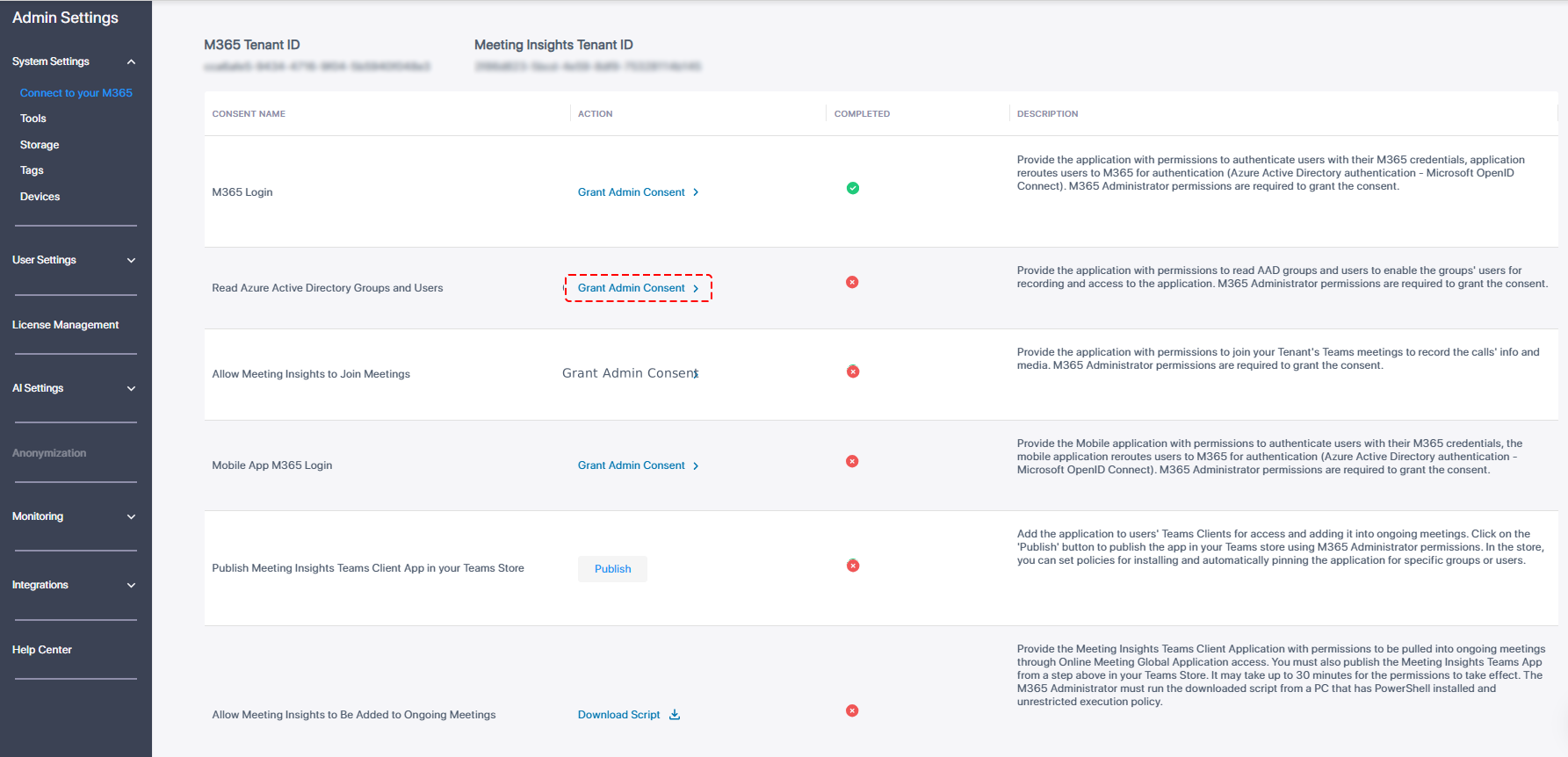
| a. | Next to ‘Read Microsoft Entra ID Groups and Users’, click Grant Admin Consent; you're prompted to log in to your Microsoft 365 account. |
| b. | Log in to your Microsoft 365 Global Administrator account; the following permissions dialog box appears: |
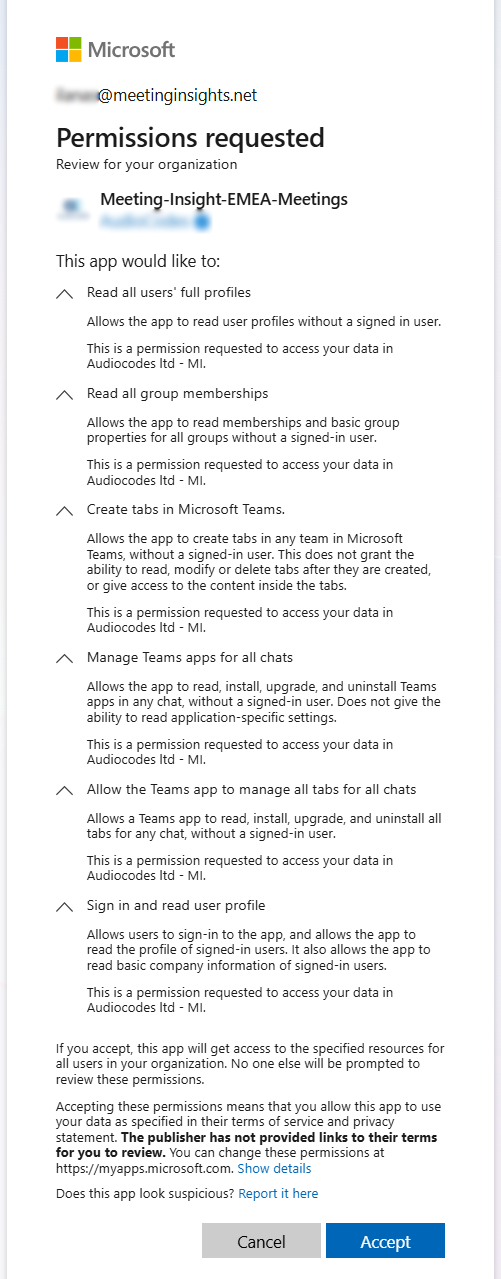
| c. | Click Accept; the 'Completed' column displays the icon, indicating that you've successfully granted ‘Read Microsoft Entra ID Groups and Users’ consent. |
| 4. | (Mandatory) ‘Allow Meeting Insights to Join Meetings’ Consent: (see permission details in Microsoft Entra ID Meeting Insights Bot Application) |
This consent grants the Meeting Insights app permission to join your Tenant's Teams meetings to record calls' info and media.
| ● | You can only grant this consent after you've successfully granted the ‘M365 Login’ and ‘Read Microsoft Entra ID Groups and Users’ consents, as described in the previous steps. |
| ● | Microsoft 365 Global Administrator permissions are required to grant consent. |
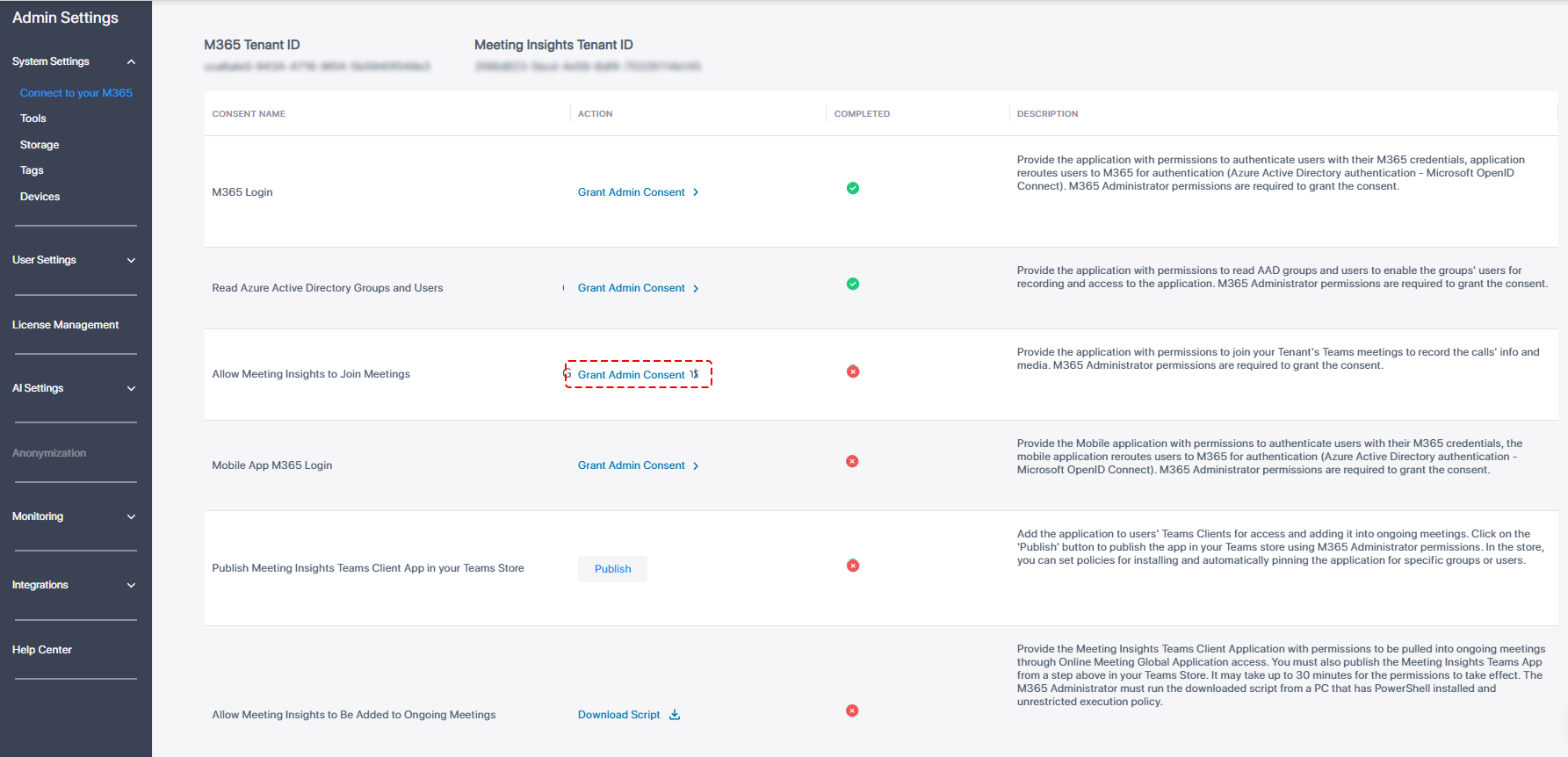
| a. | Next to the consent ‘Allow Meeting Insights to Join Meetings’, click Grant Admin Consent; you're prompted to log in to your Microsoft 365 account. |
| b. | Log in to your Microsoft 365 Global Administrator account; the following permissions dialog box appears: |
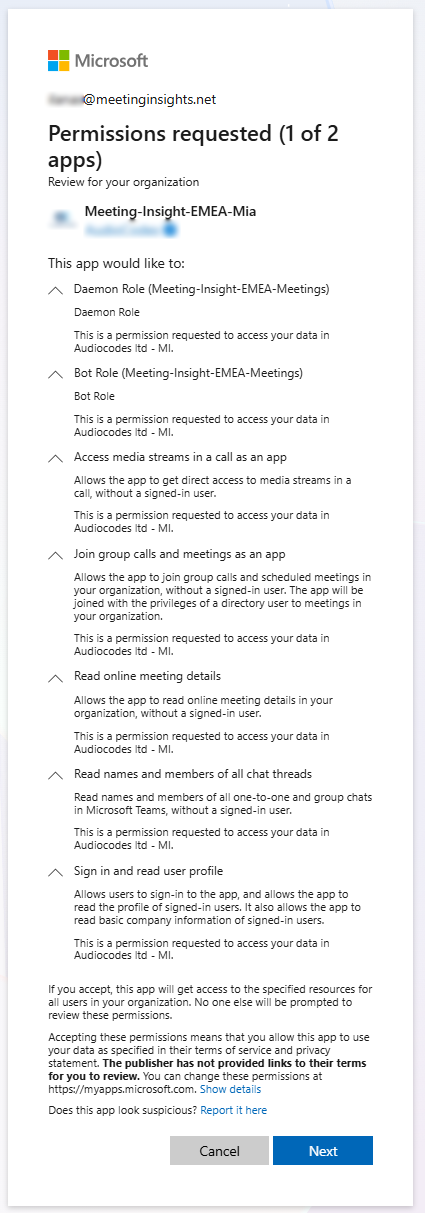
| c. | Click Next; a second permissions dialog box appears: |
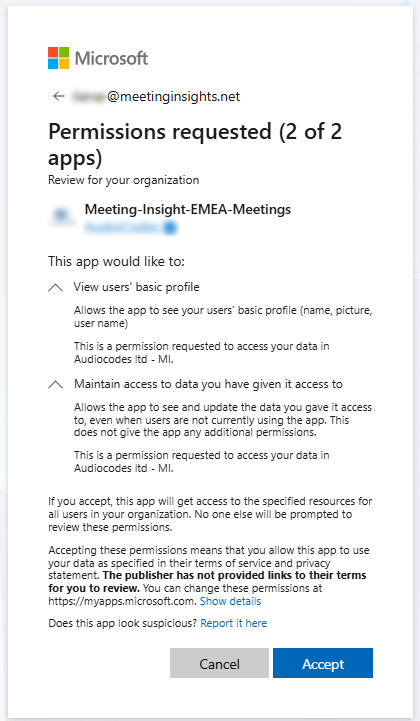
| d. | Click Accept; the 'Completed' column displays the icon, indicating that you've successfully granted ‘Allow Meeting Insights to Join Meetings’ consent. |
| 5. | (Optional) 'Mobile App M365 Login' Consent: |
This consent grants the Meeting Insights mobile app permission to with their Microsoft 365 credentials. authenticate users. When the consent is approved, the app reroutes users to Microsoft 365 for authentication (Microsoft Entra ID authentication - Microsoft OpenID Connect).
| ● | You can only grant this consent after you've successfully granted the ‘M365 Login’, ‘Read Microsoft Entra ID Groups and Users’, and ‘Allow Meeting Insights to Join Meetings’ consents, as described in the previous steps. |
| ● | Microsoft 365 Global Administrator permissions are required to grant this consent. |
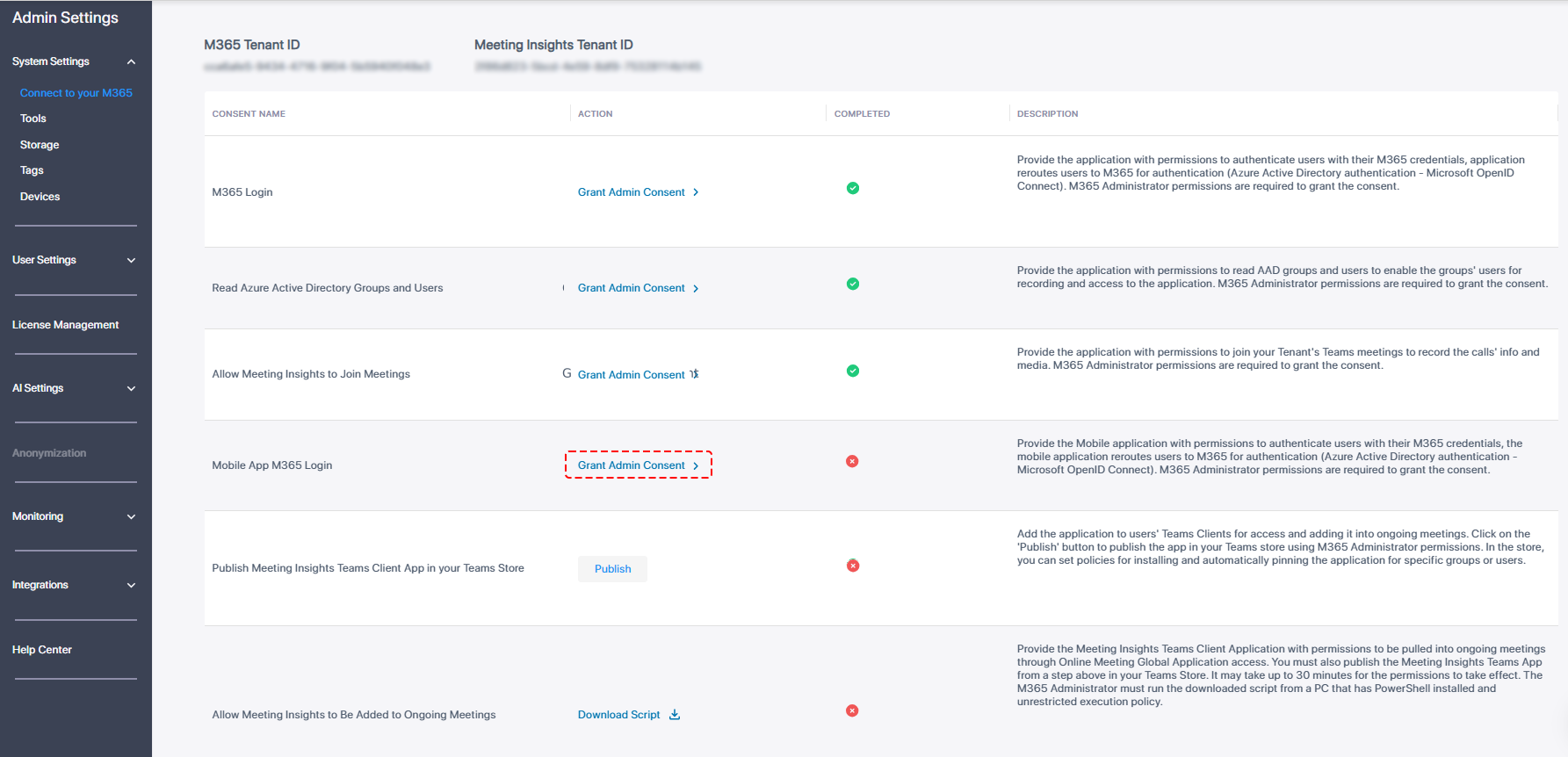
| a. | Next to 'Mobile App M365 Login', click Grant Admin Consent; you're prompted to log in to your Microsoft 365 account. |
| b. | Log in to your Microsoft 365 Global Administrator account; the following permissions dialog box appears: |
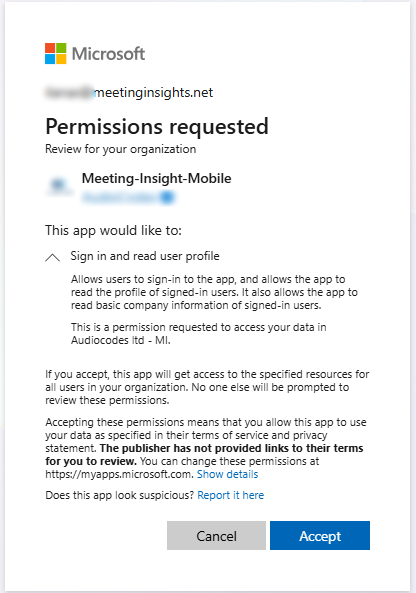
| c. | Click Accept; the 'Completed' column displays the icon, indicating that you've successfully granted 'Mobile App M365 Login' consent. |
| 6. | 'Publish Meeting Insights Teams Client App in your Teams Store' consent: (see permission details in Microsoft Entra ID Meeting Insights Teams Application) |
This consent adds the Meeting Insights app to the Teams store and users' Teams clients for access and adding it to ongoing meetings.
| ● | Microsoft 365 Global Administrator permissions are required to grant this consent. |
| ● | In the Teams store, you can set policies for installing and automatically pinning the app for specific groups or users. |
| ● | Alternatively, you can publish the app using the 'Tools' page, as described here. |
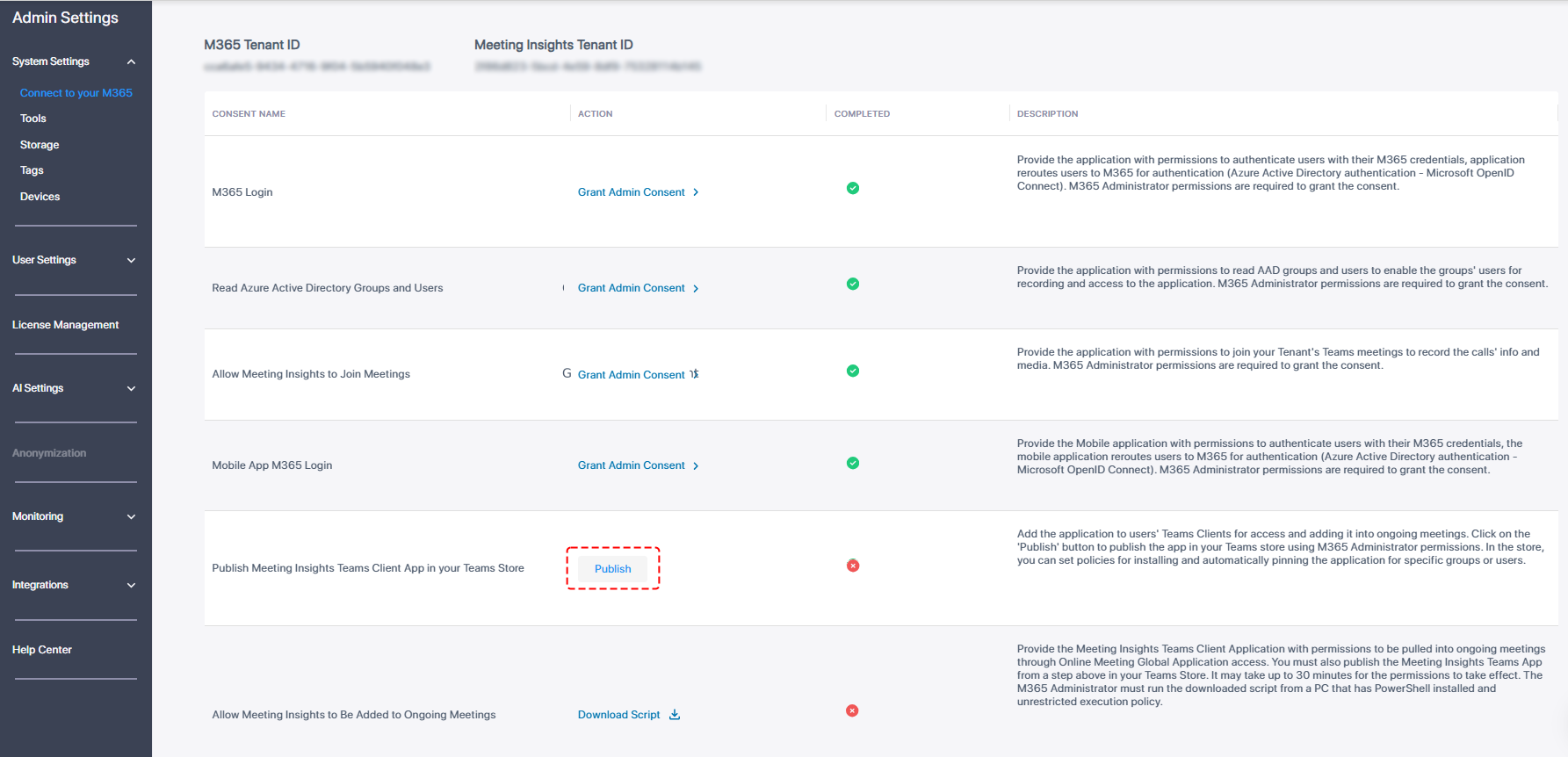
| a. | Next to 'Publish Meeting Insights Teams Client App in your Teams Store', click Publish; you're prompted to log in to your Microsoft 365 account. |
| b. | Log in to your Microsoft 365 Global Administrator account; the following permissions dialog box appears: |
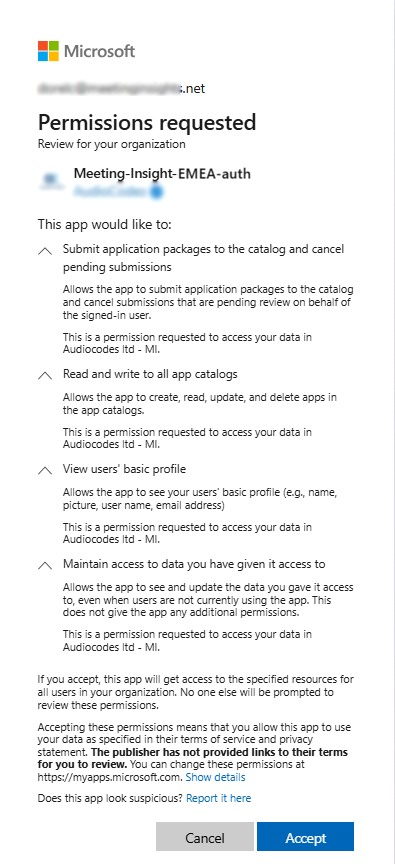
| c. | Click Accept; the 'Completed' column displays the icon, indicating that you've successfully granted 'Publish Meeting Insights Teams Client App in your Teams Store' consent. In addition, the notification "Application published in your Teams store successfully" message is displayed. |
| d. | [Recommended] Install and pin the application for Meeting Insights users, as described here. |
| 7. | ‘Allow Meeting Insights to be Added to Ongoing Meetings’ consent: (see permission details in Allow Meeting Insights to Be Added to Ongoing Meetings – script needs to be executed (optional)) |
This consent grants the Meeting Insights Teams client app permission to be pulled into ongoing meetings through Online Meeting Global Application access. This stage runs a PowerShell script file to create an access policy that connects to the same consented App ID, allowing users to ad-hoc pull Mia into Teams meetings.
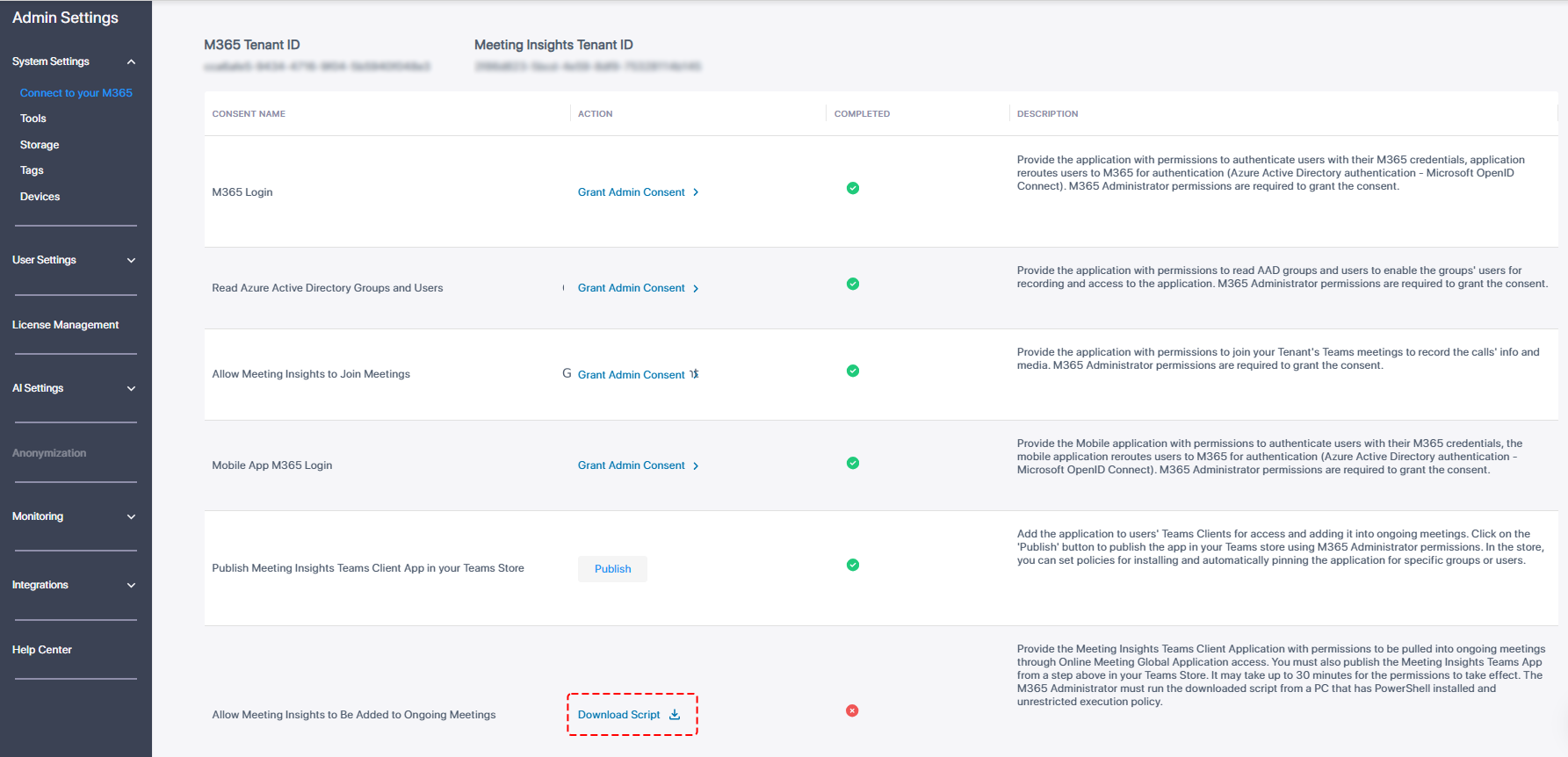
| a. | Next to the ‘Allow Meeting Insights to be Added to Ongoing Meetings’ consent, click Download Script; the 'policyScript' file is downloaded to your PC. |
| b. | Before running the downloaded script file, unblock it because your operating system may block it. To unblock it, right-click the file, and then choose Properties. If you're using Windows 11, first click Show more options to see the Properties option in the context menu. Select the General tab and then check the Unblock option located under the 'Security' section. |
| ● | To run the downloaded script, your computer must have PowerShell installed and you must have Microsoft 365 global administrator permissions. |
| ● | By default, the script runs in 'Bypass' execution policy. |
| ● | The script runs the following PowerShell cmdlets: |
| ✔ | Start-Process: Starts the process on the local computer. |
| ✔ | Invoke-RestMethod: Validates the token with Meeting Insights by making a simple HTTP/S request. |
| ✔ | Install-Module MicrosoftTeams: Installs Microsoft Teams module. |
| ✔ | Import-Module MicrosoftTeams: Imports Microsoft Teams module. |
| ✔ | Connect-MicrosoftTeams: Connects to Microsoft Teams. |
| ✔ | Get-CsApplicationAccessPolicy: Retrieves the application access policy configured for use in the tenant. |
| ✔ | Set-CsApplicationAccessPolicy: Creates the application access policy. |
| c. | Right-click the file, and then choose Run with PowerShell: |
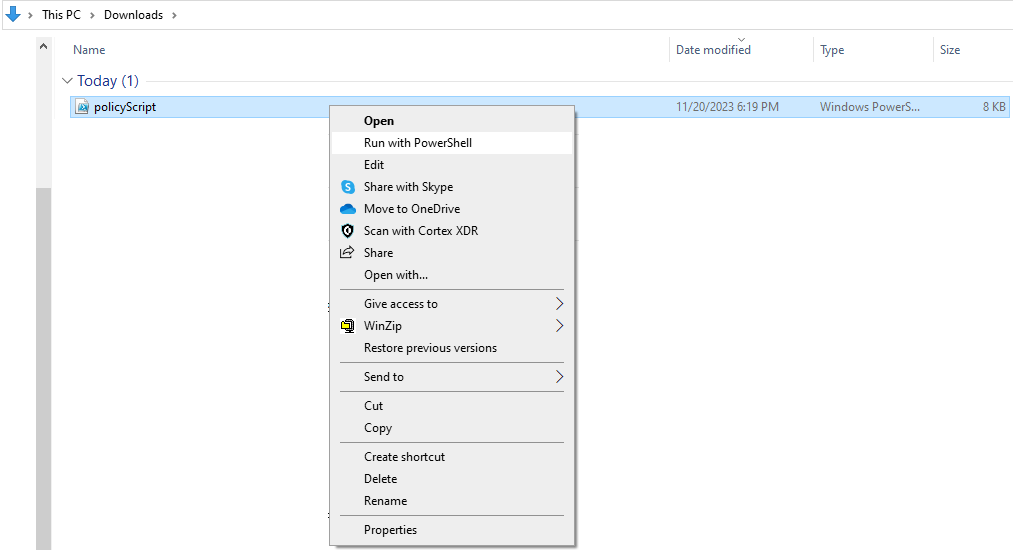
The following dialog box appears:
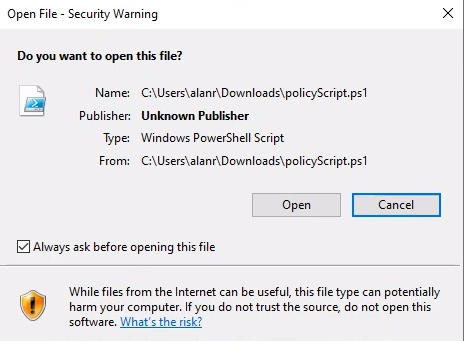
| d. | Click Open; PowerShell opens. As mentioned previously, the PowerShell commands are executed as follows: |
----------------------------------------------
Start-Process (Starts PowerShell execution)
Invoke-RestMethod (Confirms connection to the Meeting Insights system)
Install-Module MicrosoftTeams & Import-Module MicrosoftTeams (Installs the Teams module)
Connect-MicrosoftTeams (Connects to the Teams tenant)
Get-CsApplicationAccessPolicy (Checks if the bot ID already exists)
Set-CsApplicationAccessPolicy (Adds the bot ID to the policy)
----------------------------------------------

| e. | [Note that this screen is not always displayed after changing the execution policy the first time.] Type A (Yes to All), and then press Enter: |
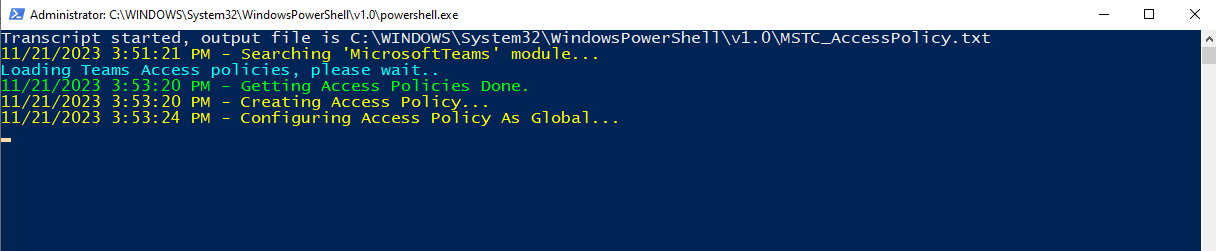
| f. | Type Y (Yes) if the prompt below is displayed (it isn't always displayed), and then press Enter: |

| g. | Press Enter to continue: |
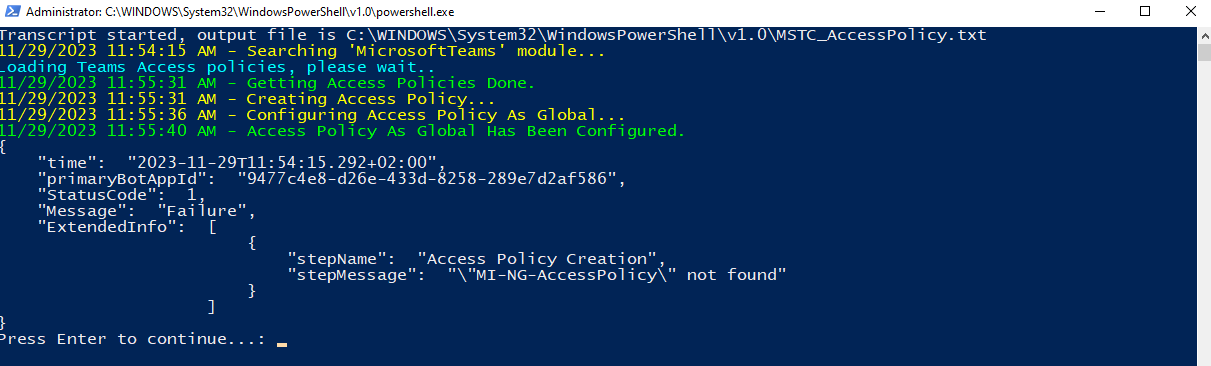
Executing the above only gives permission for Meeting Insights bot ("Mia") to join Teams meetings. In addition, only users with a Meeting Insights license can add the Meeting Insights bot to join meetings.
You've successfully provided the Meeting Insights Teams client app with permissions to be pulled into ongoing meetings through Online Meeting Global Application access. It may take up to 30 minutes for the permissions to take effect. The M365 admin must run the downloaded script from a PC that has PowerShell installed and unrestricted execution policy.
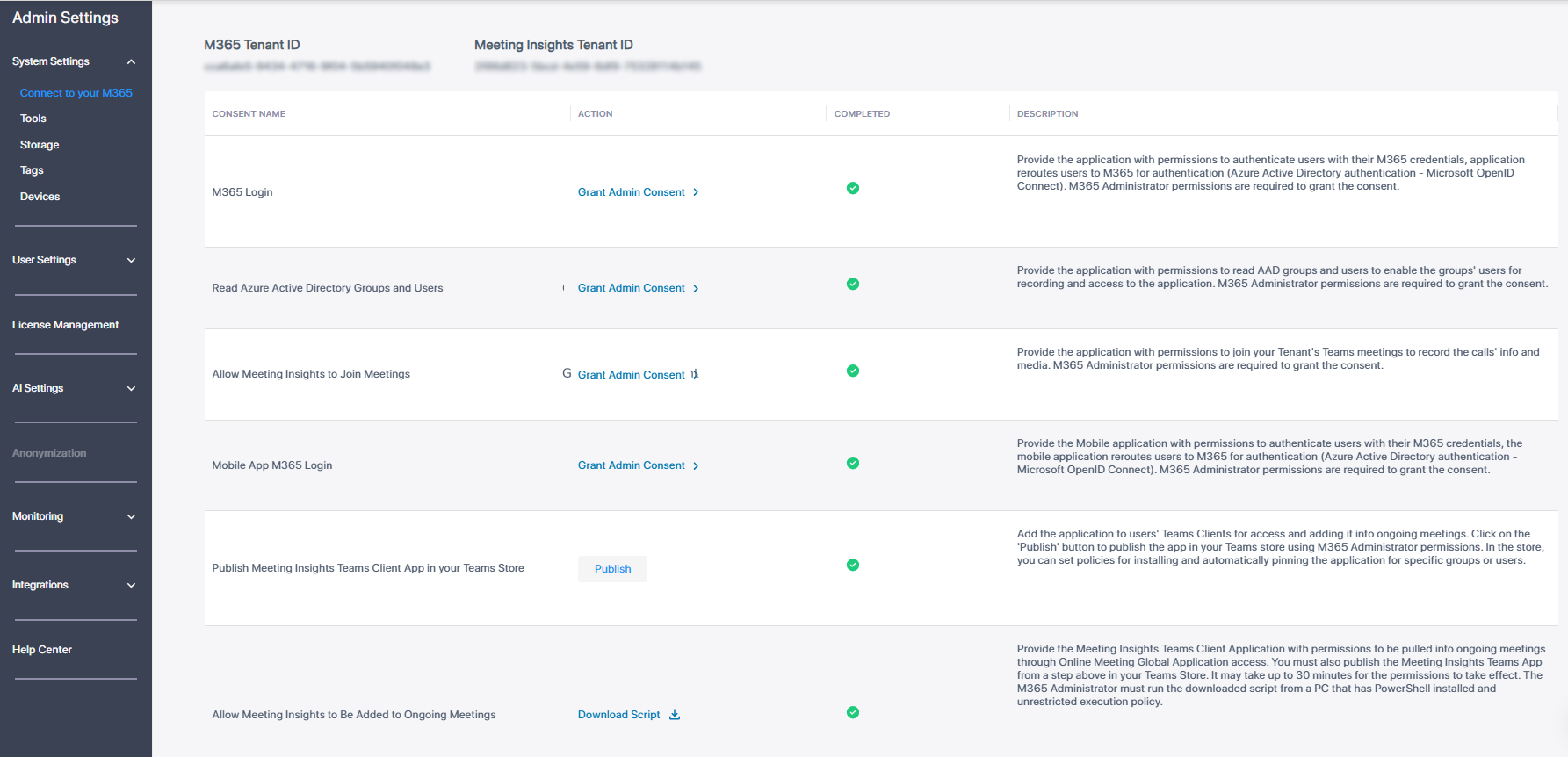
You've successfully connected to Microsoft 365.
Next: Assign licenses to Meeting Insights users as shown here.
The 'Auto can edit' feature takes effect on a meeting only if the user with this permission has joined the meeting. If the user hasn’t joined, they will not be able to edit it automatically.