Storage Hosted on Customer's Amazon S3 Account
If your organization needs to host its own meeting recordings, transcripts, and insights, you can utilize the Bring Your Own Blob Storage (BYOS) feature, which enables storage in your organization’s Amazon Web Services (AWS) storage account (Amazon S3 buckets).
When storage is hosted on your organization's AWS storage account, all meeting recordings are stored in this AWS storage. Your organization owns the storage infrastructure, controls access permissions, and manages it (i.e., maintains full control). This BYOS option is intended for organizations that must keep their meeting recordings hosted in their network / data center due to compliance with internal or external regulations.
Once you've configured a BYOS entity, you need to assign it to specific users (User Profile), as described in User Profiles. This ensures that meeting recordings of users associated with the User Profile are stored in the designated Amazon S3 bucket.
For Meeting Insights to be able to send meeting recordings and data to an Amazon S3 bucket, it needs to be granted access permissions to your organization's AWS storage account and read-write permissions to the Amazon S3 bucket. As Meeting Insights is hosted on Microsoft Azure, it implements cross-cloud authentication, using AudioCodes AWS account to authenticate itself with your organization's AWS storage account and obtain temporary credentials. Meeting Insights uses these credentials to directly access your organization's AWS storage account and store the meeting recordings and data in the Amazon S3 bucket. This process is highly secured, using OpenID Connect (OIDC) federation to establish trust between Azure Entra ID and AWS Identity and Access Management (IAM), combined with multi-layer client isolation architecture, and without issuing permanent credentials.
Once you've created an Amazon S3 bucket, you're AWS storage account needs a defined IAM role that grants AudioCodes trust and access to the account as well as an associated IAM policy that grants read-write permissions to the Amazon S3 bucket.
To facilitate and streamline the IAM resources process, Meeting Insights automatically provides a ready-to-deploy YAML-based stack template (script) file based on your organization's AWS storage account ID and the URL of the Amazon S3 bucket. All you need to do is to use the AWS CloudFormation service to create a stack uploaded with this YAML file for the Amazon S3 bucket. Once uploaded, CloudFormation automatically creates all the necessary AWS IAM resources with proper security:
|
■
|
IAM Role for trusting AudioCodes cross-cloud roles (access to AWS storage account). |
|
■
|
IAM Policy granting read-write permissions to the specific Amazon S3 bucket. |
|
■
|
Proper trust relationships without exposing other customer groups. |
|
●
|
When setting up BYOS in your organization's AWS storage account, you must be signed in with administrator privileges. |
|
●
|
To ensure security for your organization's AWS storage account, the credentials obtained for the S3 bucket are temporary. |
|
●
|
The script file creates a role for your organizations AWS storage account ID, and a policy to allow access to a specific Amazon S3 bucket. If you need to create an additional BYOS in the same AWS storage account, only a script file defining the policy to access the additional Amazon S3 bucket needs to be uploaded to CloudFormation. |
|
●
|
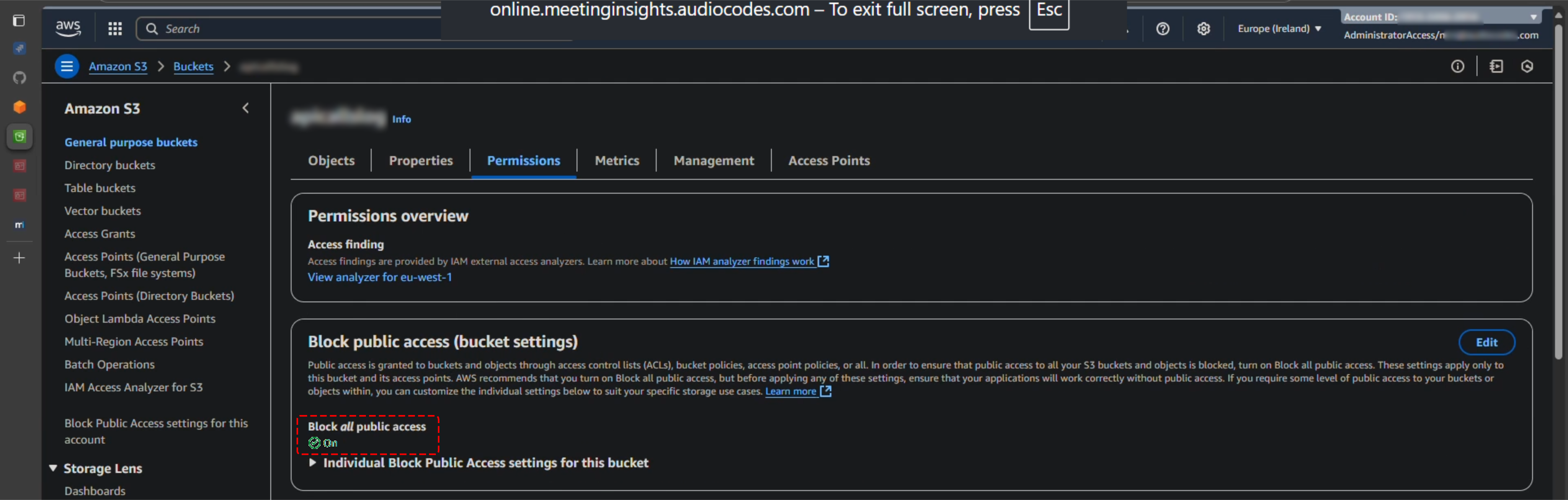
The dedicated trust "tunnel" between AudioCodes and your organization's AWS storage account is not affected by the account's Block all public access setting (off or on). However, AudioCodes recommends that you block all public access for security. |
Adding AWS-based BYOS includes the following main steps:
|
●
|
Bring Your Own Blob Storage requires the BYOS feature key. Contact your Service Provider if it's not available in your Meeting Insights application. |
|
●
|
Performance latency may occur if the storage location is geographically distant from the Meeting Insights deployment instance. |
|
●
|
The customer’s user information such as display name, email, and recorded meeting metadata such as time, duration, subject, participants, and invitees are stored in Meeting Insights database (per customer). |
|
●
|
When a user is assigned to multiple user profiles, all profiles must be configured with the same storage. User recordings will be stored in arbitrary storage locations if the user is assigned to user profiles with distinct storage locations. |
|
●
|
You can delete an added BYOS storage only when there are no active meeting recordings. |
Create an Amazon S3 Bucket
Before you can configure Meeting Insights with BYOS, you need to configure Amazon S3 storage, which primarily involves creating and configuring an S3 bucket(s) in your organization's AWS storage account.
|
➢
|
Create an Amazon S3 bucket: |
|
1.
|
Sign in to your organization's AWS storage account. |
|
2.
|
Access the Amazon S3 service. You can find it by searching for "S3" in the search bar. |
|
3.
|
In the left navigation pane, choose General purpose buckets.
|
|
4.
|
Click the Create bucket button.
|
|
5.
|
For 'Bucket name', enter a unique name for your bucket (e.g., "meeting-insights"). |
|
6.
|
Select the AWS Region where you want your bucket to reside. |
|
7.
|
Optionally, configure bucket properties or leave at default. |
|
8.
|
Click the Create bucket button to complete the process; you've now created a bucket in Amazon S3. |
Configure Meeting Insights for AWS-based BYOS
Once you've created your Amazon S3 bucket, you need to add the AWS-based BYOS in Meeting Insights.
Meeting Insights doesn't display BYOS storage capacity. Storage monitoring can only be done through your AWS storage account.
|
➢
|
To configure Meeting Insights for AWS-based BYOS: |
|
1.
|
In the Admin Settings navigation menu pane, expand System Settings, and then click Storage; the Storage page is displayed, listingthe Meeting Insights default storage (e.g., Europe LRS). |
|
2.
|
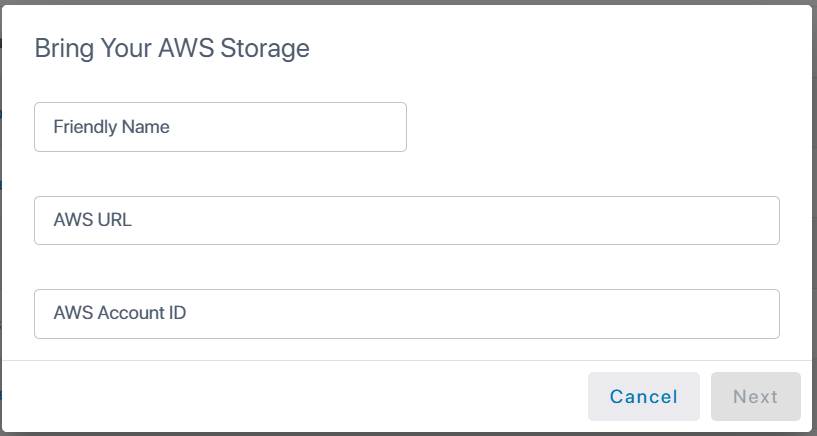
Click the Bring Your AWS Storage button; the following dialog box appears: |
|
3.
|
In the 'Friendly Name' field, type a meaningful name for your Amazon S3 bucket so that you can easily identify it later, especially useful if you have multiple buckets (e.g., "West US BYOS-AWS" or "North Europe BYOS-AWS"). |
|
4.
|
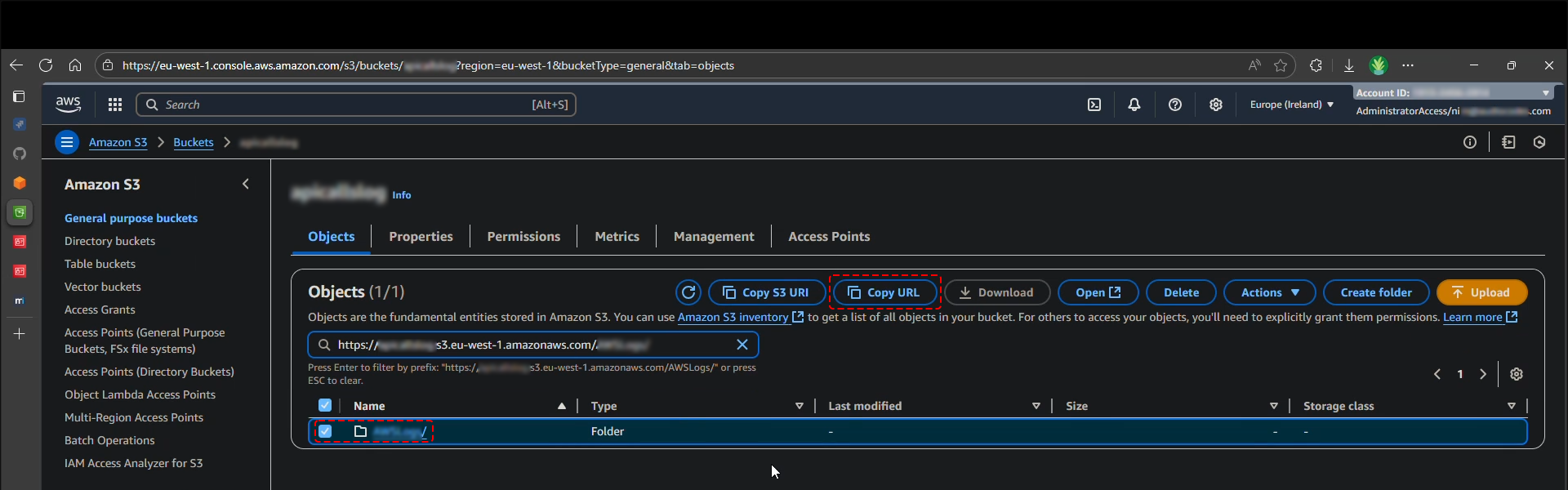
In the 'AWS URL' field, paste the endpoint URL of the Amazon S3 bucket (e.g., https://bucket-name.s3.eu-west-1.amazonaws.com/). |
When pasting the URL, delete everything after "amazonaws.com". For example, if the URL is https://bucket-name.s3.eu-west-1.amazonaws.com/myobject/, delete /myobject/.
You can obtain the URL from the Amazon S3 console:
|
b.
|
In the left navigation pane, choose General purpose buckets. |
|
c.
|
In the General purpose buckets list, click the name of the bucket that you created in the previous step (see Create an Amazon S3 Bucket); the Objects list is displayed. |
|
d.
|
In the Objects list, select the bucket's object, and then click Copy URL; the URL is copied to your clipboard: |
|
5.
|
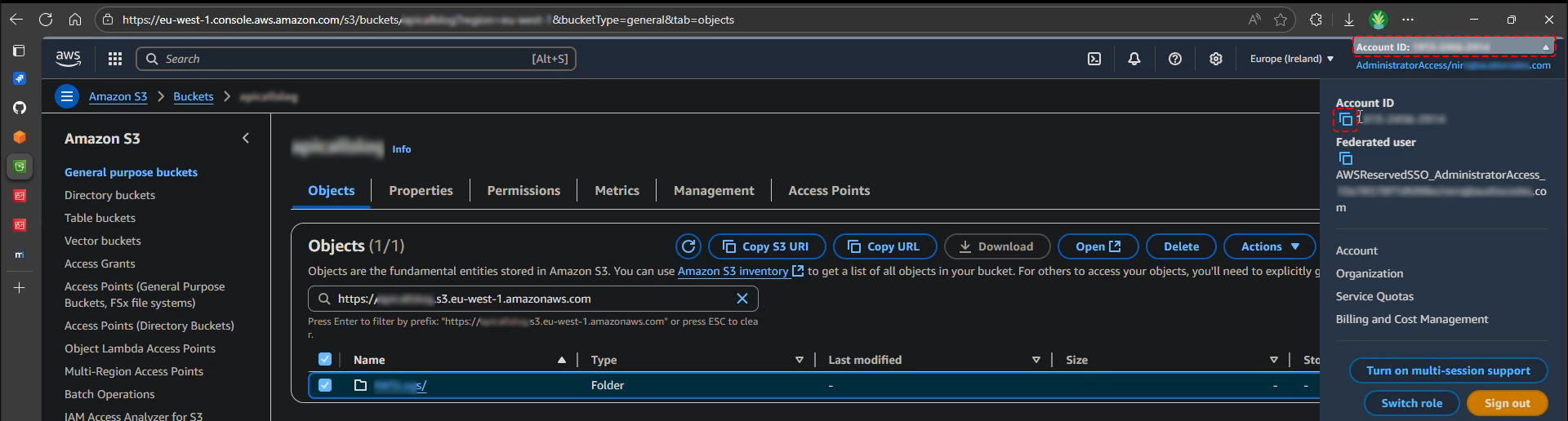
In the 'AWS Account ID' field, enter the ID of your organization's AWS storage account. |
You can obtain the account ID from the Amazon S3 console on the same page where you copied the bucket's URL (or any other page):
|
a.
|
In the top-right corner of the Amazon S3 console, click the Account ID; a drop-down pane appears. |
|
b.
|
Under 'Account ID', click the copy-to-clipboard icon; the ID is copied to your clipboard. |
|
6.
|
Click Next; the following message box appears: |
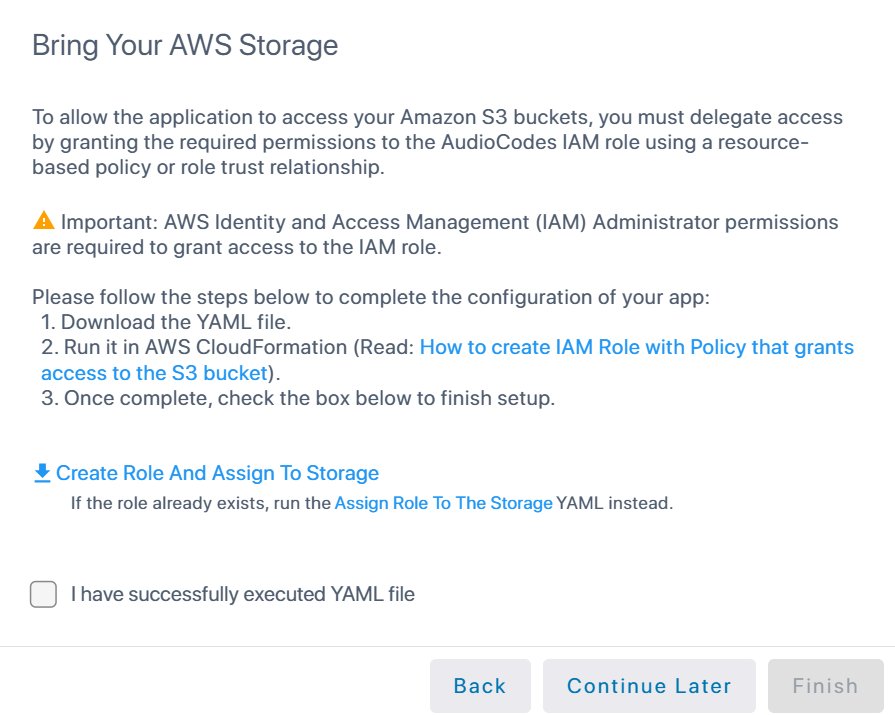
If you've already created a BYOS for the same AWS storage account ID, the link to download the YAML file displays Assign role to storage (instead of Create Role And Assign To Storage). This is because the role already exists and was created when you added the first BYOS for this AWS storage account ID. Therefore, the YAML file only needs to create the policy to grant permission to Meeting Insights to access the specific Amazon S3 bucket associated with the new BYOS.
|
7.
|
Click the  Create Role And Assign To Storage icon to download the YAML file (role-and-policy.yaml) to your computer, then do the following to grant Meeting Insights access permission to your Amazon S3 bucket, using the AWS CloudFormation service to create a stack based on the YAML file template for the IAM resources: Create Role And Assign To Storage icon to download the YAML file (role-and-policy.yaml) to your computer, then do the following to grant Meeting Insights access permission to your Amazon S3 bucket, using the AWS CloudFormation service to create a stack based on the YAML file template for the IAM resources: |
You can perform this process in any AWS region, since IAM resources are global and region-agnostic and therefore, a single IAM role can access buckets in multiple regions and the buckets listed in the policy can be in different AWS regions.
|
a.
|
Sign in to your organization's AWS storage account. |
|
b.
|
In the search bar, type "CloudFormation", and select it from the results; the AWS CloudFormation service's console appears. |
|
c.
|
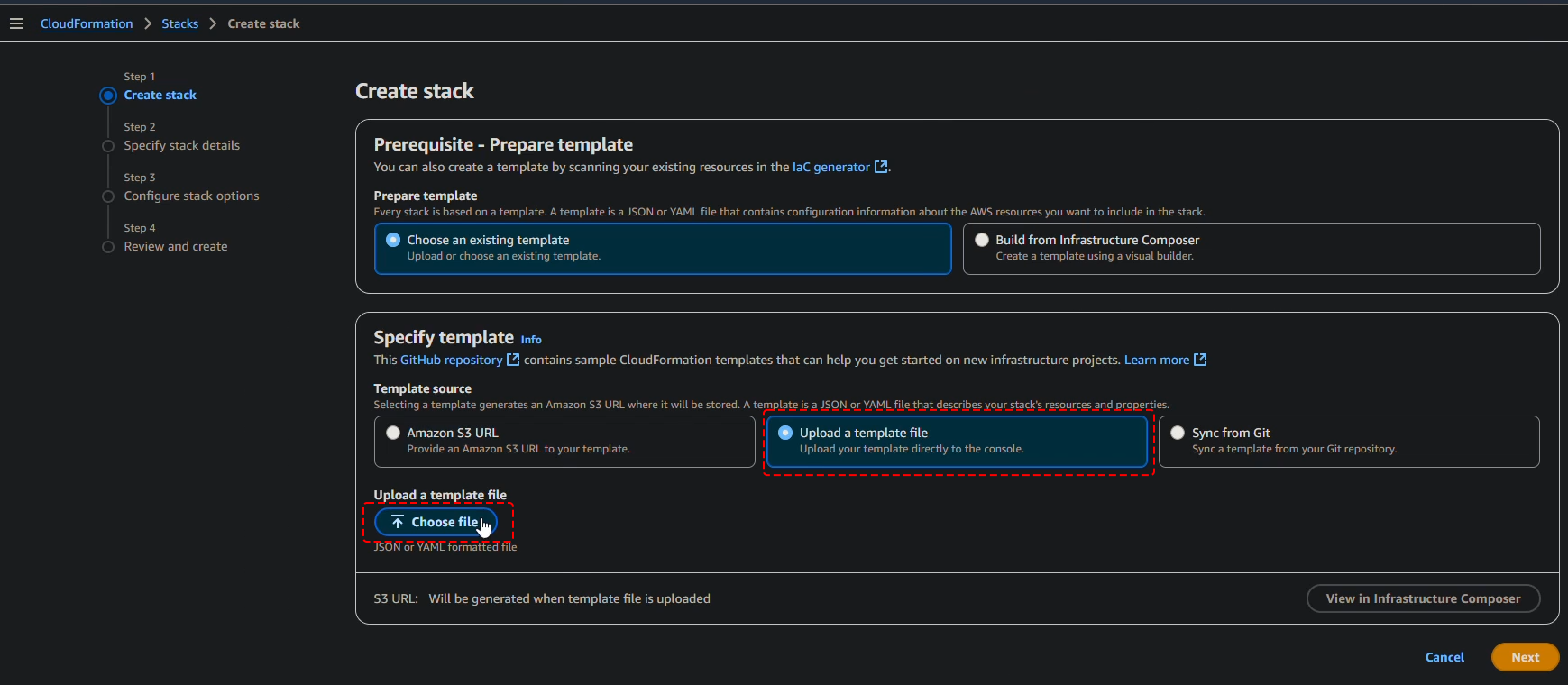
In the left navigation pane, choose Stacks, and then from the Create stack drop-down menu, choose With new resources (standard) to open the Create stack wizard: |

|
d.
|
On the Create stack wizard page, do the following: |
|
i.
|
Under Prerequisite - Prepare template, choose the Choose an existing template option. |
|
ii.
|
Under Specify template, choose Upload a template file, click Choose file, and then select the YAML file that you downloaded from Meeting Insights (above). |
|
e.
|
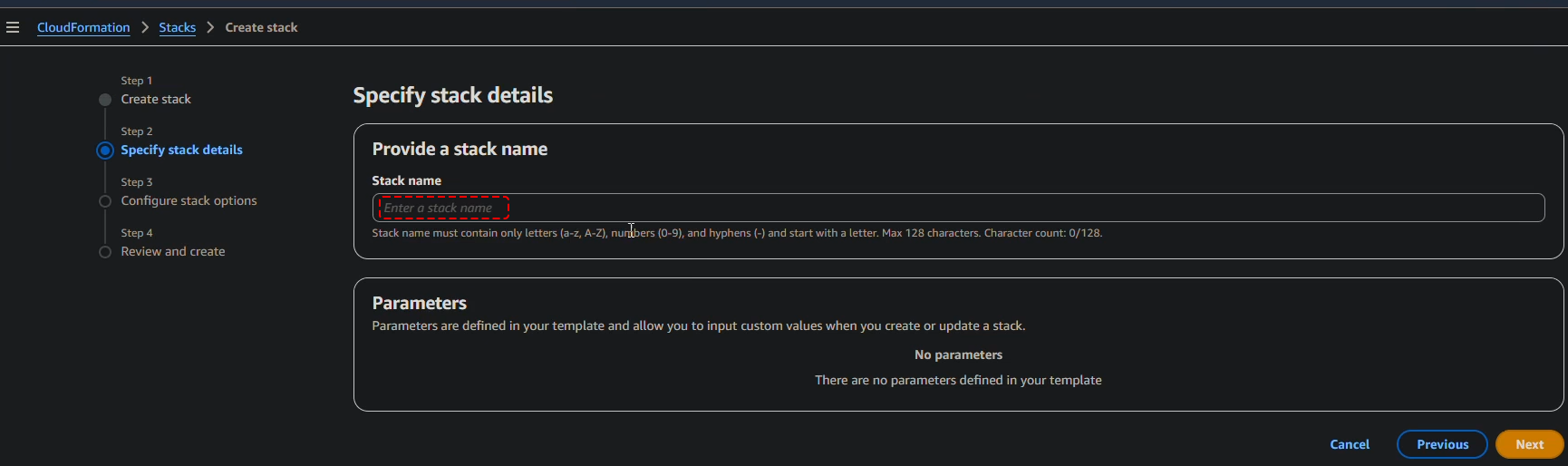
When the file upload finishes, click Next; the Specify stack details wizard page appears. |
|
f.
|
In the 'Stack name' field, type a name for the stack: |
|
g.
|
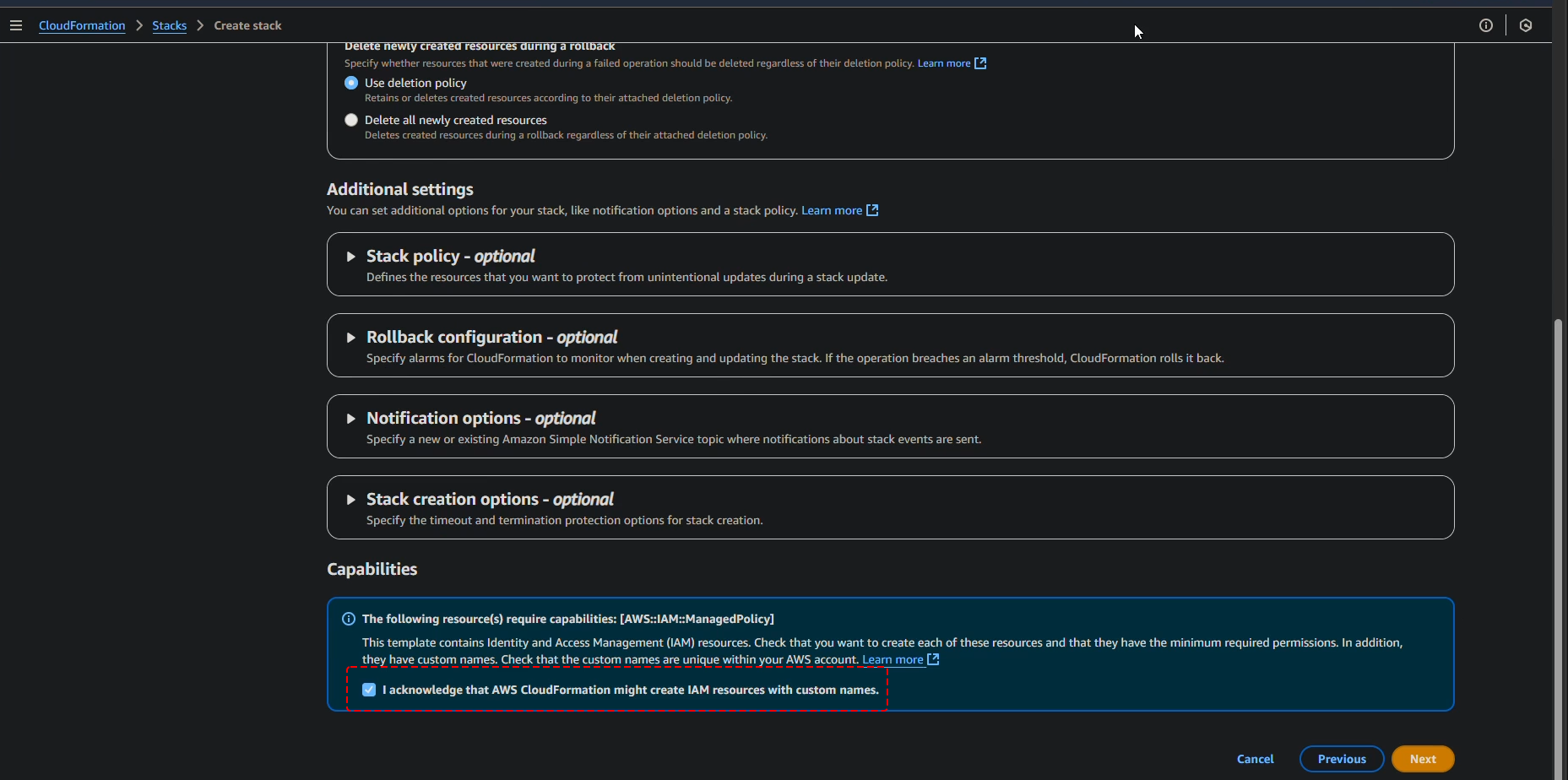
Click Next; the Configure stack options wizard page appears. |
|
h.
|
Scroll down to the bottom of the page, and select the I acknowledge ... check box: |
|
i.
|
Click Next; the Review and create wizard page (last) appears. |
|
j.
|
Optionally, define additional settings, and then click Submit; stack creation is in progress, as indicated in the 'Status' field of the stack's page, which then displays "CREATE_COMPLETE" when creation is complete: |
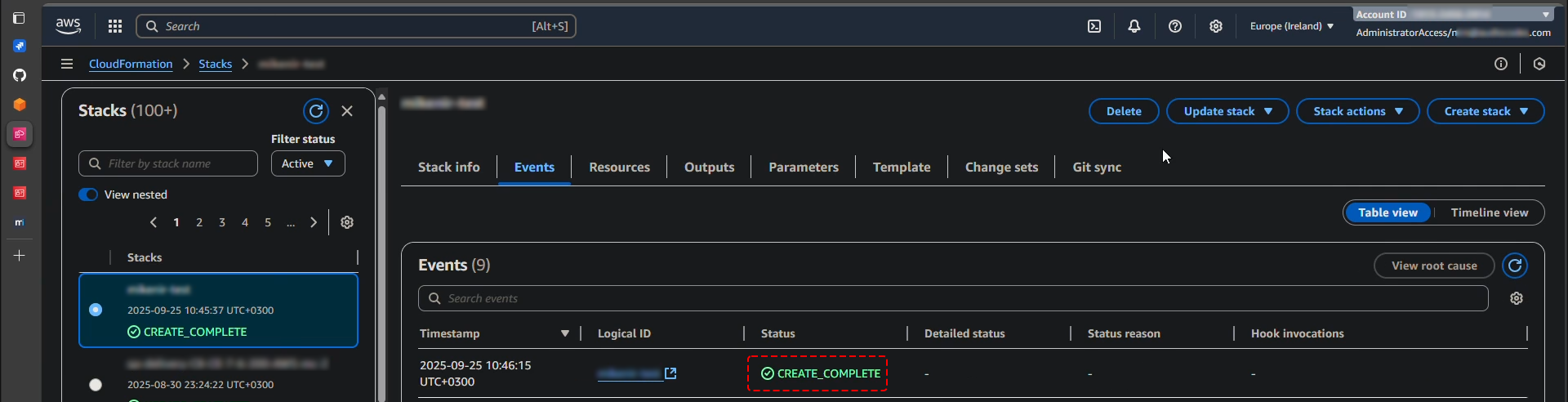
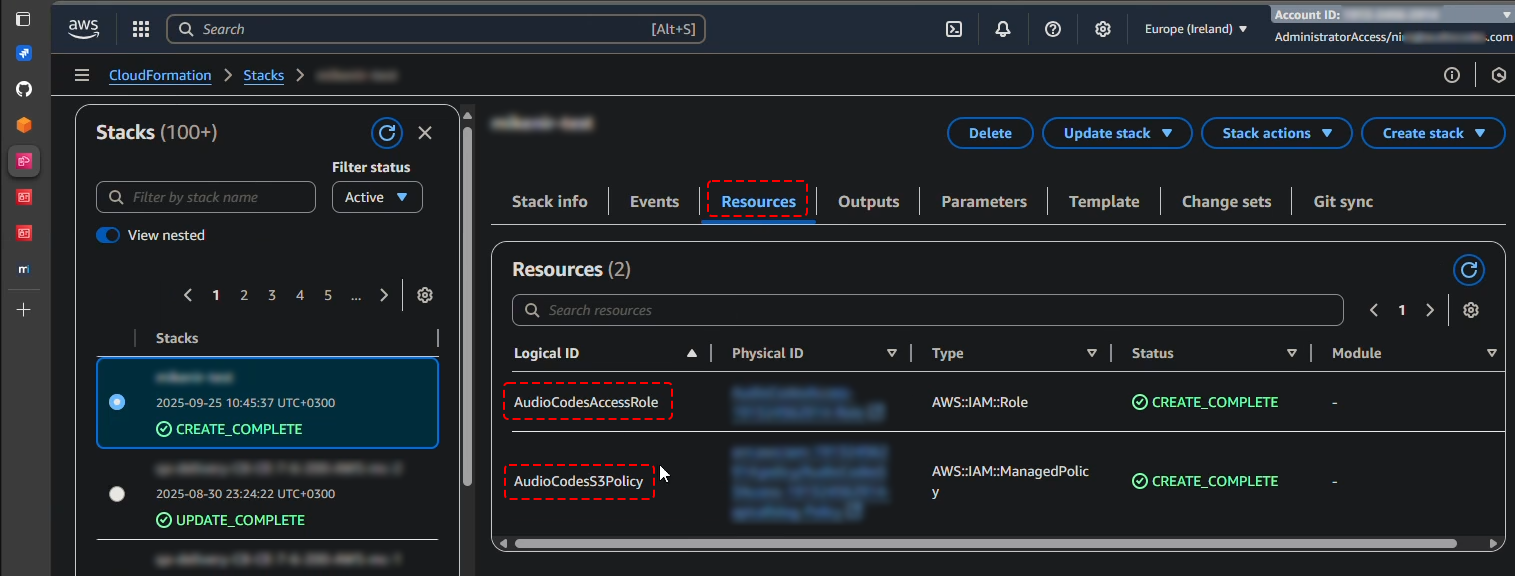
If you want to view the created stack's resources granting permission to Meeting Insights, select the Resources tab. The following two resources are created:
|
●
|
AudioCodesAccessRole: The IAM Role identifying AudioCodes and allowing access permission to your organization's AWS storage account. |
|
●
|
AudioCodesS3Policy: The IAM Policy for the above role that grants Meeting Insights limited permission to your organization’s AWS storage account for writing (sending meeting recordings and data) to the specified Amazon S3 bucket. |
If you've already created a BYOS for the same AWS storage account ID, only the AudioCodesS3Policy resource is displayed. This is because the role (AudioCodesAccessRole) already exists and was created when you added the first BYOS for this AWS storage account ID. Therefore, the YAML file only needs to create the policy to grant permission to Meeting Insights to access the specific Amazon S3 bucket associated with the new BYOS.
You can view the definitions of each of the above resources, by clicking them. Alternatively, you can download and view their definitions in Meeting Insights on the Storage page, by clicking the ellipsis  icon of the BYOS entity, and then choosing Create Role Script or Assign Role to Storage Script.
|
8.
|
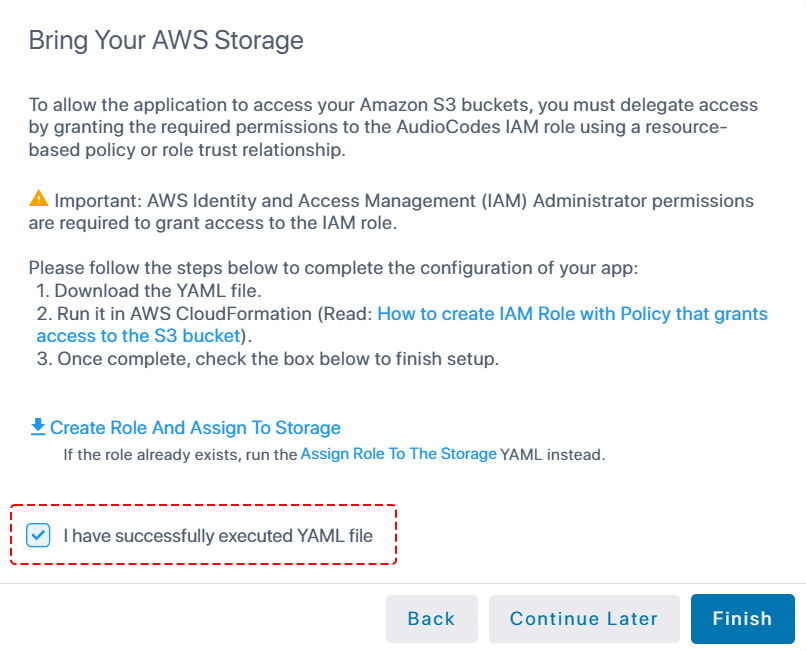
Return to the Meeting Insights user interface, and in the opened dialog, select the I have successfully executed YAML file check box: |
|
9.
|
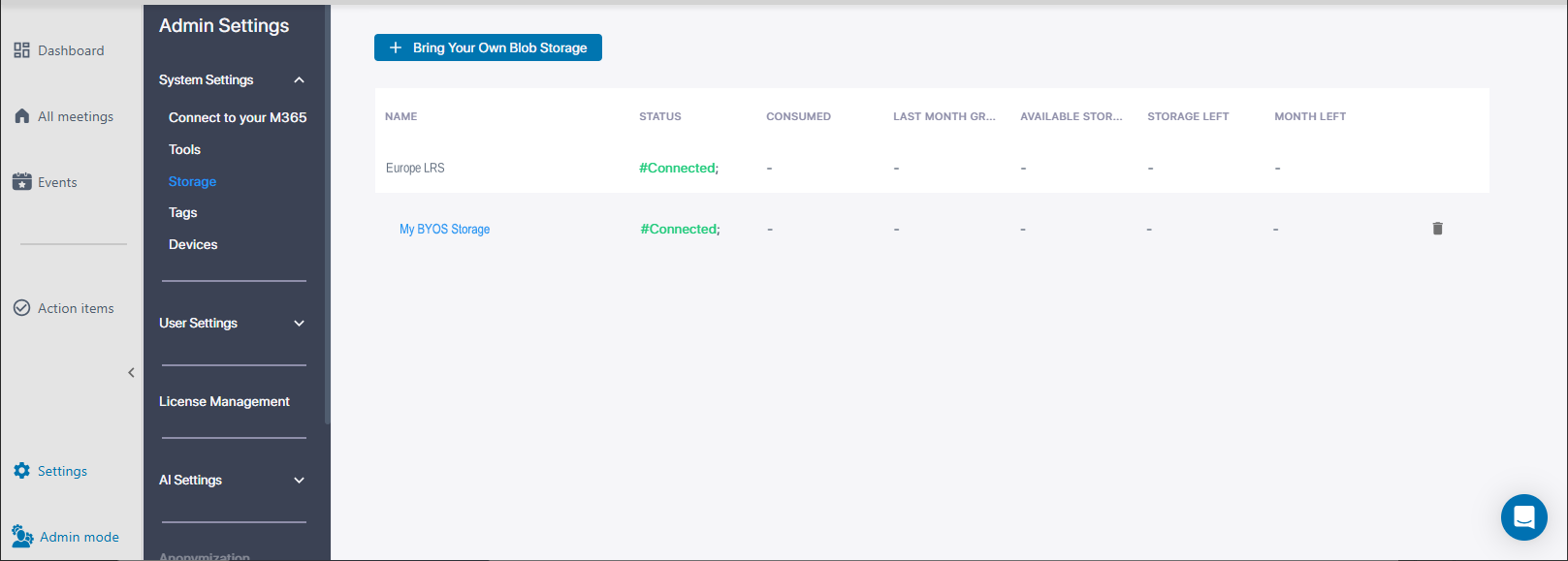
Click Finish; the new BYOS AWS storage is now listed on the Storage page and the 'Status' column displays "Pending" and then once connected to your organization's AWS storage account, displays "Connected": |
|
10.
|
Associate the BYOS storage account to a Users Profile, by selecting it from the 'Select Storage' drop-down list, as described in User Profiles. |
For monitoring the storage connectivity status, see Monitoring Storage Connectivity Status and Capacity.
Connectivity Issues to BYOS Storage
If Meeting Insights is unable to access your Amazon S3 bucket storage, after several retry connect attempts, it deletes the meeting recording. Loss of connectivity to the BYOS can occur for several reasons, such as:
|
■
|
Amazon S3 bucket no longer exists |