Add the OVOC VM in Failover Cluster Manager
After you create the new OVOC VM, you should add the VM to a cluster role in the Failover Cluster Manager.
| ➢ | To add the OVOC VM in Failover Cluster Manager: |
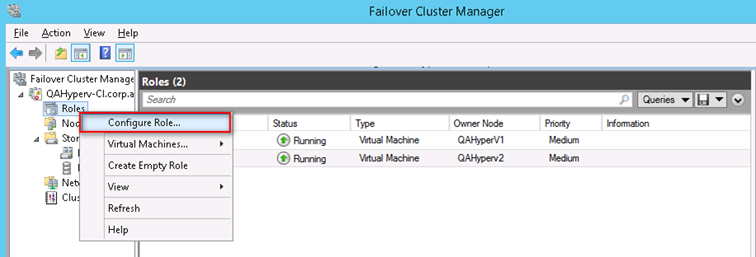
| 1. | Right-click “Roles” and in the pop-up menu, choose Configure Role. |
Configure Role
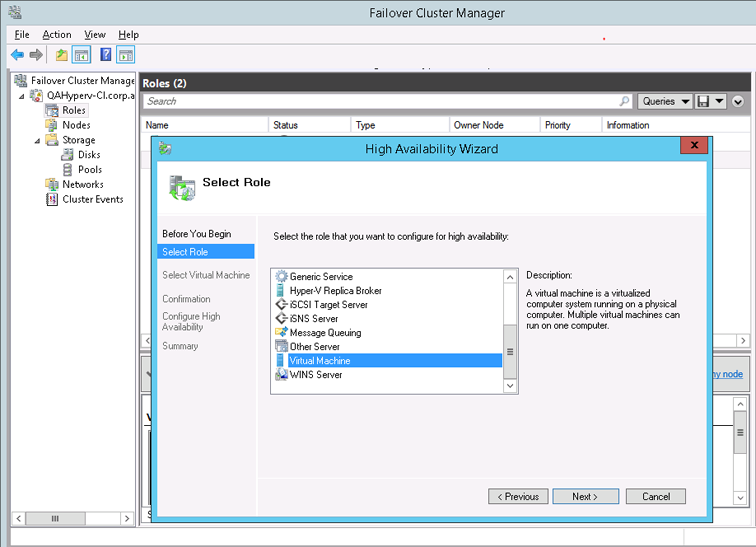
| 2. | In the Select Role window, select the Virtual Machine option and then click Next. |
Choose Virtual Machine
A list of available VMs are displayed; you should find the your new created OVOC VM:
Confirm Virtual Machine
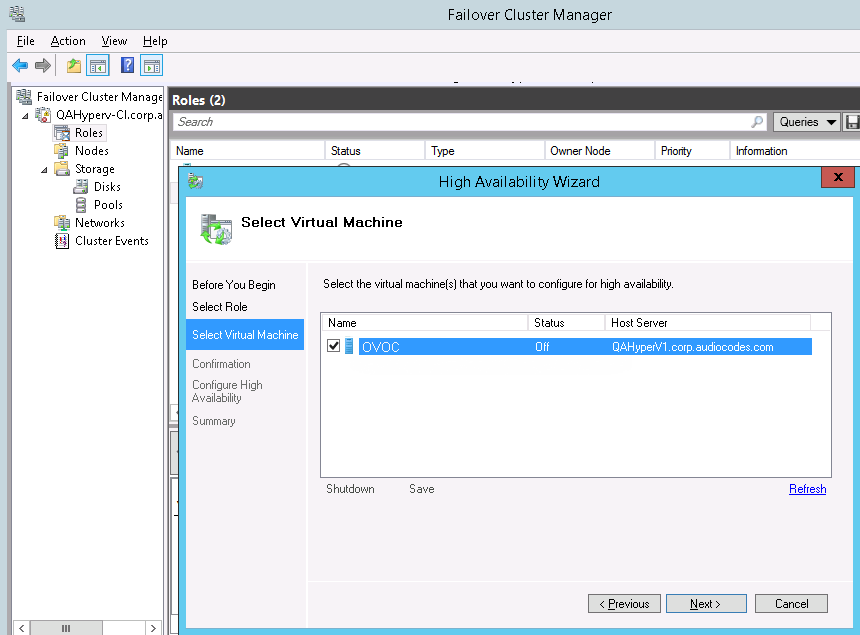
| 3. | Select the check box, and then click Next. |
At the end of configuration process you should see the following:
Virtual Machine Successfully Added
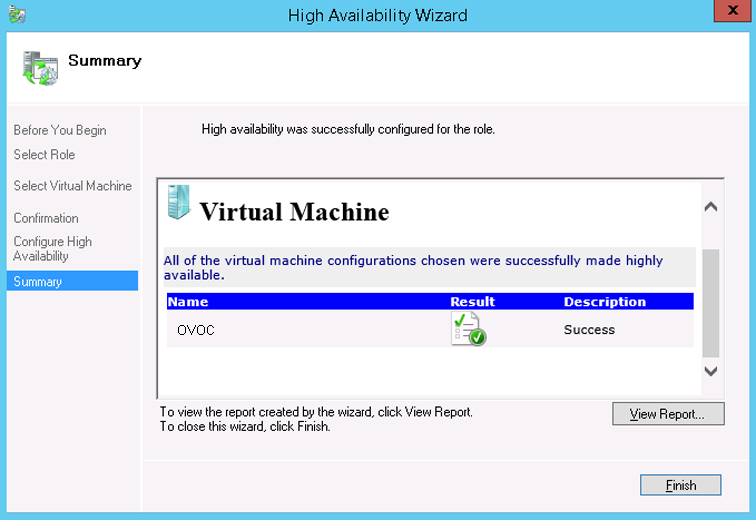
| 4. | Click Finish to confirm your choice. |
Now your OVOC VM is protected by the Windows High Availability Cluster mechanism.
If you wish to manually move the OVOC VMs to another cluster node, see Appendix Managing Clusters.