NTP
Network Time Protocol (NTP) is used to synchronize the time and date of the OVOC server and all its components with connected devices in the IP network. This option enables you to do the following:
|
■
|
Configure the OVOC server to obtain its clock from an external NTP clock source. Other devices that are connected to the OVOC server in the IP network can synchronize with this clock source. These devices may be any device containing an NTP server or client. |
|
■
|
Configure the OVOC server as the NTP server source (Stand-alone NTP server) and allow other clients and subnets in the IP network to synchronize to this source. |
|
●
|
It is recommended to configure the OVOC server to synchronize with an external clock source because the OVOC server clock is less precise than other NTP devices. For example, for Cloud deployments, it is recommended to configure the Microsoft Azure or Amazon AWS platforms as the external clock source. |
|
●
|
Configure the same NTP server IP address/domain name and other relevant settings on both the OVOC server and on the AudioCodes device (Setup > Administration > Time & Date). |
|
●
|
When connecting OVOC to Skype For Business, ensure that the same NTP server clock source is configured on both ends. |
|
1.
|
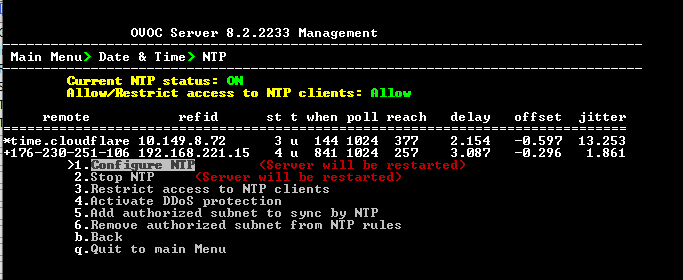
From the Date & Time menu, choose NTP, and then press Enter. |
OVOC Server Manager - Configure NTP
|
2.
|
From the NTP menu, choose Configure NTP, and then press Enter. |
|
3.
|
At the prompt, do one of the following: |
|
●
|
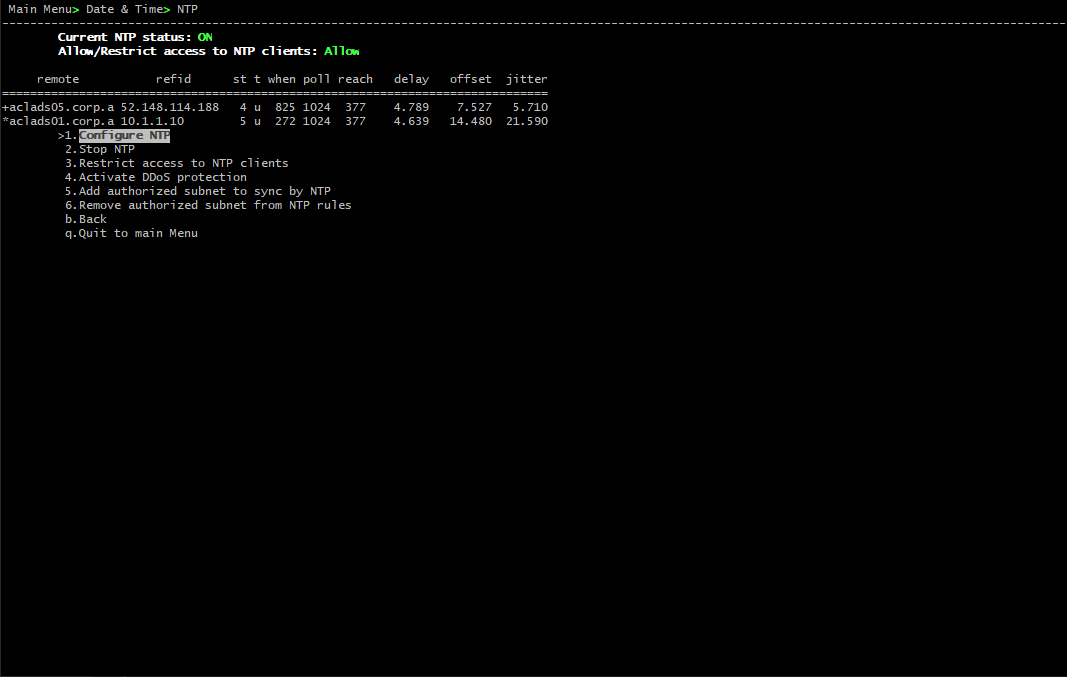
Type y for the OVOC server to act as both the NTP server and NTP client, and then press Enter. Enter the IP address or domain name of the NTP servers to serve as the clock reference source for the NTP client (Up to four NTP servers can be configured), and then press Enter. The NTP process daemon starts and the NTP status information is displayed on the screen. |
External Clock Source
|
●
|
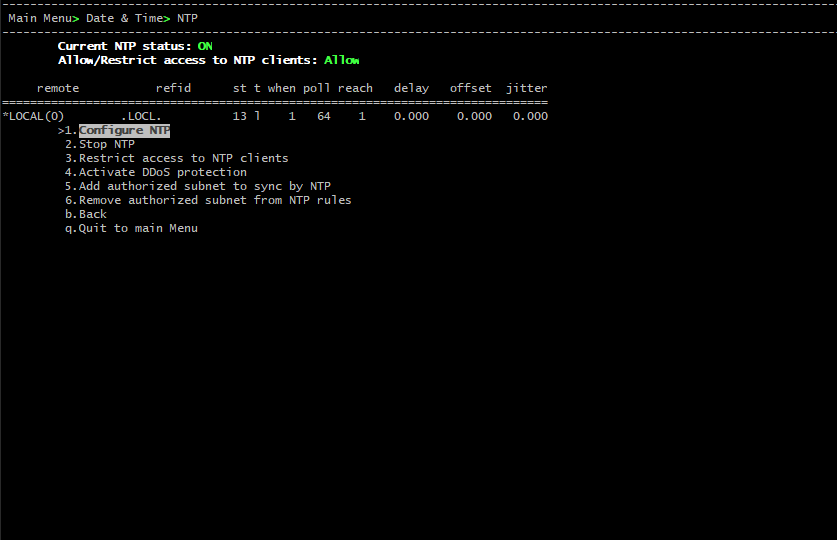
Type n for the OVOC server to function as a Stand-alone NTP server, and then press Enter. The NTP process daemon starts and the NTP status information is displayed on the screen. |
Local Clock Source
See also: