Registering Multitenant Support
This procedure describes how to allow access to OVOC for operators from multiple Azure tenants. This procedure describes how to register the Main Tenant including the OVOC system operators belonging to mapped Azure Groups. After performing this procedure, you must configure the registration credentials in OVOC Web. In addition, you must add operators for external tenants and assign them access roles:
|
■
|
Registered Service Provider Tenants |
Guest user login is not supported for both Main Tenant and external tenant guest users once multitenancy is enabled in this procedure.
|
➢
|
To configure OVOC multitenancy: |
|
2.
|
Under Manage Azure Active Directory, select View. |
|
3.
|
In the Navigation pane, select Manage > App registrations. |
|
4.
|
Click New Registration. |
|
5.
|
Enter the name of the OVOC registration tenant. |
|
6.
|
Select account type: Multiple Entra ID tenants. |
|
7.
|
Select Allow All Tenants. |
|
8.
|
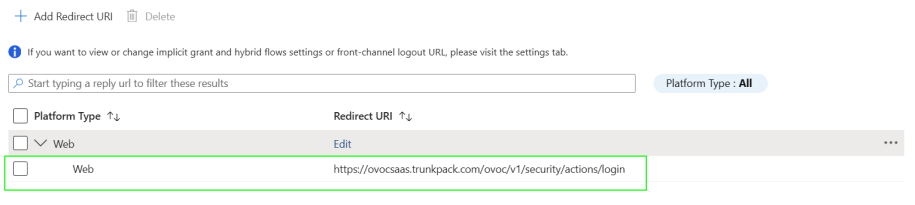
Enter the HTTPS Redirect URI (REST endpoint) for connecting to OVOC Web in the following format: https://ovocsaas.trunkpack.com/ovoc/v1/security/actions/login |
|
9.
|
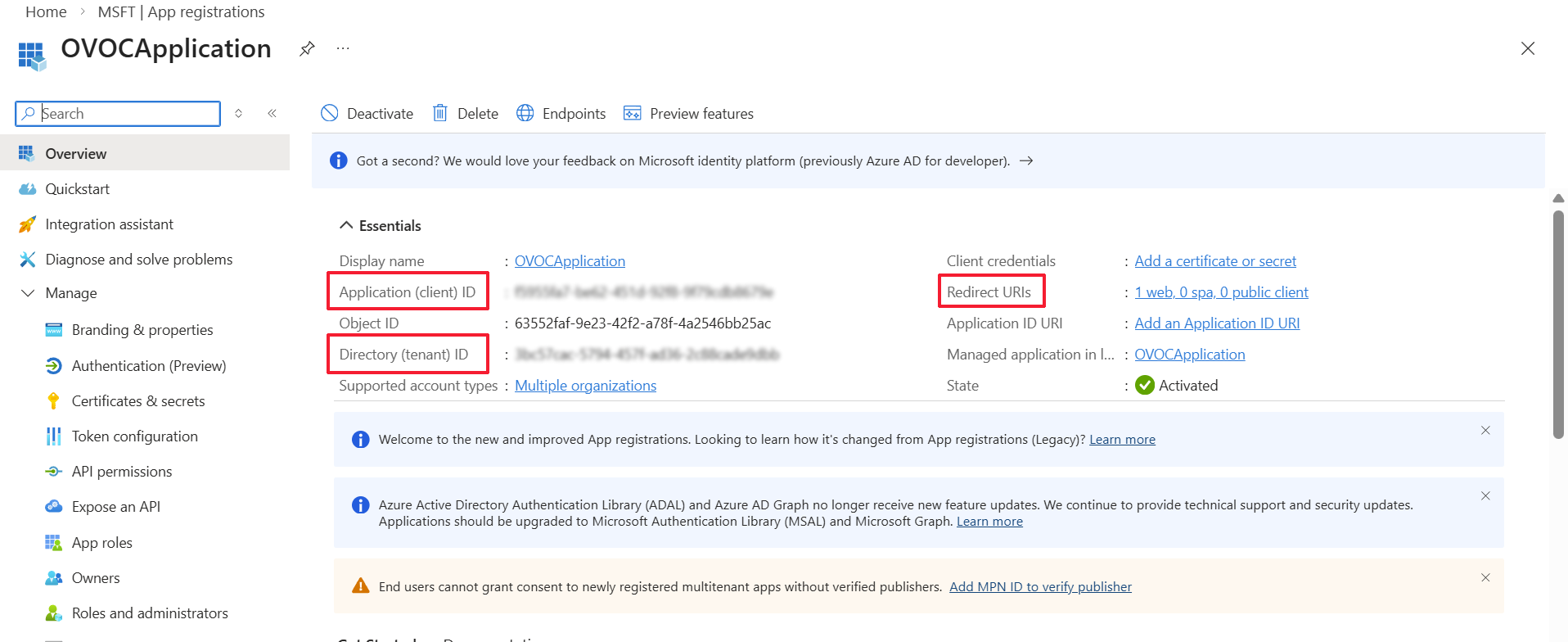
Click Register. The new App registration is displayed. |
|
●
|
Application (client) ID |
|
11.
|
In the navigation pane, select Manage > Authentication (Preview) or click the Redirect URIs link. |
|
12.
|
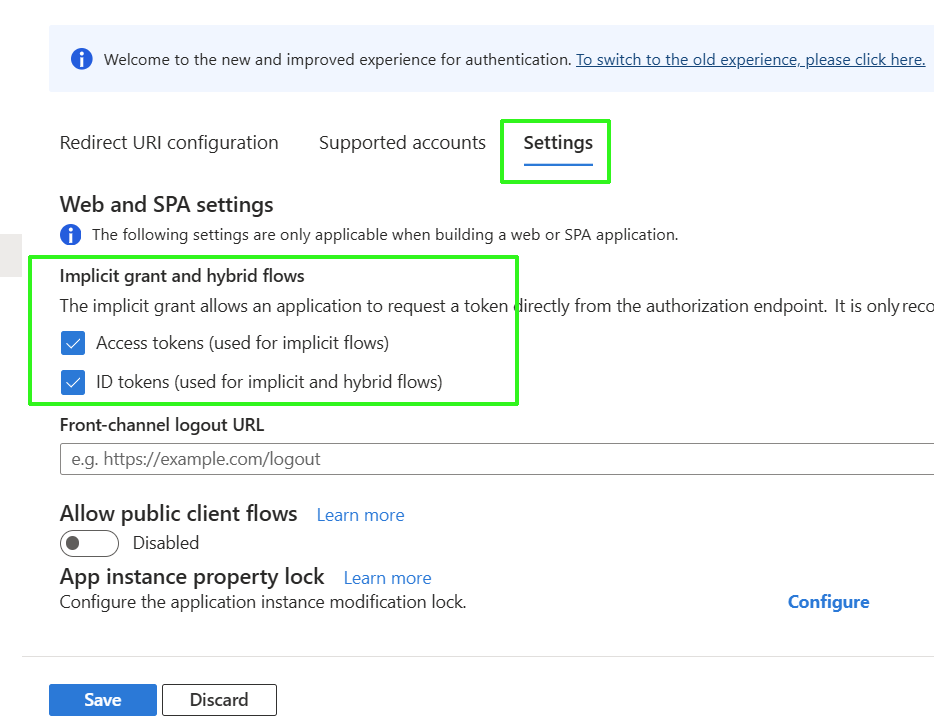
Click the Settings tab and under "Implicit grant and hybrid flows" configure the following: |
|
●
|
Access tokens (used for implicit flows) |
|
●
|
ID tokens (used for implicit and hybrid flows) |
|
14.
|
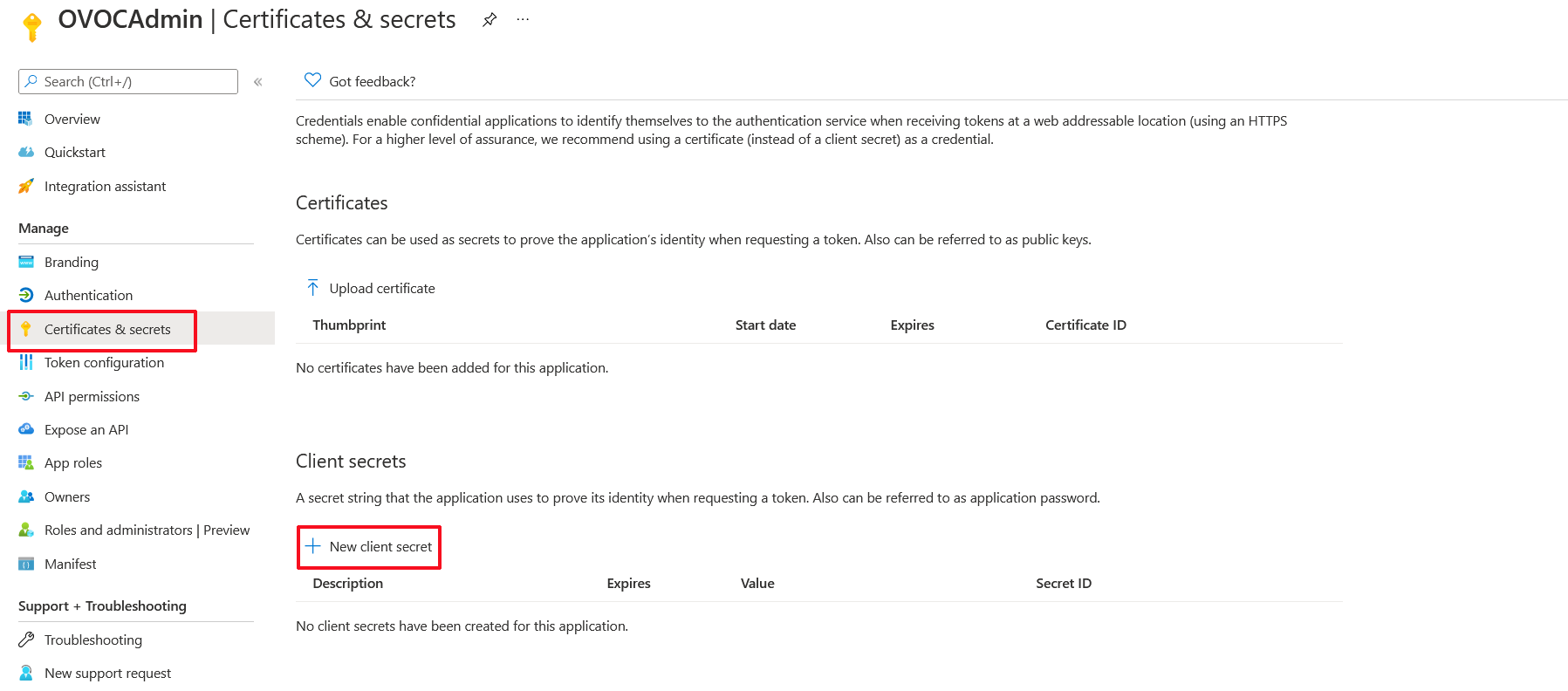
In the navigation pane, select Manage > Certificates & secrets. |
|
15.
|
Click New client secret. |
|
16.
|
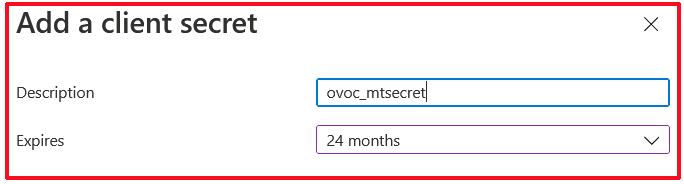
Enter a description and from the drop-down list select 24 months. |
|
18.
|
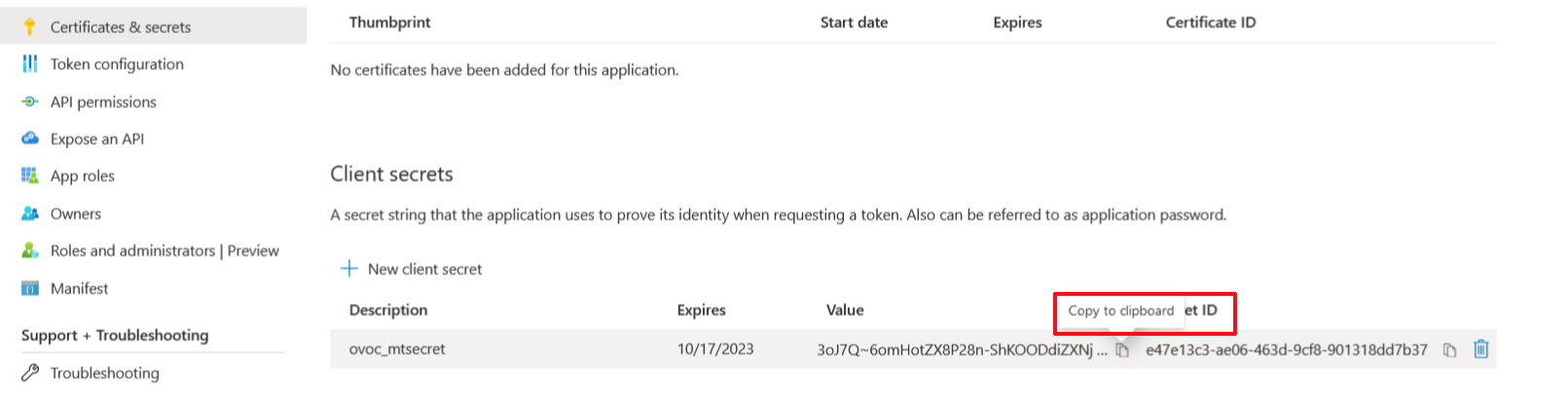
Copy the secret Value to clipboard as its required in later configuration and cannot be retrieved once you leave this screen. |
|
●
|
Copy the value immediately to notepad as it hashed after a short time. |
|
●
|
If you use the Application registration to create additional services, a new secret should be created for each new service. |
|
19.
|
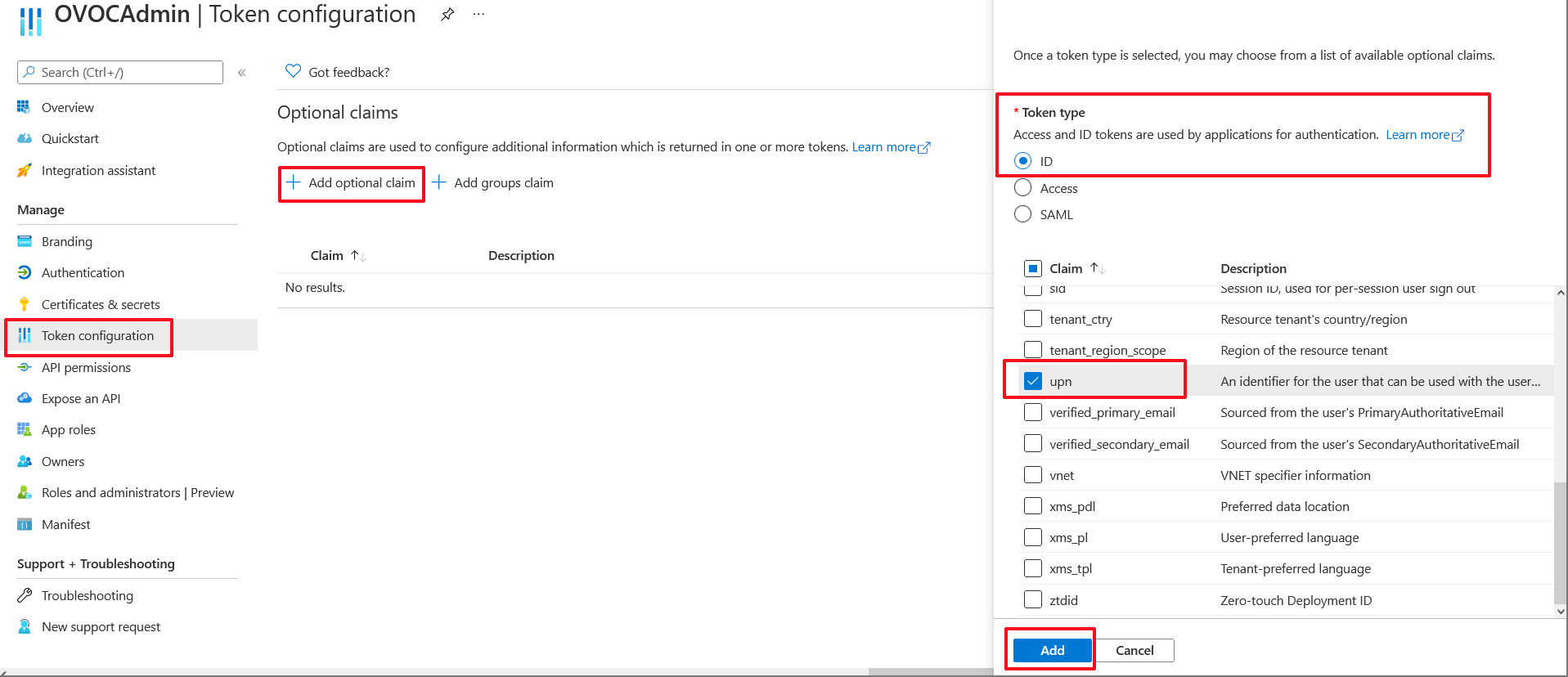
In the Navigation pane, select Manage > Token configuration. |
|
20.
|
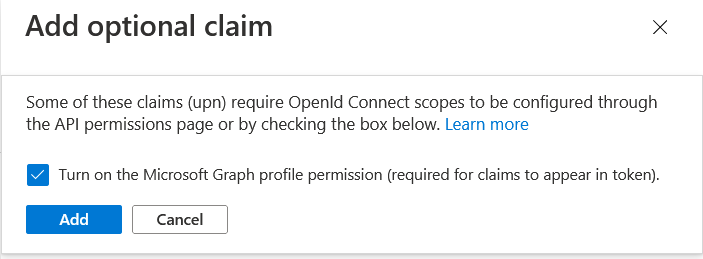
Click Add optional claim, choose ID type then upn optional claim and click Add to confirm. |
|
21.
|
Select the Turn on the Microsoft Graph profile permission check box and then click Add. This adds the Profile permission to the API permissions list. |
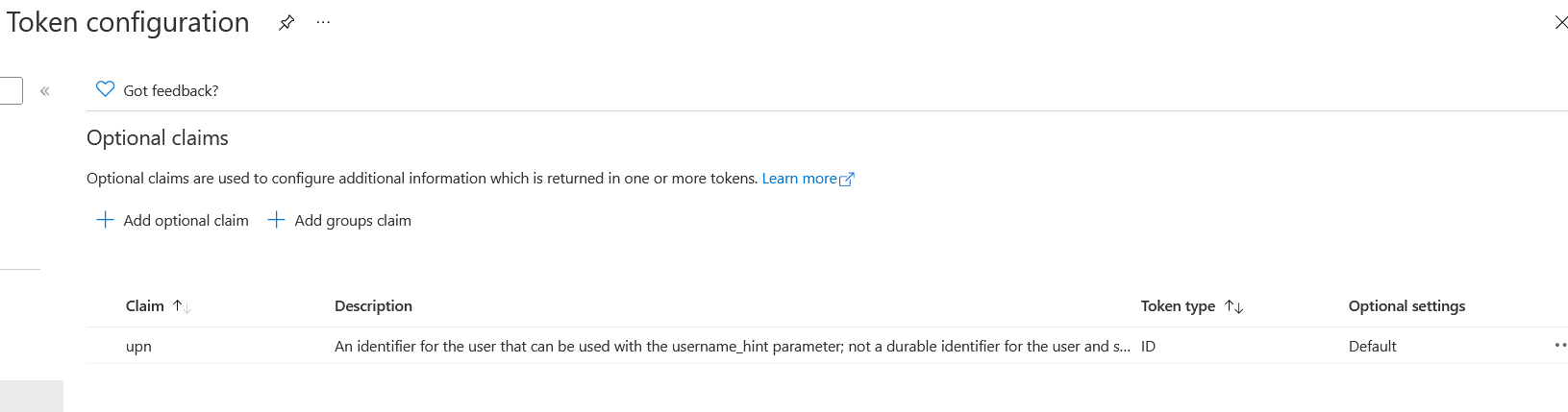
This configuration assumes that all operators have been added to the Active Directory in UPN format e.g. Johnb@firm.com. If operators have been added in email format e.g. John.Brown@firm.com then they will not be able to connect to OVOC in the multitenancy setup.
|
22.
|
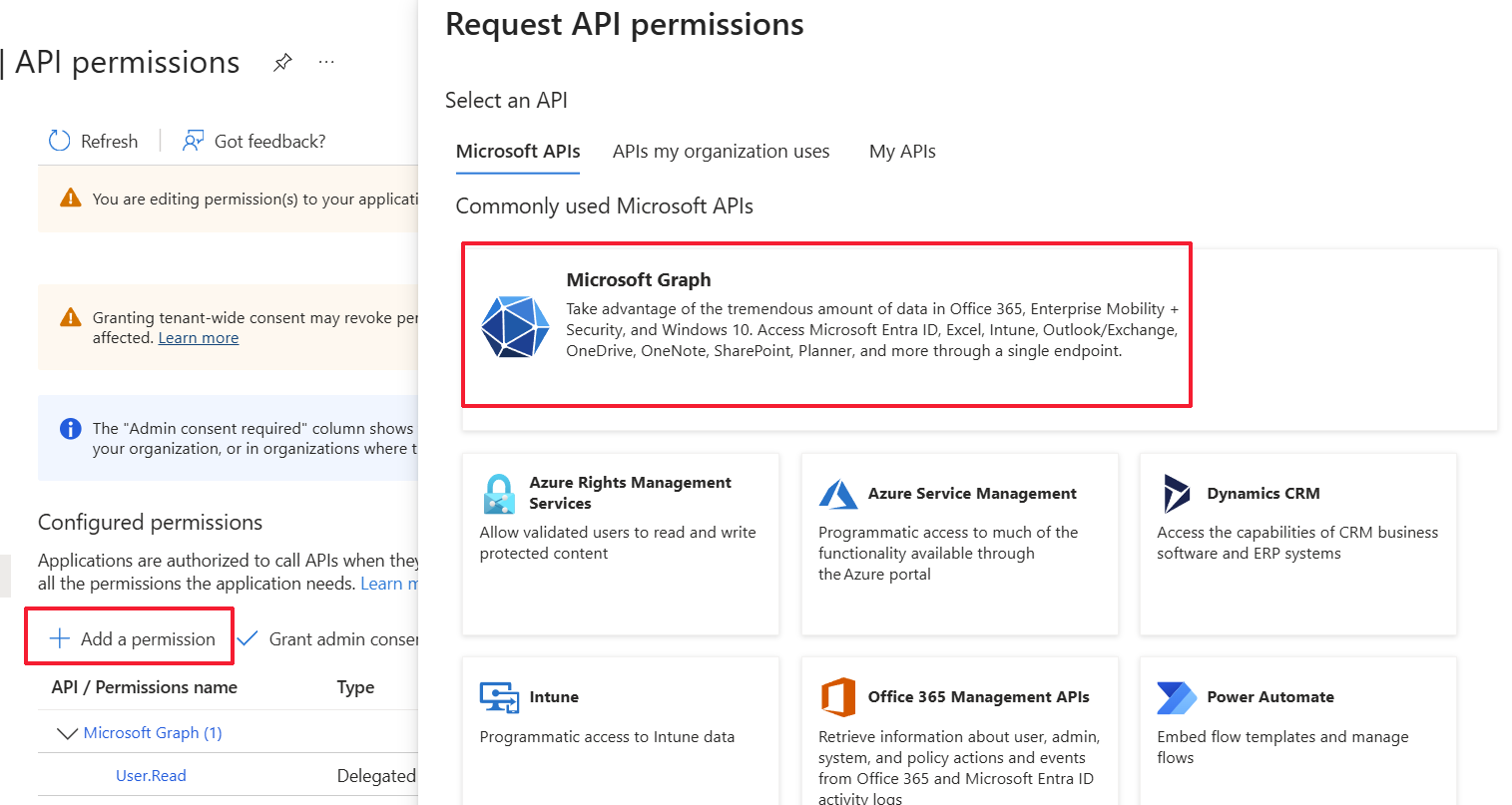
In the Navigation pane, select Manage > API permissions. |
|
23.
|
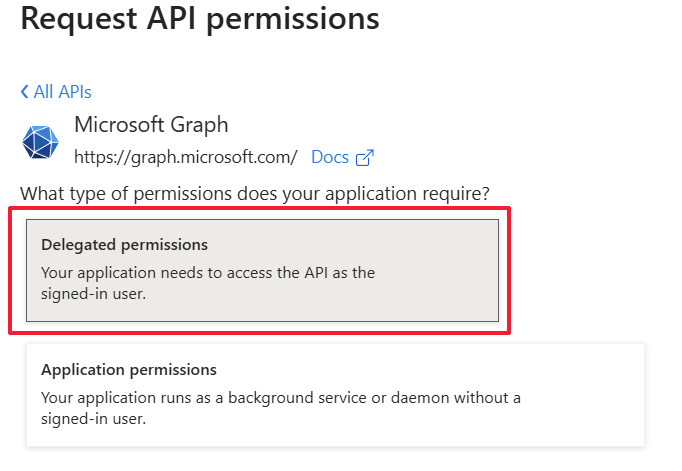
Click Add a permission and then click the Microsoft Graph link. |
|
24.
|
Click Delegated permissions. |
|
25.
|
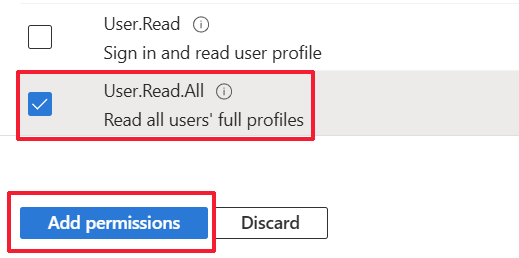
Select permission User.Read.All and then click Add permissons. |
|
26.
|
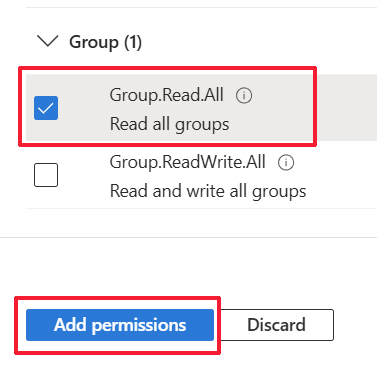
Select Group.Read.All for OVOC to read permissions from all user groups defined for the tenant, and then click Add permissions. |
|
27.
|
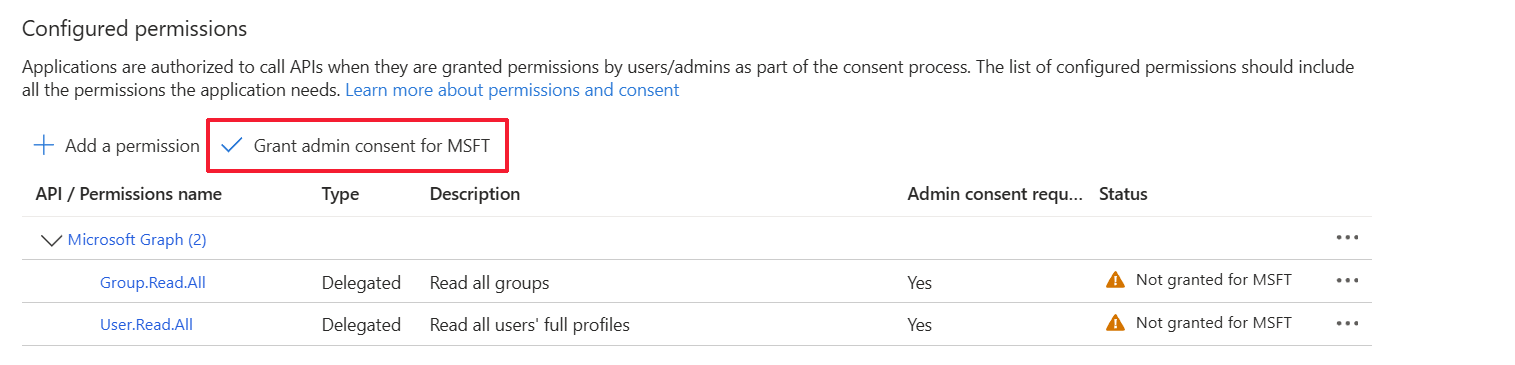
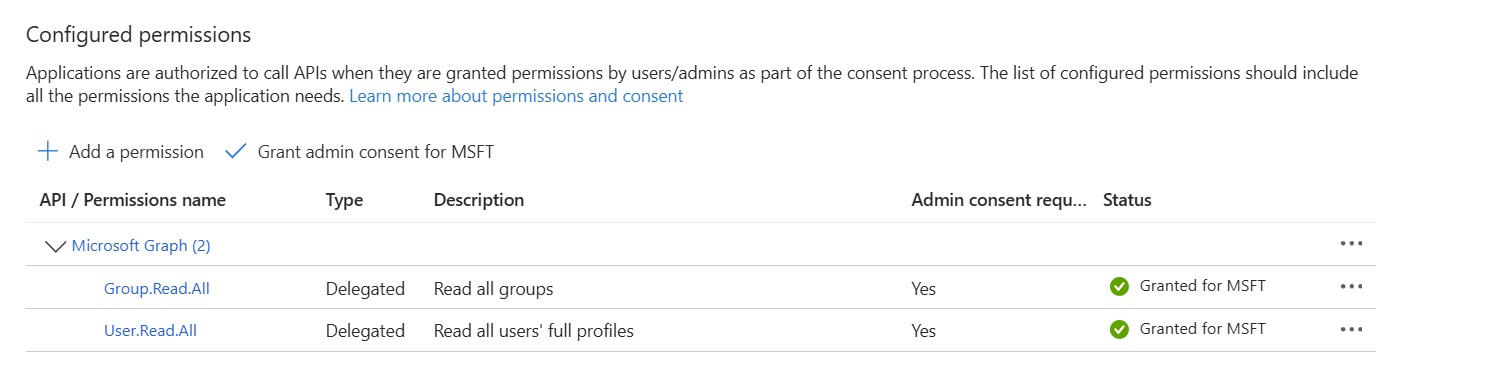
Click Grant admin consent for <Tenant_Name> link to grant consent for the requested permissions for all accounts for this tenant, and then click Yes to confirm. |

|
28.
|
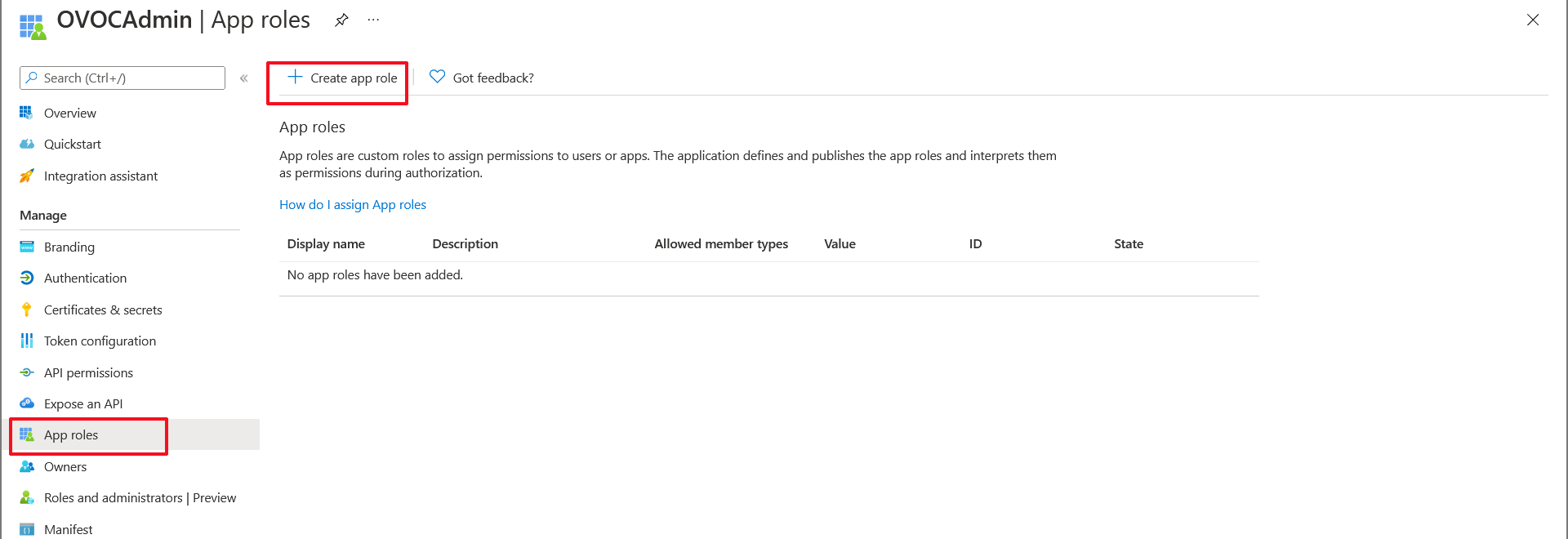
In the Navigation pane, select Manage > App roles and then click Create app role. |
App roles
|
29.
|
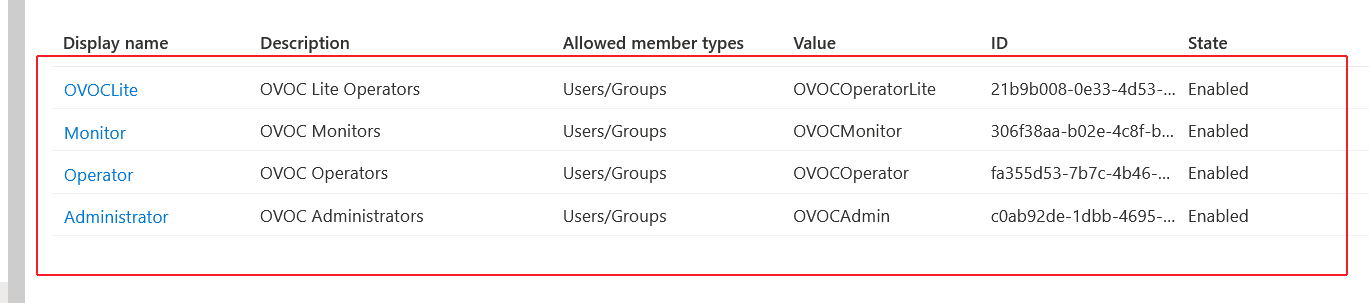
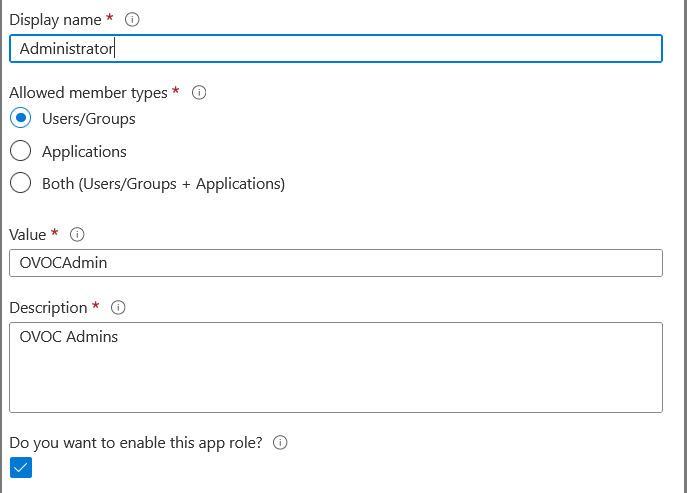
Create an app role with Admin permissions: |
|
a.
|
In the Display Name field, enter "Administrators" or "Admins" |
|
b.
|
Select Users/Groups check box. |
|
c.
|
Enter value "OVOCAdmin" |
|
d.
|
Select the do you want to enable this app role check box. |
Admin Role
|
30.
|
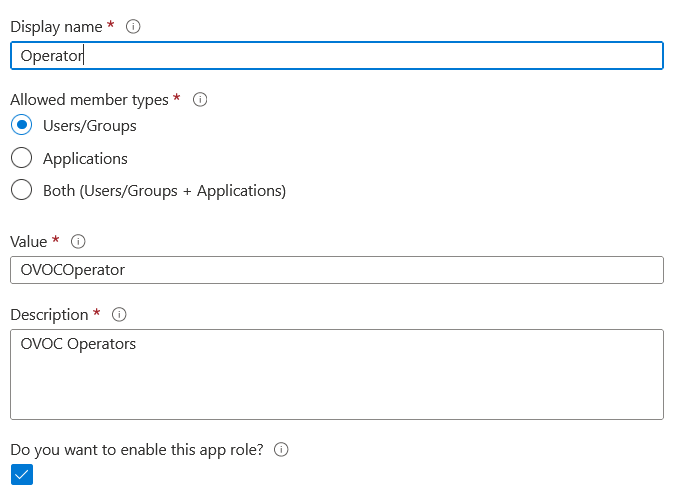
Repeat the above steps to create an App role with Operator permissions with value 'OVOCOperator". |
Operator Role
|
31.
|
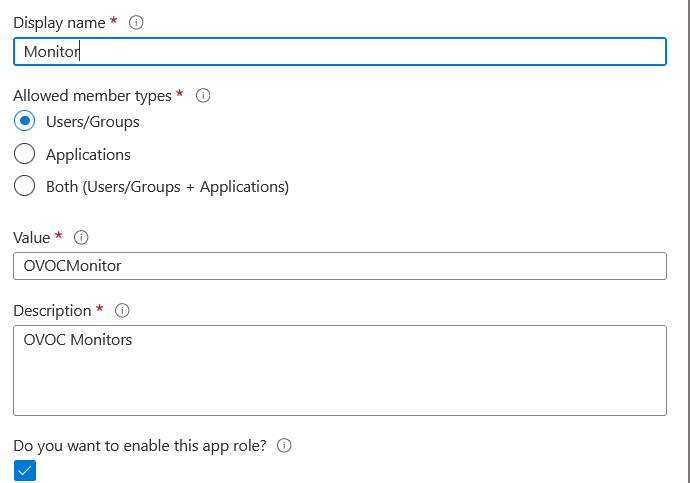
Repeat the steps described for adding "Admin" role above to create an app role with Monitor permissions with value "OVOCMonitor". |
Operator Role
|
32.
|
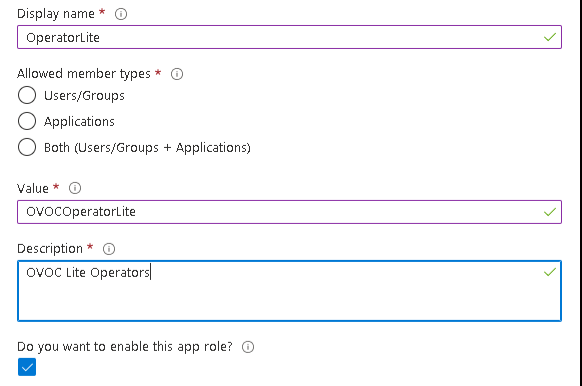
Repeat the steps described for adding "Admin" role above to create an app role with Monitor permissions with value "OVOCOperatorLite". |
OVOC Operator Lite
The new roles are displayed:
App roles