Step 1: Generate a Certificate Signing Request (CSR)
This step describes how to generate a Certificate Signing Request (CSR).
|
➢
|
To generate certificate signing request: |
|
1.
|
Login to the device's Web server. |
|
2.
|
Open the TLS Contexts page (Setup menu > IP Network tab > Security folder > TLS Contexts). |
|
3.
|
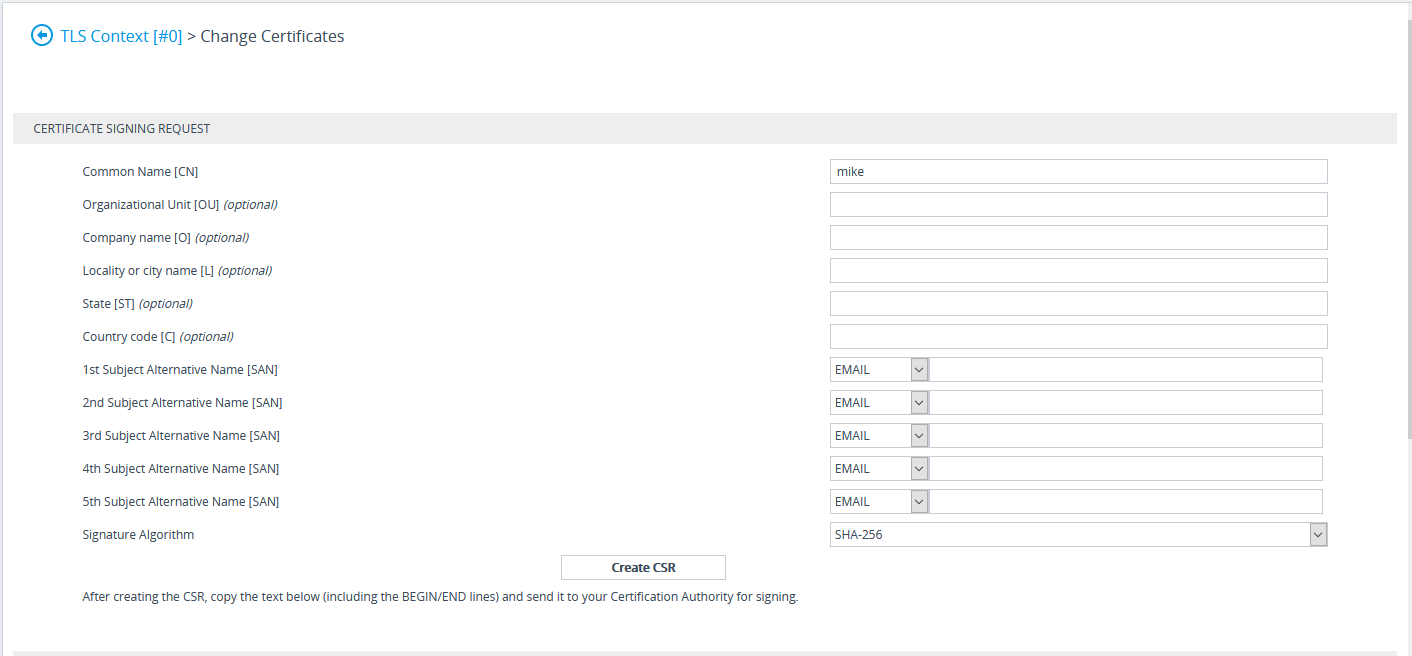
In the table, select the TLS Context Index #0, and then click the TLS Context Certificate button, located below the table; the Context Certificates page appears. |
Context Certificates
|
4.
|
Under the Certificate Signing Request group, do the following: |
|
a.
|
In the 'Subject Name [CN]' field, enter the device’s DNS name, if such exists, or device’s IP address. |
|
b.
|
Fill in the rest of the request fields according to your security provider's instructions. |
|
c.
|
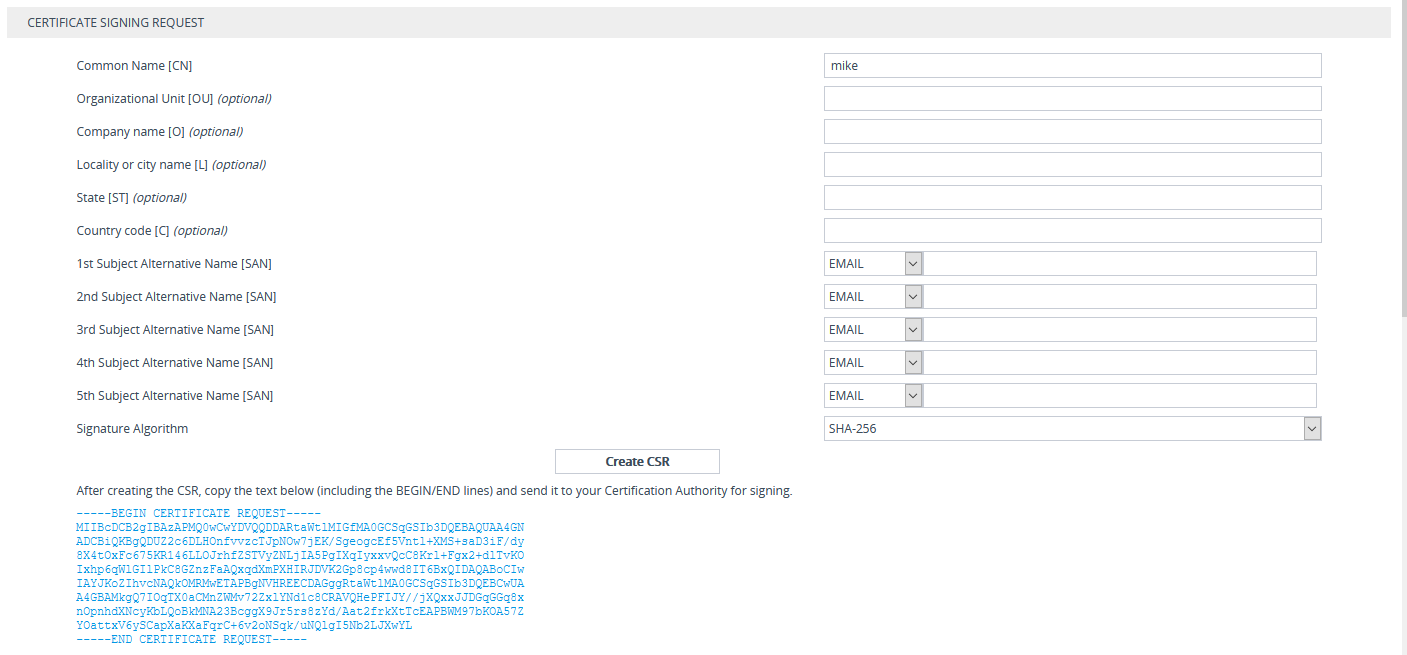
Click the Create CSR button; a textual certificate signing request is displayed in the area below the button: |
Certificate Signing Request Group
|
5.
|
Copy the text and send it to the certificate authority (CA) to sign this request. |