Receiving a File from AudioCodes and Uploading it to the Provisioning Server
After obtaining a device file from AudioCodes (for example, the device's .img firmware file, .cfg configuration file, certificate file, etc.), admin can upload it to the OVOC provisioning server. The Device Firmware Files page then displays the file.
The device's default firmware file is indicated in the page as follows:

When clicking the Edit button next to the device's default firmware file, observe that the 'Version' field cannot be edited, another indication of a default file.
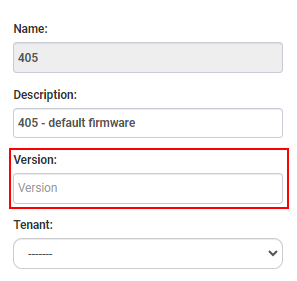
When 405 phones (in this example) are connected to the network, they will all automatically be provisioned with the default firmware file from the OVOC provisioning server.
When admin uploads a new file to the OVOC provisioning server as shown in the procedure below, a new line is added (not the -default firmware line) to the Device Firmware Files page and only that device associated with the new file will be updated. ONLY WHEN PERFORMING AN UPGRADE FIRMWARE FILE ACTION FOR A DEVICE, ADMIN CAN SELECT A FIRMWARE FILE TO UPGRADE WHICH IS NOT NECESSARILY THE DEFAULT FILE.
| ➢ | To upload a new file to the OVOC provisioning server after receiving it from AudioCodes: |
| 1. | Open the Device Firmware Files page (Setup > Firmware > Firmware Files). |
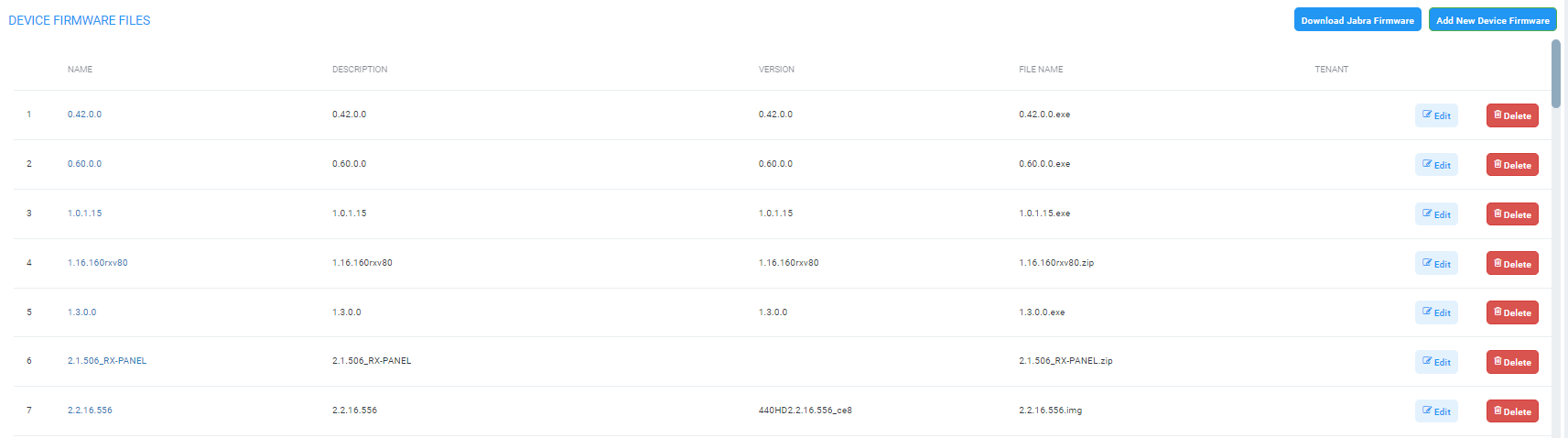
| 2. | Click the Add New Device Firmware button. |
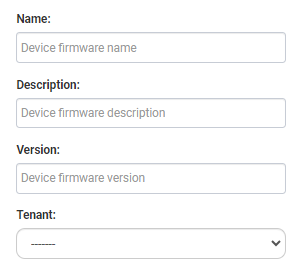
| 3. | In the 'Name' field, enter the name of the file you received from AudioCodes. |
| 4. | In the 'Description' field, enter a description of the file to facilitate file management. |
| 5. | In the 'Version' field, enter the version of the file. |
| 6. | From the 'Tenant' drop-down, select the Tenant under whom the device is deployed. |
| 7. | Click the Continue & Upload button (not shown in the preceding figure). |

| 8. | Click the Upload Firmware File button. |

| 9. | Browse to the file and click Submit; the file is uploaded to the OVOC provisioning server and a new line is added to the Device Firmware Files page reflecting the new file. |
[Another option of obtaining | uploading newly released firmware files is in the Latest Versions page (Setup > Firmware > Latest Firmware Versions) as shown here]