Configuring TLS Contexts
The TLS Contexts table lets you step configure up to
You can use TLS for the following:
| ■ | To secure device management communication, for example, HTTPS-based Web sessions, Telnet sessions and SSH sessions. |
| ■ | To secure SIP signaling connections, referred to as SIP Secure (SIPS) or SIP over TLS. |
| ■ | To secure various other network applications supported by the device, for example, communication with a remote LDAP server used for LDAP-based user management authentication and authorization. |
The device is shipped with a default TLS Context (Index #0 and named "default"), which includes a self-generated random private key and a self-signed server certificate. The Common Name (CN or subject name) of the default certificate is "ACL_nnnnnnn", where nnnnnnn denotes the serial number of the device.
| ● | You can't delete the default TLS Context. |
| ● | For secure management through the default management network interface (i.e., OAMP Application Type in the IP Interfaces table), the device uses the default TLS Context. However, for secure Web and REST access using the additional management interfaces configured in the Web Interfaces table (see Configuring Web Interfaces), you can use any TLS Context. |
| ● | If a TLS Context for an existing TLS connection is changed during the call by the user agent, the device ends the connection. |
| ● | When you modify an existing TLS Context (e.g., change certificate), the device ends all currently established TLS connections associated with the TLS Context simultaneously. If there are many TLS connections, this may trigger an avalanche effect, where all connections attempt to re-establish their TLS sessions simultaneously. To prevent this behavior, you can configure the device to terminate TLS connections gradually, by limiting the reset rate using the [SipTLSResetsPerSecond] ini file parameter. |
| ● | For more information on secured management, see Configuring Secured (HTTPS) Web and REST Access. |
You can configure a TLS Context with the following TLS settings:
| ■ | TLS version (TLS 1.0, TLS 1.1, TLS 1.2, and TLS 1.3). |
| ■ | DTLS version (DTLS 1.0 and DTLS 1.2). |
| ■ | TLS cipher suites for server and client roles (per OpenSSL syntax). |
| ■ | Diffie-Hellman (DH) key size used by the device if it acts as a TLS server and DH is used for key exchange. |
| ■ | Online Certificate Status Protocol (OCSP). Some Public-Key Infrastructures (PKI) can revoke a certificate after it has been issued. You can configure the device to check if a peer's certificate has been revoked, using OCSP. When OCSP is enabled, the device queries the OCSP server for revocation information whenever a peer certificate is received (TLS client mode, or TLS server mode with mutual authentication). |
| ● | The device doesn't query OCSP for its own certificate. |
| ● | Some PKIs do not support OCSP, but generate Certificate Revocation Lists (CRLs). For such scenarios, set up an OCSP server such as OCSPD. |
| ■ | Private key - externally created and then uploaded to device. |
| ■ | Different levels of security strength (key size) per TLS certificate. |
| ■ | X.509 certificates - self-signed certificates or signed as a result of a certificate signing request (CSR). |
| ■ | Trusted root certificate authority (CA) store (for validating certificates). |
| ■ | Automatic Certificate Management Environment (ACME) based certificate management to automate the process of obtaining, validating, and renewing the certificate of a TLS Context. |
| ● | When creating a TLS Context, you should create a certificate as described in Generating a Self-Signed Certificate for a TLS Context, and then check that the certificate is "Ok" as described in Viewing Certificate Information. |
| ● | For secure SIP messaging (SIP Secure or SIPS) using TLS, see TLS for SIP Clients (two-way authentication) and Configuring TLS for Secured SIP. |
| ● | To map an SNI (hostname in 'server_name' extension of "client hello" message) to a TLS Context, see Configuring SNI-to-TLS Mapping. |
| ● | To configure the device to periodically check the validation date of installed TLS server certificates of TLS Contexts, see Configuring TLS Server Certificate Expiry Check. |
The following procedure describes how to configure a TLS Context through the Web interface. You can also configure it through ini file [TLSContexts] or CLI (configure network > tls).
| ➢ | To configure a TLS Context: |
| 1. | Open the TLS Contexts table (Setup menu > IP Network tab > Security folder > TLS Contexts). |
| 2. | Click New to add a new TLS Context or Edit to modify the default TLS Context at Index 0; the following dialog box appears: |
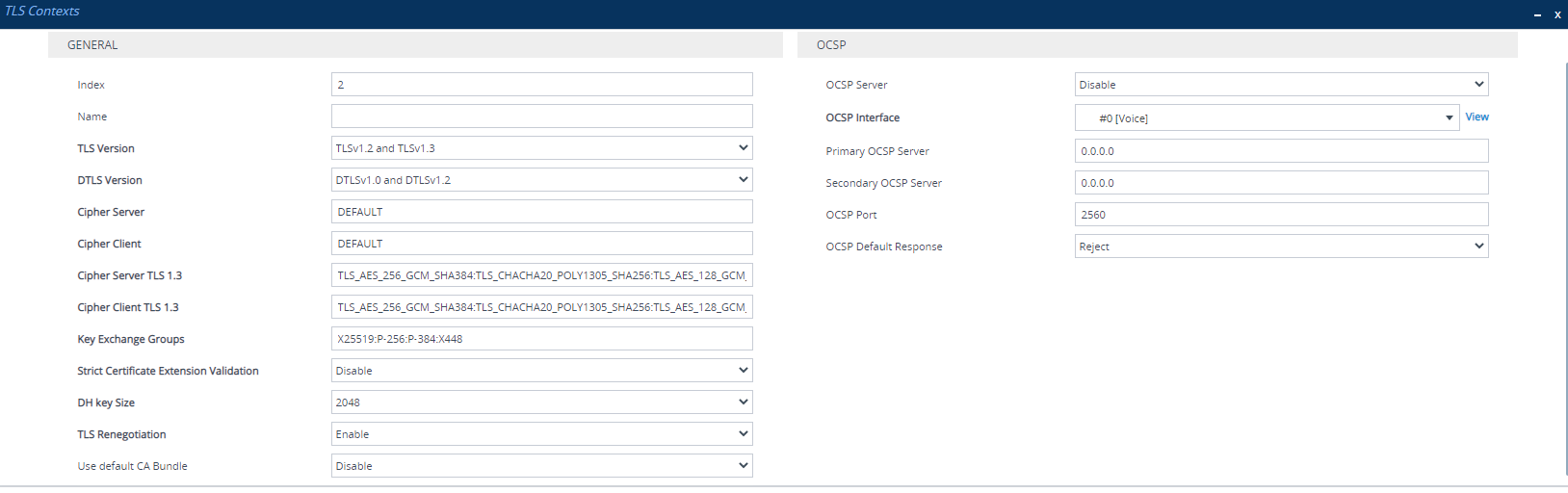
| 3. | Configure the TLS Context according to the parameters described in the table below. |
| 4. | Click Apply. |
TLS Contexts Parameter Descriptions
|
Parameter |
Description |
|||||||||||||||||||||||||||||||||
|---|---|---|---|---|---|---|---|---|---|---|---|---|---|---|---|---|---|---|---|---|---|---|---|---|---|---|---|---|---|---|---|---|---|---|
| General | ||||||||||||||||||||||||||||||||||
|
'Index' tls [Index] |
Defines an index number for the new table row. Note:
|
|||||||||||||||||||||||||||||||||
|
'Name' name [Name] |
Defines a descriptive name, which is used when associating the row in other tables. The valid value is a string of up to 31 characters. Note: The default TLS Context (Index 0) is named "default". |
|||||||||||||||||||||||||||||||||
|
'TLS Version' tls-version [TLSVersion] |
Defines the supported TLS protocol version. Clients attempting to communicate with the device using a different TLS version are rejected.
|
|||||||||||||||||||||||||||||||||
|
'DTLS Version' [DTLSVersion] |
Defines the Datagram Transport Layer Security (DTLS) version, which is used to negotiate keys for WebRTC calls.
For more information on WebRTC, see WebRTC. Note: The parameter is applicable only to the SBC application. |
|||||||||||||||||||||||||||||||||
|
'Cipher Server' ciphers-server [ServerCipherString] |
Defines the supported cipher suite for the TLS server (in OpenSSL cipher list format) when the TLS version is 1.2 or earlier. The default is "DEFAULT". Note:
|
|||||||||||||||||||||||||||||||||
|
'Cipher Client' ciphers-client [ClientCipherString] |
Defines the supported cipher suite for TLS clients when the TLS version is 1.2 or earlier. The default is "DEFAULT". Note:
|
|||||||||||||||||||||||||||||||||
|
'Cipher Server TLS 1.3' ciphers-server-tls13 [ServerCipherTLS13String] |
Defines the supported cipher suite for the TLS 1.3 server (in OpenSSL cipher list format). For possible values and additional details, visit the OpenSSL website. The default is "TLS_AES_256_GCM_SHA384:TLS_CHACHA20_POLY1305_SHA256:TLS_AES_128_GCM_SHA256". Note: The parameter is applicable only to TLS 1.3 (configured by the 'TLS Version' parameter above). |
|||||||||||||||||||||||||||||||||
|
'Cipher Client TLS 1.3' ciphers-client-tls13 [ClientCipherTLS13String] |
Defines the supported cipher suite for TLS 1.3 clients. For possible values and additional details, visit the OpenSSL website. The default is "TLS_AES_256_GCM_SHA384:TLS_CHACHA20_POLY1305_SHA256:TLS_AES_128_GCM_SHA256". Note: The parameter is applicable only to TLS 1.3 (configured by the 'TLS Version' parameter above). |
|||||||||||||||||||||||||||||||||
|
'Key Exchange Groups' key-exchange-groups [KeyExchangeGroups] |
Defines the groups that are supported for key exchange, ordered from most preferred to least preferred. The valid value is any combination of the following strings:
The default is "X25519:P-256:P-384:X448" (without quotation marks). When configuring the parameter with multiple values, separate each with a colon. In addition, the order of the values determines the group preference. For example, the value "P-384:P-256:X25519" (without quotation marks) gives preference to P-384. The TLS client uses the first configured value (e.g., P-384) as its group trial, while the TLS server uses the whole list to try and match the client’s trial. Note: The parameter is applicable to all TLS versions. |
|||||||||||||||||||||||||||||||||
|
'Use Strict Certificate Validation' require-strict-cert [RequireStrictCert] |
Enables the validation of the extensions (keyUsage and extendedKeyUsage) of peer certificates. The validation ensures that the signing CA is authorized to sign certificates and that the end-entity certificate is authorized to negotiate a secure TLS connection.
|
|||||||||||||||||||||||||||||||||
|
'DH Key Size' dh-key-size [DHKeySize] |
Defines the Diffie-Hellman (DH) key size (in bits). DH is an algorithm used mainly for exchanging cryptography keys used in symmetric encryption algorithms such as AES.
Note: If you upgraded the device from an earlier version where it was set to 1024-bit key size, the key size is automatically changed to 2048. |
|||||||||||||||||||||||||||||||||
|
'TLS Renegotiation' tls-renegotiation [TlsRenegotiation] |
Enables TLS renegotiations (handshakes) initiated by the client (peer) with the device.
|
|||||||||||||||||||||||||||||||||
|
'Use default CA Bundle' trusted-root default-ca-bundle [UseDefaultCABundle] |
Enables the use of the default list of trusted root certificate authorities (CAs).
To view the default list of CAs, see Viewing Default Certificate Authorities. Note:
|
|||||||||||||||||||||||||||||||||
|
'Security Level' security-level [SecurityLevel] |
Defines the OpenSSL security level, which is the minimum strength of cryptographic parameters (ciphers, key sizes, protocol versions) that this TLS Context accepts for TLS connections. The valid value is 0 to 5, where 0 is the weakest security level and 5 is the strongest. The default is 1. For a description of each security level, refer to the OpenSSL documentation. Note: The device accepts SHA1 signature algorithms at security level 1. |
|||||||||||||||||||||||||||||||||
|
‘Allow Client Auth Key Usage’ client-auth-key-usage-mode [AllowClientAuthKeyUsage] |
Defines whether the device accepts or rejects client TLS certificates based on the presence of the 'clientAuth' value in the Extended Key Usage (EKU) field.
Note: Certificate Authorities (CAs) such as DigiCert and GlobalSign are gradually discontinuing the issuance of TLS certificates that include the clientAuth EKU. |
|||||||||||||||||||||||||||||||||
|
OCSP |
|
|||||||||||||||||||||||||||||||||
|
'OCSP Server' ocsp-server [OcspEnable] |
Enables certificate checking using Online Certificate Status Protocol (OCSP).
|
|||||||||||||||||||||||||||||||||
|
'OCSP Interface' ocsp-interface [OcspInterface]
|
Assigns an IP Interface for communication with the OCSP server. By default, the OAMP interface is assigned (Index 0 "O+M+C"). To configure IP Interfaces, see Configuring IP Network Interfaces. Note: The addresses of the IP Interface and the OCSP servers (see 'Primary OCSP Server' and 'Secondary OCSP Server' parameters below) must be of the same IP version (IPv4 or IPv6). |
|||||||||||||||||||||||||||||||||
|
'Primary OCSP Server' ocsp-server-primary [OcspServerPrimary] |
Defines the address (IPv4 or IPv6, or FQDN) of the primary OCSP server. The default is 0.0.0.0. Note:
|
|||||||||||||||||||||||||||||||||
|
'Secondary OCSP Server' ocsp-server-secondary [OcspServerSecondary] |
Defines the address (IPv4 or IPv6, or FQDN) of the secondary OCSP server (optional). The default is 0.0.0.0. Note:
|
|||||||||||||||||||||||||||||||||
|
'OCSP Port' ocsp-port [OcspServerPort] |
Defines the OCSP server's TCP port number. The default port is 2560. |
|||||||||||||||||||||||||||||||||
|
'OCSP Default Response' ocsp-default-response [OcspDefaultResponse] |
Defines if the device allows or rejects peer certificates if it cannot connect to the OCSP server.
|
|||||||||||||||||||||||||||||||||
|
'OCSP HTTP Version' ocsp-http-version [OcspHttpVersion] |
Defines the HTTP version for communicating with the OCSP server.
|
|||||||||||||||||||||||||||||||||
|
ACME For more information on ACME, see ACME-based Certificate Management |
||||||||||||||||||||||||||||||||||
|
'ACME Client' acme-client > enable [ACMEClientEnable] |
Enables management of this TLS Context using the Automatic Certificate Management Environment (ACME) protocol (RFC 8555). This enables the device to act as an ACME client. ACME automates the process of obtaining, validating, and renewing TLS certificates for TLS Contexts.
Note: When enabled, the TLS Context's private key and certificate are managed by ACME and the device blocks manual import of a private key or certificate. |
|||||||||||||||||||||||||||||||||
|
'ACME Profile' acme-client > profile [ACMEProfile] |
Assigns an ACME Profile to the TLS Context. The ACME Profile defines the account (e.g., address) that you have with an ACME-compliant Certificate Authority (CA). Automatic certificate issuance and renewal of the TLS Context is done through this CA. To configure an ACME Profile, see Configuring ACME Profiles. Note: The parameter is mandatory. |
|||||||||||||||||||||||||||||||||
|
'Domain Name (CN)' acme-client > domain-name [DomainName] |
Defines the certificate's primary domain name (FQDN). This becomes the Common Name (CN) or the first Subject Alternative Name (SAN). Configure only one domain name. To configure additional domain names, use the 'Subject Alternative Names' parameter below. Note: The parameter is mandatory. |
|||||||||||||||||||||||||||||||||
|
'Subject Alternative Names' acme-client > san [SanList] |
Defines additional domain names (SANs) for the certificate.
If you leave this parameter empty, the certificate uses the domain name you configured in the 'Domain Name (CN)' parameter (above). |
|||||||||||||||||||||||||||||||||
|
'Certificate Key Algorithm' acme-client > key-algorithm [ACMECertKeyAlg] |
Defines the key algorithm and size for the issued certificate.
|
|||||||||||||||||||||||||||||||||
|
'Refresh Private Key' acme-client > refresh-private-key [ACMERefreshPKey] |
Enables the device to generate a new private key each time it requests a certificate issuance or renewal via ACME.
|
|||||||||||||||||||||||||||||||||
|
'Certificate Auto Enroll Lifetime Percentage' acme-client > auto-enroll-lifetime-percentage [ACMEClientAutoEnrollLifetimePerc] |
Defines when the device triggers automatic certificate renewal via ACME, as a percentage of the certificate's validity period. For example, if you configure the parameter to 80, the device initiates a renewal (submits a new order to the ACME-compliant CA) after 80% of the certificate's lifetime has elapsed. The valid value range is 10 to 90 (in percentage). The default is 80. |
|||||||||||||||||||||||||||||||||
|
'Maintenance Day of Week' acme-client > replace-day [ACMEMaintenanceDay] |
Defines which day of the week the device performs automatic certificate replacement via ACME. By default, renewal occurs based on the 'Certificate Auto-Enroll Lifetime Percentage' threshold, which can fall on any day. Use this parameter to align renewal with your organization's maintenance window instead.
|
|||||||||||||||||||||||||||||||||
|
'Maintenance Hour in Day' acme-client > replace-hour [ACMEMaintenanceHour] |
Defines the time of day the device performs automatic certificate replacement via ACME. By default, renewal occurs based on the 'Certificate Auto-Enroll Lifetime Percentage' threshold, which can occur at any time. Use this parameter to align renewal with your organization's maintenance window instead. The valid value is in 24-hour format (hh:mm). For example, half-past eight in the morning is 08:30. To allow renewal at any hour, leave this parameter empty. |
|||||||||||||||||||||||||||||||||
|
'ACME Registration Status' |
(Read-Only field) Displays whether the ACME account is registered with the CA for this TLS Context.
|
|||||||||||||||||||||||||||||||||
|
Private Key & Certificate Information |
||||||||||||||||||||||||||||||||||
|
'Private key size' |
(Read-Only field) Displays the key size (in bits) of the currently active private key. |
|||||||||||||||||||||||||||||||||
|
'Certificate Status' |
(Read-Only field) Displays whether the certificate matches the private key.
|
|||||||||||||||||||||||||||||||||
|
'Certificate Last Renewal' |
(Read-Only field) Displays the date the certificate was last issued by ACME. |
|||||||||||||||||||||||||||||||||
|
'Certificate Next ACME Renewal' |
(Read-Only field) Displays the date of the next automatic certificate renewal by ACME. |
|||||||||||||||||||||||||||||||||