Configuring Password Obfuscation in CLI Script and ini Files
You can enhance security by obfuscating passwords in the downloaded ini and CLI Script files, using a strong encryption algorithm. The encryption is implemented using the AES-256 algorithm with a 16-bit random CFB initialization vector (IV) cipher mode, using an encryption key. This method provides robust protection for sensitive configuration data.
Obscured passwords appear in the downloaded files using the following syntax:
$2$<obfuscated password>
Example:
WSTunPassword = $2$8EGYm+FG+JJT/p8ZOytU64uplPMKcw==
<obscured password>== encrypted
Example:
password B55osyLT1t7+oorwkaNB3bxEX4Bl8g== encrypted
Additionally, both the downloaded ini and CLI Script files include an Encryption Key Checksum header. This checksum allows the device to validate the file against the device’s current encryption key (or a key provided in the Configuration Package, when applicable) during upload through the Web interface, Automatic Update, or a Configuration Package. If the checksum header is missing or does not match, the device rejects the upload, preventing the configurations from being applied.
;EncryptionKeyCksum: ec122daf5f4caea66e6a31fac5b44ef0bf849b808e68d88b655003fb3caa8fb2
You can manually define the encryption key or you can trigger the device to automatically generate a key. If you want to configure the encryption key, it must contain 32 characters, and can contain a combination of the following characters:
|
■
|
Special characters: !, #, $, %, &, (, ), *, +, ,, -, ., /, <, =, >, ?, @, [, ], ^, _, `, {, }, ~. A-Z, a-z, 0-9, !, #, $, %, &, (, ), *, +, ,, -, ., /, <, =, >, ?, @, [, ], ^, _, `, {, }, ~ |
The following procedure describes how to configure the encryption key using the different methods.
|
➢
|
To configure encryption key for password obfuscation: |
(config-network)# security-settings
(network-security)# encryption-key assign <your key>
|
■
|
Generated by Device through CLI: |
(config-network)# security-settings
(network-security)# encryption-key generate
|
■
|
Configuration Package File (manually):
|
|
b.
|
Unzip the downloaded file (you'll be prompted for the password). |
|
c.
|
Open the unzipped file folder. |
|
d.
|
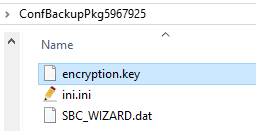
Create a file with the name "encryption.key" using any text editor (e.g., Notepad). |
|
e.
|
Add an encryption key to the encryption.key file, and then save the file. The following shows an example of an unzipped Configuration Package file with a created encryption file: |
|
f.
|
Compress all the files in the unzipped folder into a 7-Zip archive file: |
|
i.
|
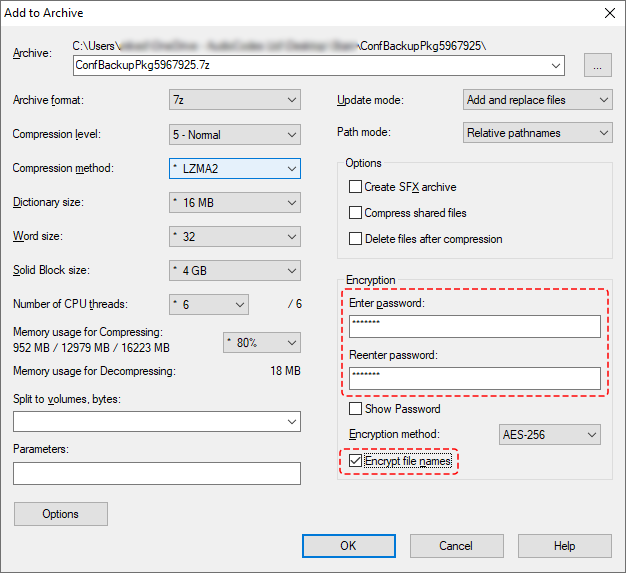
Select all the files in the unzipped folder, right-click, and then from the drop-down menu, choose 7-Zip > Add to archive; the Add to Archive dialog box appears. |
|
ii.
|
In the 'Enter password' and 'Reenter password' fields, enter the password that you used to encrypt the downloaded Configuration Package file, and then select the 'Encrypt file names' check box: |
|
iii.
|
Click OK; the Configuration Package file is compressed into a 7-Zip archive file. |
You can check if the device is configured with an encryption key, by running the following CLI command:
(config-network)# security-settings
(network-security)# encryption-key display
The output of this command displays only part of the encryption key for security. It displays only the first four characters followed by three asterisks (e.g., %3[-***).
If you want to remove password obfuscation, delete the encryption key using any of the following methods:
(config-network)# security-settings
(network-security)# encryption-key clear
|
■
|
Configuration Package File:
|
|
a.
|
Download the Configuration Package file and unzip it (described above for configuring the key). |
|
b.
|
Open the encryption.key file, delete the key, and then save the empty file. |
|
c.
|
Compress all the files in the unzipped folder into a 7-Zip archive file, and then upload it to the device encrypted.
|
|
●
|
Before you can downgrade the device to an earlier version that doesn't support this password obfuscation feature, you must clear the encryption key. |
|
●
|
The encryption key remains unaffected even if the device is restored to factory defaults. |
|
●
|
If you configure password obfuscation by encryption key, the device automatically disables the password obscured feature (if enabled). |