Generating SAS Token for Azure Blob Storage
If you want to use your Azure Blob Storage account as an external cloud storage platform for debug recording or debug files generated by the device, you must generate a Shared Access Signature (SAS) token for the Blob storage container where you want the device to send the files. This process also includes other container settings such as token expiration date.
Once you've generated a SAS token, you can configure the external storage in the External Storage table, as described in Configuring External Cloud Storage for Debug Recording and Debug Files.
|
●
|
This section assumes that you have an Azure Blob Storage account with a storage container. |
|
●
|
Make sure to renew the token key before it expires to ensure uninterrupted receipt of the files sent by the device to your Blob storage. |
|
➢
|
To generate a SAS token: |
|
2.
|
Access the Storage accounts page, and then select the relevant Blob Storage account. |
|
3.
|
Navigate to Data storage > Containers, and then select the container where you want to store the debug recording files. |
|
4.
|
Right-click the container, and then from the drop-down menu, choose Generate SAS; the Generate SAS dialog box opens. |
|
5.
|
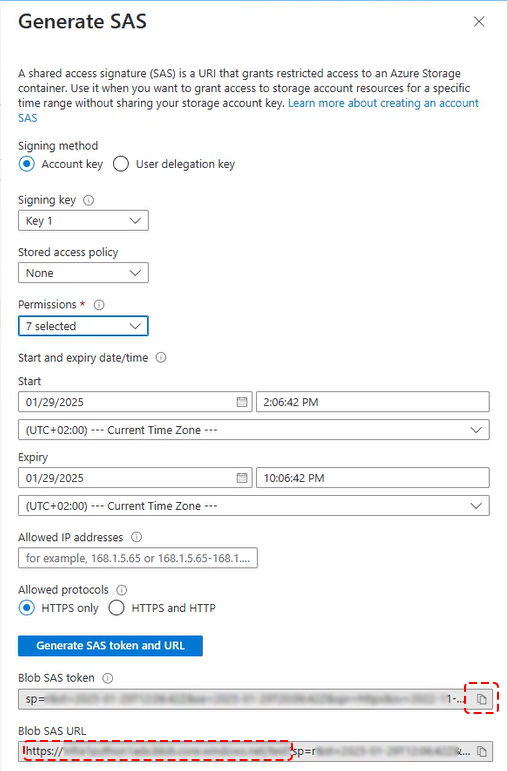
In the Generate SAS dialog box, configure access settings to the storage: |
|
a.
|
Under the Signing method group, select the Account key option. |
|
b.
|
From the 'Signing key' drop-down list, select Key 1. |
|
c.
|
From the 'Stored access policy' drop-down list, select a shared access policy. |
|
d.
|
From the 'Permissions' drop-down list, select (check) all the listed permissions check boxes. |
|
e.
|
In the 'Start' and 'Expiry' fields, define the start and expiry time-date of the signed key, respectively. |
|
f.
|
Under the Allowed protocols group, select the HTTPS only option to allow only requests using the HTTPS protocol. |
|
g.
|
Click the Generate SAS token and URL button; a shared access signature (SAS) token and URL are generated and displayed in the fields below the button: |
|
6.
|
In the 'Blob SAS token' field, click the copy-to-clipboard icon and paste the token in a secure location. |
|
7.
|
In the 'Blob SAS URL' field, copy the URL up until "sp=" (not including) and paste in a secure location. |
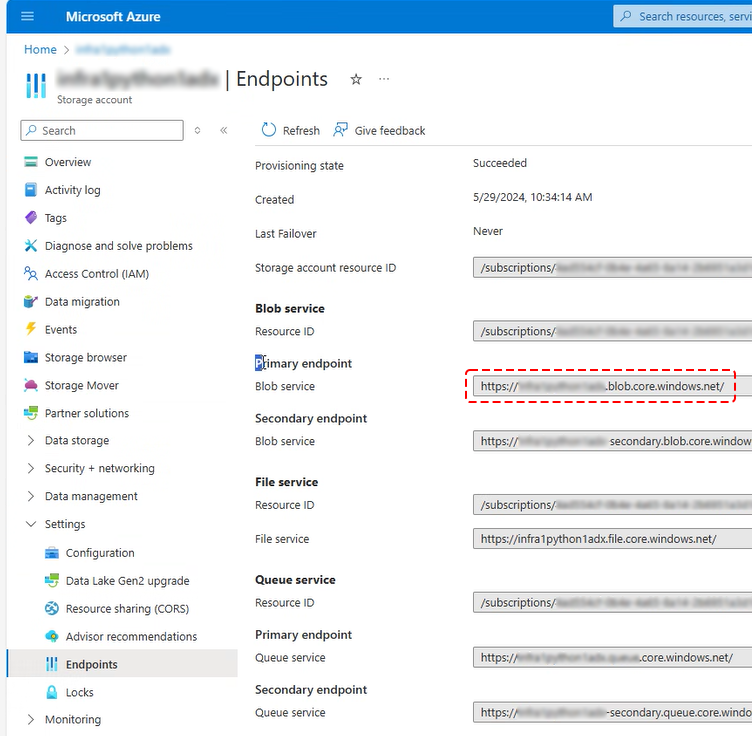
You can also obtain the URL from your Azure storage account settings, by navigating to Settings > Endpoints, and then copying it from the 'Primary endpoint' field.