Manage Devices in the Devices Status Page
The Devices Status page enables you to monitor and manage your deployed devices. The page is typically filtered in the Dashboard and then accessed from the Dashboard (or accessed by navigating to Monitor > Devices Status).
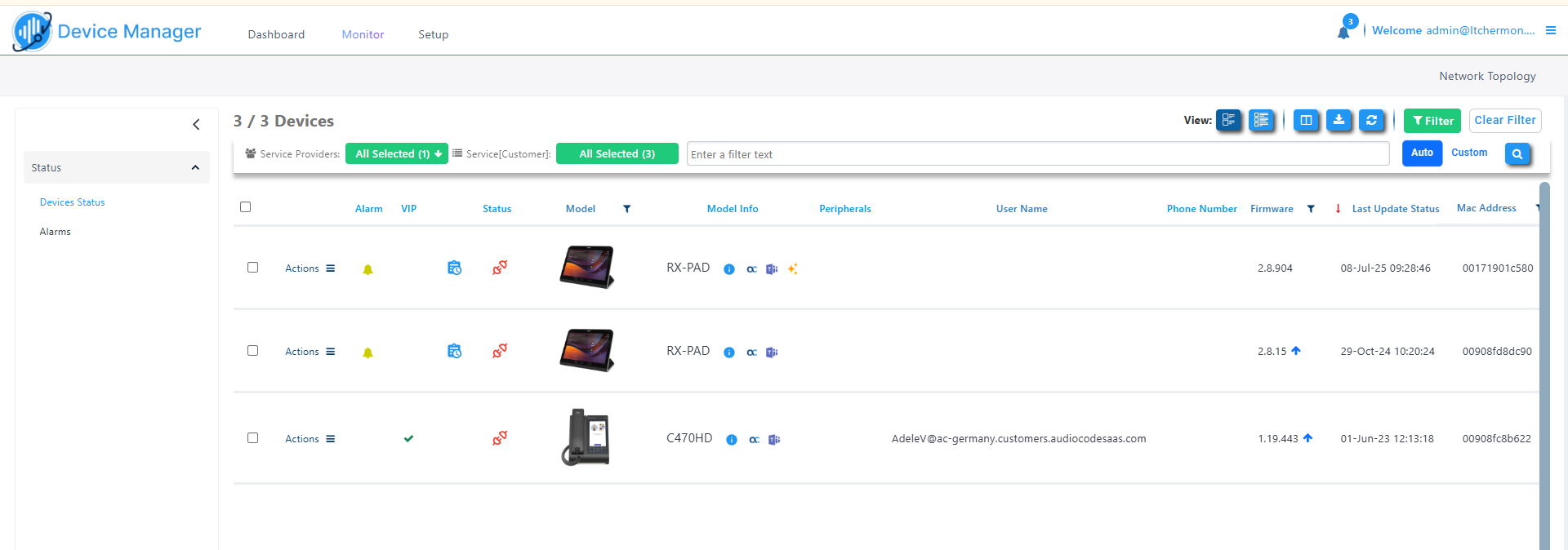
The table below describes the parameters in this screen.
|
Parameter |
Description |
|||||||||||||||||||||||||||
|---|---|---|---|---|---|---|---|---|---|---|---|---|---|---|---|---|---|---|---|---|---|---|---|---|---|---|---|---|
|
Toolbar |
|
|||||||||||||||||||||||||||
|
Customer filter. |
|
|||||||||||||||||||||||||||
|
Row Selection |
Select the check box adjacent to the row for which you wish to perform actions. Some actions can be performed for multiple selected rows. |
|||||||||||||||||||||||||||
|
Actions |
Click action menu (see Perform Actions on Devices). |
|||||||||||||||||||||||||||
|
Upload Firmware |
|
|||||||||||||||||||||||||||
|
Download Device Files |
|
|||||||||||||||||||||||||||
|
Alarms (download logs) |
Color-indicated Alarm icon (click the icon to open the Alarms page):
Clicking an Alarm icon opens the Device Info page on its Alarms tab (see below). |
|||||||||||||||||||||||||||
|
VIP |
|
|||||||||||||||||||||||||||
|
Waiting for User to Login |
|
|||||||||||||||||||||||||||
|
Status |
Indicates the status of the device:
|
|||||||||||||||||||||||||||
|
Model info |
Indicates the Device model name and in addition the following tooltip icons:
|
|||||||||||||||||||||||||||
|
Peripherals |
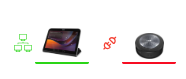
Icons representing attached peripheral devices. Hover over device to display information.
|
|||||||||||||||||||||||||||
|
User Name |
The name of the user registered to the device, for example, AUDC-IPPhone/RX-PANEL_TEAMS_3.0.38. |
|||||||||||||||||||||||||||
|
Phone Number |
The DID of the registered user of the device. |
|||||||||||||||||||||||||||
|
Firmware |
Indicates the firmware version loaded to the device ( |
|||||||||||||||||||||||||||
|
Last Update Status |
Indicates the time and date when the device firmware was last updated. |
|||||||||||||||||||||||||||
|
MAC address |
The MAC address of the endpoint. |
|||||||||||||||||||||||||||
|
IP address |
The IP address of the endpoint. |
|||||||||||||||||||||||||||
|
|
The |
|||||||||||||||||||||||||||
|
Service (Customer) |
The customer to which the endpoint is attached. |
|||||||||||||||||||||||||||
|
Profile |
The profile to which the device is attached. |
|||||||||||||||||||||||||||
|
Template |
The template to which the device is attached. |
|||||||||||||||||||||||||||
|
Report Time |
The last time the endpoint reported to the Device Manager. |
|||||||||||||||||||||||||||
|
DUO |
Indicates whether the device is auto-paired.
|
|||||||||||||||||||||||||||
|
DUO Version |
The version of the firmware of the attached USB device. |
|||||||||||||||||||||||||||
|
USB Headset Type |
Indicates if a USB Headset is connected to a phone’s USB port. When connected, devices can be monitored, configured and templates mapped. One of the following values:
|
 Adjusts the display to widen the spaces between columns.
 Adjusts the display to narrow spaces between columns.
 Exports all entries in the page - or a selected list of entries - to a CSV file. This facilitates inventory management; it lets you easily obtain a list of phone MAC addresses or serial numbers, for example. After generating a CSV file, you can save it or open it directly in Excel which displays the same information as that on the page.
  Devices Status table columns to display.
 Refreshes page.
 Lets you view specific information in the page, preventing information that is irrelevant to you from cluttering the page. See
  Resets the page to default view.
 Free text search field.
 Specifies the search type. If
  In the Firmware column, indicates that new firmware is available for uploading to the device.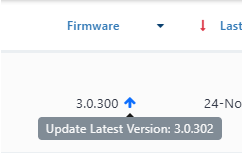
 Indicates that bug reports and/or screen captures are available for download.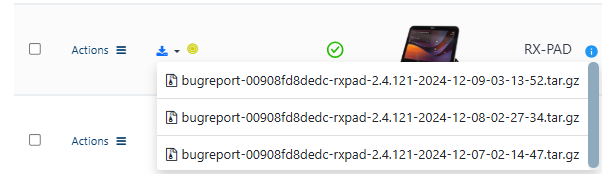
 Critical alarm
 Major alarm
 Minor alarm
 Indicates whether the device is as VIP device.
 waiting for the user to sign in for device provisioning.
 The device is offline or not registered.
  The device is disconnected.
 The device is registered.
 The device's USB is disconnected (relevant for meeting room devices).
 The device is in the middle of an upgrade process.
 : Detailed information on device model. Hover over to view vital hardware specifications:
 : Indicates if an
  : Indicates if a Teams device is attached. Hover over to view the list of attached Teams devices.
 : Indicates that peripheral devices are attached. Hover over to view pictures of the attached peripherals.
 : Indicates that the SIP App for Emergency Calling (Emergency Calling mode) is active and that the feature has been configured on the device and enabled either directly on the device or from the right-click Actions menu . An inverse action to send a command to the device to disable this mode and return to regular Teams Calling mode is provided in the right-click Actions menu 'Switch Back to Teams' (see figure below).
  Indicates that the AI summary feature is enabled for the device.
 Indicates that the AI summary feature is available for the device, but disabled.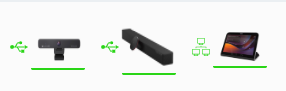
 Auto-paired
 Not paired