Performing On-demand Actions
If an active call is associated with a recording profile configured for on-demand recording or saving (see Add a Recording Profile), recording or saving this call is triggered and handled manually:
| ■ | Record on demand |
| ■ | Save on demand |
For on-demand features to be available, your tenant administrator must have enabled them on your tenant.
| ➢ | Record on Demand |
If the recording profile is set up for on-demand recording, a Record button appears for the active call in the Actions column. Click it to start recording the call.
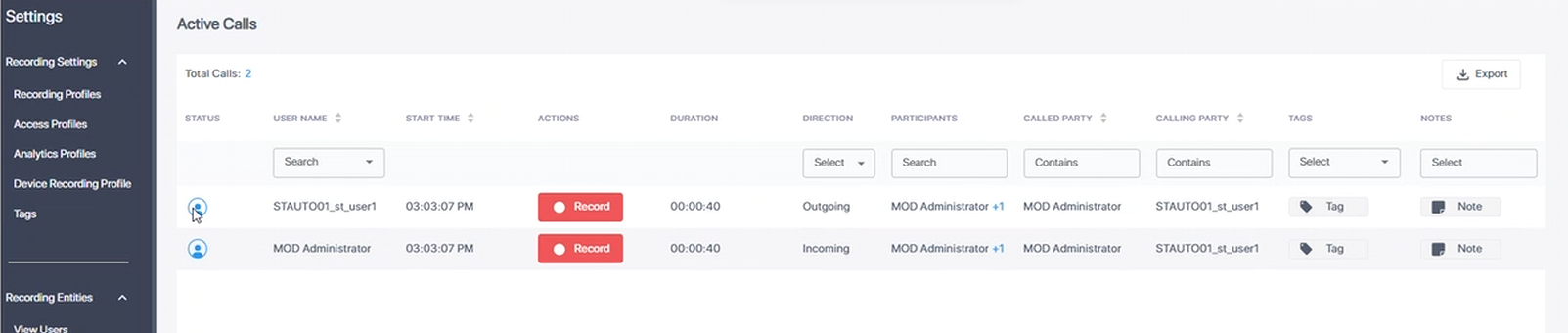
If you do not click Record, the call will not be recorded for you. If no participant clicks Record, the call will not be recorded at all.
If Pause/Resume is enabled in the profile, the Record button becomes a toggle button. Click to pause, then again to resume recording:
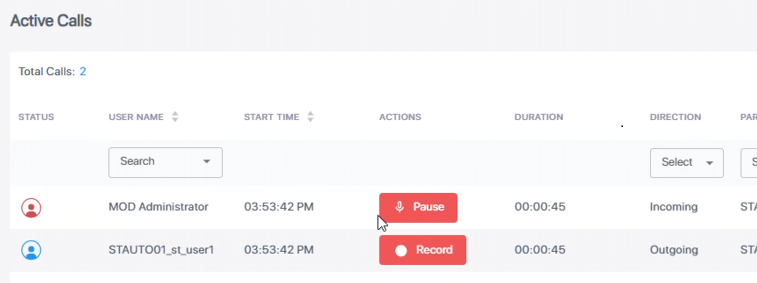
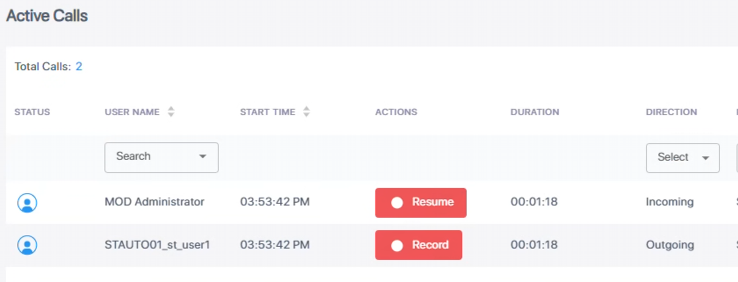
In the recorded interaction, pauses are marked by diagonally striped gray sections:
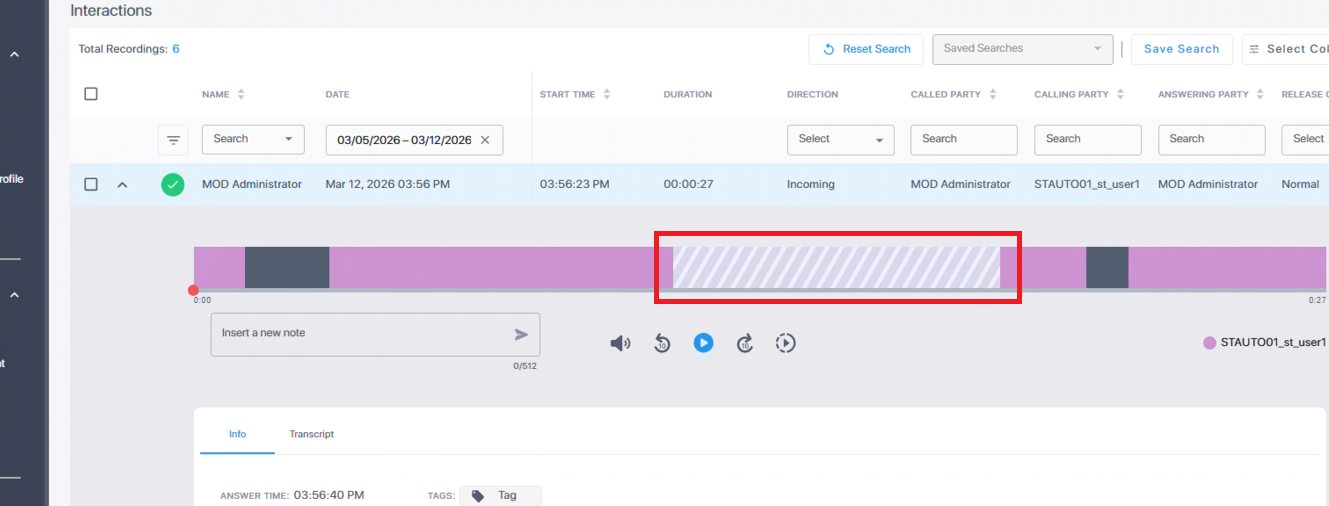
Pause and resume actions are tracked separately for each participant. If a participant pauses recording, the paused segments are not transcribed or included in AI-generated summaries for that participant. Recording, transcription, and AI-generated summaries continue uninterrupted for participants who have not paused recording.
If all participants pause recording, recording indicators are turned off.
| ➢ | Save on Demand |
If the recording profile is set up for on-demand saving, a Save button appears for the active call in the Actions column. Click Save to permanently save the recording.

The Save option is available until the call ends, or for a period after the call, as specified in the recording profile. During that period, you can save the recording on the Interactions page:
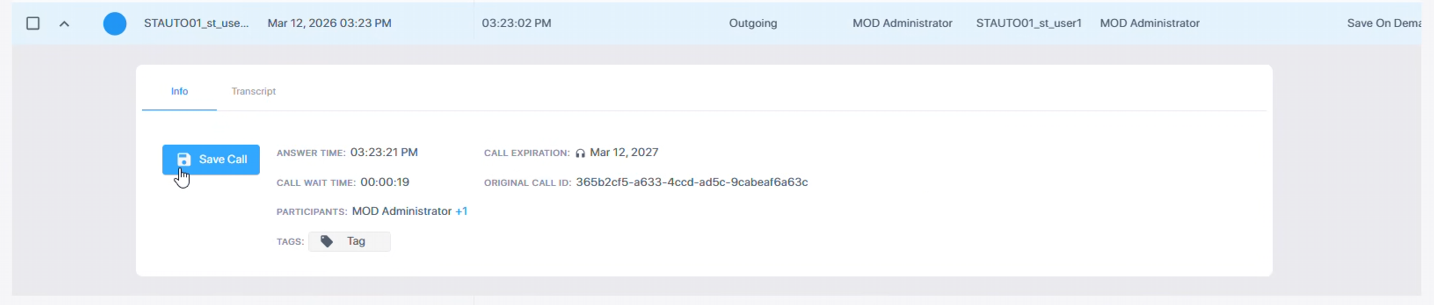
If the call has not been saved until the end of the grace period by any of its participants, it is deleted.