Configuring Calling Profiles
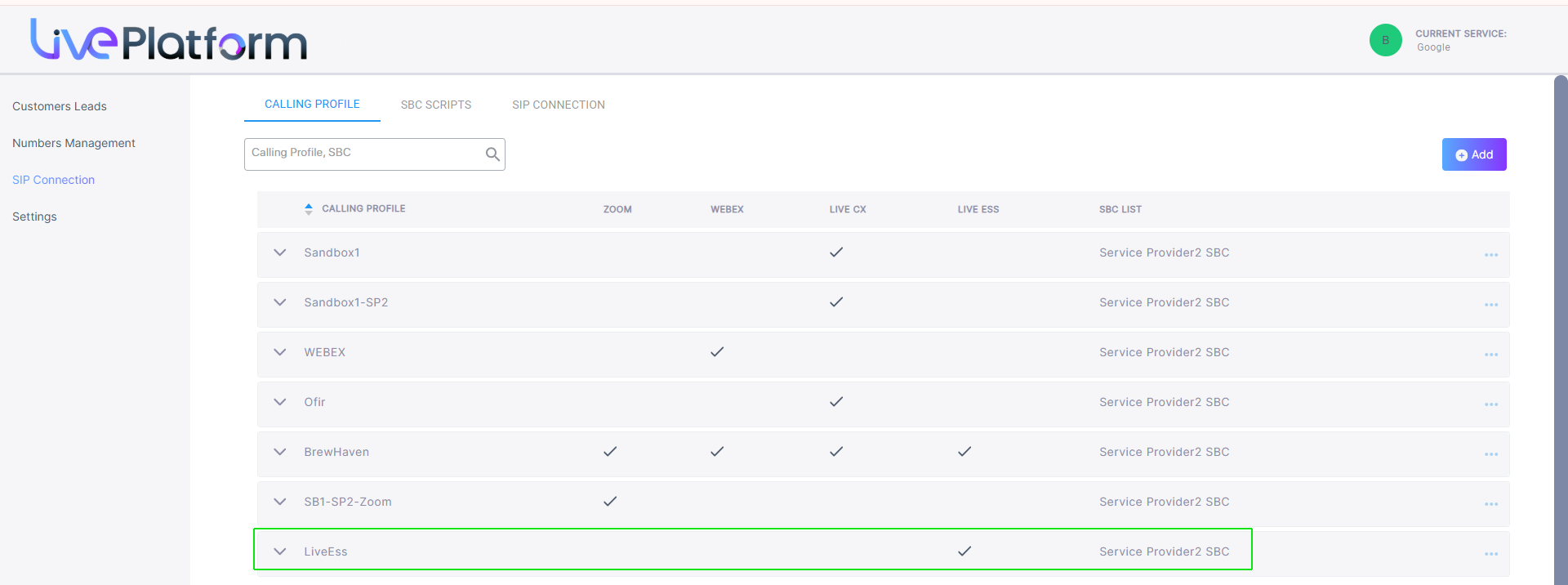
The Calling Profile screen lets you manage Calling Profiles that are configured in Live Platform.
| ➢ | To manage Calling Profiles: |
| 1. | In the Navigation pane, select SIP Connection. The Calling Profile tab is displayed by default. |
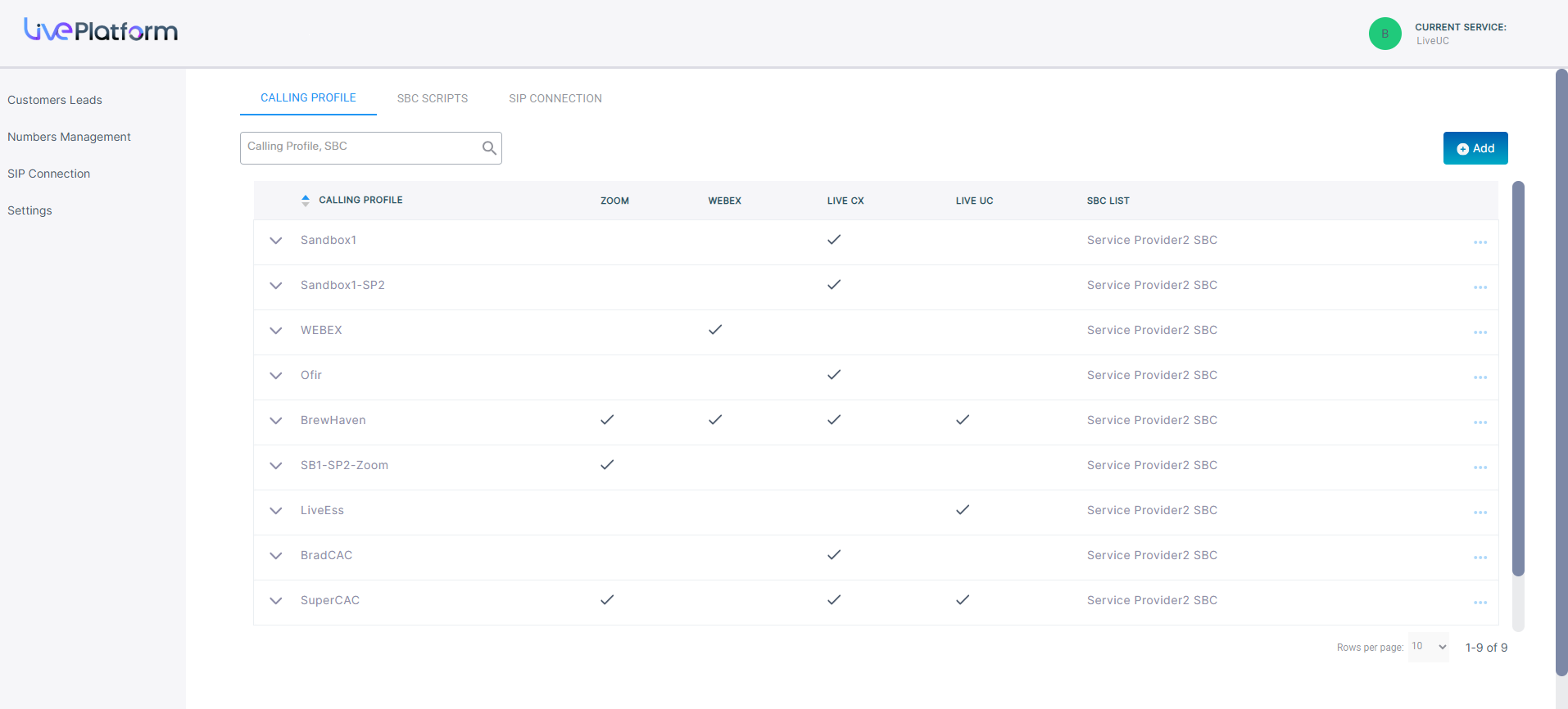
The table below describes the parameters in this screen.
| Parameter | Description | ||||||||||||
|---|---|---|---|---|---|---|---|---|---|---|---|---|---|
|
Calling Profile |
The name of the calling profile. |
||||||||||||
|
Service Type Indicators |
Indicators whether the following service types are enabled:
|
||||||||||||
|
SBC List |
Name of the SBC device attached to the Calling Profile that is used to connect calls. |
| 2. | Click Add to add a new Calling Profile. |
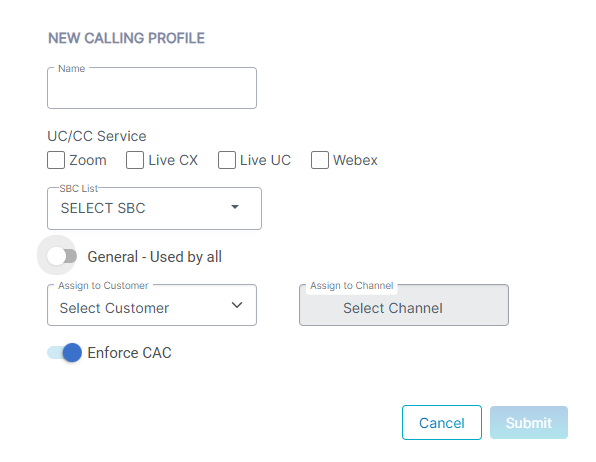
| 3. | Configure profile according to the table below and then click Submit. |
| Parameter | Description |
|---|---|
| Name | Descriptive name of the service. |
| UC/CS Service |
Select Live UC |
|
SBC List |
Select an SBC device from the drop-down list to attach to the Calling Profile. |
|
General-Access to All |
Select the General-Access to All option to provide unrestricted access to all managed customer and channel entities. |
|
Assign to Customer |
Deselect the General-Access to All option and then from the Assign to Customer drop-down, choose the specific customer to attach the profile. |
|
Assign to Channel |
Deselect the General-Access to All option and then from the Assign to Channel drop-down, choose the specific channel to attach the profile. In this case, all customers attached to the channel, use the profile. |
|
Enforce CAC |
Select this option to enforce the assignment of a Call Admission Control profile for SIP Connections. |
The new Calling Profile is added.