Switch to App Registration
This option lets you upgrade the connection to the customer M365 platform by sending an email to the M365 customer admin including a link to the Invitation wizard. You can then either enter the credentials of an existing App registration or create a new App registration.
|
1.
|
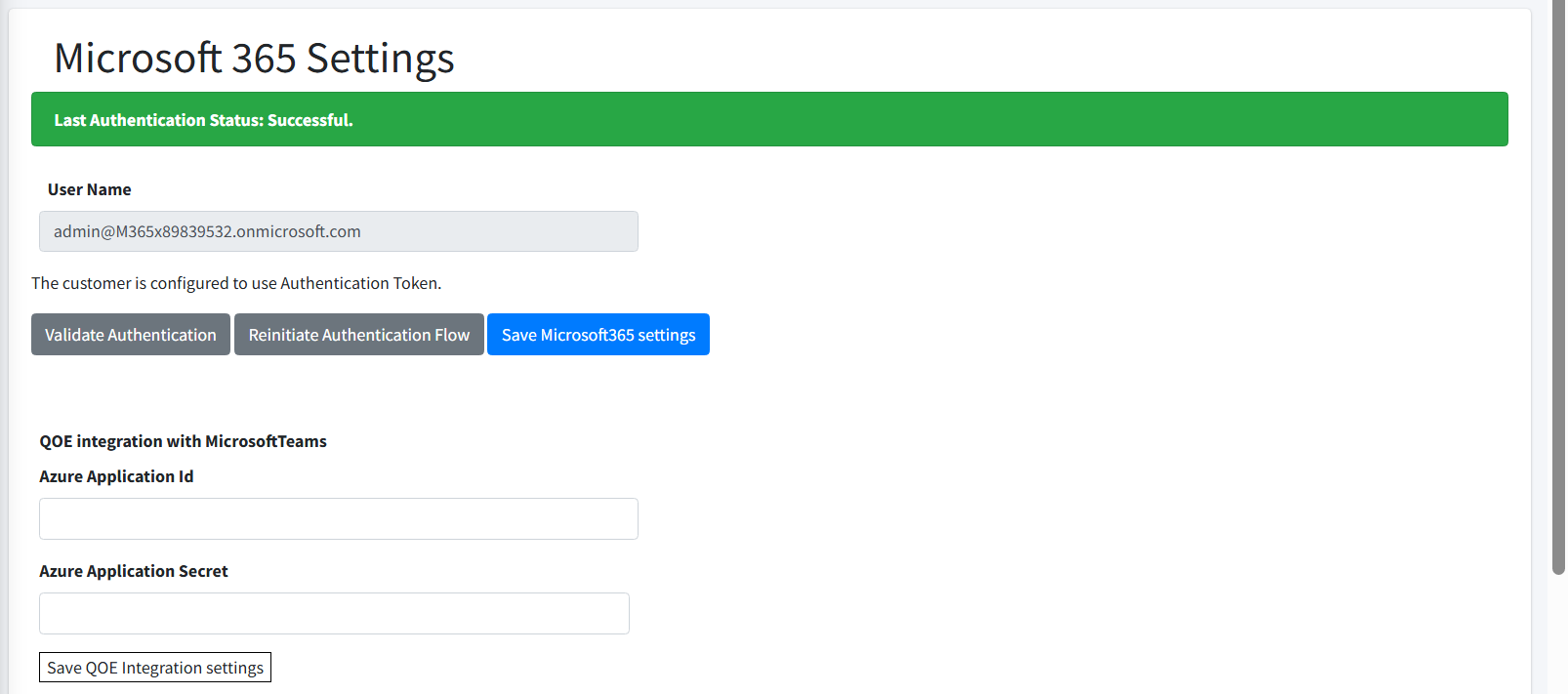
In the Service portal Navigation pane, select Configuration > M365 Configuration. |
|
2.
|
Click Reinitiate Authentication Flow. |
|
3.
|
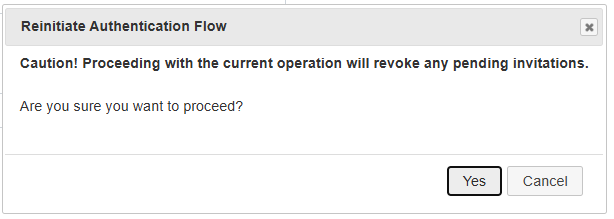
You are prompted if you wish to proceed. Click Yes. |
|
4.
|
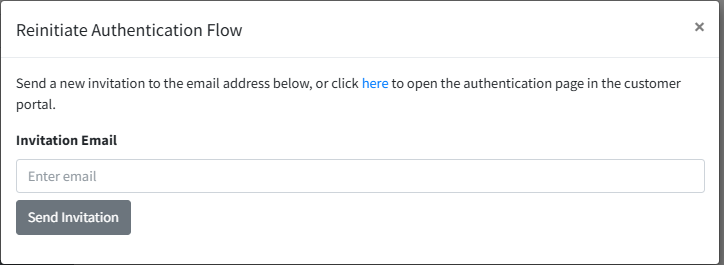
Enter the Invitation Email address of the M365 tenant admin and then click Resend Invitation or click here to open the Invitation wizard directly. If you entered an email address, click the pending invitation link at the top of the screen to open the Invitation wizard. Note that the User Name field is filled after the registration process is complete. |

|
5.
|
Do one of the following: |
|
●
|
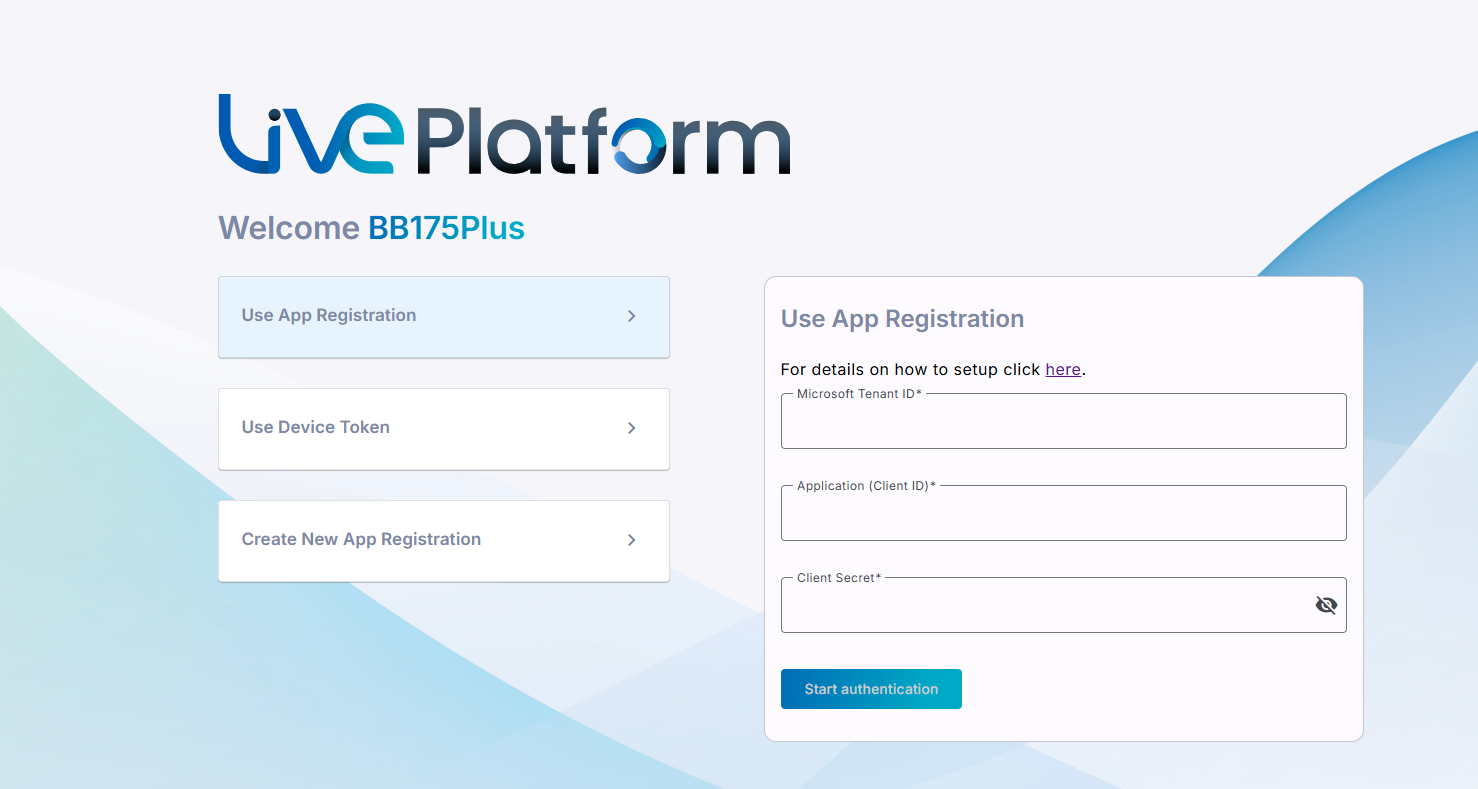
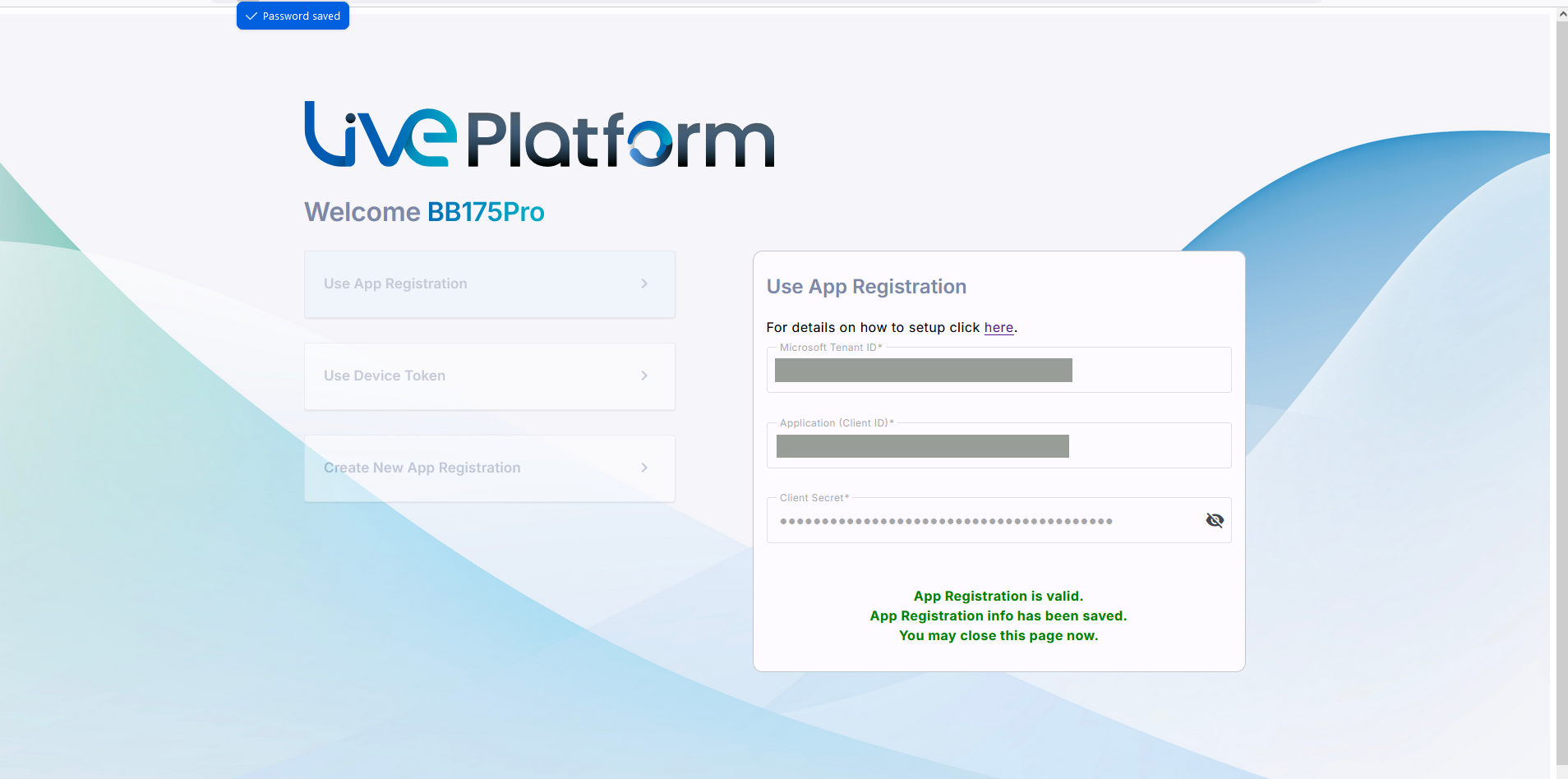
If you created the Application Registration manually: Select option Use App Registration and then enter the Microsoft Tenant ID, Application (Client) ID of the App Registration and the Client Secret value (see Create App Registration Manually) and then click Start authentication. A message similar to the following is displayed. |
|
◆
|
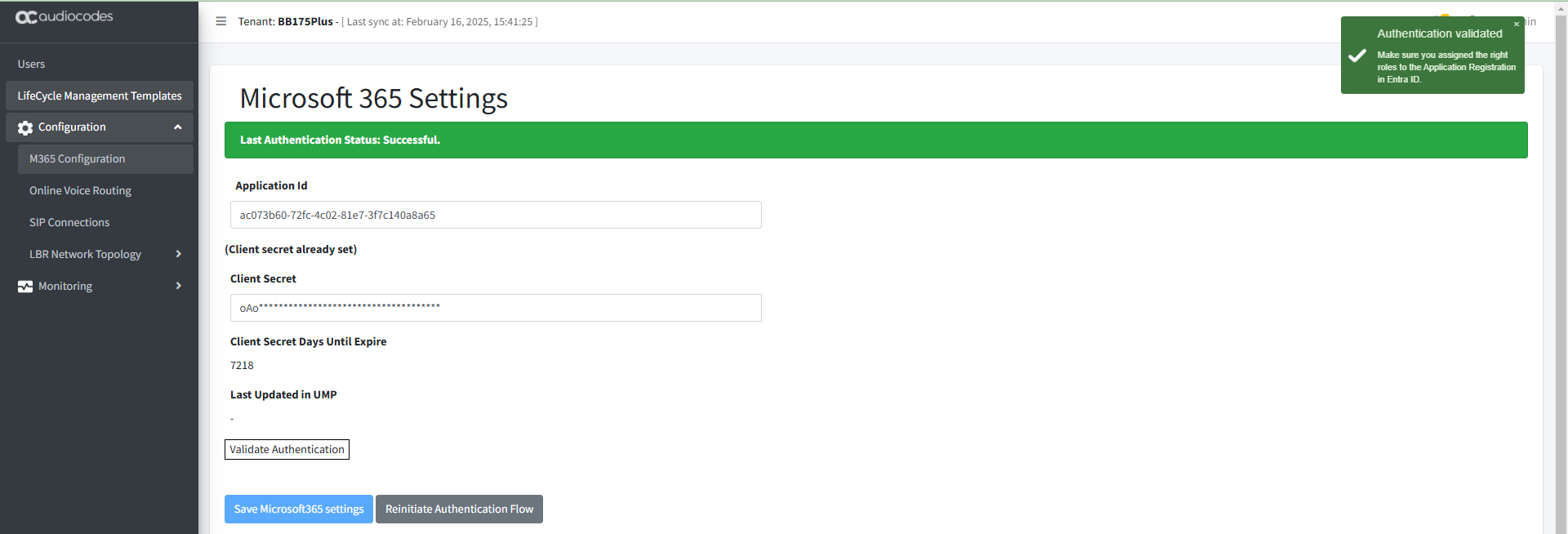
Navigate to the Microsoft 365 Settings page (Configuration > M365 Configuration). Note that the User Name field is filled with the Admin tenant user who authenticated the registration. |
|
◆
|
Click Validate Authentication to validate the credentials of the tenant service with the App Registration. The Client Secret Days Until Expire value is displayed once the secret has been set for the first time. |
|
●
|
Select option Create New App Registration (see Create Application Registration Automatically using Invitation Wizard). |