Changing User Passwords in IAM
You can change your user password. This is done through Live Platform's IAM interface.
Changing your password won’t log you out of your current Live Platform session. You’ll simply use the new password the next time you sign in.
|
➢
|
To change user password: |
|
2.
|
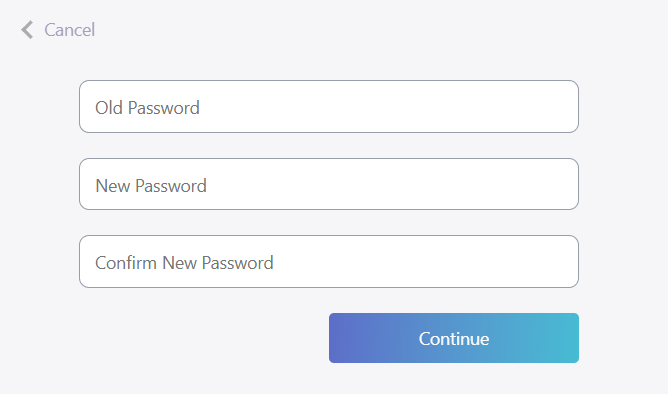
Click your profile icon located in the top-right corner, and then from the drop-down menu, choose Change Password; the following dialog box appears: |
|
3.
|
In the 'Old Password' field, enter your current password. |
|
4.
|
In the 'New Password' field, enter a new password and then enter it again in the 'Confirm New Password' field to confirm. |
The password must adhere to the following password complexity policy:
|
●
|
Contain at least 8 characters, with a maximum of 16 characters. |
|
●
|
Fulfill at least three of the following conditions: |
|
✔
|
Contain at least one upper-case letter (A-Z). |
|
✔
|
Contain at least one lower-case letter (a-z). |
|
✔
|
Contain at least one digit (0-9). |
|
✔
|
Contain at least one symbol ((@ # $ % ^ & * - _ + = [ ] { } | \ : ' , ? / ` " ~ ( ) ; . )). |