Step 1- Run AudioCodes PowerShell Script
You must run the AudioCodes provided CreateAPITokenAppReg.ps1 script to automatically create an Azure registration for establishing a secure connection between a REST API client and the Live Platform UMP-365 server.
|
1.
|
Copy the CreateAPITokenAppReg.ps1 script to the desired location on your PC. |
|
2.
|
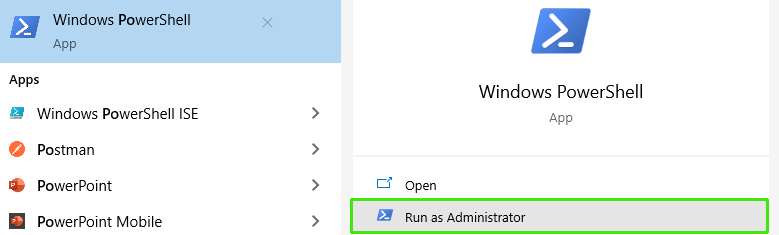
Open a Windows PowerShell ISE console as Administrator. |
|
3.
|
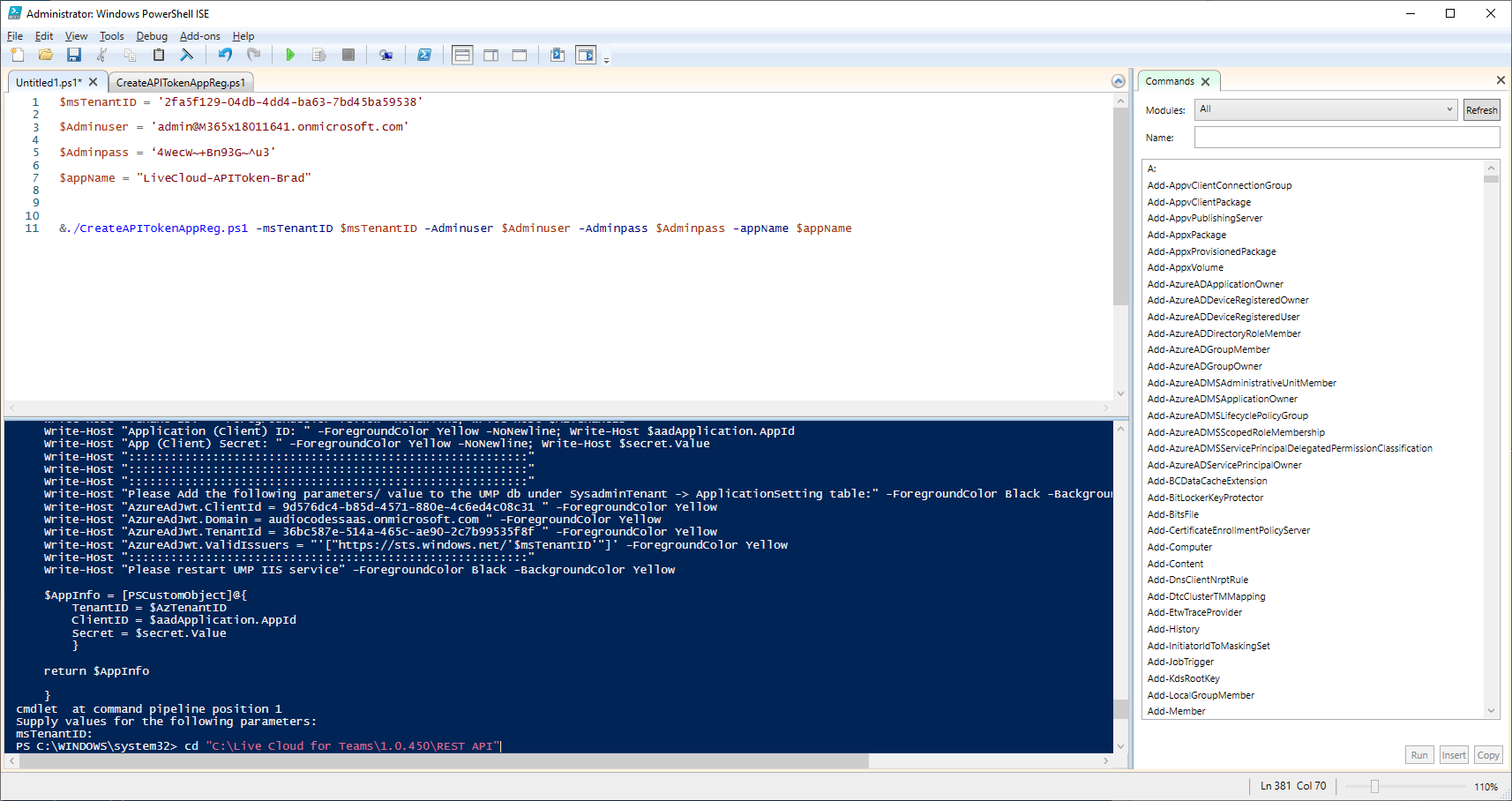
In the top pane, copy the following: |
Copy
$msTenantID = 'xxxx-xxxx-xxxx-xxxx-xxxxxxxxxxxx'

$Adminuser = 'admin@xxxx.onmicrosoft.com'

$Adminpass = ‘xxxxxx'

$appName = "LiveCloud-APIToken-xxxx"


&./CreateAPITokenAppReg.ps1 -msTenantID $msTenantID -Adminuser $Adminuser -Adminpass $Adminpass -appName $appName
|
●
|
appName (enter LiveCloud-APIToken-<CustomFreeText>) |
|
5.
|
Change directory to the location where you saved the script "CreateAPITokenAppReg.ps1": |
cd "<Directory Location of script>"
|
6.
|
On the PowerShell ISE Toolbar, click  button to run the script. button to run the script. |

|
●
|
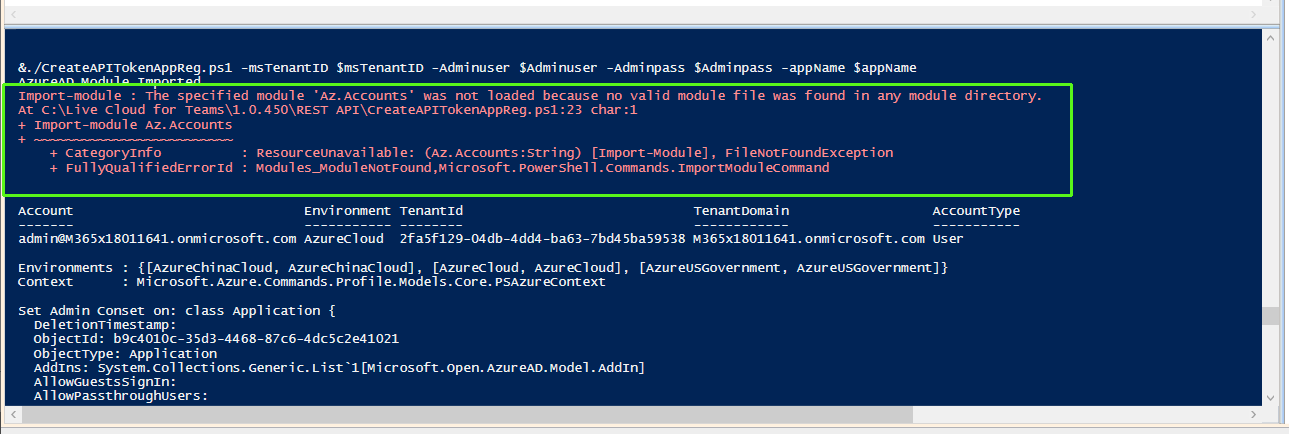
During the script run, the following message may appear; the missing component is automatically installed and the script run continues. |
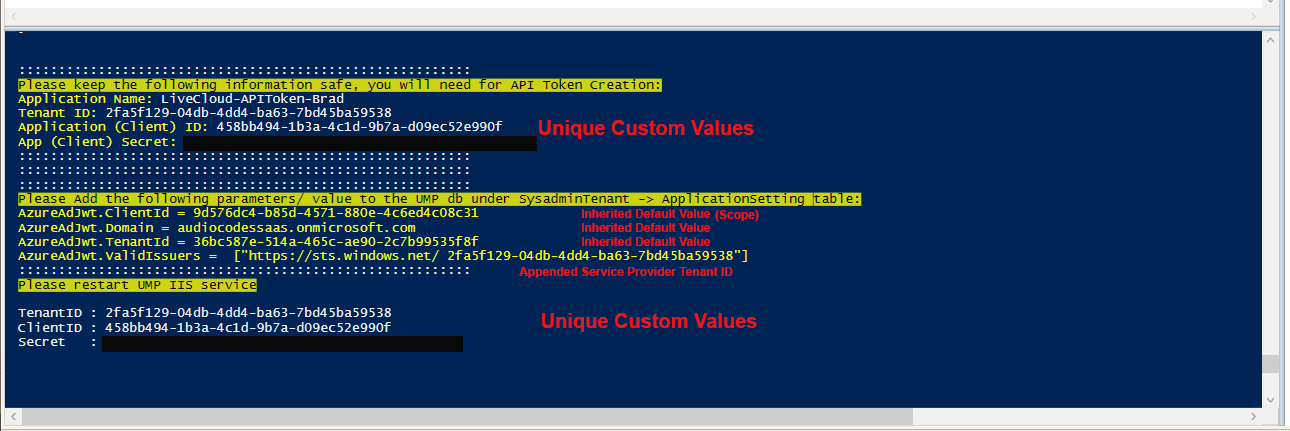
At the end of the script, the following messages are displayed (including the output parameter categories):
|
7.
|
Copy the following parameters from the Console screen shown above to notepad; these parameters are required for connecting the REST API client to the UMP-365 server in Step-4 Configure REST API Client: |
|
●
|
Application (Client) ID |