Migrate service to Zoom Provider Exchange V3
This option lets you migrate an existing Zoom service inV2 mode to V3. If a Token connection with the Customer account is secured then you can upgrade seamlessly without customer consent. If you do not have a Token connection with the Customer portal, then you can instigate the process from the Service portal, however the customer must complete the process in the Customer portal.
This option is only available for services with all uploaded numbers with “User” type. For Contact-Center and Service numbers, the migration process should be performed by AudioCodes Professional Services.
| ➢ | To migrate your service with a Token connection: |
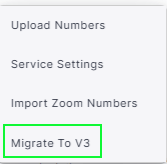
| 1. | In the Customer Leads page, select the All Customers tab, select the relevant service and then from the ... menu, choose Migrate to V3. |
| 2. | Click Migration Now. |
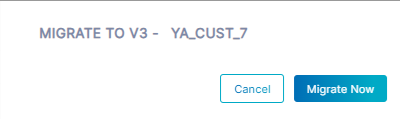
A journal entry indicates that the Migration process has commenced.

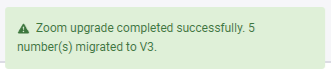
Once the service has been successfully migrated, the following confirmation message is displayed.
| ➢ | To migrate the service without a Token connection: |
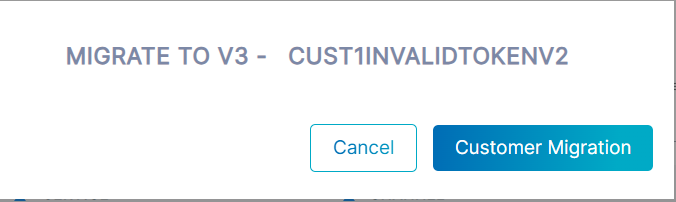
| 1. | Select the relevant service and then from the ... menu, choose Migrate to V3. |
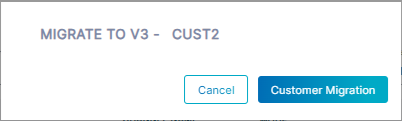
| 2. | Click Customer Migration. A request is sent to the customer. |

The status "Pending Migration" is shown alongside the customer entry.
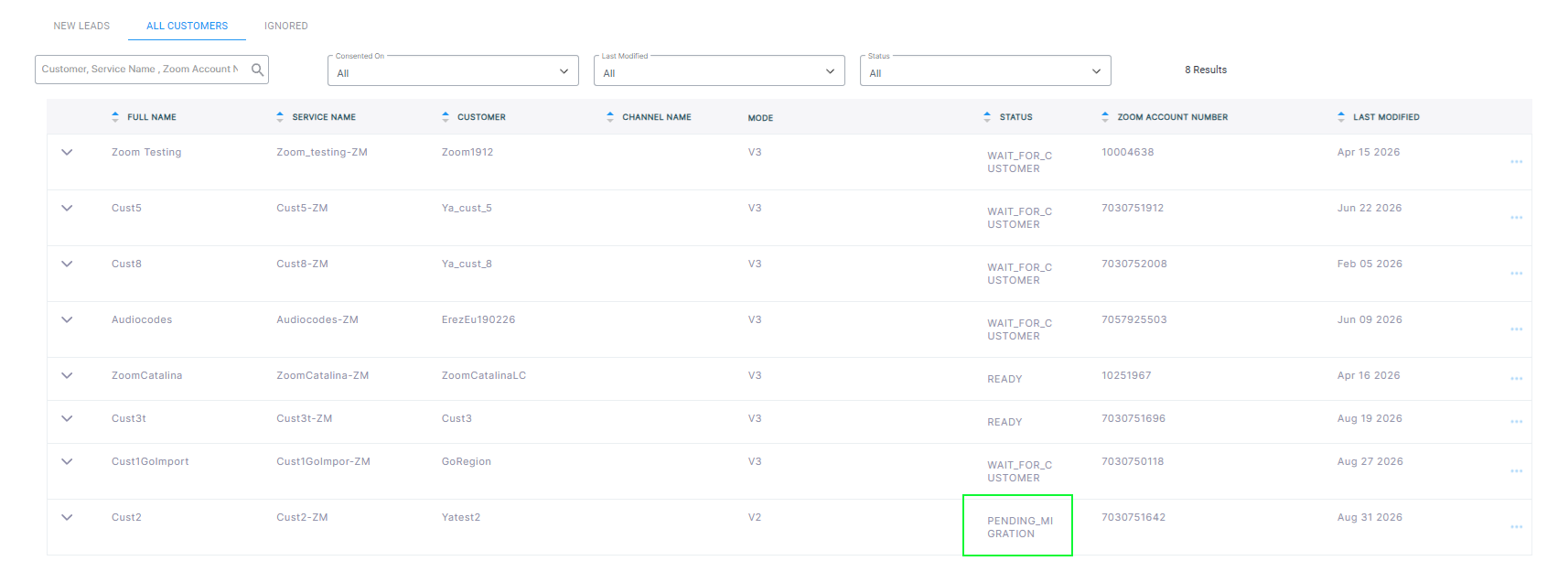
| 3. | Open the Customer portal and then click Upgrade Zoom. |
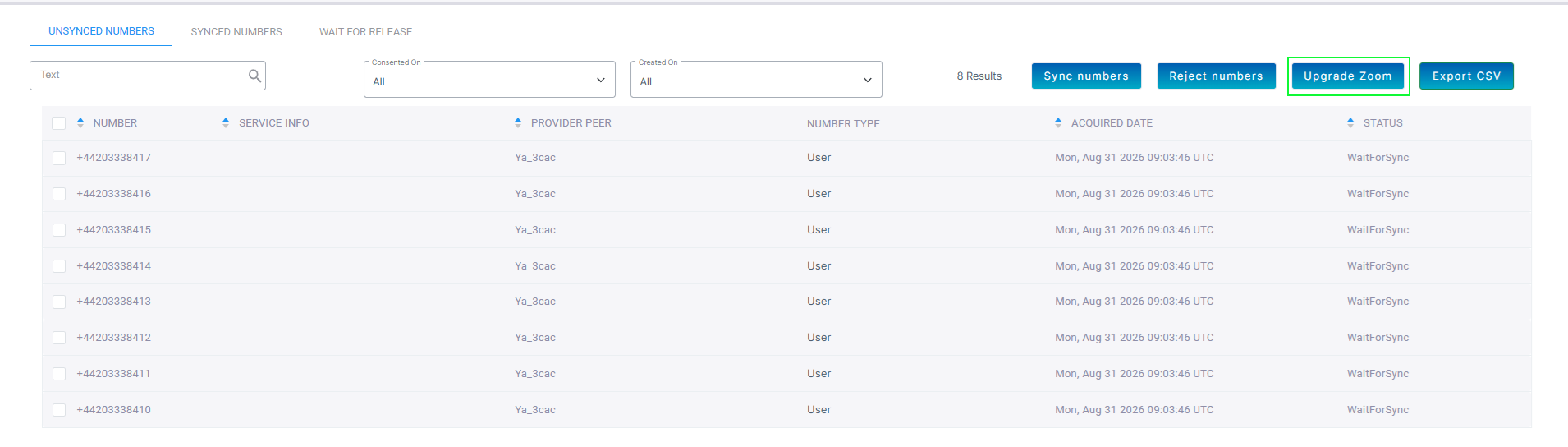
If you have numbers that are not synchronized then they are not migrated during this process. Once you have successfully migrated the service and synchronized the numbers then they are automatically migrated with V3 tags.
A dialog is displaying indicating that all V2 numbers will be migrated to Zoom V3.
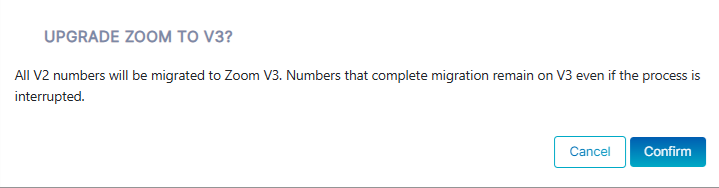
| 4. | Click Confirm. A confirmation message is displayed indicating that the upgrade was successful and that the numbers were successfully migrated. |
