Customizing Meeting Insights Bot Name and Notification for Third-Party Meeting Apps
If you’ve enabled recording for meetings hosted by third-party apps (such as Zoom, Microsoft Teams meetings organized by external organizations, Google Meet, or Webex), you can customize the name of Meeting Insights bot that joins these meetings to record them.
For Google Meet and Webex meetings, you can also customize the notification message that appears in the chat window when Meeting Insights bot joins to record the meeting.
You can use placeholders (variables or templates) when defining a bot name, which Meeting Insights replaces with actual values. For example, if the name of the user is Bob, then the bot name defined as "<UserFirstName>'s Meeting Assistant" is displayed as "Bob's Meeting Assistant". The default bot name is "<UserFirstName>'s Meeting Assistant and Recorder".
For more information on enabling Meeting Insights to record meetings hosted by third-party apps, see the following sections:
|
➢
|
To customize Meeting Insights bot name and recording notification: |
|
1.
|
In the Admin Settings menu pane, expand Integrations, and then click UC Recording; the UC Recording Integration page appears: |
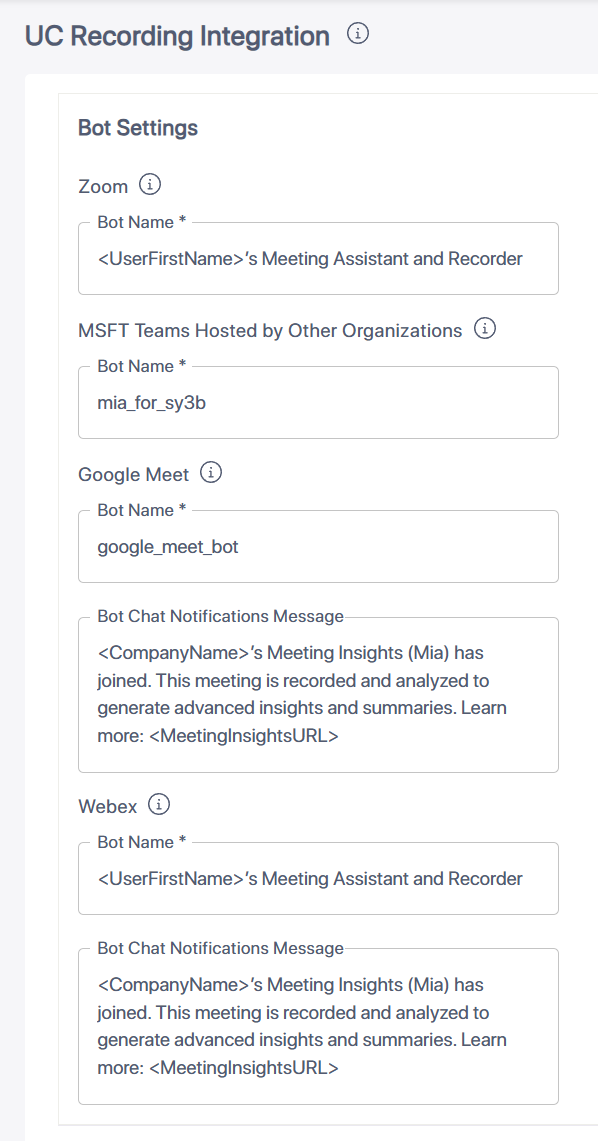
Under Zoom, in the 'Bot Name' field, configure a bot name. To view the supported placeholders, click the i icon.
|
3.
|
Microsoft Teams meetings:
|
Under MSFT Teams Hosted by Other Organizations, in the 'Bot Name' field, configure a bot name. To view the supported placeholders, click the i icon.
Under Google Meet:
|
a.
|
In the 'Bot Name' field, configure a bot name. To view the supported placeholders, click the i icon. |
|
b.
|
In the 'Bot Chat Notifications Message' field, type the recording notification message that you want displayed in the Google Meet chat window when Meeting Insights bot joins the meeting to record it. If you don't want a message to appear, delete all the text in the field (i.e., empty field). |
Under Webex:
|
a.
|
In the 'Bot Name' field, configure a bot name. To view the supported placeholders, click the i icon. |
|
b.
|
In the 'Bot Chat Notifications Message' field, type the recording notification message that you want displayed in the Webex chat window when Meeting Insights bot joins the meeting to record it. If you don't want a message to appear, delete all the text in the field (i.e., empty field). |