Enabling Users to Record Google Meet Meetings
You can enable users (associated with a specific User Profile) to have their Google Meet meetings recording by Meeting Insights. The Google Meet can be hosted by your organization or by an external organization (external meeting).
You can also customize the name of the Meeting Insights bot that joins Google Meet meetings to record them and the recording notification message that is displayed when the bot joins. For more information, see Customizing Meeting Insights Bot Name and Notification for Third-Party Meeting Apps.
For Meeting Insights to record external Google Meet meetings, the administrator of the other organization needs to allow anonymous users to join their meetings. The administrator of the other organization has various ways to manage anonymous users. For further information, go to Google's documentation on Control meeting access with host controls.
|
➢
|
To enable users to record Google Meet meetings: |
|
1.
|
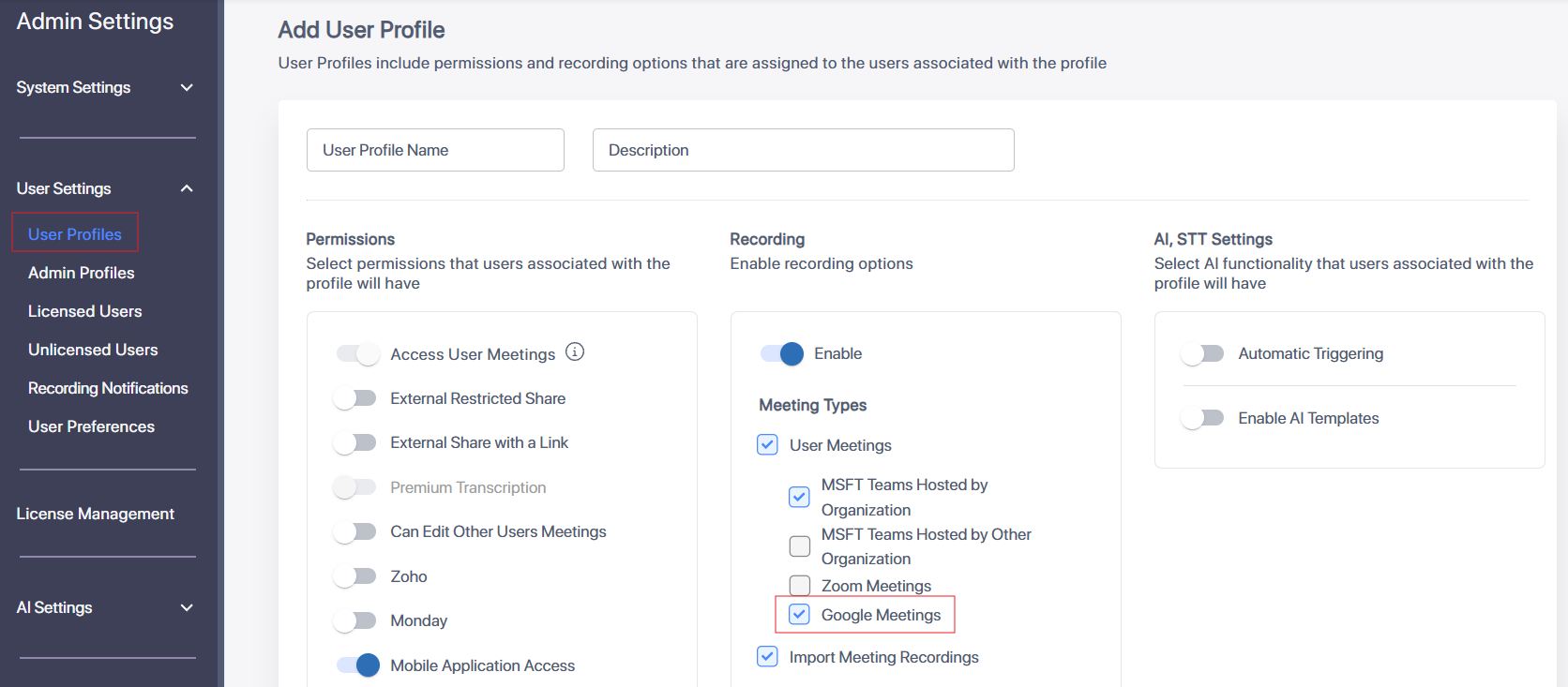
In the Admin Settings menu pane, expand User Settings and then click User Profiles. |
|
2.
|
Select a User Profile that contains the users for whom you want to enable recording of Google Meet meetings; the Edit User Profile page appears. |
|
3.
|
In the Recording section, under the Metering Types group, select the 'Google Meetings' check box: |