View the Audit Trail
Meeting Insights features an 'Audit Trail' which logs for future reference admin and user activities performed in Meeting Insights.
Meeting Insights keeps audit trail logs for two years and automatically deletes them when the retention period ends.
|
➢
|
To monitor audit trail: |
|
1.
|
In the Admin Settings menu pane, expand Monitoring, and then click Audit Trail; the Audit Trail page appears. |
|
2.
|
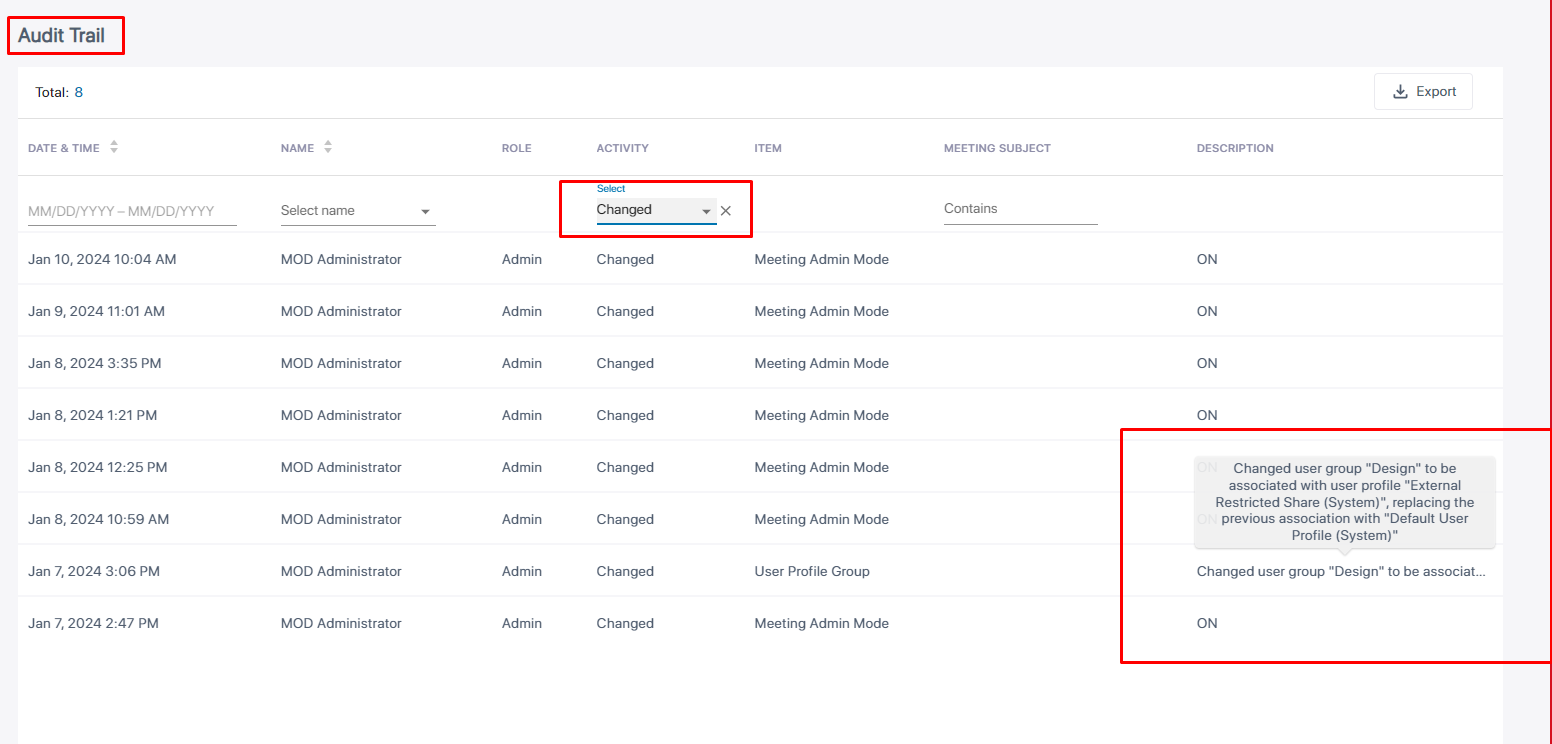
[Optionally] Select an Activity filter in order to filter the page by an action users perform in the system (Accessed, Changed, Downloaded, Added, Deleted, etc.). Other filters can also be selected to exclude more unwanted information from the page for more effective management. After the user profile of a user group is changed, for example, the Audit Trail page's Activity filter enables you to determine details such as at what time the change was made, who made it, which user group's user profile was changed, and from what profile to what profile. |
|
●
|
All logins / logouts of all users are recorded. |
|
●
|
The activity Deleted is also associated with the item of Meeting deletion, so if you select this activity, this item will also be displayed. |
|
●
|
The activity Downloaded is associated with items such as Meeting Downloaded or Recap downloaded. |
|
●
|
There are no items associated with the activity Accessed; the activity implies generic access to content, or else the item indicates Meeting and the subject of the meeting. |
|
●
|
Items associated with the activity Added | Deleted | Changed are (for example) Participant | ActionItem | Highlight | EditPermissions | External share, etc.; these items will be displayed if you select this activity. |
|
3.
|
[Optionally] Select a Date filter. Click the calendar icon and from the popup calendar select a month | day | year; only activities that took place on this date will be displayed in the page (activities that did not take place on this date will be excluded).
|
|
4.
|
[Optionally] Select a Meeting Subject filter. Enter the subject of the meeting; only activities associated with meetings whose subject line matches the text you entered will be displayed (activities associated with meetings whose subject line does not match the text will be excluded). |
|
5.
|
[Optionally] Select a Name filter. Click the drop-down arrow and in the 'Search' field displayed, specify the name of a user; only entries related to that user will be displayed. |
More than one filter can be applied: Activity, Date, Meeting Subject and/or Name.
|
6.
|
To download audit trail logs to your computer in .csv file format: |
Click the Export button; Meeting Insights downloads the logs to your computer as a file named AuditCsv.csv.
You can download up to 10,000 log entries. If the list exceeds this limit, apply filters to reduce the number of entries.