View System Activity Logs
Meeting Insights logs system activities, for example, storage, user licensing, and connectivity with Microsoft Entra ID. These logs let you monitor and troubleshoot Meeting Insights processes.
Meeting Insights displays the following log types:
|
■
|
Information - informational operations |
|
■
|
Alarms - critical system issues |
|
■
|
Warnings - issues that require attention |
|
■
|
Errors - failed operations or system faults |
|
■
|
Cleared - resolved alarms, warnings, or errors |
To easily find relevant logs, you can filter the log list using one or more filters. For example, you can filter the list to show only logs with Alarm 'Log Type' and License 'Activity Type'.
You can also download all the logs or selected logs to your computer as a file (.csv).
Meeting Insights keeps system activity logs for one year and automatically deletes them when the retention period ends.
|
➢
|
To view system activity logs: |
|
1.
|
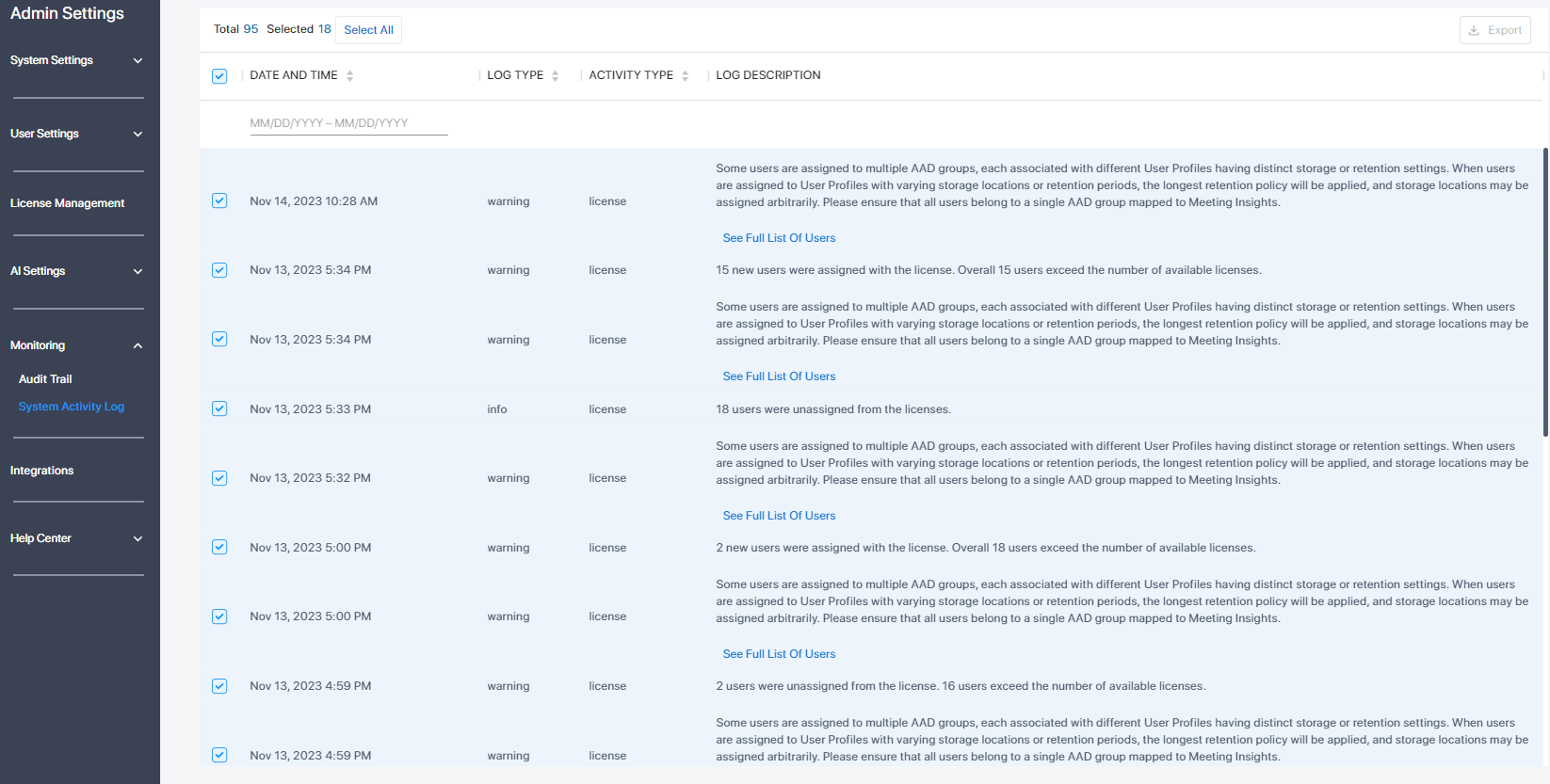
In the Admin Settings menu pane, expand Monitoring, and then click System Activity Log; the System Activity Log page appears: |
|
2.
|
To filter the log list, use the filter fields below the table column headers: |
|
●
|
Date and Time - filters by date and time range |
|
●
|
Log Type - filters by log type |
|
●
|
Activity Type - filters by activity type |
|
●
|
Log Description - filters by a user-defined string in the log description |
|
3.
|
To sort the log list by oldest to newest (ascending) or newest to oldest (descending), click the 'Date and Time' column header. |
|
4.
|
To download logs to your computer in .csv file format: |
|
a.
|
Select the check boxes of the logs you want to download. If you want to download all the logs, select the check box next to the 'Date and Time' column header. |
|
b.
|
Click the Export To CSV button; Meeting Insights downloads the logs to your computer as a file named Activities.csv. |