Installing and Configuring Power BI Analytics
The procedure described here shows how to install | configure Meeting Insights Power BI Analytics.
Prerequisites
|
●
|
Office 365 E5 customer account or any Office 365 licensed account with an individual Power BI Pro license attached. |
|
●
|
One Power BI Pro license is included with Microsoft E5 license. |
The procedure in this section describe the Microsoft Power BI user interface as it appears at the time this section was documented.
Microsoft may change the Power BI user interface without notice. If the Power BI screens, menus, or options differ from those described in this section, refer to the current Power BI interface and Microsoft documentation to complete the procedure.
|
2.
|
Create a Power BI workspace for Meeting Insights:
|
|
a.
|
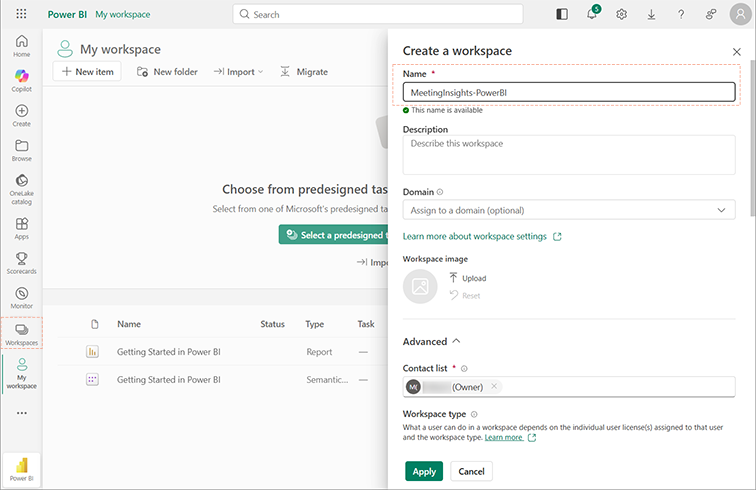
In the left navigation menu, select Workspaces, and then click the New workspace button. |
|
b.
|
Define a name for the workspace, for example, "MeetingInsights-PowerBI": |
|
3.
|
Import the Meeting Insights Power BI report file (.pbix) to the workspace:
|
|
a.
|
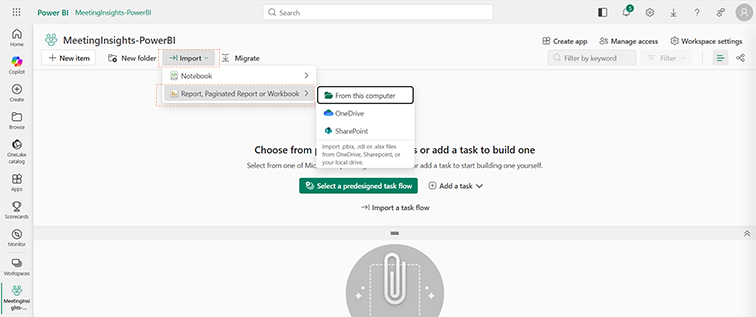
In the new workspace, click Import, point to Report, Paginated Report or Workbook, and then choose From this computer: |
|
b.
|
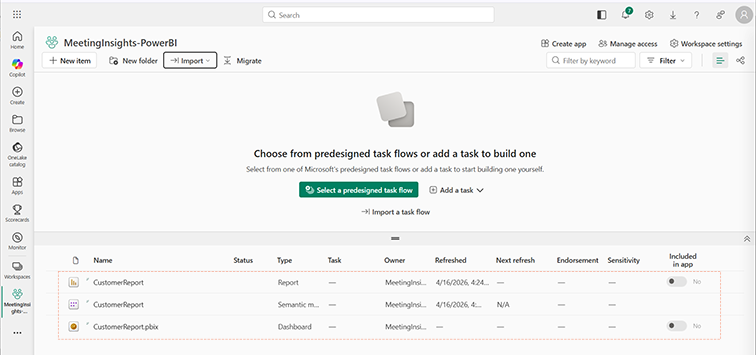
Select the Power BI file (.pbix) that you downloaded from Meeting Insights in the previous section (see Enabling Power BI Integration in Meeting Insights); Power BI uploads the file to the workspace, listing the report, semantic model, and dashboard item types, as shown below: |
|
4.
|
Define the credentials for the dataset semantic model:
|
|
b.
|
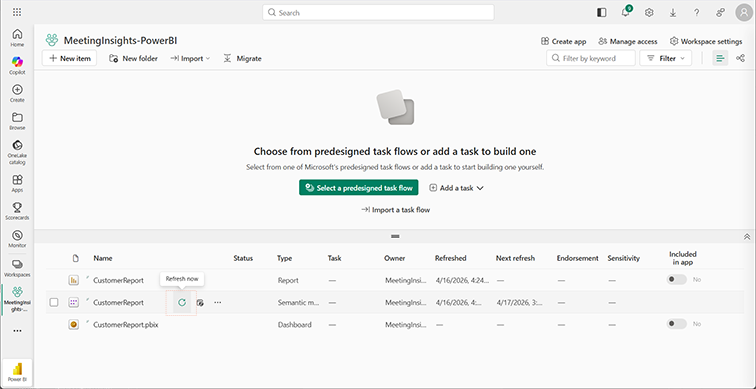
In Power BI, go to your new workspace, click the ellipsis icon of the Semantic Model item type (see below), and then from the drop-down menu, choose Settings. |

|
c.
|
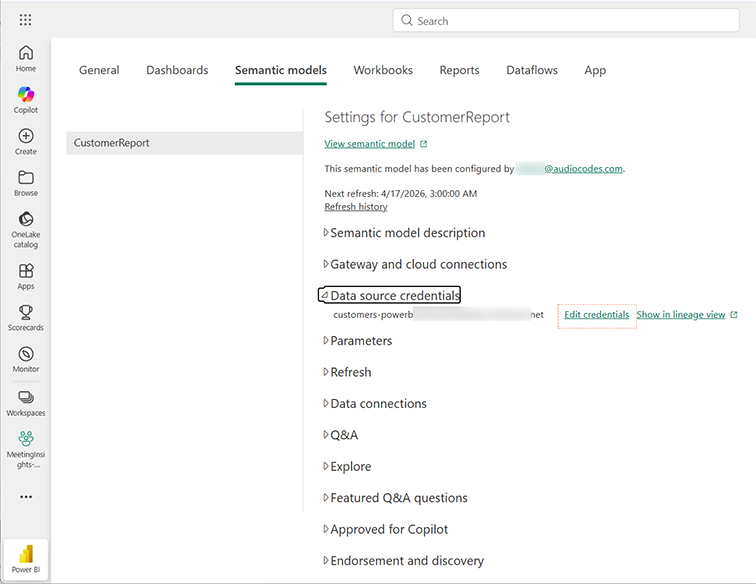
Expand the Data source credentials group, and then click Edit credentials: |
|
d.
|
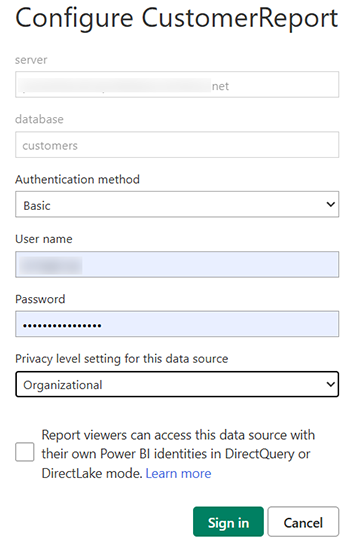
In the 'User Name' and 'Password' fields, paste the username and password that you copied from Meeting Insights. |
|
5.
|
[Recommended] Set a daily refresh schedule for the Semantic model: |
|
a.
|
In Power BI, go to your new workspace, click the ellipsis icon of the Semantic Model item (see below), and then from the drop-down menu, choose Settings. |
|
b.
|
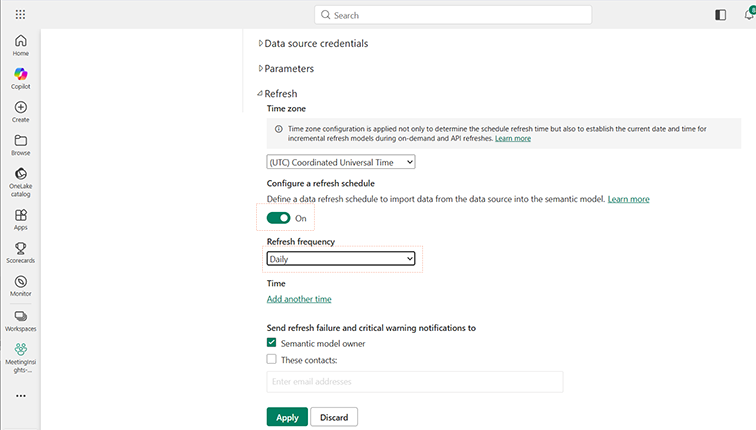
Expand the Refresh group. |
|
c.
|
Under Configure a refresh schedule, click the toggle button to turn on scheduled refresh. |
|
d.
|
From the 'Refresh frequency' drop-down list, select Daily. |
|
6.
|
In Power BI, go back to the new workspace, and then click the Refresh now icon of the Semantic model item. |