Viewing a Meeting Recording in Mobile App
You can play the video of a recorded meeting and view its recap, highlights, and slides.
| ➢ | To view a meeting recording: |
| 1. | Go to the home screen listing all the meeting recordings (see Viewing Meeting Recordings List on Mobile App). |
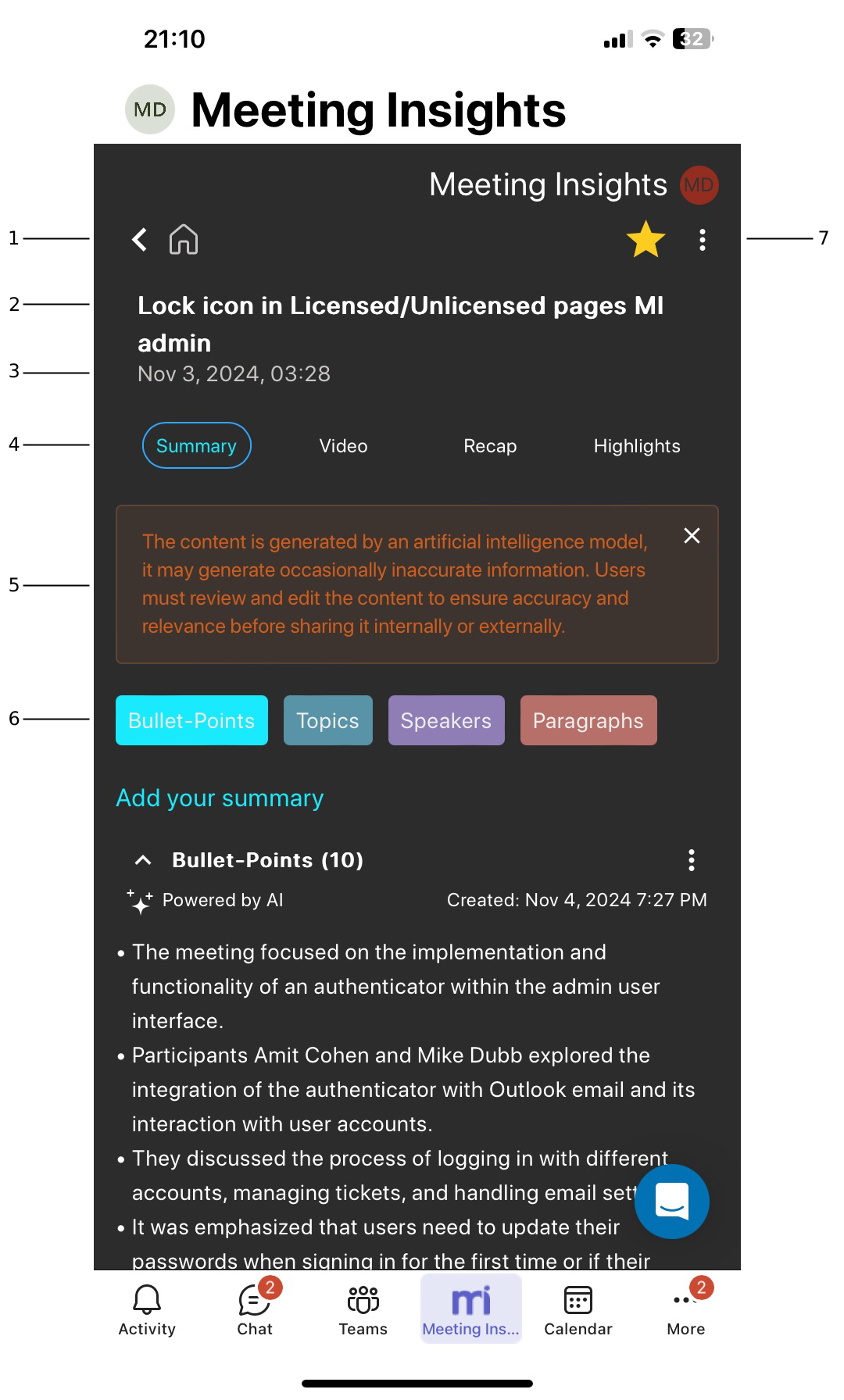
| 2. | Tap the meeting recording that you want; the Player screen appears: |
|
Item # |
Description |
||||||||||||
|---|---|---|---|---|---|---|---|---|---|---|---|---|---|
|
1 |
Tap the home icon to return to the home screen listing all the meeting recordings. |
||||||||||||
|
2 |
Name of meeting recording. |
||||||||||||
|
3 |
Date and duration of meeting recording. |
||||||||||||
|
4 |
Tab bar:
|
||||||||||||
|
5 |
If the insights were generated by AI, this warning message is displayed. For generating AI insights, see Running AI-Generated Insights. |
||||||||||||
|
6 |
AI-generated summary, grouped into Bullet-Points, Topics, Speakers, and Paragraphs. For generating AI insights, see Running AI-Generated Insights. |
||||||||||||
|
7 |
Three-dot vertical menu, which when tapped, displays a drop-down menu with the following commands:
|