Importing a Certificate into the Trusted Root CA Certificate Store for a TLS Context
The device includes its own Trusted Root Certificate Authority (CA) Certificate store, so you can manage certificate trust separately for each TLS Context.
When the device receives a certificate from a remote peer, it checks whether a CA listed in the Trusted Root CA Certificate store for that TLS Context signed the certificate:
|
■
|
If a listed CA signed the certificate: The device accepts the certificate, provided the certificate also passes other checks (such as domain and IP validation). |
|
■
|
If no listed CA signed the certificate: The device rejects both the certificate and the connection request. |
Whether the device checks the Trusted Root CA Certificate store depends on its role in the connection:
|
■
|
Client: The device always checks the Trusted Root CA Certificate store. |
|
■
|
Server: The device checks the Trusted Root CA Certificate store only if you configure it to do so. |
Depending on certificate size, you can import up to approximately 150 certificates into the Trusted Root CA Certificate per TLS Context.
Instead of importing CA certificates into the Trusted Root CA Certificate store for a TLS Context, you can enable the TLS Context to use the device's default list of CAs. To do this, configure the 'Use default CA Bundle' parameter to Enable in the TLS Contexts table (see Configuring TLS Contexts). To view the default CAs, see Viewing Default Certificate Authorities.
|
●
|
If you've enabled the use of the device's default CAs for a TLS Context: |
|
✔
|
The default CAs aren't listed in the Trusted Root CA Certificate store for the TLS Context (even though they are used). |
|
✔
|
You can enable the use of the default CAs only for TLS Context IDs 0 through 4. |
|
✔
|
You can still import additional CAs into the Trusted Root CA Certificate store. In this case, the device uses both the default CAs and the ones you've imported. |
|
●
|
Only the Security Administrator can import certificates. |
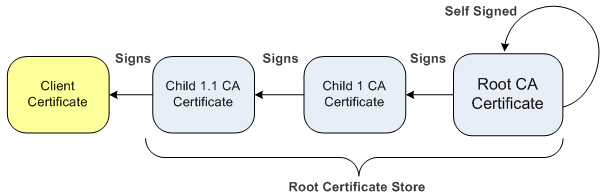
You can also use the Trusted Root CA Certificate store for certificate chains. A certificate chain is a sequence of certificates in which each certificate is signed by the next certificate in the chain. The last certificate in the chain is the root CA certificate, which is self-signed.
A certificate chain establishes a path of trust from a child certificate to the trusted root CA certificate. Each CA vouches for the identity of the certificate below it by signing it. The device considers a client certificate trusted if any CA certificate in its chain is found in the server certificate directory. For the device to trust an entire certificate chain for a TLS Context, you must import all certificates in the chain into the Trusted Root CA Certificate store, as described in this section.
You can also import multiple root certificates in bulk from a single file. Each certificate in the file must be Base64 encoded (PEM). When you copy and paste certificates into the file, enclose each Base64 ASCII-encoded certificate string between "-----BEGIN CERTIFICATE-----" and "-----END CERTIFICATE-----".
|
●
|
You can import only Base64 (PEM) encoded X.509 certificates into the Trusted Root CA Certificate store. |
|
●
|
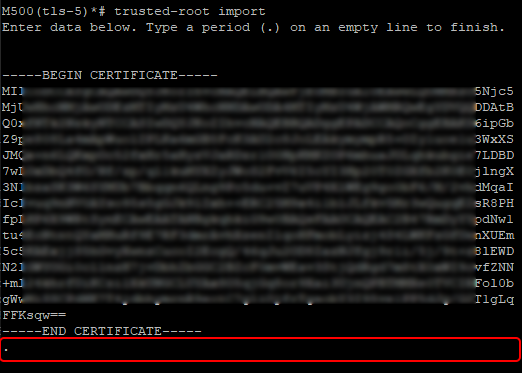
When importing certificates into the trusted root CA store through CLI, add a blank line containing a period (.) after the 'END CERTIFICATE' line, as shown in the following example: |
|
➢
|
To import certificates into Trusted Root CA Certificate store: |
|
2.
|
Select the TLS Context. |
|
3.
|
Click the Trusted Root Certificates link located below the table; the Trusted Root Certificates table appears for the TLS Context: |

|
4.
|
Click Action, and then from the drop-down menu, choose Import Certificate. |
|
5.
|
Browse to and select the certificate file on your computer; the device imports the certificate into the Trusted Root Certificate store and displays a message indicating that it was successfully uploaded. |
|
6.
|
Click Close to close the message. |
To delete a certificate from the Trusted Root Certificate store, select the certificate, and then click the delete  icon.
icon.
The Action menu also provides the following commands:
|
■
|
Certificate Information: Displays information of a selected trusted root certificate. |
|
■
|
Copy Certificate To Clipboard: Lets you copy the certificate to your clipboard. |
|
■
|
Export Certificate: Downloads the selected certificate to your computer. |